
Legamaster
Les écrans Legamaster sont entièrement pris en charge. Un écran Legamaster neuf est livré avec l’application LoopSign Player préinstallée, il n’y a donc rien à installer : ouvrez l’application et inscrivez l’écran dans votre compte LoopSign avec le code de hachage qu’il affiche (Inscrire un écran).
Mettre à jour l’application LoopSign Player
Section intitulée « Mettre à jour l’application LoopSign Player »Illustré sur un Legamaster Discover 2.
-
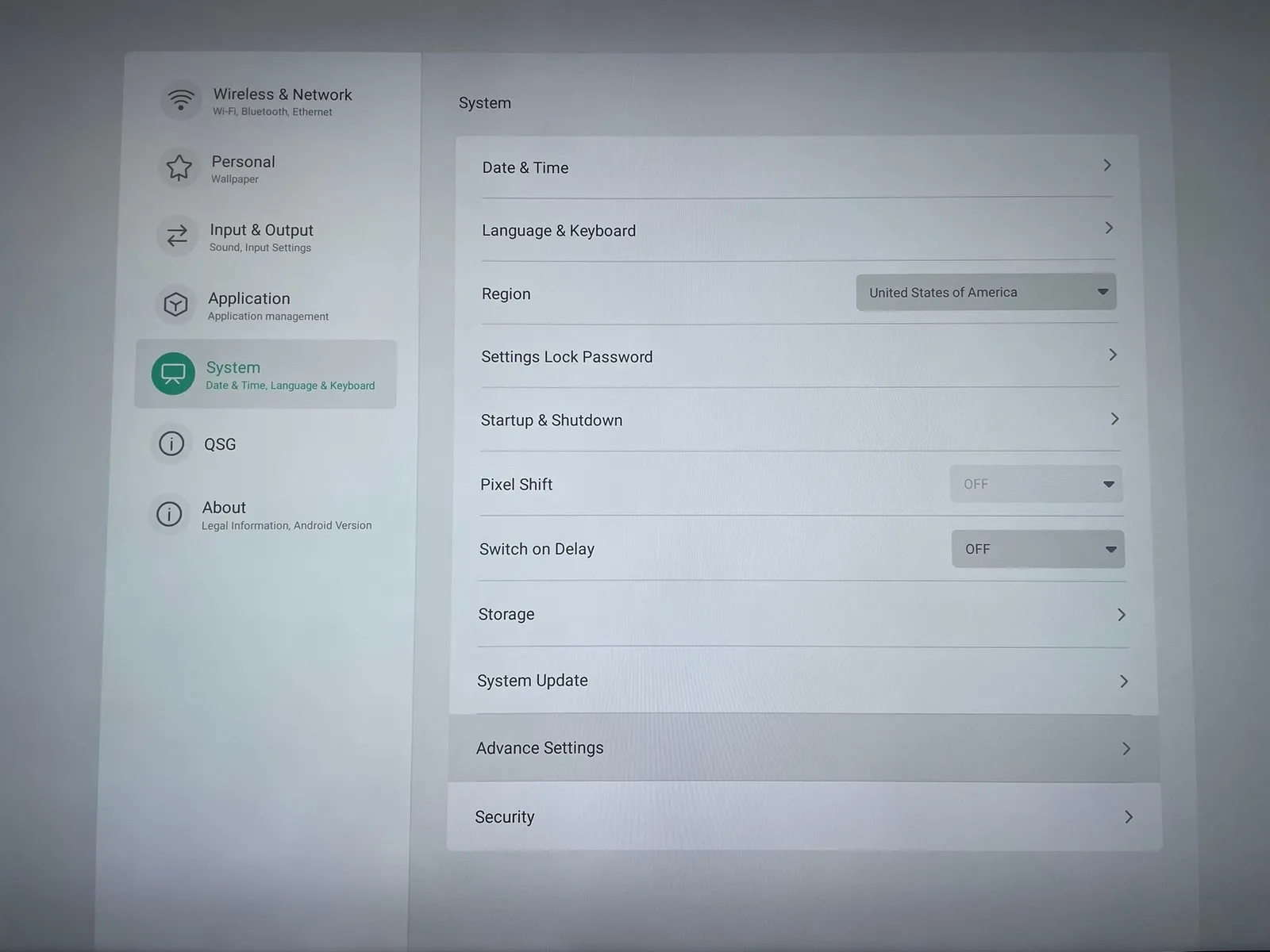
Sur le Discover 2, ouvrez le tiroir des applications et allez dans Settings. Allez ensuite dans System et sélectionnez Advance Settings.
-
Dans Advance Settings, activez l’option Install unknown apps.


-
Téléchargez le fichier APK de LoopSign Player et copiez-le sur une clé USB. Vous trouverez le fichier sur la page Téléchargement : utilisez LoopSign Player (recommandée).
-
Insérez la clé USB dans l’un des ports USB de l’écran.
-
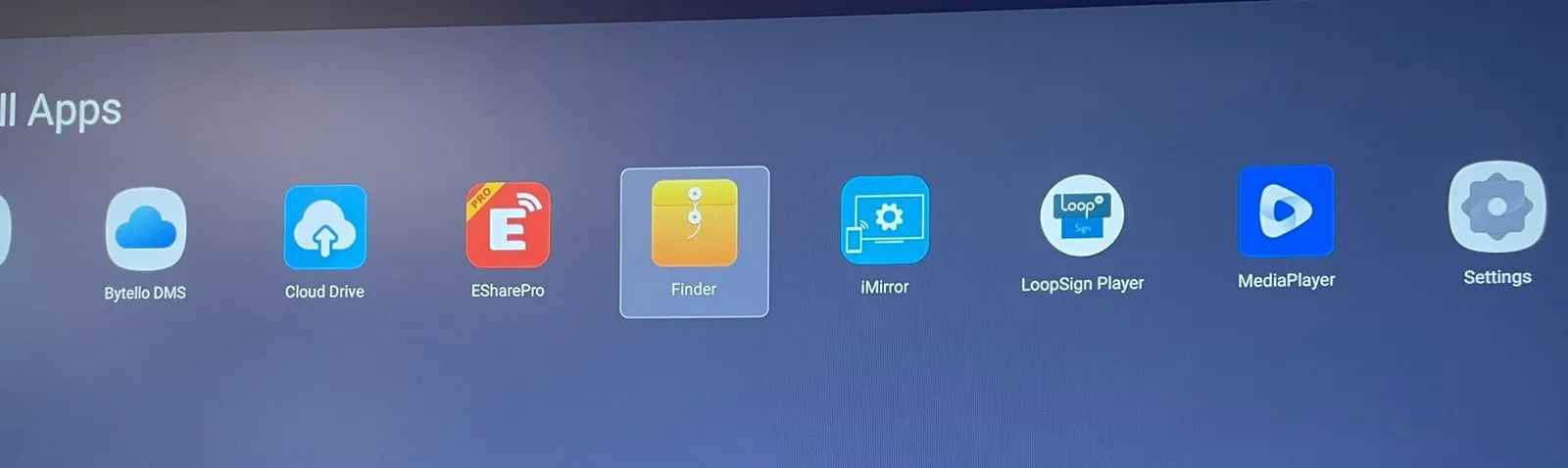
Revenez maintenant à All Apps et ouvrez Finder.
-
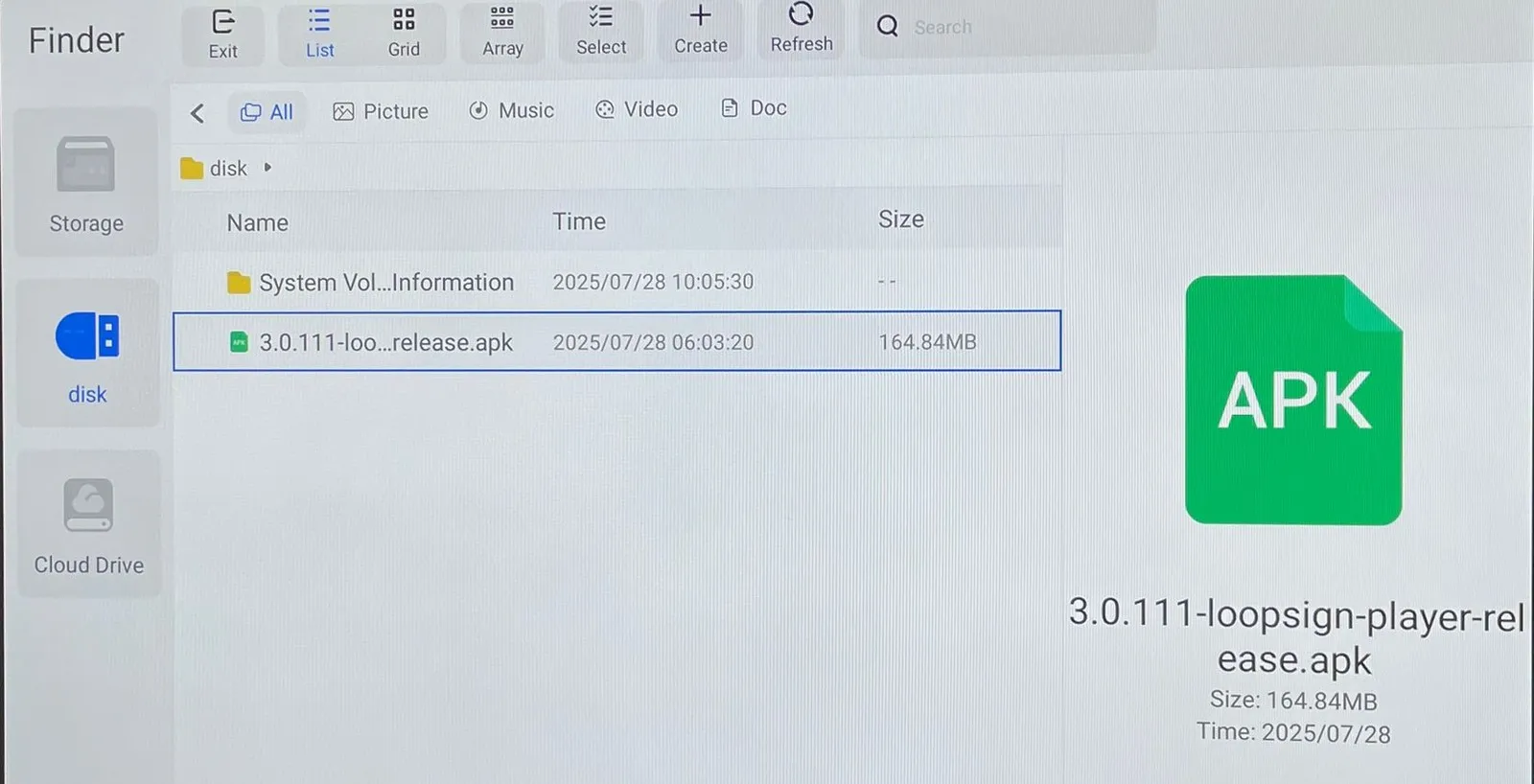
Vous devriez maintenant voir le fichier APK de LoopSign Player sur la clé USB. Sélectionnez le fichier, puis sélectionnez Install pour lancer l’installation.
-
Une fois l’installation terminée, l’application LoopSign Player est mise à jour vers la dernière version.
Les visites sont comptées avec Umami sur le propre serveur de Loop24 à Stockholm. Aucun cookie n’est utilisé et aucune adresse IP n’est enregistrée.
Microsoft, Windows, Microsoft Edge, Entra, Exchange, Microsoft 365, Outlook, Power BI and Teams are trademarks of the Microsoft group of companies. Android, Google Play, Google Workspace, Google Sheets and Google Slides are trademarks of Google LLC. App Store is a service mark of Apple Inc. Other product and company names belong to their owners; they say what LoopSign, LoopMeeting, LoopBooking and LoopVisit work with, and imply no affiliation or endorsement.