
ProDVX-Panels
Mit dieser Anleitung installieren Sie LoopMeeting auf ProDVX-Panels. Sie gilt für die Modelle APPC-10SLBN, APPC-10XPL und APPC-10SLBe.
Die LoopMeeting-App installieren
Abschnitt betitelt „Die LoopMeeting-App installieren“- Laden Sie das Installationspaket von ProDVX herunter: https://dl.loop24.no/prodvx.zip
- Entpacken Sie die Datei in einen Ordner, z. B.
c:\adb. - Schließen Sie das ProDVX-Panel mit einem USB-auf-Micro-USB-Kabel an Ihren Computer an.
- Stellen Sie sicher, dass das Panel mit Strom versorgt wird, über PoE oder das Netzteil.
- Aktivieren Sie auf dem Panel Developer options:
- Öffnen Sie Settings und wählen Sie About device aus.
- Wechseln Sie zur letzten Zeile unter About, Build number.
- Tippen Sie mehrmals auf Build number, bis das Panel meldet, dass Sie sich im Entwicklermodus befinden.
- Gehen Sie zurück und öffnen Sie das Menü System.
- Wählen Sie Developer options aus.
- Scrollen Sie nach unten und aktivieren Sie USB Debugging.
- Öffnen Sie eine Eingabeaufforderung oder ein Terminal und wechseln Sie in das Verzeichnis, in das Sie das Installationspaket entpackt haben (
c:\adb). - Führen Sie
adb devicesaus, um zu überprüfen, ob das ProDVX-Gerät verbunden ist und läuft.
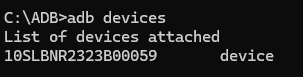
Wenn das Gerät wie im Beispiel oben als verbunden angezeigt wird, führen Sie prodvx.cmd aus.
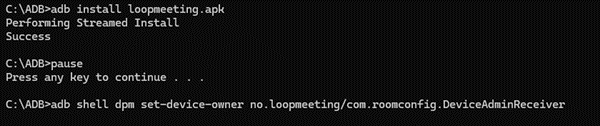
Die LoopMeeting-App ist jetzt installiert und als Geräteeigentümer eingerichtet.
Den Entwicklermodus deaktivieren
Abschnitt betitelt „Den Entwicklermodus deaktivieren“Deaktivieren Sie aus Sicherheitsgründen den Entwicklermodus von Android:
- Öffnen Sie die Android-Einstellungen.
- Wählen Sie System und dann Developer options aus.
- Deaktivieren Sie Use developer options.
Das Panel neu starten und registrieren
Abschnitt betitelt „Das Panel neu starten und registrieren“Starten Sie das Gerät neu; die LoopMeeting-App sollte automatisch starten. Registrieren Sie das Panel anschließend im RoomConfig-Portal: Das Portal konfigurieren, Abschnitt 6.
English: command prompt
Besuche werden mit Umami auf dem eigenen Server von Loop24 in Stockholm gezählt. Es werden keine Cookies verwendet und keine IP-Adressen gespeichert.
Microsoft, Windows, Microsoft Edge, Entra, Exchange, Microsoft 365, Outlook, Power BI and Teams are trademarks of the Microsoft group of companies. Android, Google Play, Google Workspace, Google Sheets and Google Slides are trademarks of Google LLC. App Store is a service mark of Apple Inc. Other product and company names belong to their owners; they say what LoopSign, LoopMeeting, LoopBooking and LoopVisit work with, and imply no affiliation or endorsement.