LoopMeeting Central Config Azure AD login
Questi contenuti non sono ancora disponibili nella tua lingua.
1. Introduction
Section titled “1. Introduction”RoomConfig Central Configuration console is a tool to set up, configure and manage your LoopMeeting panels. Normally you will add accounts under the meuiten “Users”
However you have an option to also login with Entra-ID (Azure AD) accounts that are members of a specified group.
By enabling this option you assign your company policy for password administration and MFA to your administration accounts.
2. Prerequisites
Section titled “2. Prerequisites”To enable Entra-ID login for LoopMeeting RoomConfig console your
MS365 Global Administrator needs to follow this guide
/loopmeeting/register-ms365-enterprise-app-roomconfig-portal/
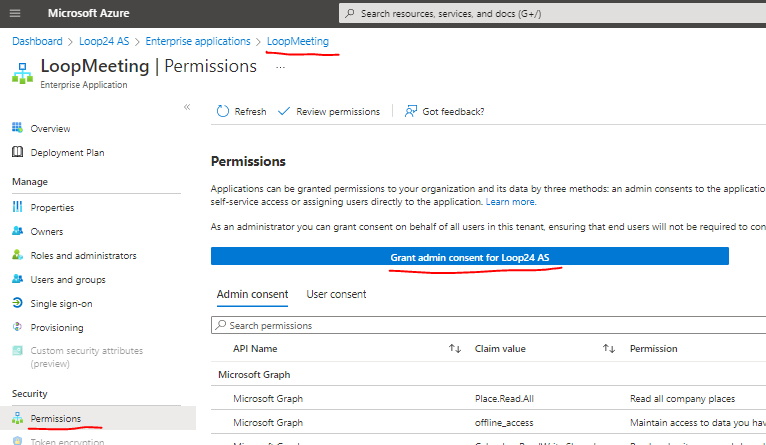
If this is already done earlier, your Global Admin needs to re-authorize the LoopMeeting application.
– Log into Azure portal
– Select “Entra-ID” in the menu
– Select “Enterprise applications”
– Selcet “LoopMeeting” application
– Select “Permissions” and press the blue “Grant admin consent for (Copmpany)”
3. Configure group/users for access
Section titled “3. Configure group/users for access”Please make sure that step 2 is done and all is working as expected.
MS365 Global Admin needs to follow these simple steps:
– Create a security (Or use and existing) group in Entra-ID.
– Add users that should have access to RoomConfig console to this group.
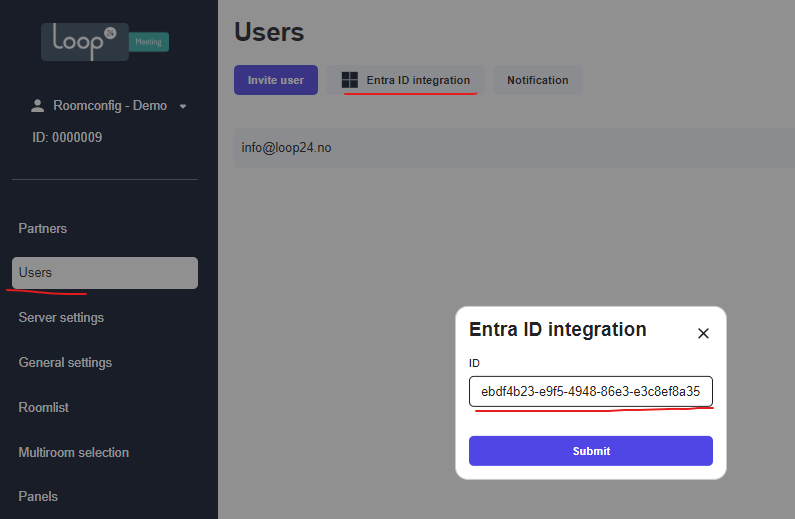
– Select Users menuitem in RoomConfig console.
– Add the group ID in “Entra ID integration
3. Configure group/users for access
Section titled “3. Configure group/users for access”Please make sure that step 2 is done and all is working as expected.
MS365 Global Admin needs to follow these simple steps:
– Create a security (Or use and existing) group in Entra-ID.
– Add users that should have access to RoomConfig console to this group.
– Select Users menuitem in RoomConfig console.
– Add the group ID in “Entra ID integration