
Google Sheets
Cómo mostrar datos en tiempo real de Google Sheets en LoopSign
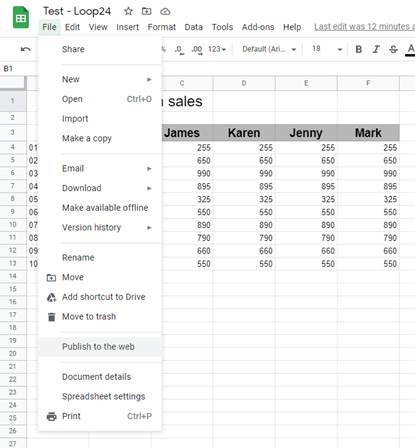
Sección titulada «Cómo mostrar datos en tiempo real de Google Sheets en LoopSign»- En el menú Archivo, seleccione Publicar en la Web.
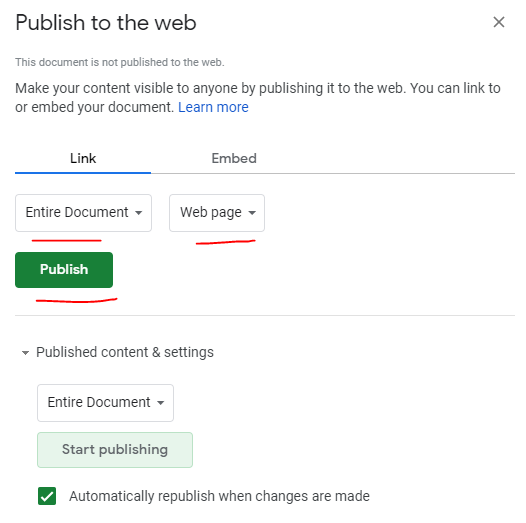
- Seleccione Todo el documento y Página web y, a continuación, seleccione Publicar.
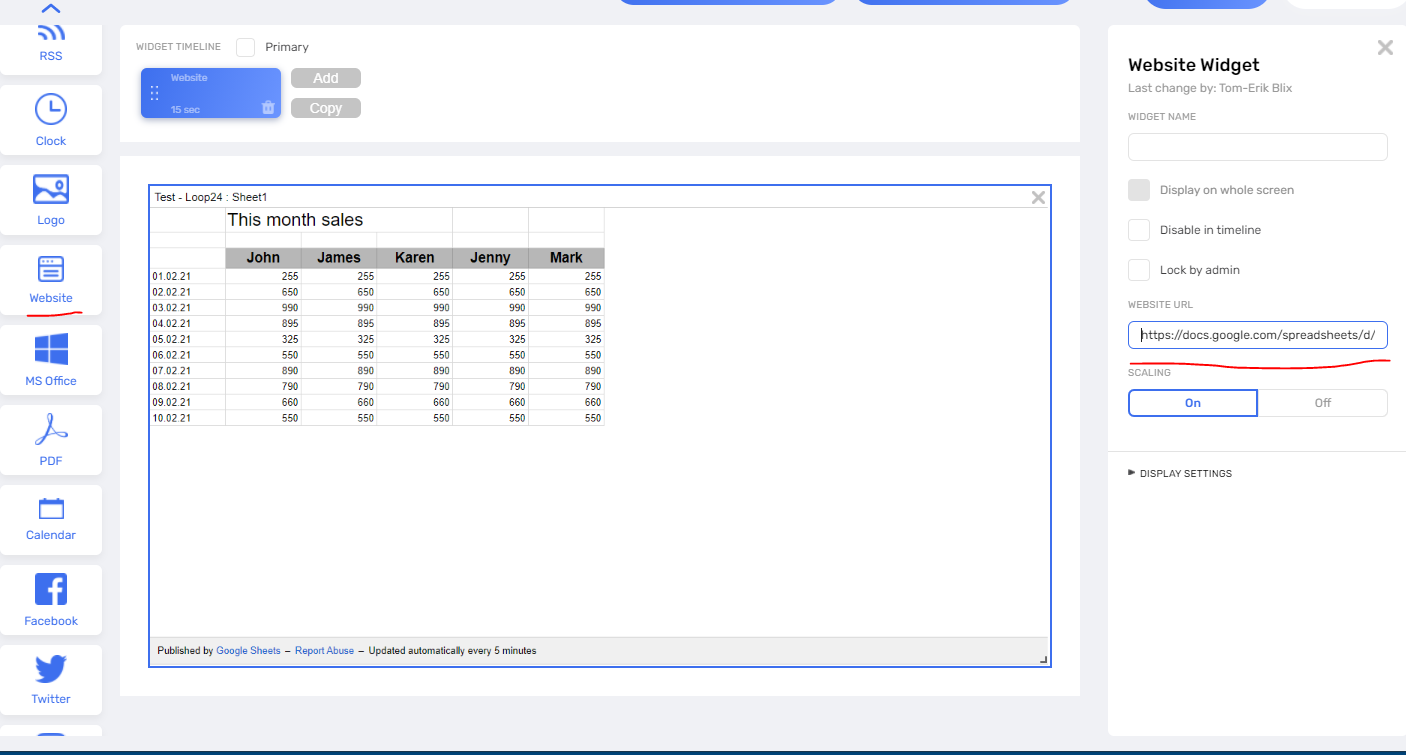
- Copie la URL y péguela en el widget Website de LoopSign.
English: File · Publish to the web · Entire Document · Web page · Publish
Las visitas se cuentan con Umami en el servidor propio de Loop24 en Estocolmo. No se usan cookies ni se almacenan direcciones IP.
Microsoft, Windows, Microsoft Edge, Entra, Exchange, Microsoft 365, Outlook, Power BI and Teams are trademarks of the Microsoft group of companies. Android, Google Play, Google Workspace, Google Sheets and Google Slides are trademarks of Google LLC. App Store is a service mark of Apple Inc. Other product and company names belong to their owners; they say what LoopSign, LoopMeeting, LoopBooking and LoopVisit work with, and imply no affiliation or endorsement.