
Google Slides
Visa Google Slides i LoopSign
Section titled “Visa Google Slides i LoopSign”- I menyn Arkiv väljer du Publicera på webben.
- Välj Bädda in, ställ in de inställningar du vill ha och välj Publicera.
- Kopiera HTML-koden (Ctrl+C) och klistra in den i HTML Code-widgeten i LoopSign.
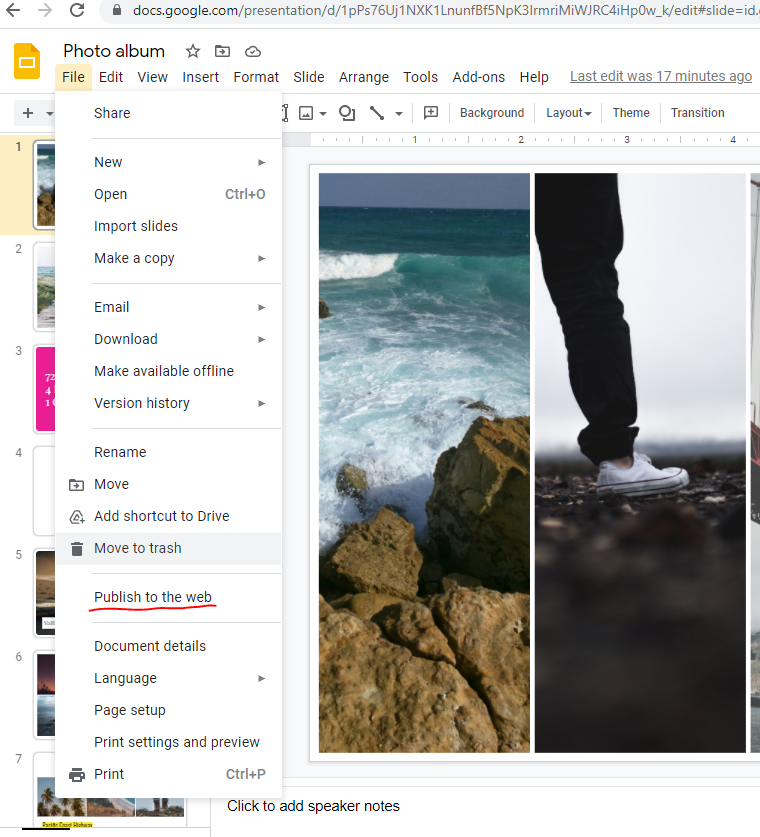
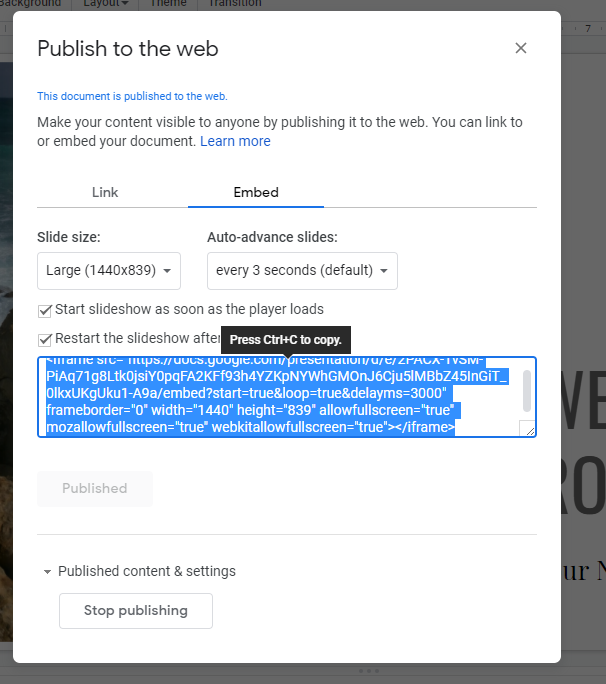
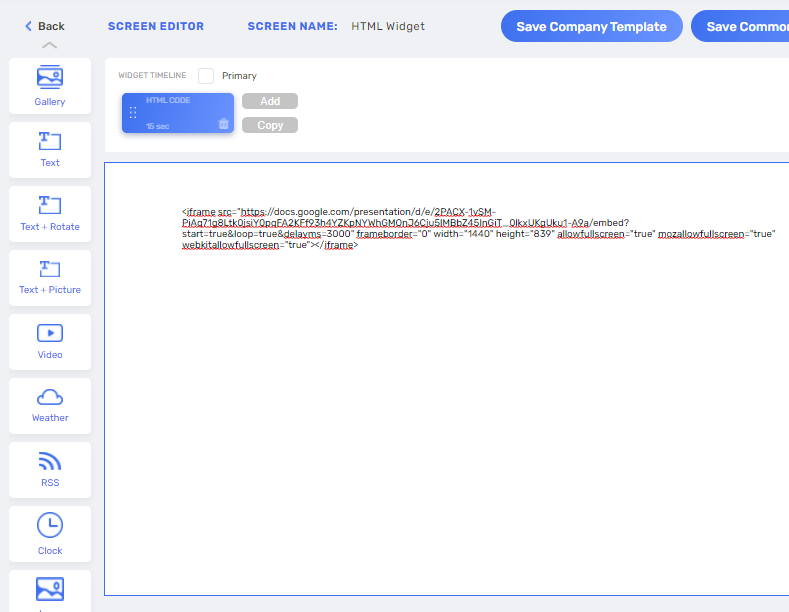
English: File · Publish to the web · Embed · Publish
Besök räknas med Umami på Loop24:s egen server i Stockholm. Inga cookies används och inga IP-adresser lagras.
Microsoft, Windows, Microsoft Edge, Entra, Exchange, Microsoft 365, Outlook, Power BI and Teams are trademarks of the Microsoft group of companies. Android, Google Play, Google Workspace, Google Sheets and Google Slides are trademarks of Google LLC. App Store is a service mark of Apple Inc. Other product and company names belong to their owners; they say what LoopSign, LoopMeeting, LoopBooking and LoopVisit work with, and imply no affiliation or endorsement.