
Google Slides
Vis Google Slides i LoopSign
Section titled “Vis Google Slides i LoopSign”- Åpne menyen Fil, og velg Publiser på nettet.
- Velg Bygg inn, still inn slik du vil ha det, og velg Publiser.
- Kopier HTML-koden (Ctrl+C), og lim den inn i HTML Code-vignetten i LoopSign.
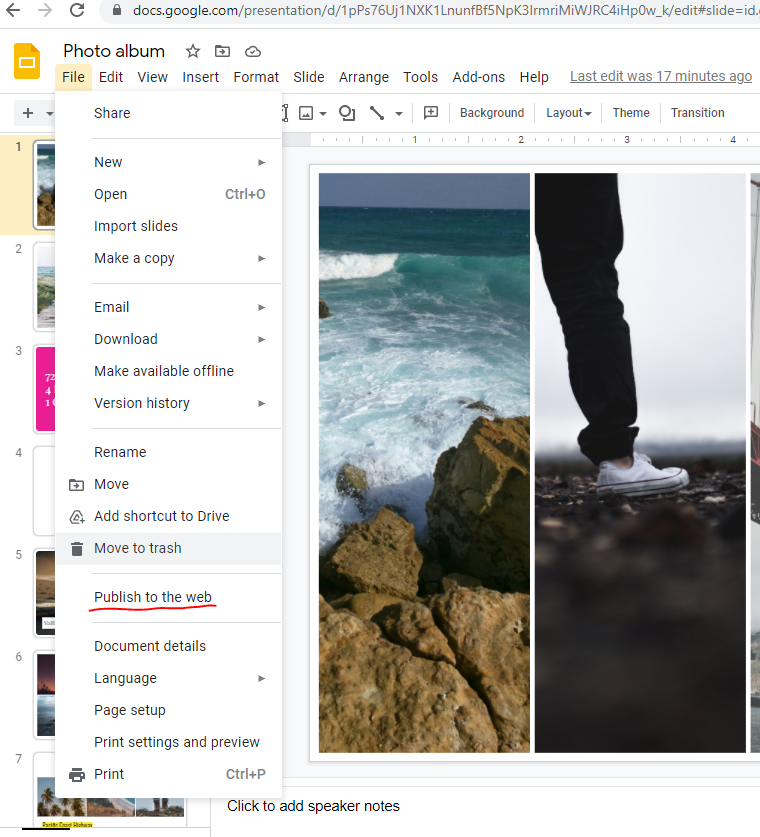
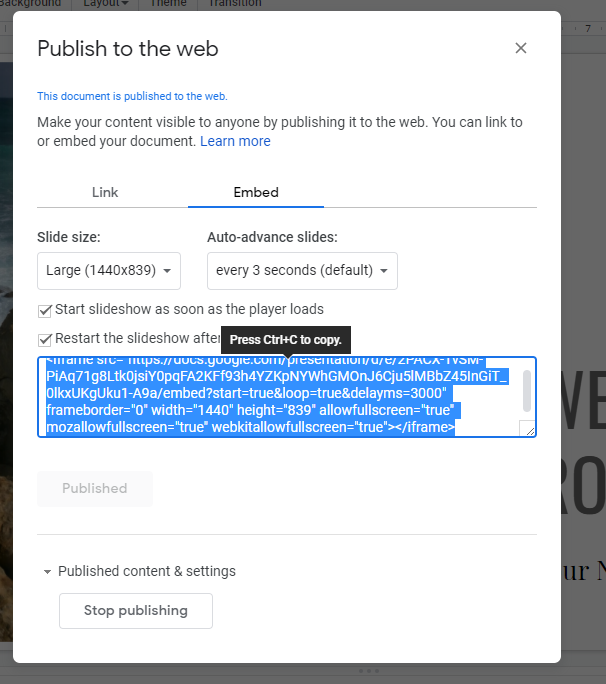
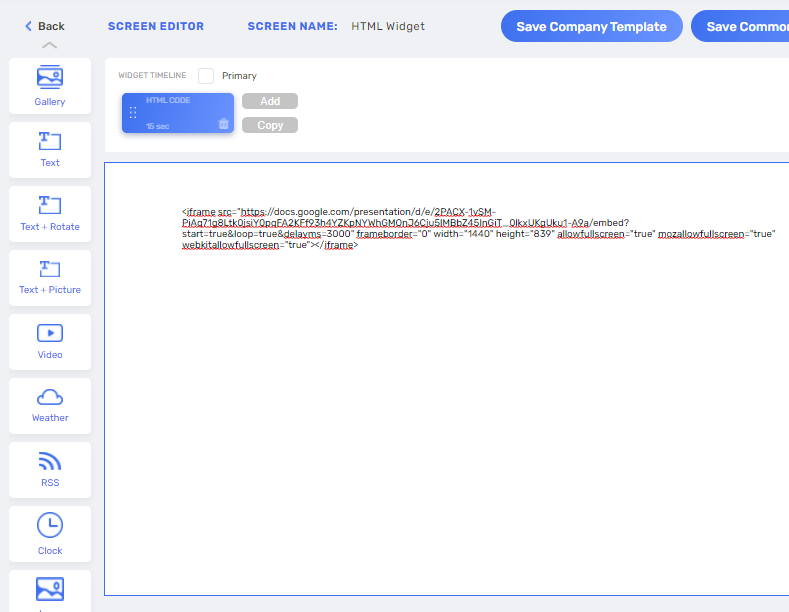
English: File · Publish to the web · Embed · Publish
Besøk telles med Umami på Loop24s egen server i Stockholm. Det brukes ingen informasjonskapsler, og ingen IP-adresser lagres.
Microsoft, Windows, Microsoft Edge, Entra, Exchange, Microsoft 365, Outlook, Power BI and Teams are trademarks of the Microsoft group of companies. Android, Google Play, Google Workspace, Google Sheets and Google Slides are trademarks of Google LLC. App Store is a service mark of Apple Inc. Other product and company names belong to their owners; they say what LoopSign, LoopMeeting, LoopBooking and LoopVisit work with, and imply no affiliation or endorsement.