
Google Slides
Vis Google Slides i LoopSign
Sektion kaldt “Vis Google Slides i LoopSign”- I menuen Fil skal du vælge Udgiv på nettet.
- Vælg Integrer, angiv de indstillinger, du ønsker, og vælg Udgiv.
- Kopiér HTML-koden (Ctrl+C), og sæt den ind i HTML Code-widgeten i LoopSign.
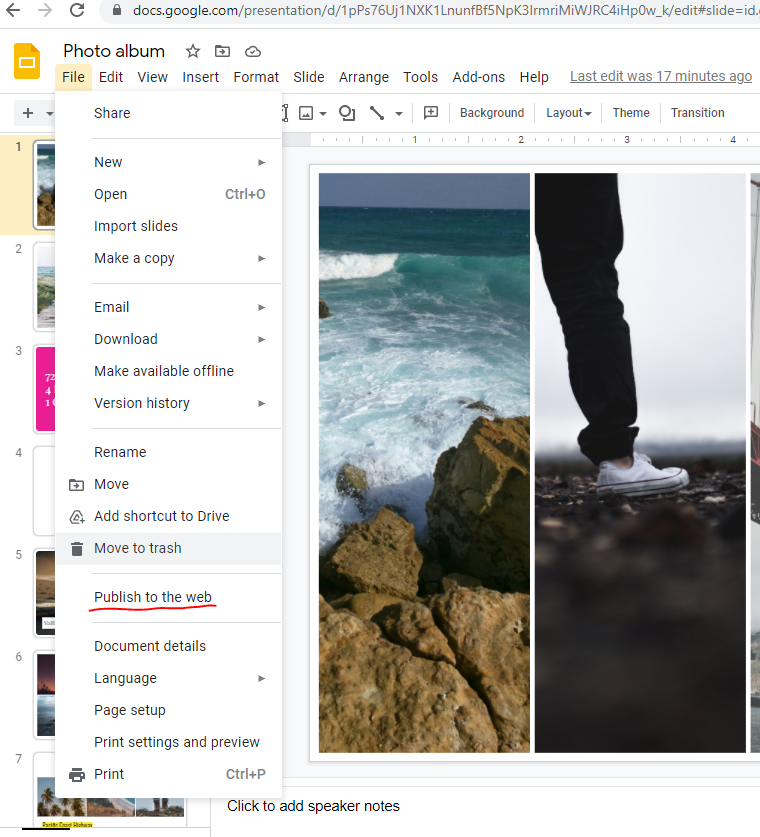
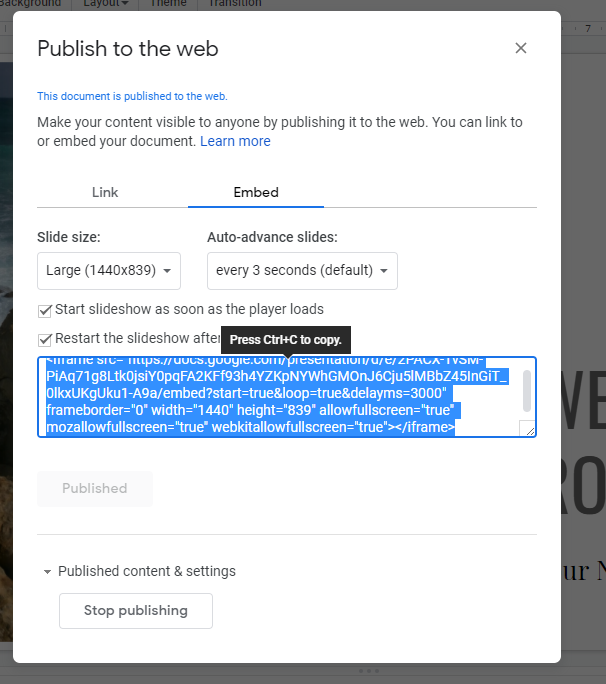
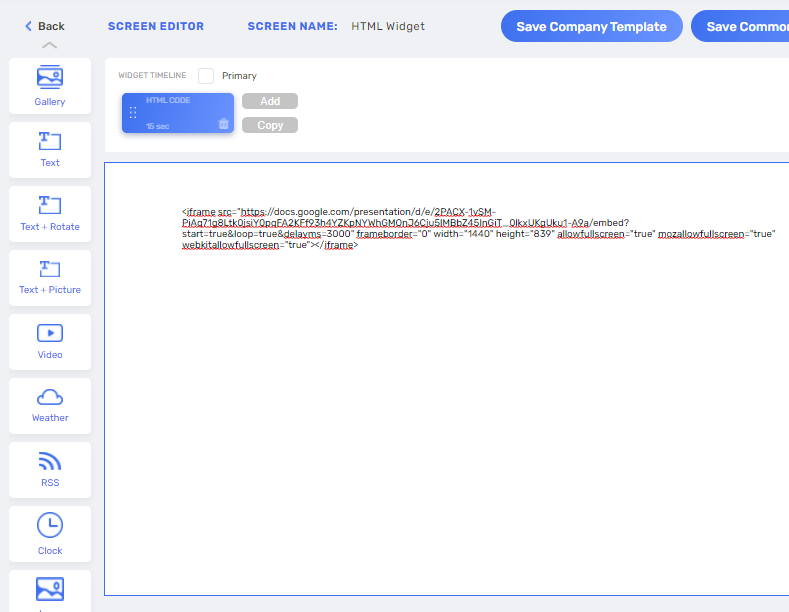
English: File · Publish to the web · Embed · Publish
Besøg tælles med Umami på Loop24’s egen server i Stockholm. Der bruges ingen cookies, og ingen IP-adresser gemmes.
Microsoft, Windows, Microsoft Edge, Entra, Exchange, Microsoft 365, Outlook, Power BI and Teams are trademarks of the Microsoft group of companies. Android, Google Play, Google Workspace, Google Sheets and Google Slides are trademarks of Google LLC. App Store is a service mark of Apple Inc. Other product and company names belong to their owners; they say what LoopSign, LoopMeeting, LoopBooking and LoopVisit work with, and imply no affiliation or endorsement.