Deploy LoopSign - Maxhub
Dette indhold er ikke tilgængeligt i dit sprog endnu.
Deployment
Section titled “Deployment”Deploy LoopSign on a Maxhub NDCMA display with the LoopSign Player app
Section titled “Deploy LoopSign on a Maxhub NDCMA display with the LoopSign Player app”Deployment of LoopSign to your Maxhub display is very easy. LoopSign utilizes its Android app on Maxhub’s custom Android OS to play content.
Connecting the screen to network/internet is not covered in this guide. Ethernet is always highly recommended, but wifi connections will usually work as well, given a strong and stable wifi connection.
1. Edit the ScreenShare settings
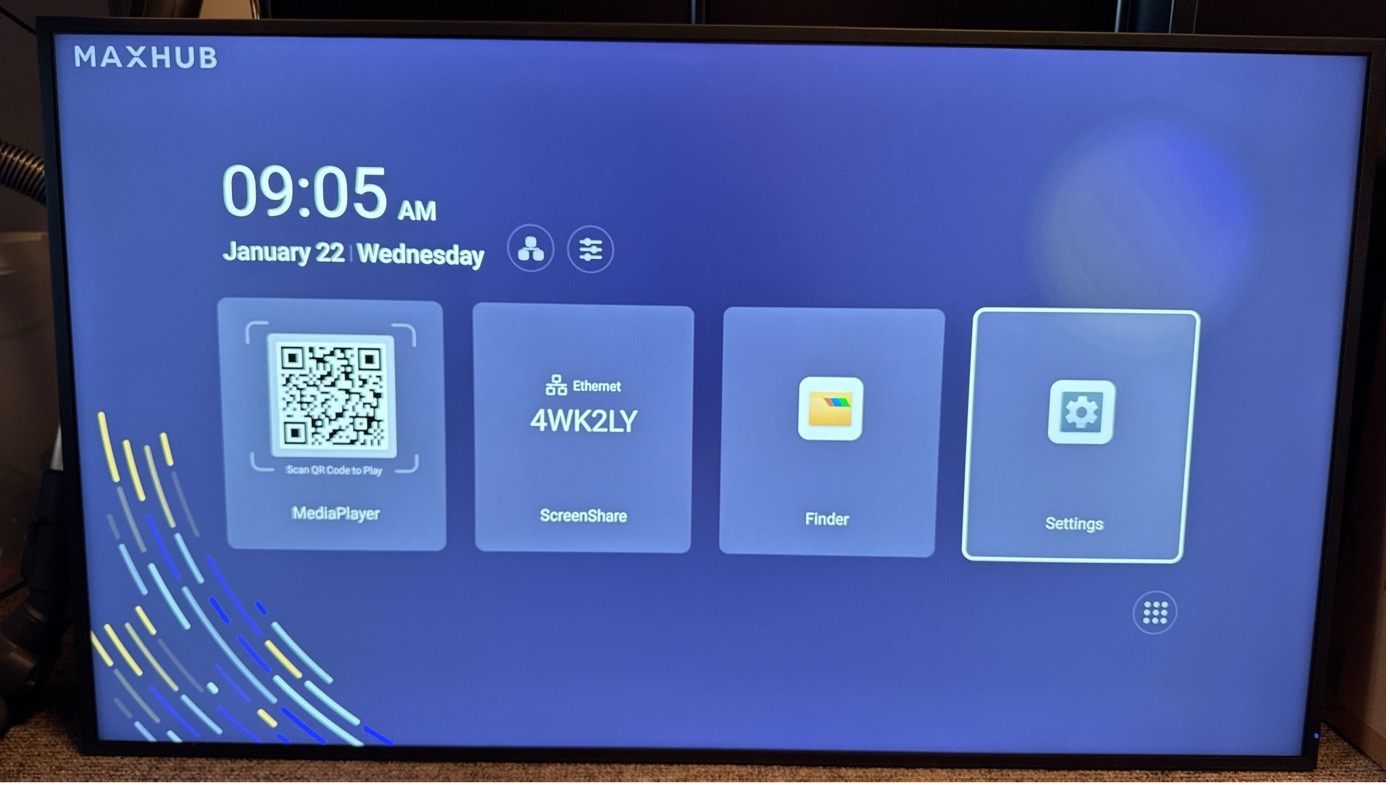
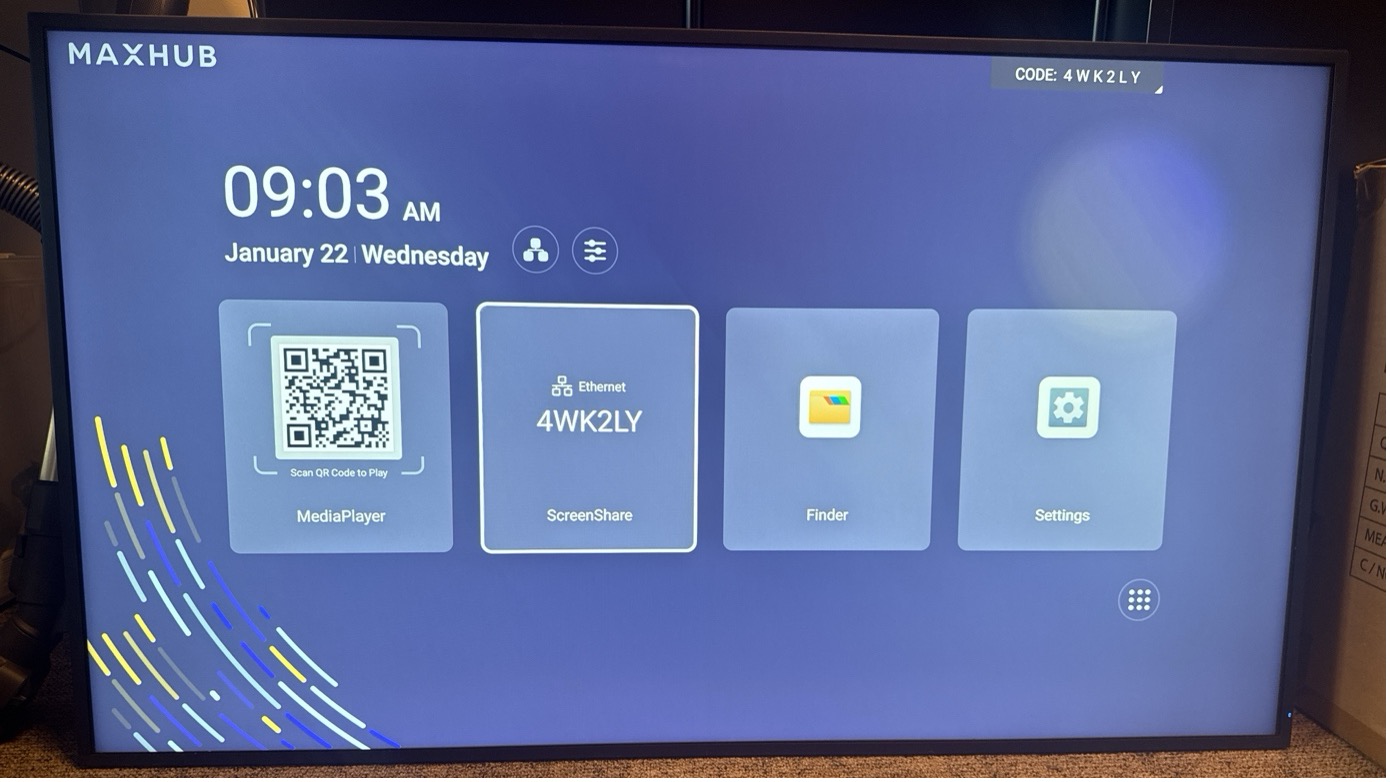
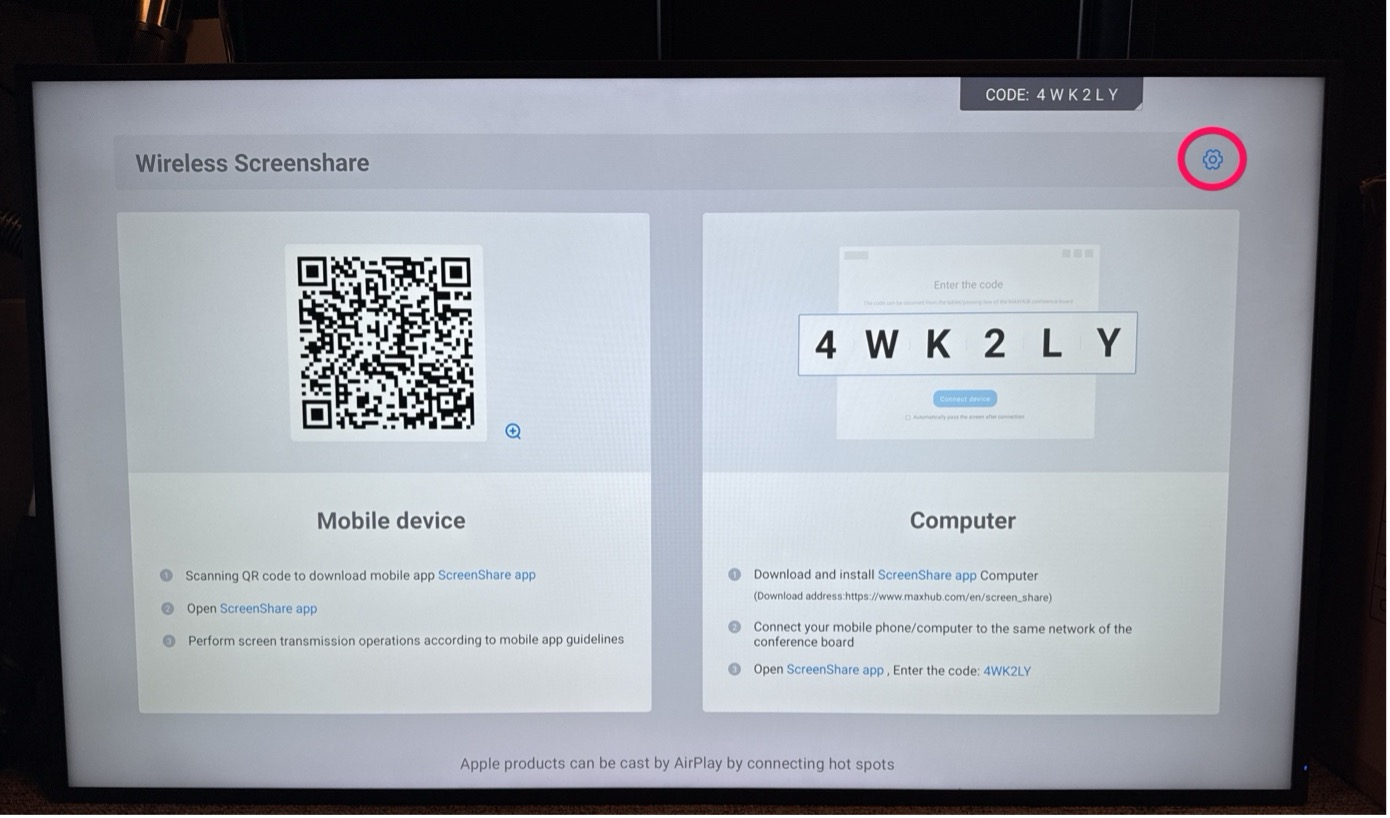
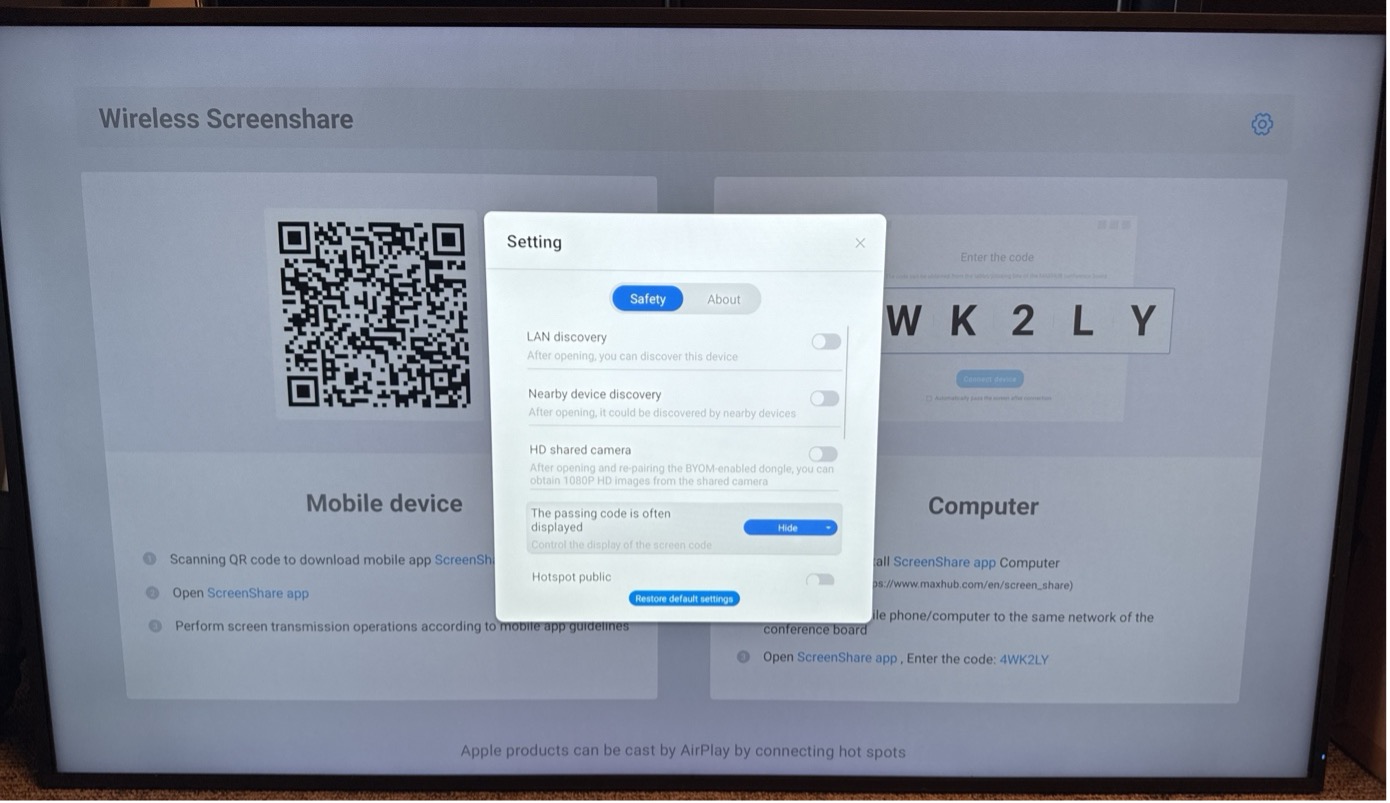
Section titled “1. Edit the ScreenShare settings”From the main menu, navigate to the ScreenShare app and press Enter on the remote. Inside the ScreenShare app, choose the cogwheel icon in the top right corner and press Enter on the remote. Disable all options in the pop-up menu and set The passing code… to Hide.
2. Install the LoopSign Player app
Section titled “2. Install the LoopSign Player app”2.1 Enable unknown apps
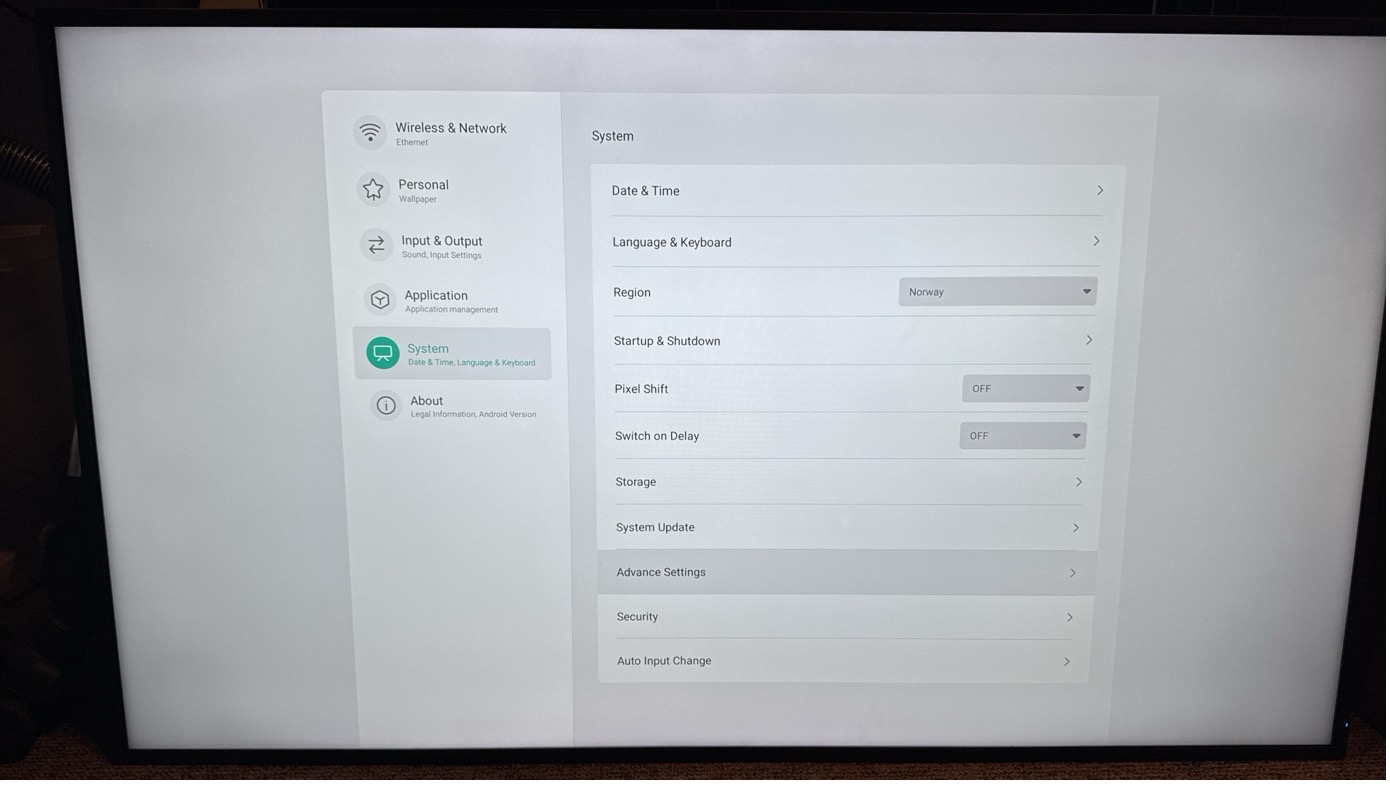
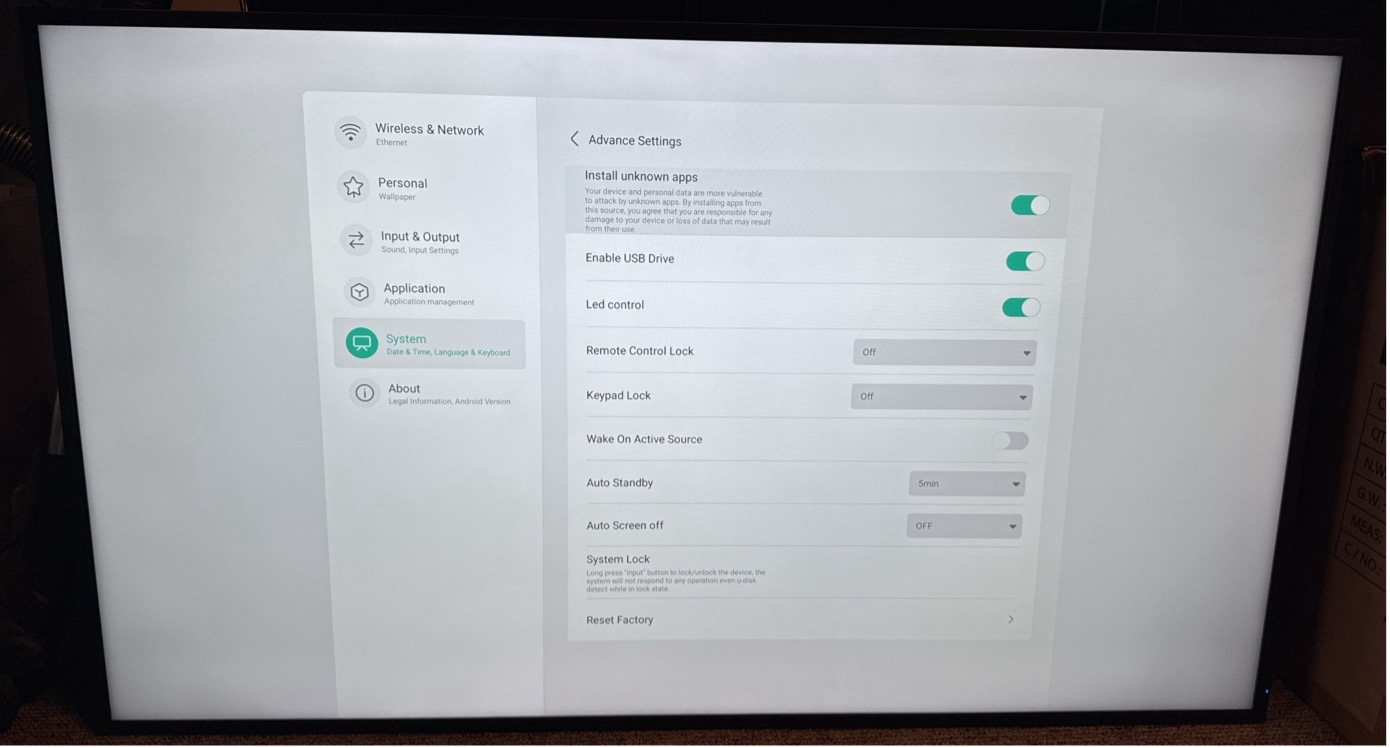
Go back to the main menu and open the Settings app. Then navigate to System and Advance Settings and then enable Install unknown apps.