
Google Slides
How to show Google Slides in LoopSign
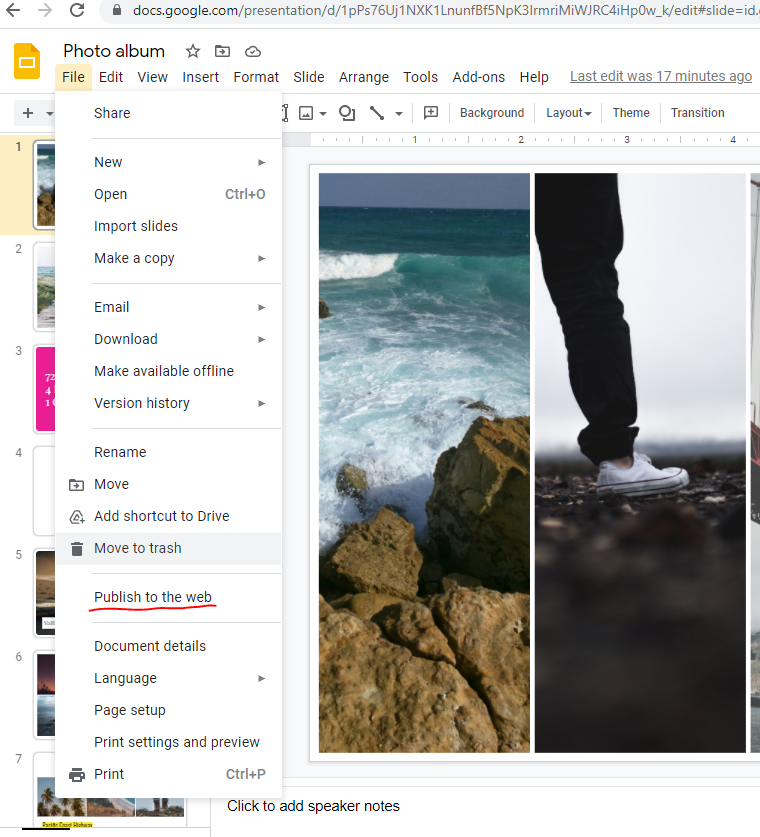
Section titled “How to show Google Slides in LoopSign”- In the File menu, select Publish to the web.
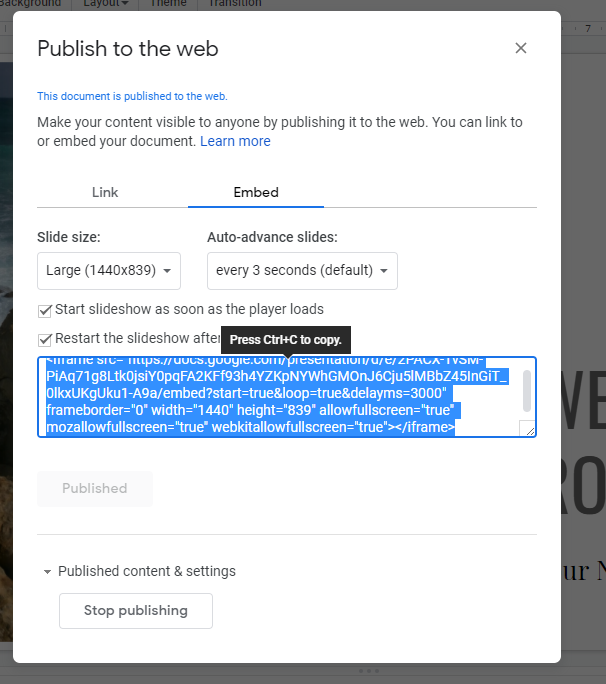
- Select Embed, set the settings you like and select Publish.
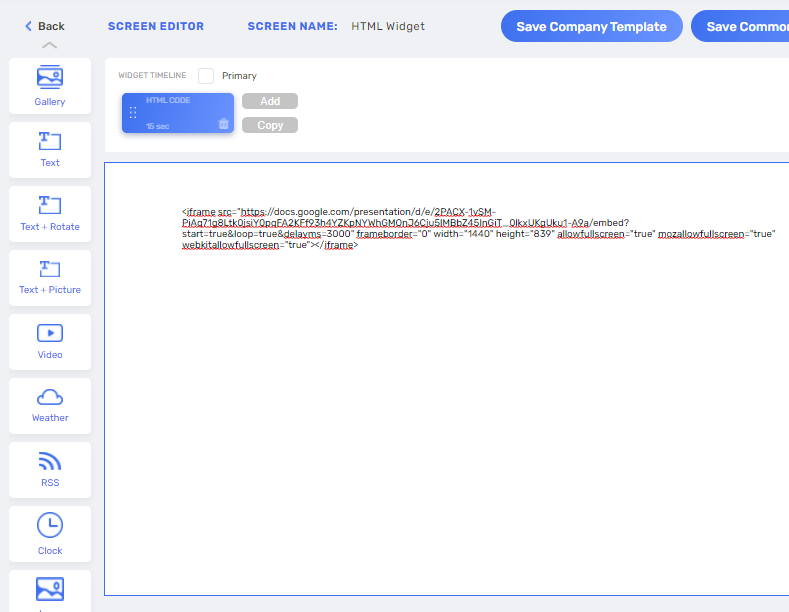
- Copy the HTML code (Ctrl+C) and paste it into the LoopSign HTML Code widget.
Visits are counted with Umami on Loop24’s own server in Stockholm. No cookies, and no IP addresses are stored.
Microsoft, Windows, Microsoft Edge, Entra, Exchange, Microsoft 365, Outlook, Power BI and Teams are trademarks of the Microsoft group of companies. Android, Google Play, Google Workspace, Google Sheets and Google Slides are trademarks of Google LLC. App Store is a service mark of Apple Inc. Other product and company names belong to their owners; they say what LoopSign, LoopMeeting, LoopBooking and LoopVisit work with, and imply no affiliation or endorsement.