
Walls.io

Walls.io collects posts from your social media accounts and hashtags on one social media wall. To show the wall on a LoopSign screen, paste the wall’s link into the Website widget. The wall adapts to the size of the screen area you put it in.
Before you start
Section titled “Before you start”You need a Walls.io account with a wall. Walls.io has its own plans for digital signage, and a free trial: see Walls.io for Digital Signage.
1. Copy the wall’s link
Section titled “1. Copy the wall’s link”In Walls.io, select the eye icon to view your wall, and copy its link. The link looks like this:
https://my.walls.io/<wall-name>2. Choose how the wall looks (optional)
Section titled “2. Choose how the wall looks (optional)”You can add settings to the end of the link. They apply only where that link is used, so each screen can show the same wall in its own way. For example, to hide the wall’s header and let the posts scroll by themselves:
https://my.walls.io/<wall-name>?show_header=0&autoscroll=1The first setting starts with ?, and the next ones with &. Other settings choose the layout, the number of columns and rows, or posts from one social network only: see How to customize your social wall using URL parameters in Walls.io’s help centre.
3. Add the wall to the screen
Section titled “3. Add the wall to the screen”-
In the screen editor, add a Website widget. On a screen without a template, drag Website from the column to the left of the screen onto the screen. On a screen with a template, select the screen area, select Add at the right end of the timeline, and select Website in Widgets available on screen.
-
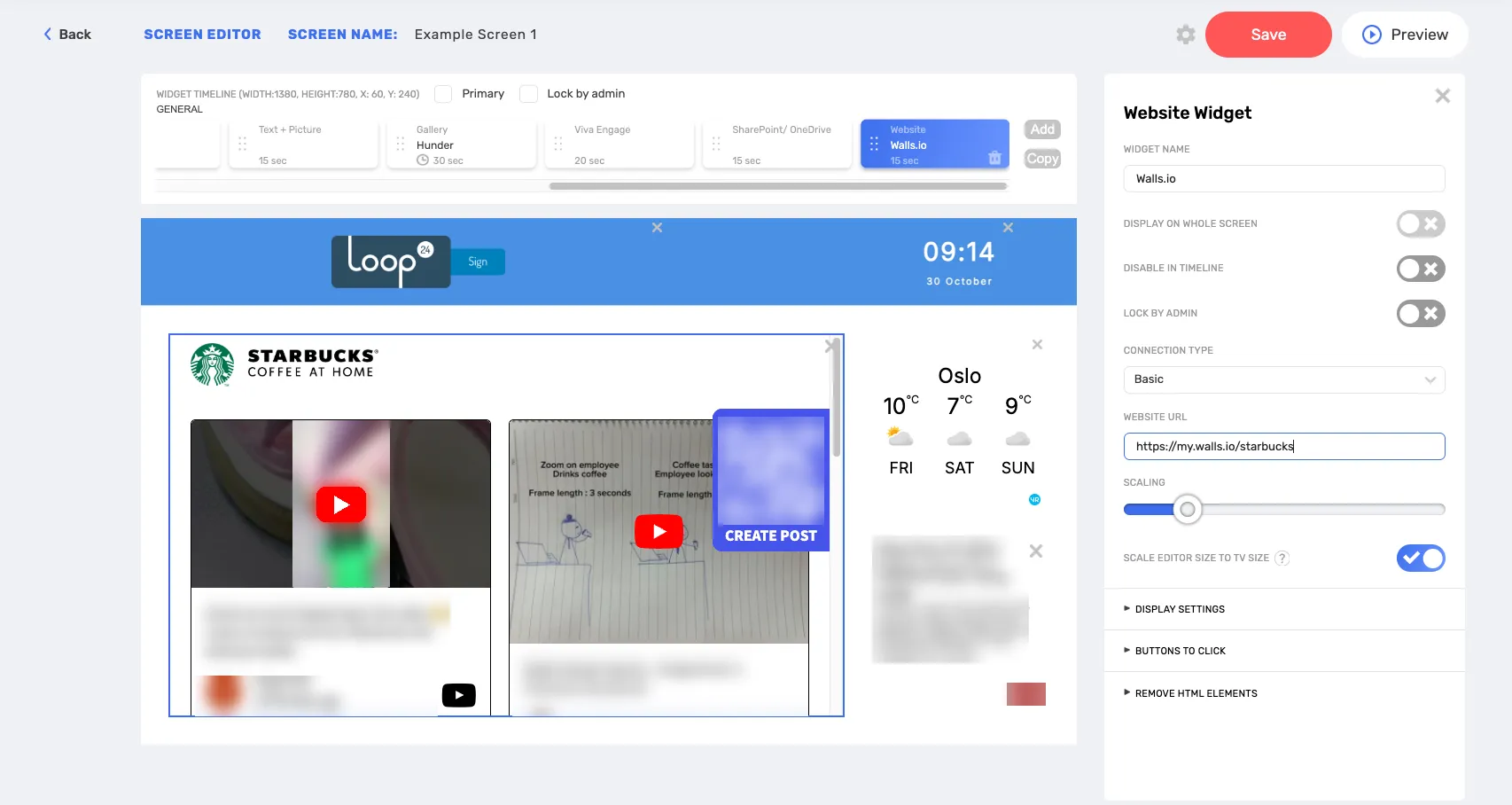
Paste the link into Website URL and keep Connection type at Basic. The wall shows on the screen in the editor.
-
Select Save, then Preview at the top right to see the wall. Press Esc to leave the preview.
The changes will manifest on the connected physical screen(s) within 15 minutes.
If the wall does not show, see Websites that cannot be embedded.
Visits are counted with Umami on Loop24’s own server in Stockholm. No cookies, and no IP addresses are stored.
Microsoft, Windows, Microsoft Edge, Entra, Exchange, Microsoft 365, Outlook, Power BI and Teams are trademarks of the Microsoft group of companies. Android, Google Play, Google Workspace, Google Sheets and Google Slides are trademarks of Google LLC. App Store is a service mark of Apple Inc. Other product and company names belong to their owners; they say what LoopSign, LoopMeeting, LoopBooking and LoopVisit work with, and imply no affiliation or endorsement.