
Windows PC (Microsoft Edge kiosk)
Any Windows PC connected to a display can play LoopSign. Set up as a kiosk (Microsoft calls it Assigned Access), the PC signs in to a kiosk account by itself when it starts and opens your LoopSign screen full screen in Microsoft Edge. Nothing else can be used on the PC, and if Microsoft Edge is closed, it starts again by itself.
Before you start
Section titled “Before you start”- A PC with Windows 11 or Windows 10 in the edition Pro, Enterprise, Education or IoT Enterprise (LTSC included). Windows Home cannot run a kiosk: see Microsoft’s requirements.
- Most Windows 10 editions reached the end of support on 14 October 2025 (Microsoft’s announcement). For a new player, use Windows 11.
- Update Windows and Microsoft Edge to their latest versions.
- Set the correct time zone, time and date, and let Windows set the time automatically. Correct time and date are essential for LoopSign.
- Connect the PC to the network. Ethernet is always highly recommended, but Wi-Fi usually works as well, given a strong and stable connection.
- Do the set-up at the PC itself, signed in with an administrator account. The kiosk runs on the PC’s own screen and is not supported over Remote Desktop. User Account Control must be on, as it is by default.
Find the URL of your LoopSign screen
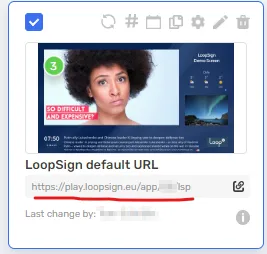
Section titled “Find the URL of your LoopSign screen”You find the URL in LoopSign, under the screen’s thumbnail. It has the form https://play.loopsign.eu/app/xxx/xxxxxxxxx.
Prepare the PC
Section titled “Prepare the PC”Make these settings first, while you are signed in with the administrator account. They apply to the whole PC, the kiosk account included.
Keep the screen on
Section titled “Keep the screen on”The PC must not turn the screen off or go to sleep. See also Microsoft’s power settings.
- Windows 11: open Settings → System → Power & battery → Screen, sleep, & hibernate timeouts. Set Turn my screen off after and Make my device sleep after to Never.
- Windows 10: open Settings → System → Power & sleep. Set the screen and sleep times to Never.
Keep update restarts outside the display’s hours
Section titled “Keep update restarts outside the display’s hours”Windows restarts by itself to finish installing updates. Active hours tell it when not to: set them to the hours the display must play (Microsoft’s guide to active hours).
- Windows 11: open Settings → Windows Update → Advanced options → Active hours. Choose Manually under Adjust active hours, and set the start and end times.
- Windows 10: open Settings → Update & Security → Windows Update → Change active hours. Set the start and end times and select Save.
After an update restart, the PC signs in to the kiosk account by itself and shows LoopSign again.
Restart the PC every night
Section titled “Restart the PC every night”We recommend a restart every night, even if the display has to play content 24/7: the PC gets a daily reboot, and Microsoft Edge a fresh start.
-
To start PowerShell, right-click the Windows logo (the Start button) and select Terminal (Admin) or Windows PowerShell (Admin), depending on your Windows version.
-
Run this command. It creates a scheduled task that restarts the PC at 03:00 every night. Change
03:00to a time outside the hours the display must play.Terminal window schtasks /create /tn "LoopSign nightly restart" /tr "shutdown /r /f /t 0" /sc daily /st 03:00 /ru System /f
To remove the task, run schtasks /delete /tn "LoopSign nightly restart" /f. Microsoft’s reference: schtasks create and shutdown.
Allow video with sound
Section titled “Allow video with sound”Only needed if your LoopSign screens play video with sound. By default, Microsoft Edge does not autoplay videos with sound, and in a kiosk its settings are out of reach. The Microsoft Edge policy AutoplayAllowlist allows it for LoopSign (Microsoft’s policy reference).
-
In PowerShell as administrator (as in Restart the PC every night), run:
Terminal window reg add "HKLM\SOFTWARE\Policies\Microsoft\Edge\AutoplayAllowlist" /v 1 /t REG_SZ /d "https://play.loopsign.eu" /f -
Turn the sound on in the video widget’s settings in LoopSign: see Video widget.
Set up the kiosk
Section titled “Set up the kiosk”- Windows 11: open Settings → Accounts → Other users and, under Set up a kiosk, select Get started. Windows 10: type
kioskin the search box in Settings, select Set up a kiosk (assigned access) and then Get started. - In Create an account, type a name for the kiosk account under Add a name, for example LoopSign, and select Next. Windows creates a local account that signs in by itself when the PC starts.
- In Choose a kiosk app, select Microsoft Edge and then Next.
- In How will this kiosk be used?, select As a digital sign or interactive display and then Next. Microsoft Edge will show your LoopSign screen full screen, with no browser controls.
- In Enter your website’s URL, paste the URL of your LoopSign screen.
- If the dialog shows Restart Microsoft Edge after someone has not used it for, choose 4 hours. Microsoft Edge then restarts and opens your LoopSign screen again whenever nobody has used the PC for four hours, which on a sign means every four hours. The default, 5 minutes, would restart it every five minutes.
- Select Next, and then Close.
- Restart the PC.
Check the set-up
Section titled “Check the set-up”After the restart, the PC should sign in to the kiosk account by itself and show your LoopSign screen full screen. From now on, what the display plays is changed in LoopSign, not on the PC.
Leave or remove the kiosk
Section titled “Leave or remove the kiosk”- To leave the kiosk, press Ctrl+Alt+Delete and sign in with an administrator account.
- To stop using the PC as a kiosk, sign in with an administrator account and open the kiosk settings. Windows 11: Settings → Accounts → Other users → Kiosk. Windows 10: the Set up a kiosk page, as in step 1 of Set up the kiosk. Under Kiosk info, expand Microsoft Edge and select Remove kiosk.
Microsoft’s documentation
Section titled “Microsoft’s documentation”- Configure a single-app kiosk with Assigned Access
- Configure Microsoft Edge kiosk mode
- Assigned Access recommendations: the settings Microsoft recommends for kiosk PCs, such as power, updates and keyboard shortcuts
Visits are counted with Umami on Loop24’s own server in Stockholm. No cookies, and no IP addresses are stored.
Microsoft, Windows, Microsoft Edge, Entra, Exchange, Microsoft 365, Outlook, Power BI and Teams are trademarks of the Microsoft group of companies. Android, Google Play, Google Workspace, Google Sheets and Google Slides are trademarks of Google LLC. App Store is a service mark of Apple Inc. Other product and company names belong to their owners; they say what LoopSign, LoopMeeting, LoopBooking and LoopVisit work with, and imply no affiliation or endorsement.