
Enroll a display on your LoopSign account
Open the LoopSign Player app
Section titled “Open the LoopSign Player app”Open the LoopSign Player app on your display with the display’s remote control (unless the display is set up to open the app automatically at boot). After a couple of seconds you see the hash code that you use to enroll the display on your LoopSign account.
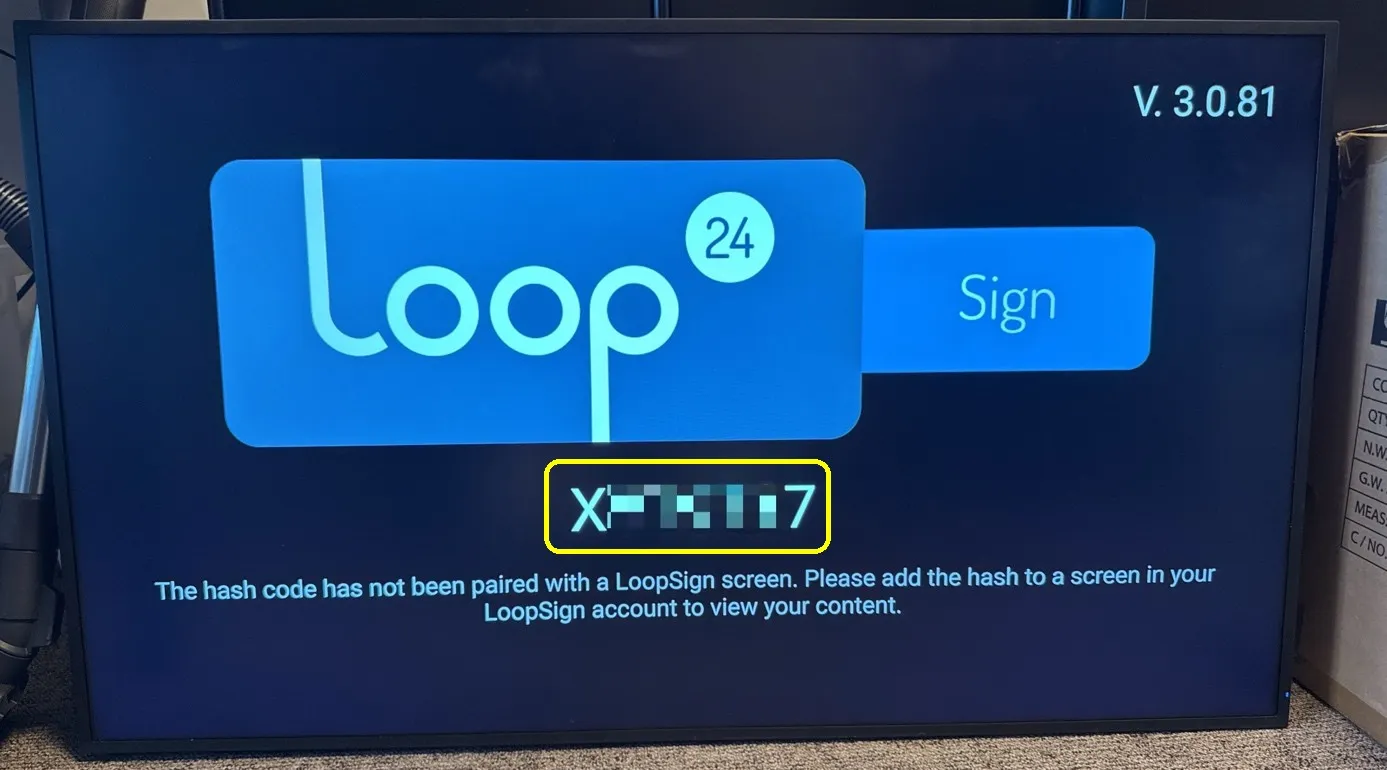
A player that runs the LoopSign image (Raspberry Pi, NEC/Sharp M series) shows its hash code by itself after start-up.
Enroll the display on your LoopSign account
Section titled “Enroll the display on your LoopSign account”-
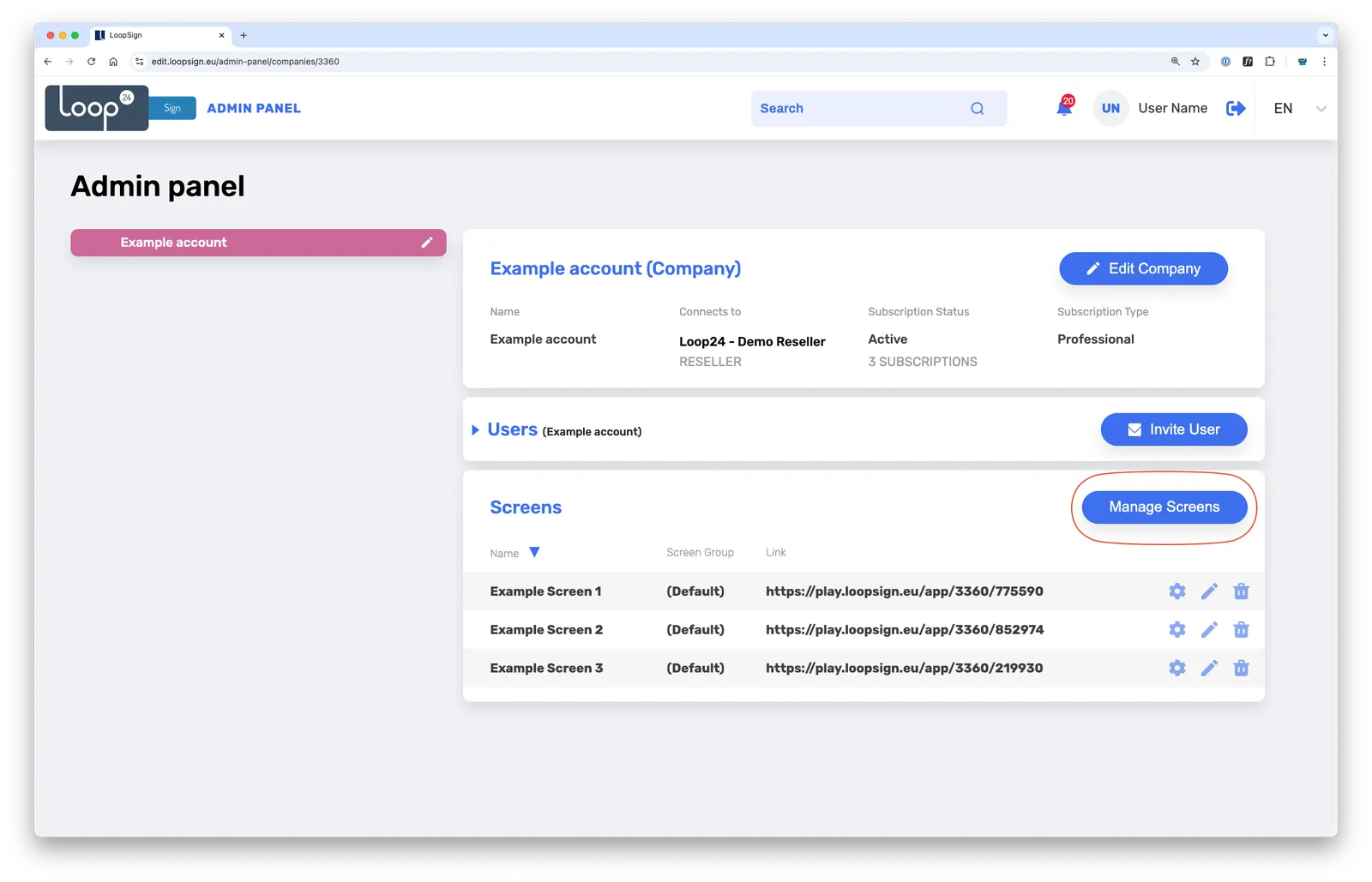
Log in to LoopSign and select Manage Screens.
-
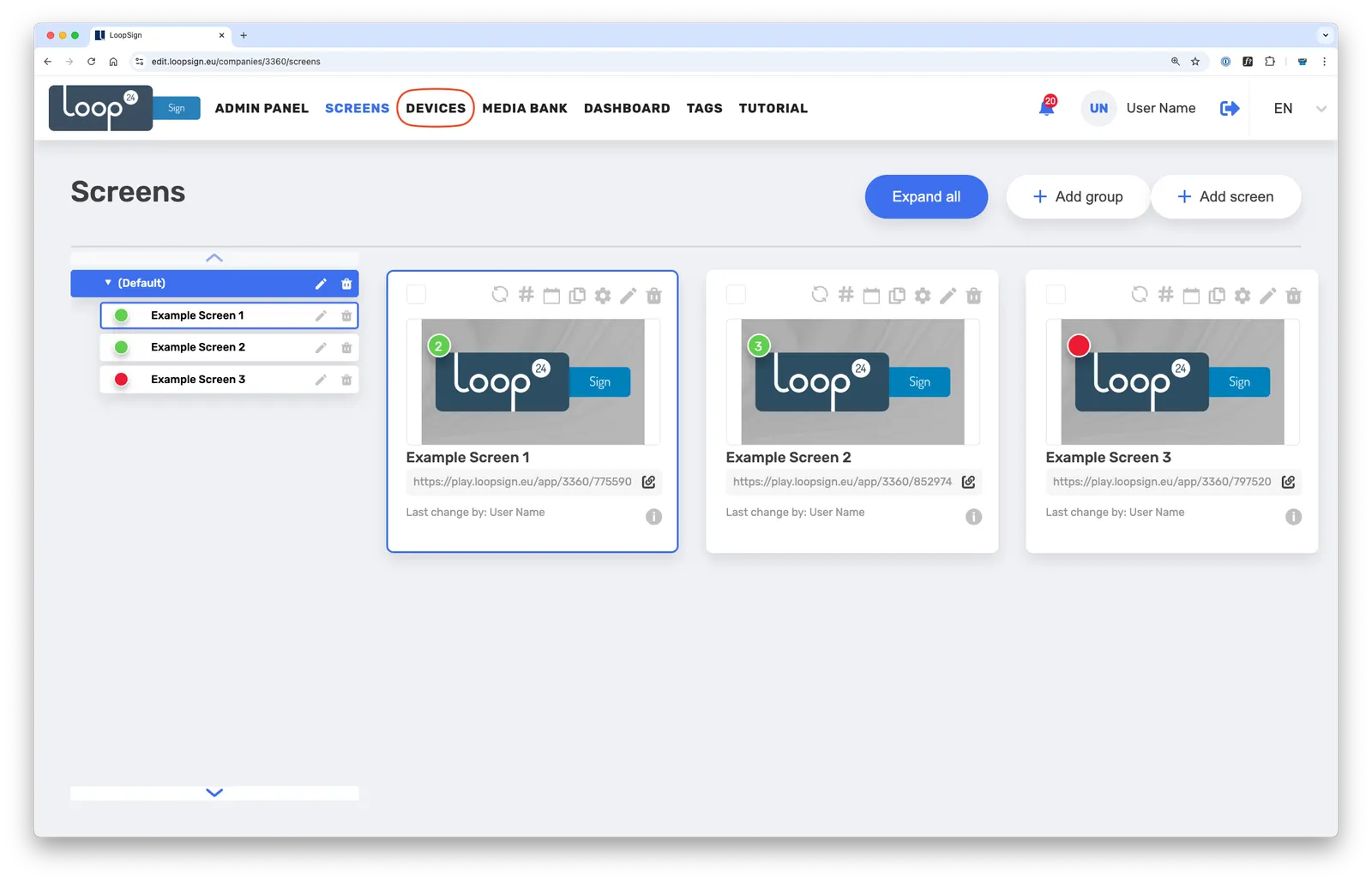
Select Devices in the top menu.
-
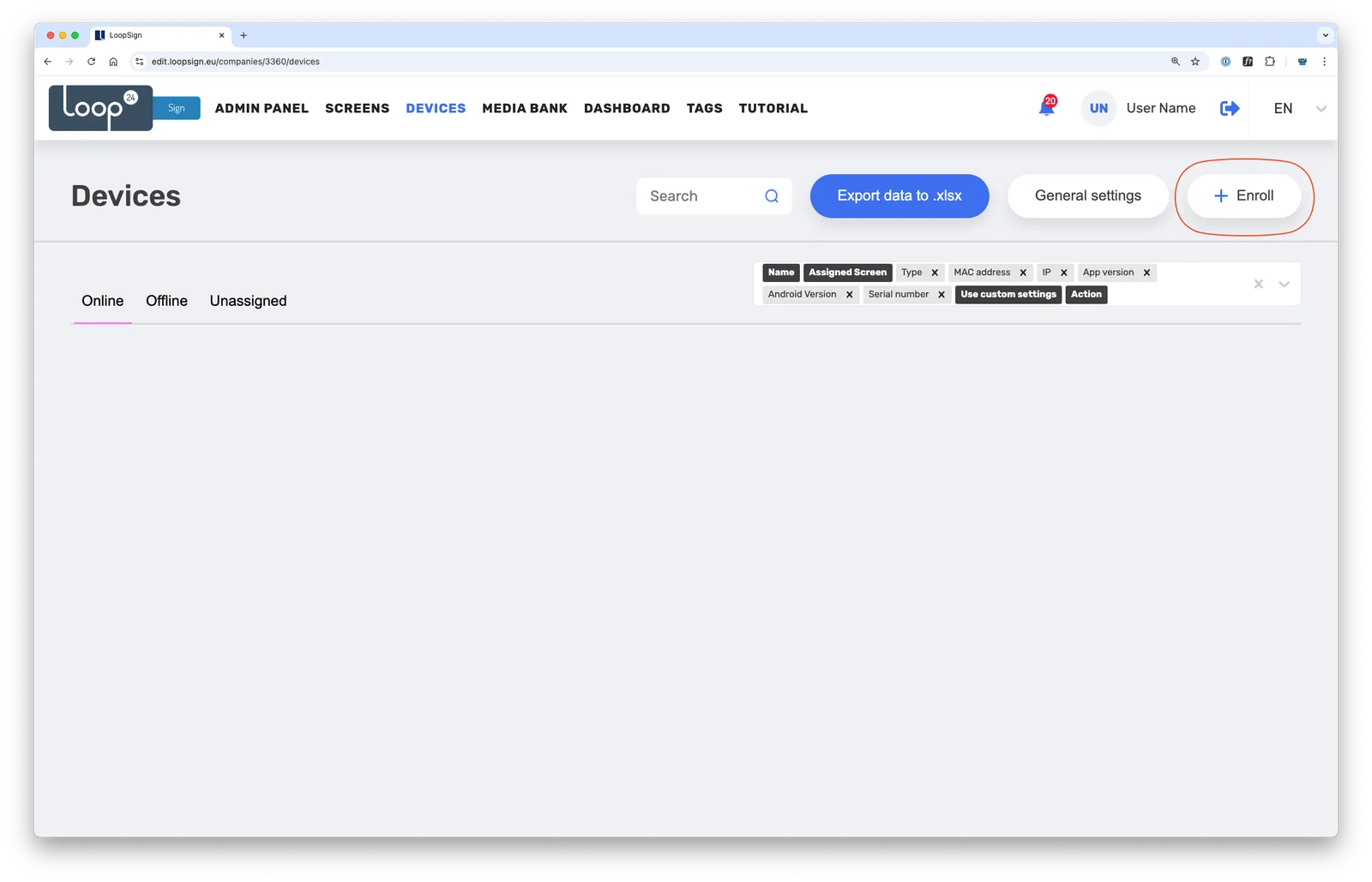
In the Devices overview, select + Enroll.
-
Add the display to your LoopSign account with the hash code shown on the display.
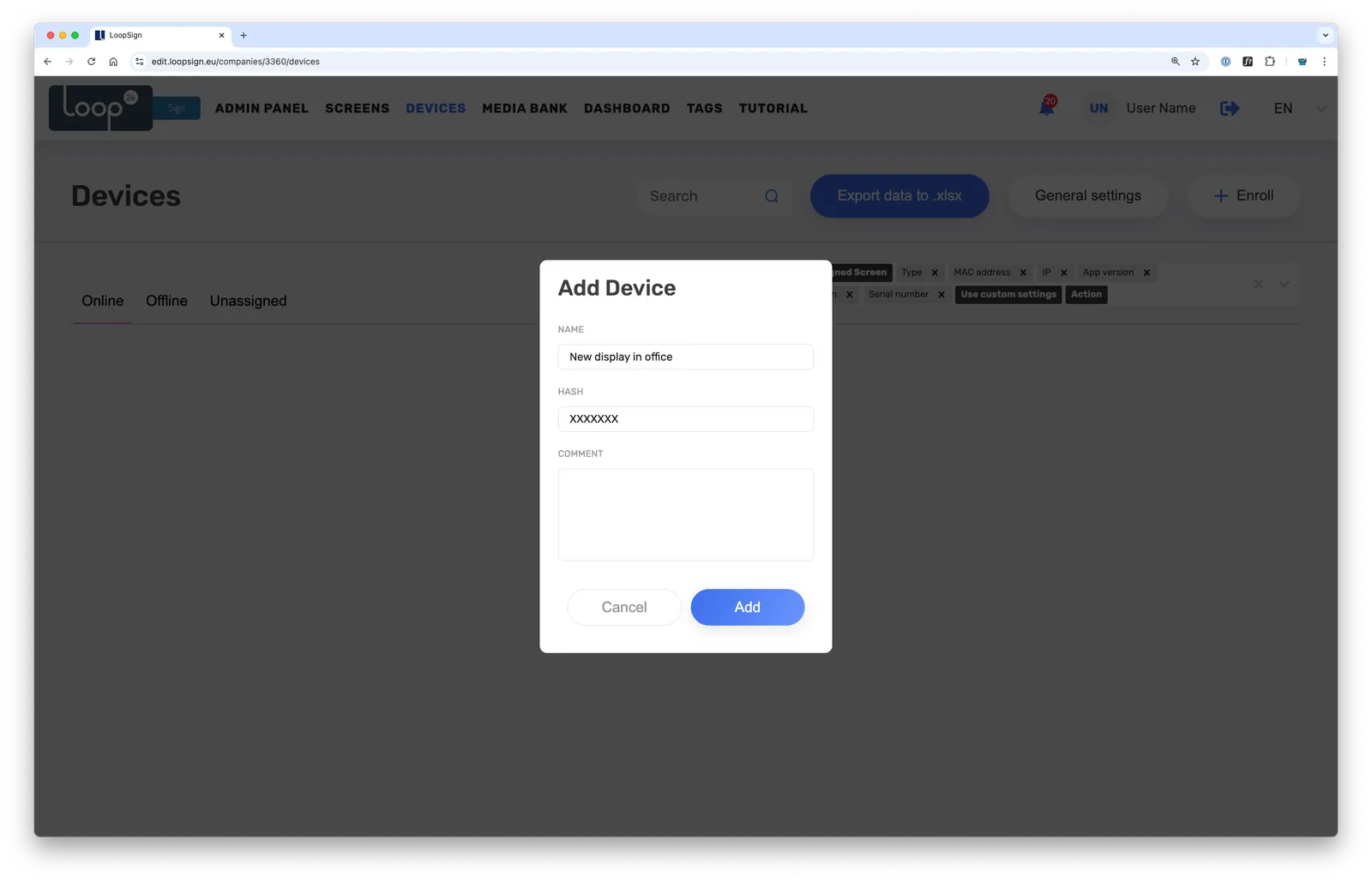
-
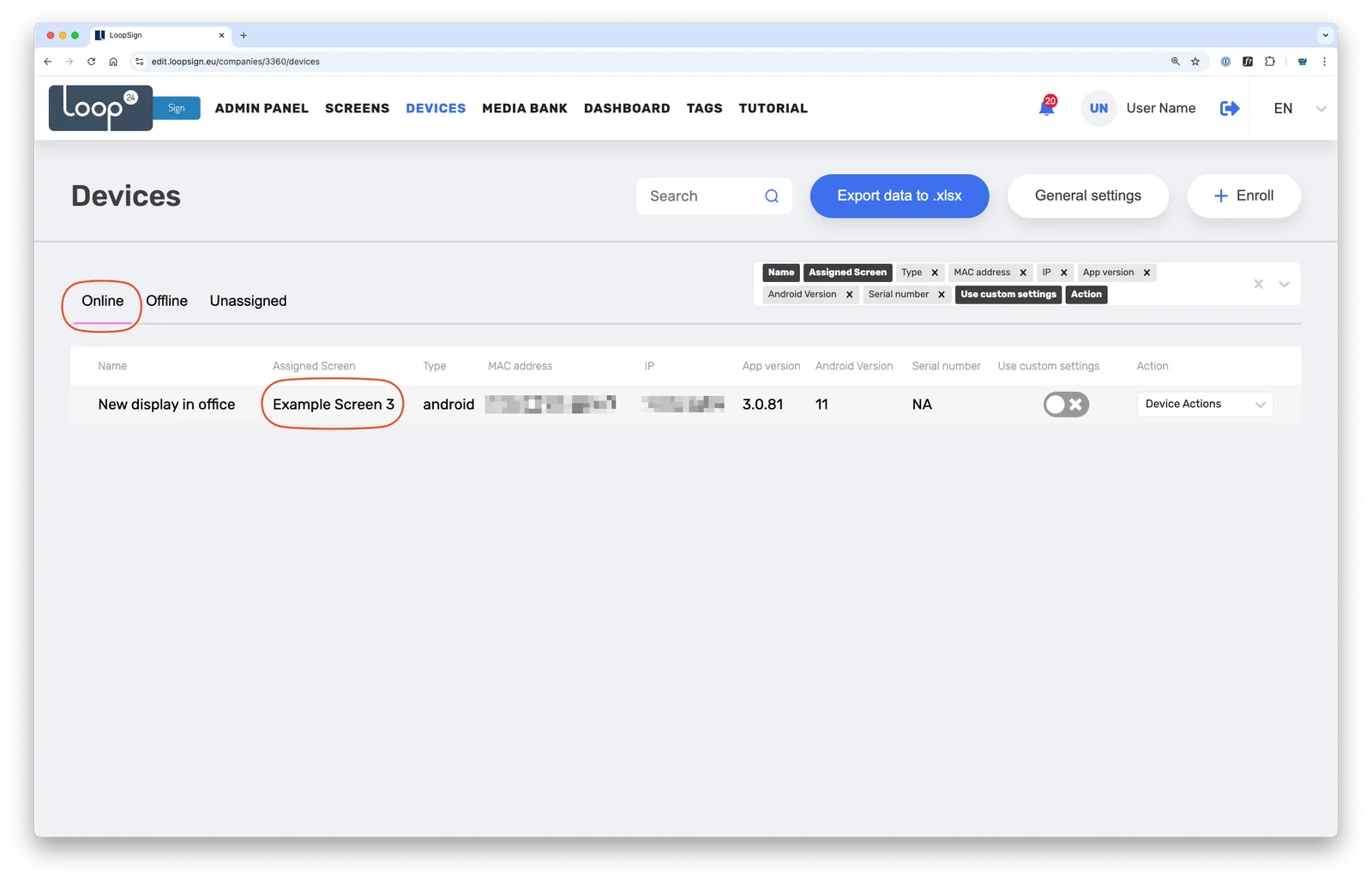
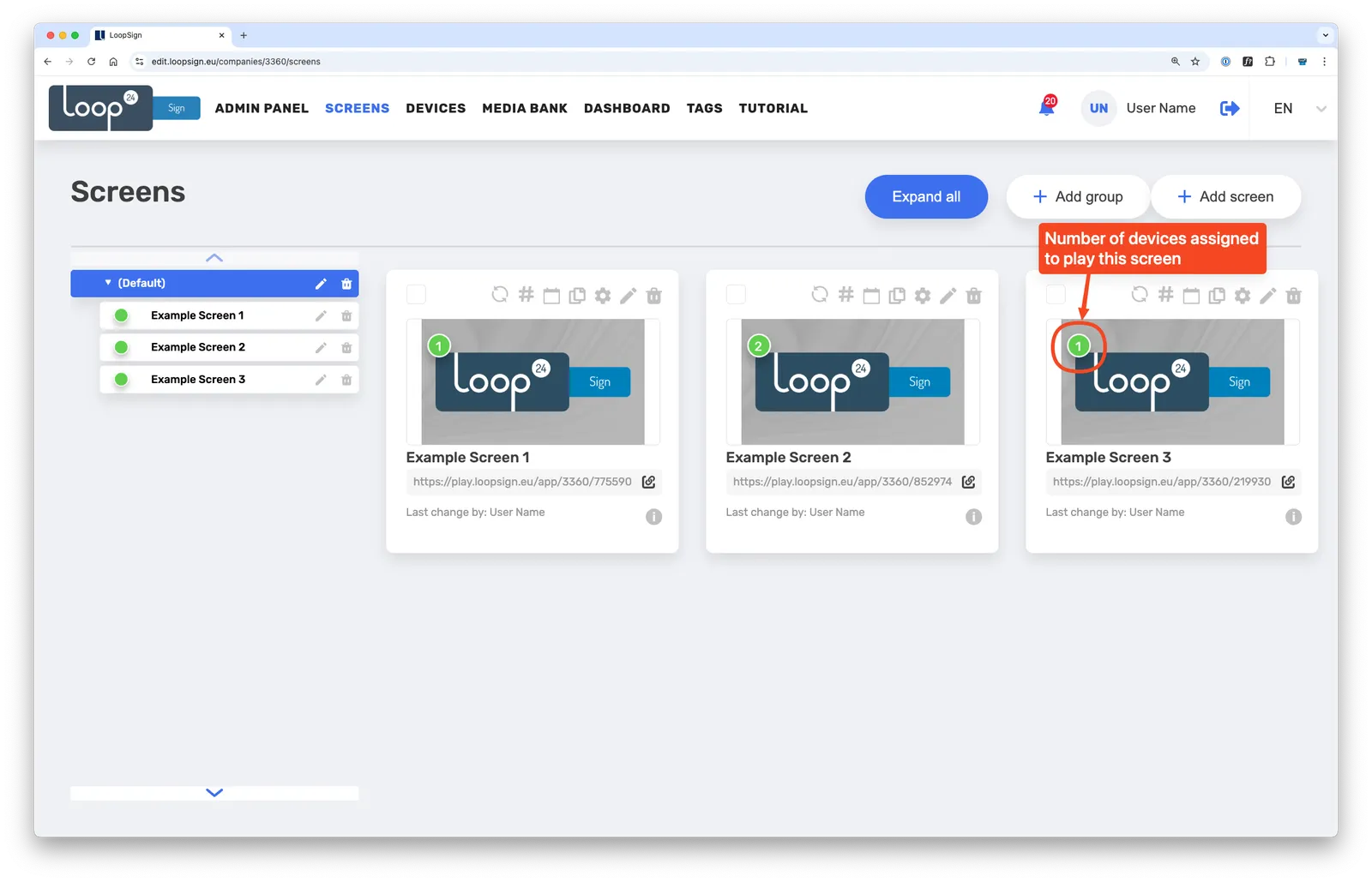
Assign the display to a LoopSign screen, and the display starts playing your LoopSign content straight away.
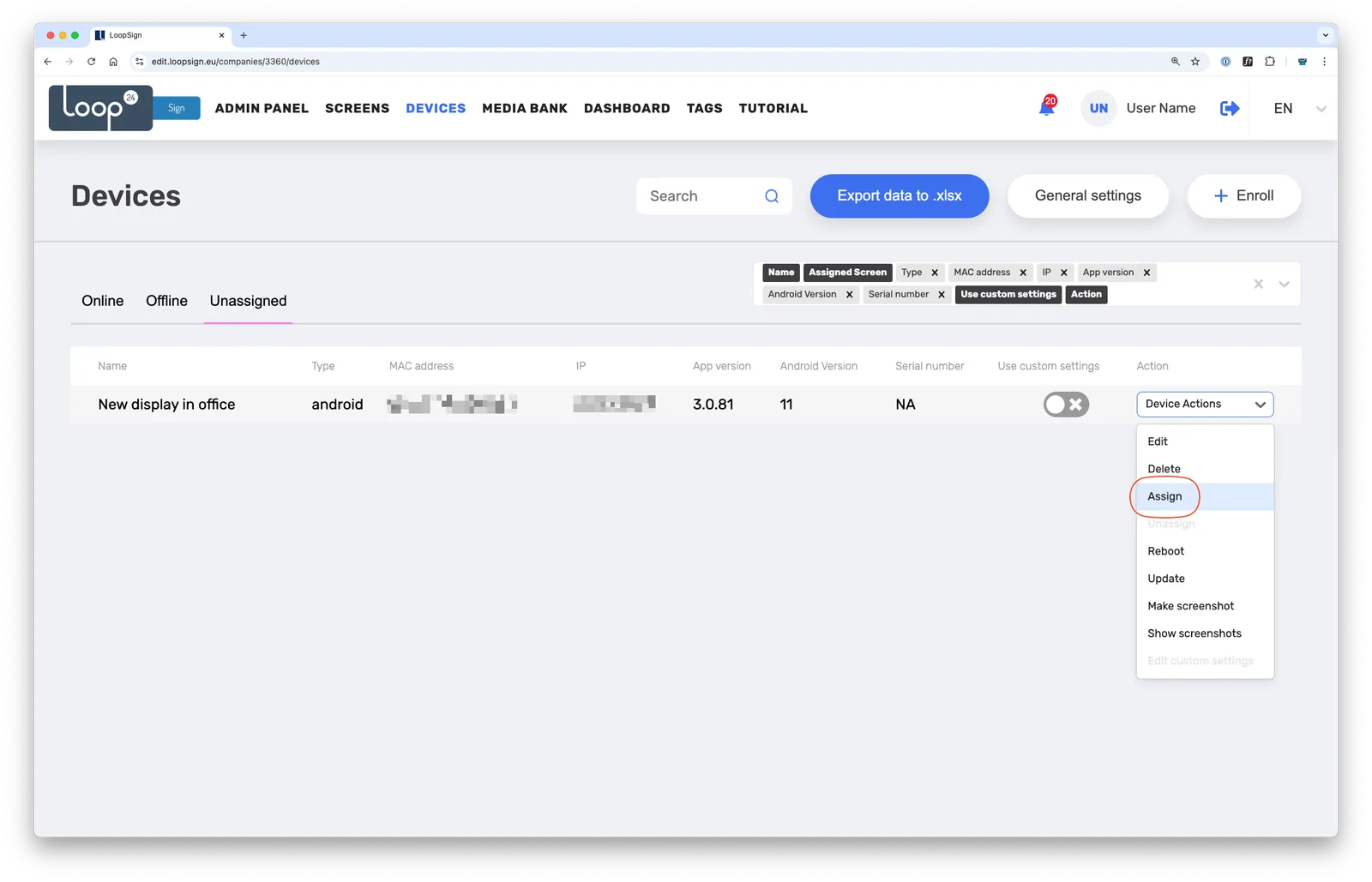
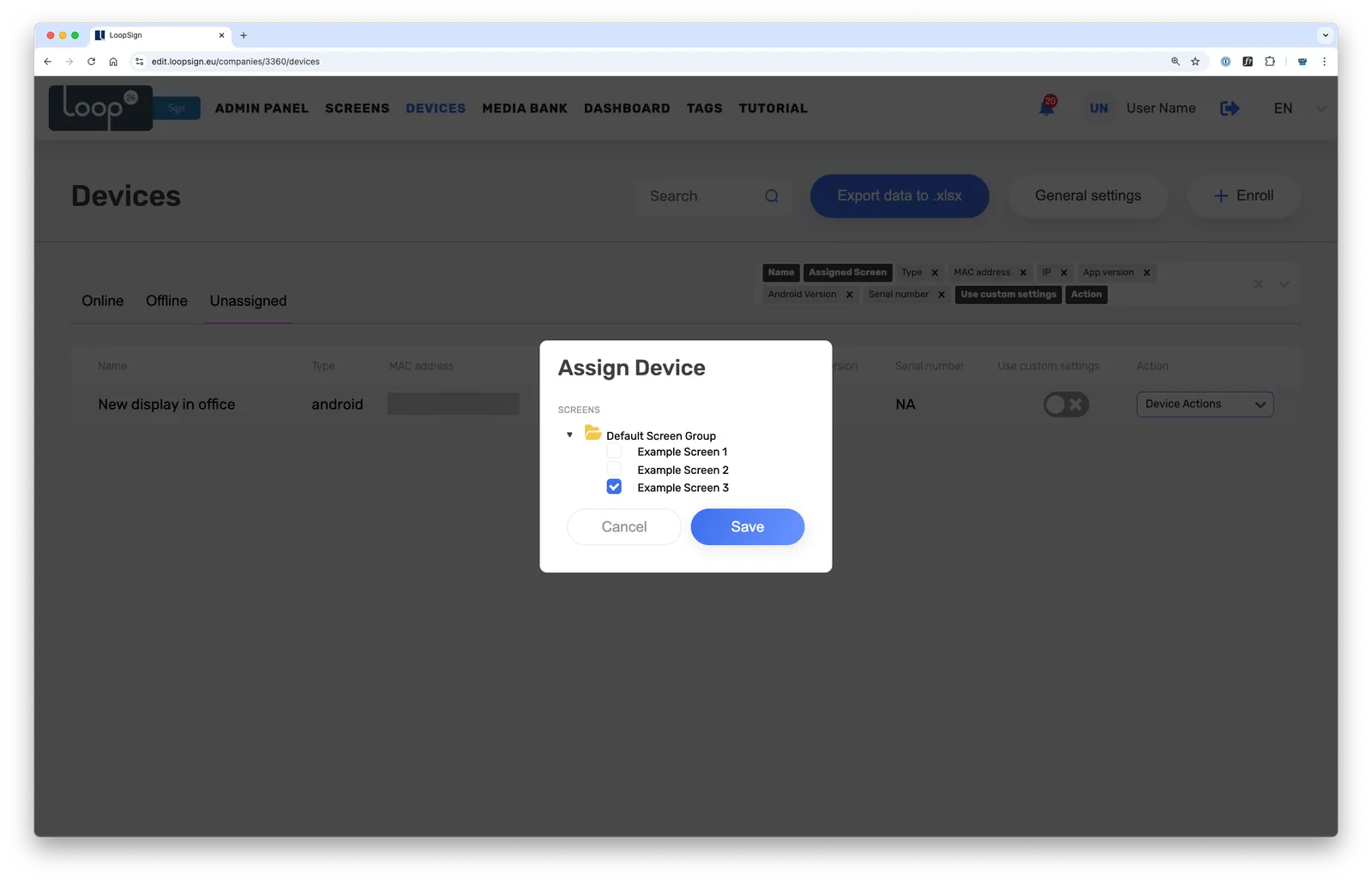
Congratulations! You have now configured your display, enrolled it on your LoopSign account and assigned it to play content from a LoopSign screen.
Visits are counted with Umami on Loop24’s own server in Stockholm. No cookies, and no IP addresses are stored.
Microsoft, Windows, Microsoft Edge, Entra, Exchange, Microsoft 365, Outlook, Power BI and Teams are trademarks of the Microsoft group of companies. Android, Google Play, Google Workspace, Google Sheets and Google Slides are trademarks of Google LLC. App Store is a service mark of Apple Inc. Other product and company names belong to their owners; they say what LoopSign, LoopMeeting, LoopBooking and LoopVisit work with, and imply no affiliation or endorsement.