
App update
The LoopMeeting app is constantly evolving with new functionality and features. It is easy to update your app. A good rule is to always test a new version on one panel before rolling it out at scale.
Then select Check for update from the menu. If this menu item is not available, you have an older version of the app: update from a USB stick (option 5) or download the app directly to the panel (option 4).
Option 1
Section titled “Option 1”From the startup screen
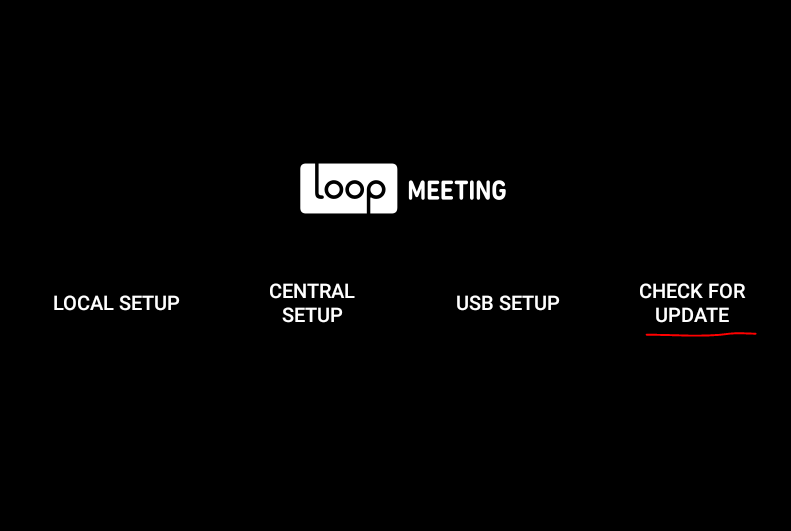
Section titled “From the startup screen”When starting the panel for the first time or after a reset, you have the option to update before you load the settings. Tap the Check for update option on the initial startup screen.
Option 2
Section titled “Option 2”From Settings
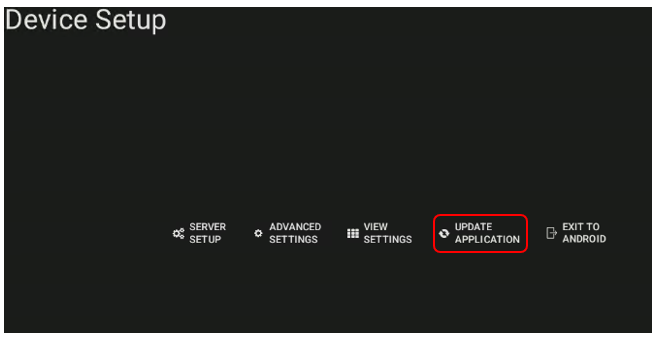
Section titled “From Settings”- Enter the settings (tap the i in the lower right corner).
- Select Settings and enter the password or PIN.
- Select Update Application.
Option 3A
Section titled “Option 3A”From the Central Admin console (the legacy console)
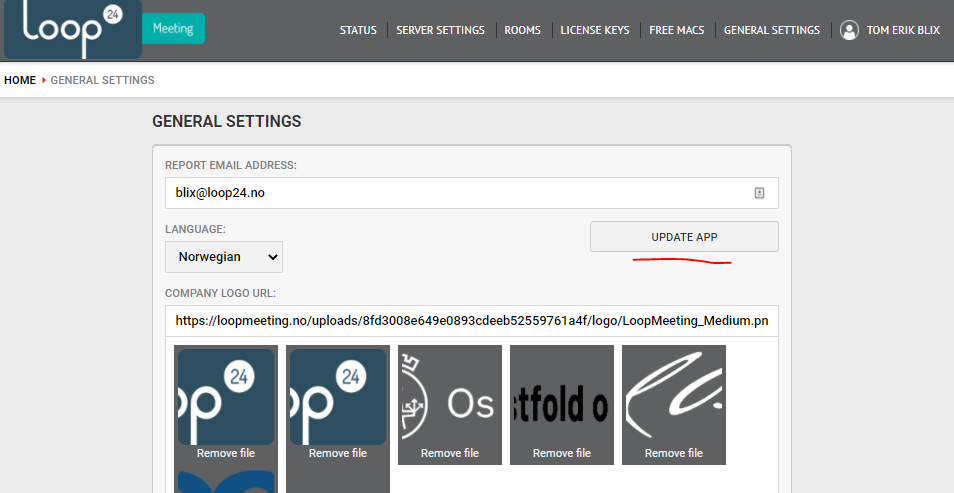
Section titled “From the Central Admin console (the legacy console)”If you use the Central Admin console, you can use the Update App option: go to General Settings and select the Update App button. The panels then update automatically within the next 24 hours.
Option 3B
Section titled “Option 3B”From the RoomConfig portal
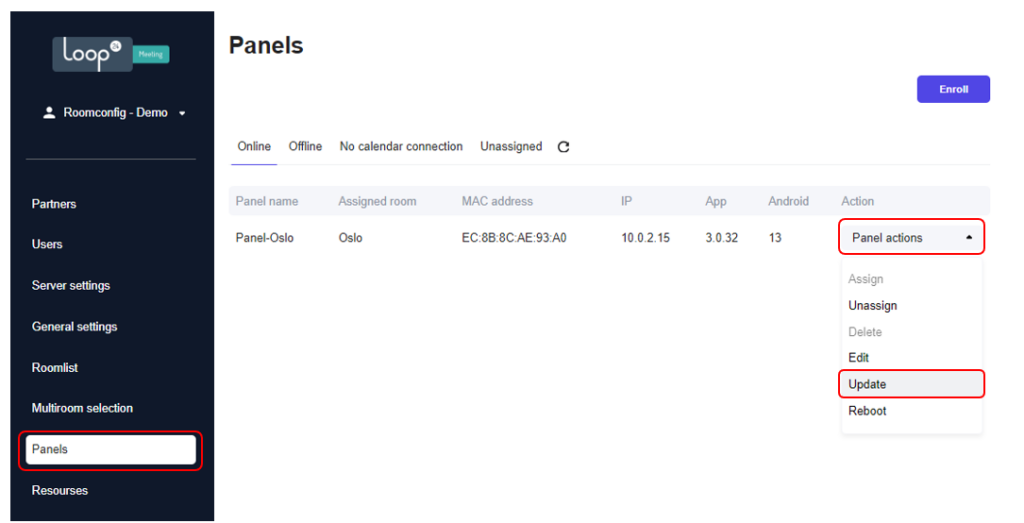
Section titled “From the RoomConfig portal”In the RoomConfig portal, https://lm.roomconfig.com, select the menu item Panels, then Panel actions, and select Update. The panel updates to the latest version at once.
Option 4
Section titled “Option 4”Direct download to the panel
Section titled “Direct download to the panel”- Download the latest app version in the web browser on the panel: https://dl.loop24.no/lm.apk if you have an original LoopMeeting panel, https://dl.loop24.no/lmoem.apk if you have a third-party panel (for ProDVX, see ProDVX panels).
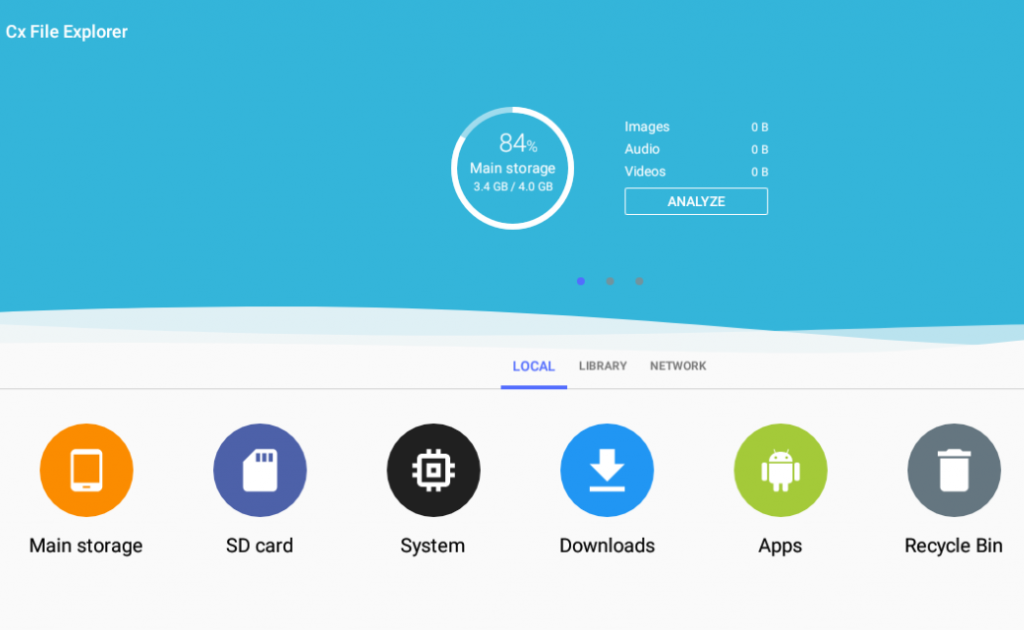
- Open the file in Cx File Explorer or the file manager on the panel and run the APK file. You should find it in the download folder.
Option 5
Section titled “Option 5”From a USB stick
Section titled “From a USB stick”- Download the latest app version from the Downloads page.
- Unzip it to a USB stick (FAT32).
- On the panel, exit the LoopMeeting app (enter the settings and drag your finger up from the bottom).
- Plug the USB stick into the unit; the file explorer starts. The panel is picky about USB sticks, so try both ports. If the file explorer does not start by itself, enter Apps and start Cx File Explorer or ES File Explorer manually.
- Select the USB stick and select the APK file to install it.
Issues with update?
Section titled “Issues with update?”If you updated the panel with option 2 or 3 and the panel only shows a blank black page after the restart, you need to factory reset the panel. See this support page: Factory reset
After the factory reset, update the panel to the latest version before entering any licence key.
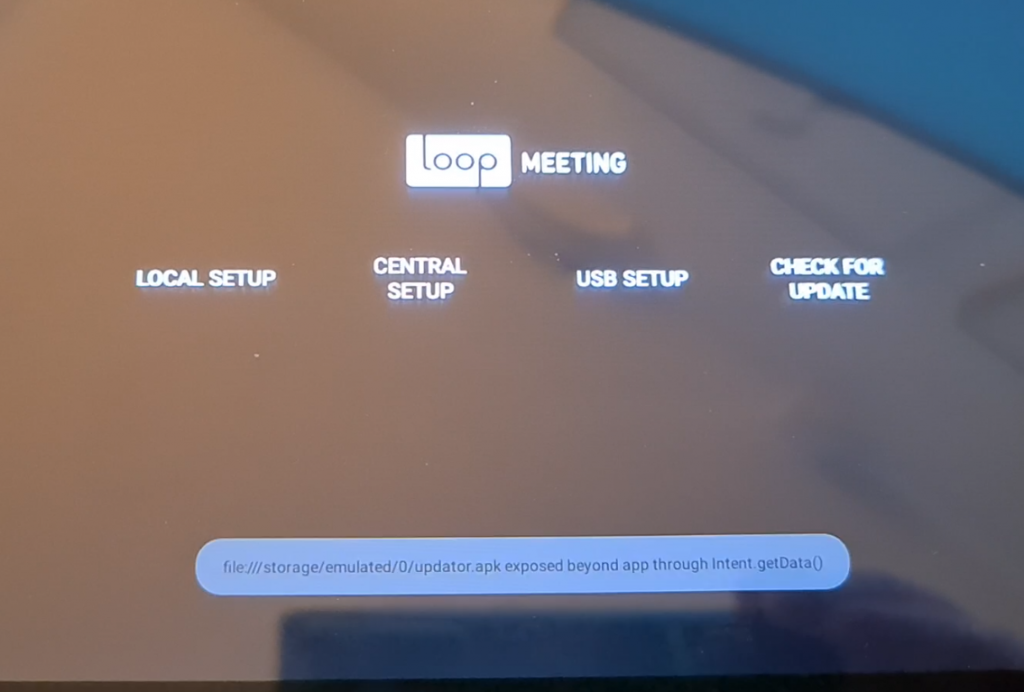
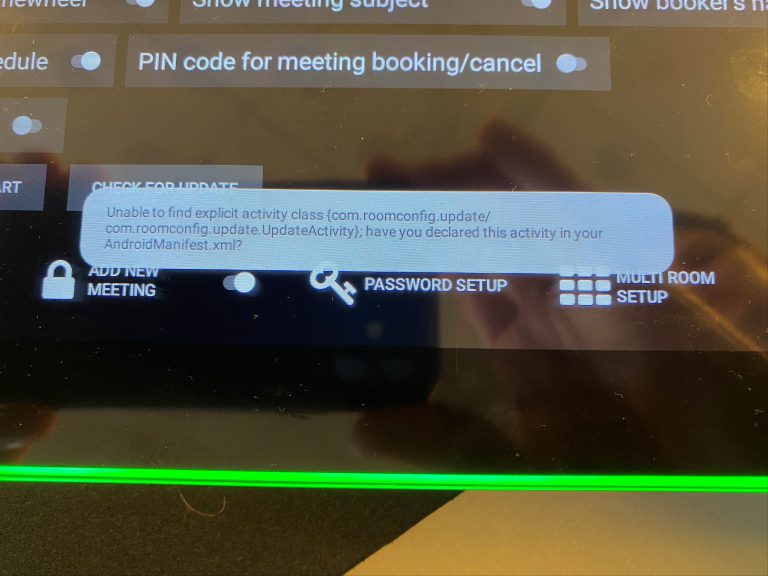
If you have one of the issues shown below, or the update just hangs when you try option 1, 2 or 3, the only way is to update with option 5. Once that is done, options 1, 2 and 3 should work again as normal.
Still having problems with the update? Double-check that the panels are connected to the internet.
Visits are counted with Umami on Loop24’s own server in Stockholm. No cookies, and no IP addresses are stored.
Microsoft, Windows, Microsoft Edge, Entra, Exchange, Microsoft 365, Outlook, Power BI and Teams are trademarks of the Microsoft group of companies. Android, Google Play, Google Workspace, Google Sheets and Google Slides are trademarks of Google LLC. App Store is a service mark of Apple Inc. Other product and company names belong to their owners; they say what LoopSign, LoopMeeting, LoopBooking and LoopVisit work with, and imply no affiliation or endorsement.