
App functions
This guide takes you through the different functions in the LoopMeeting app.
Introduction
Section titled “Introduction”The LoopMeeting app has many functions; some of them can be enabled or disabled to suit the customer. All settings are controlled by the customer from the RoomConfig portal, https://lm.roomconfig.com (see Configure the portal).
LoopMeeting main page overview
Section titled “LoopMeeting main page overview”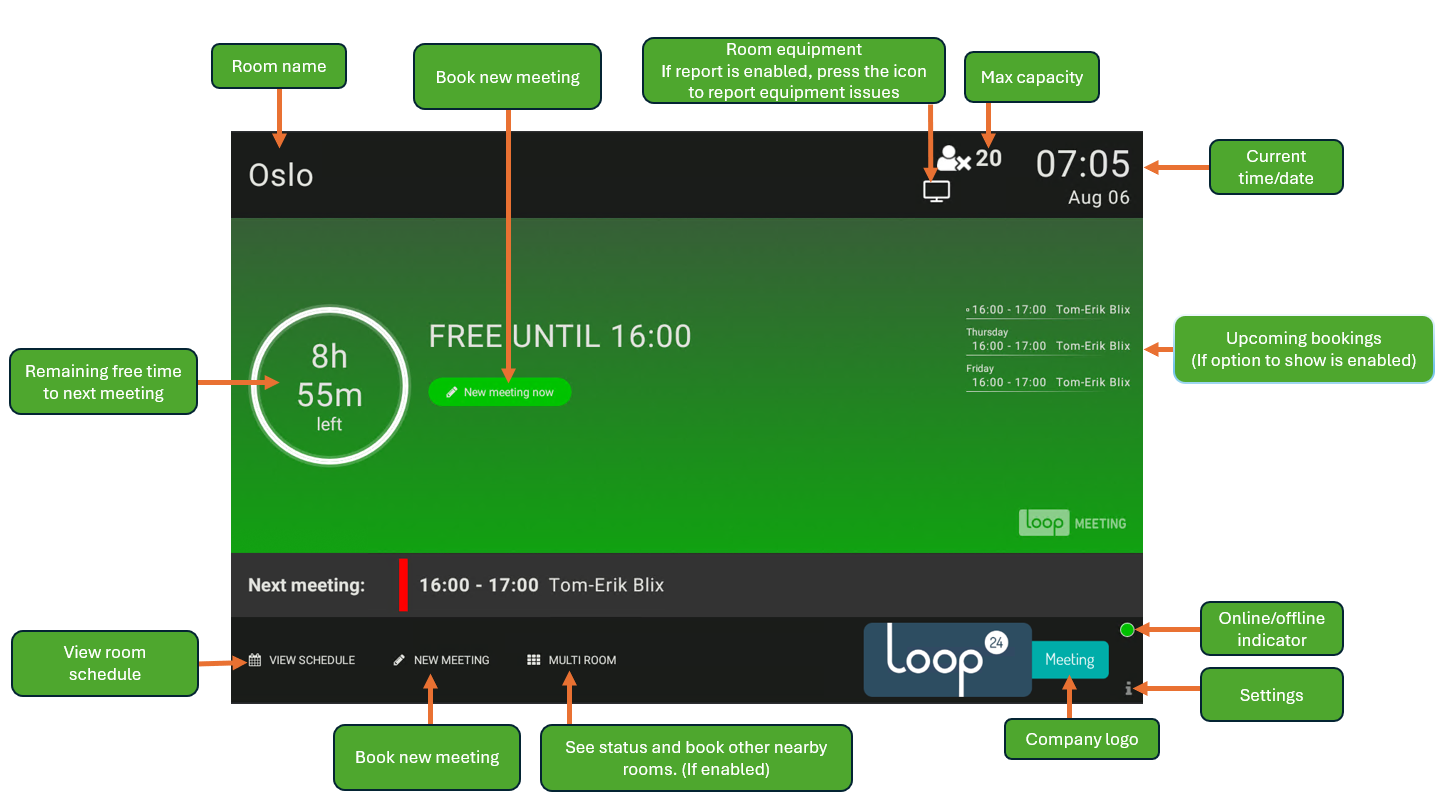
The top row shows the room name, the room equipment icon (if reporting is enabled, tap the icon to report equipment issues), the max capacity and the current time and date. When the room is free the page is green and says until when; the circle shows the remaining free time to the next meeting, and New meeting now books a new meeting. Upcoming bookings are listed to the right if that option is enabled, and the next meeting is shown below. The bottom row holds VIEW SCHEDULE (the room schedule), NEW MEETING, MULTI ROOM (see the status of other nearby rooms and book them, if enabled: Configure Multiroom), the company logo, the online/offline indicator and the settings icon.
LoopMeeting: book a new meeting
Section titled “LoopMeeting: book a new meeting”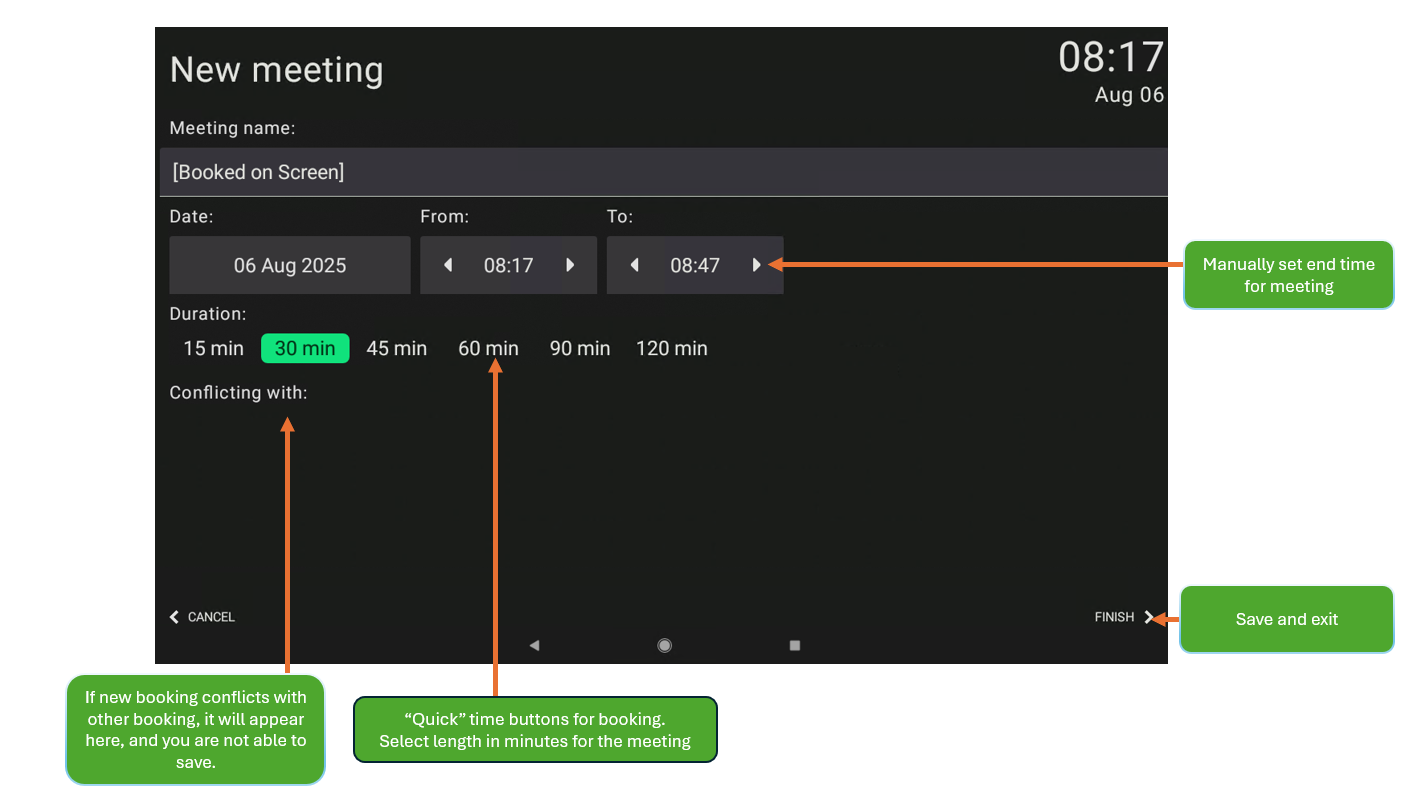
The New meeting page has the meeting name, the date, and the From and To times; the arrows at To set the end time manually. The Duration buttons (15, 30, 45, 60, 90 and 120 min) are quick choices for the length of the meeting. If the new booking conflicts with another booking, that booking appears under Conflicting with and you cannot save. FINISH saves and exits; CANCEL is at the bottom left.
LoopMeeting busy page functions
Section titled “LoopMeeting busy page functions”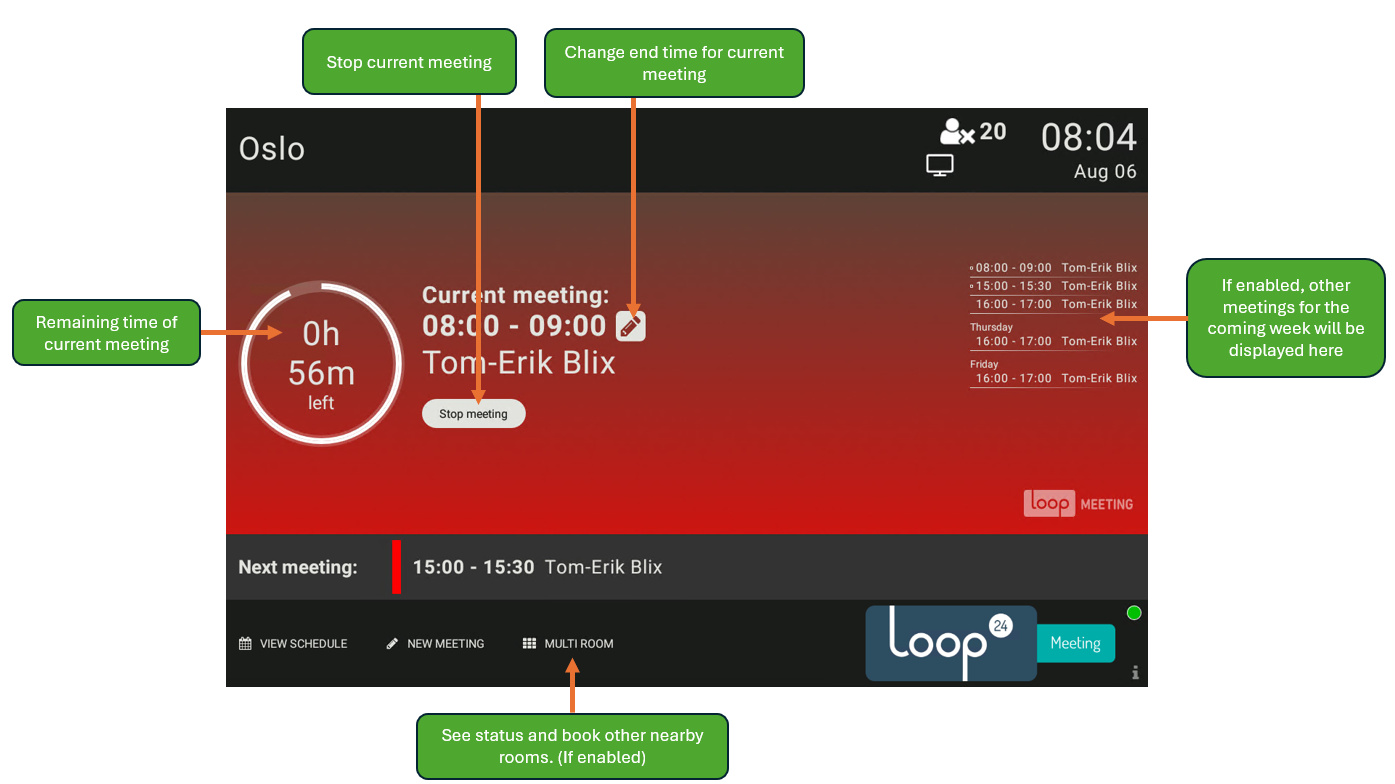
While a meeting is running the page is red and shows the current meeting with its time, and the circle shows the remaining time of the current meeting. Stop meeting stops the current meeting, and the pencil icon changes its end time. If enabled, other meetings for the coming week are listed to the right. MULTI ROOM shows the status of other nearby rooms and books them, if enabled.
LoopMeeting: edit a meeting
Section titled “LoopMeeting: edit a meeting”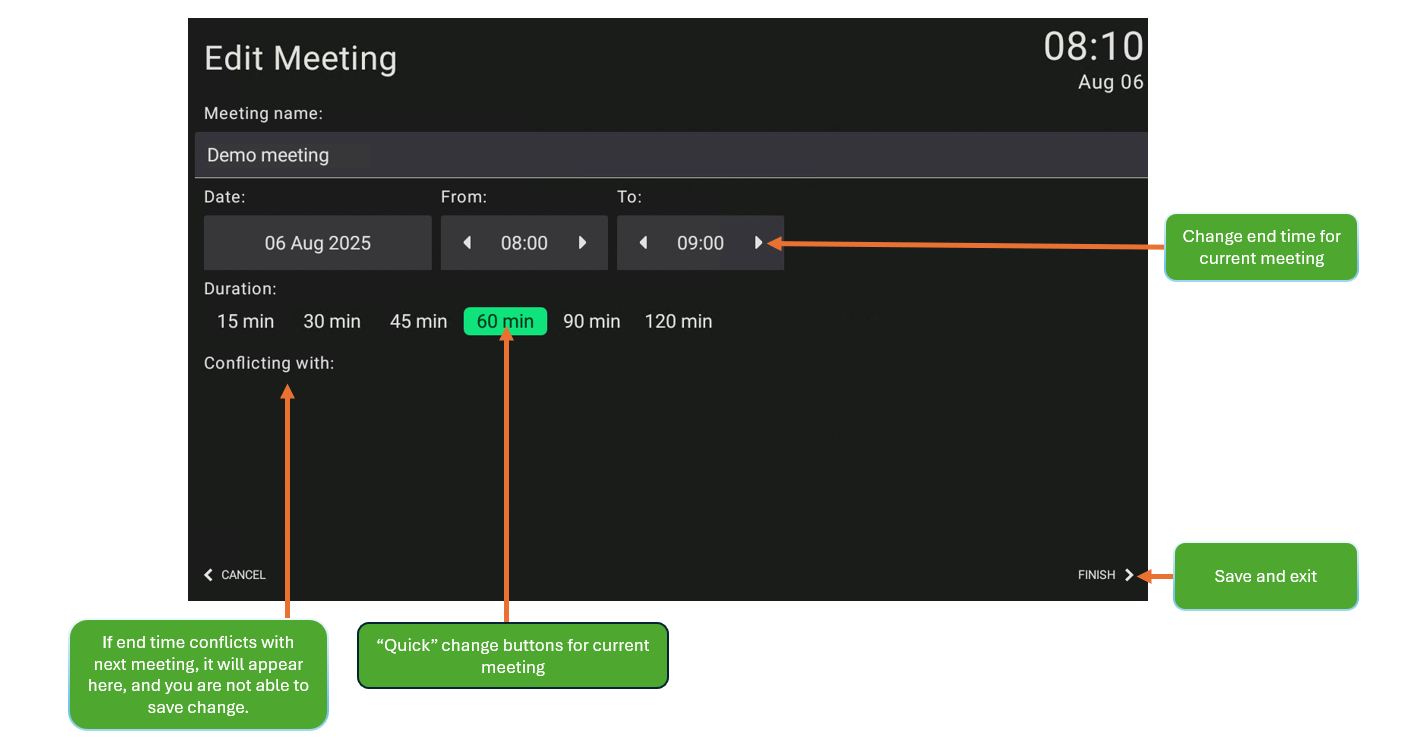
The Edit Meeting page changes the end time of the current meeting, with the arrows at To or with the quick Duration buttons. If the new end time conflicts with the next meeting, that meeting appears under Conflicting with and you cannot save the change. FINISH saves and exits.
Visits are counted with Umami on Loop24’s own server in Stockholm. No cookies, and no IP addresses are stored.
Microsoft, Windows, Microsoft Edge, Entra, Exchange, Microsoft 365, Outlook, Power BI and Teams are trademarks of the Microsoft group of companies. Android, Google Play, Google Workspace, Google Sheets and Google Slides are trademarks of Google LLC. App Store is a service mark of Apple Inc. Other product and company names belong to their owners; they say what LoopSign, LoopMeeting, LoopBooking and LoopVisit work with, and imply no affiliation or endorsement.