
Zynage
Deploying LoopSign to your Zynage display is very easy: LoopSign uses its Android app on Zynage’s Android OS to play content. This guide is tested on the Zynage ZDS26 series, where the model name gives the size (for example Z55DS26 for the 55-inch model); the pictures are from a Z43DS26.
Connecting the display by Ethernet is always highly recommended, but Wi-Fi usually works as well, given a strong and stable connection.
Edit the Bytello Share settings
Section titled “Edit the Bytello Share settings”Bytello Share is the display’s screen-sharing app, which LoopSign does not use.
-
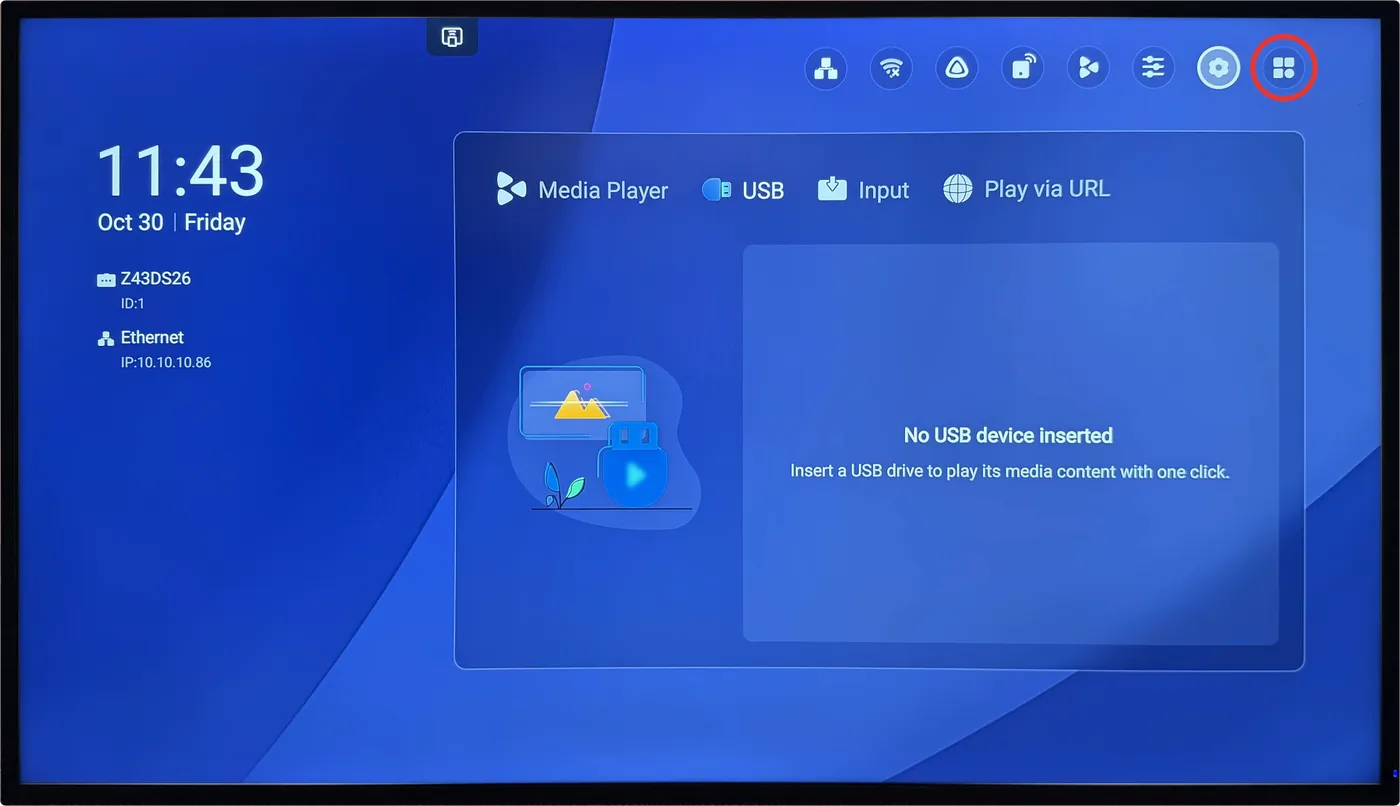
On the home screen, select the All Apps icon: the four squares at the right end of the row of icons at the top.
-
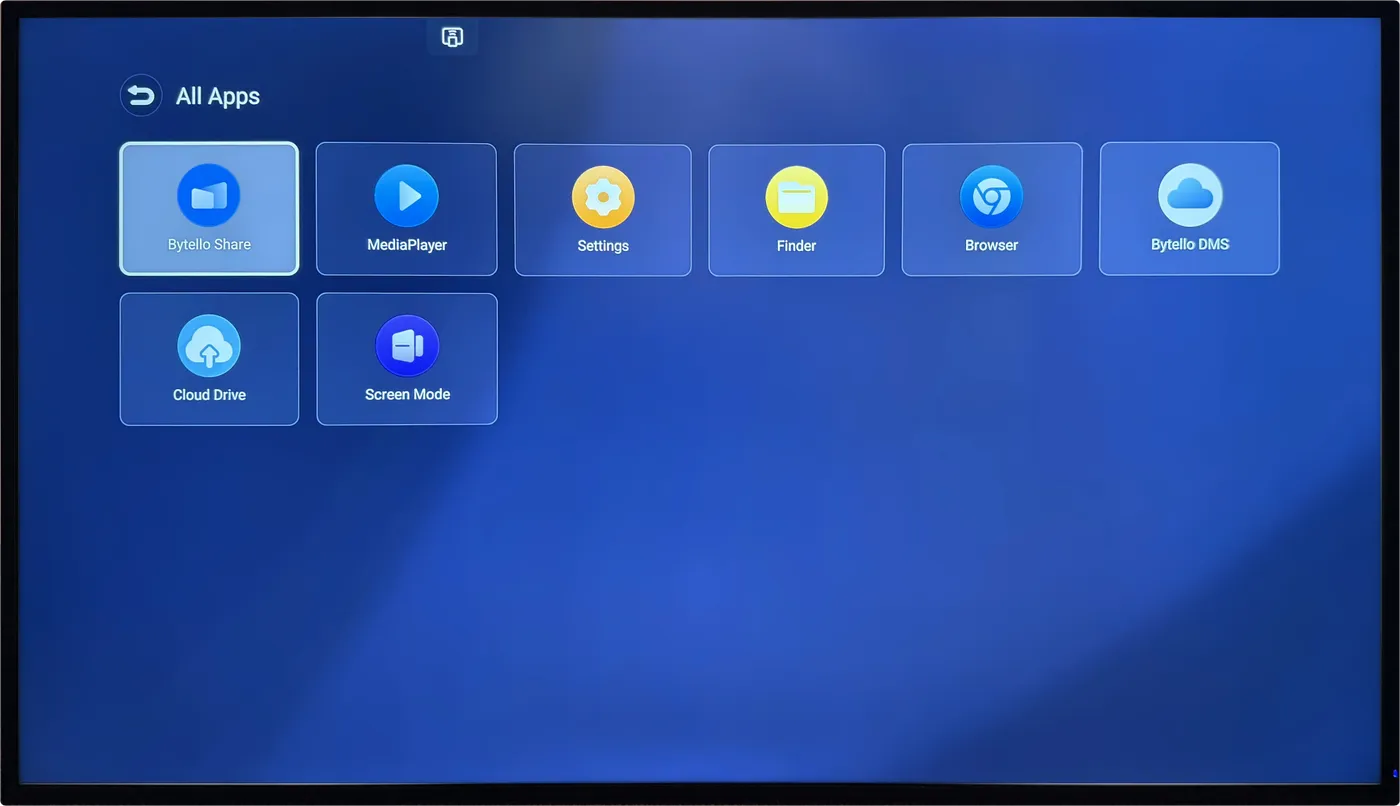
In All Apps, open Bytello Share.
-
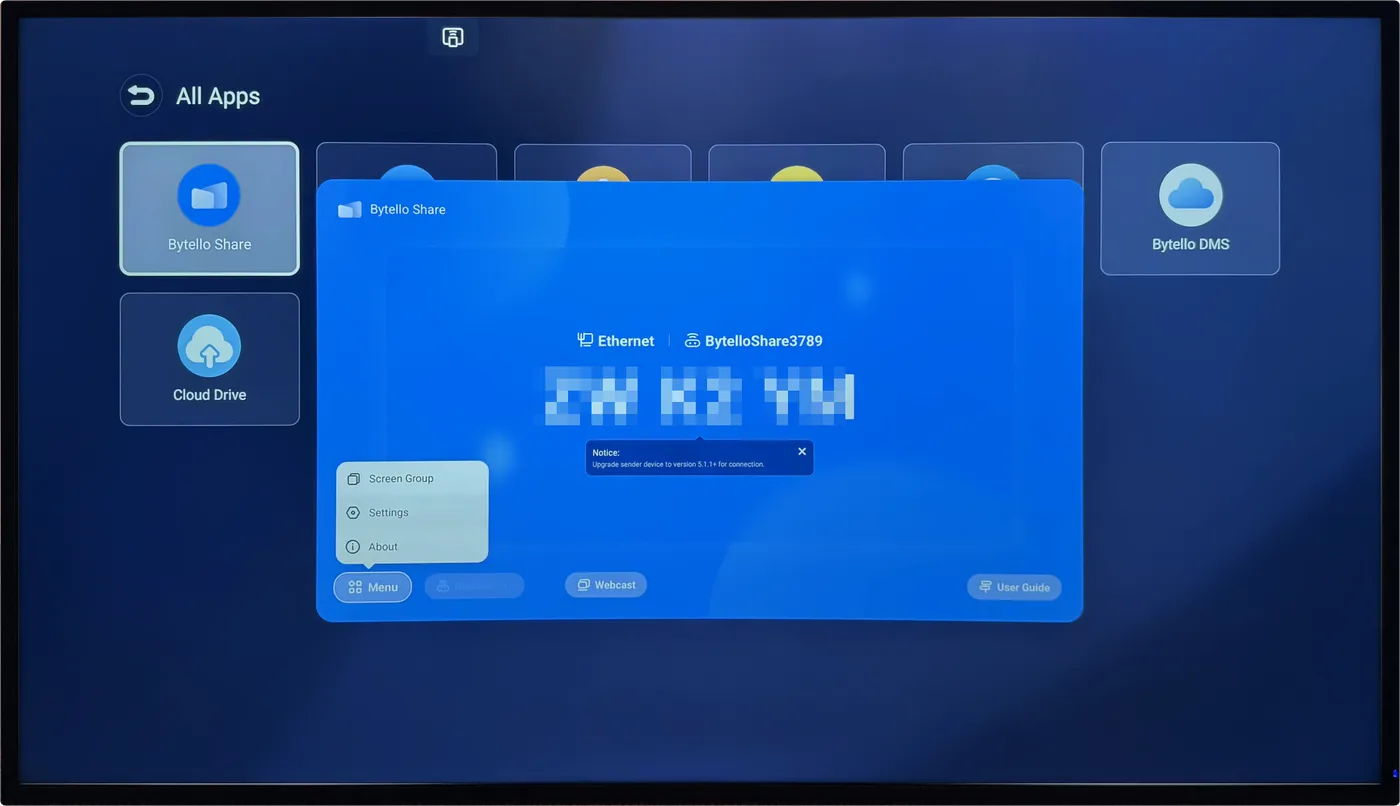
In the Bytello Share window, select Menu in the lower left corner, then Settings.
-
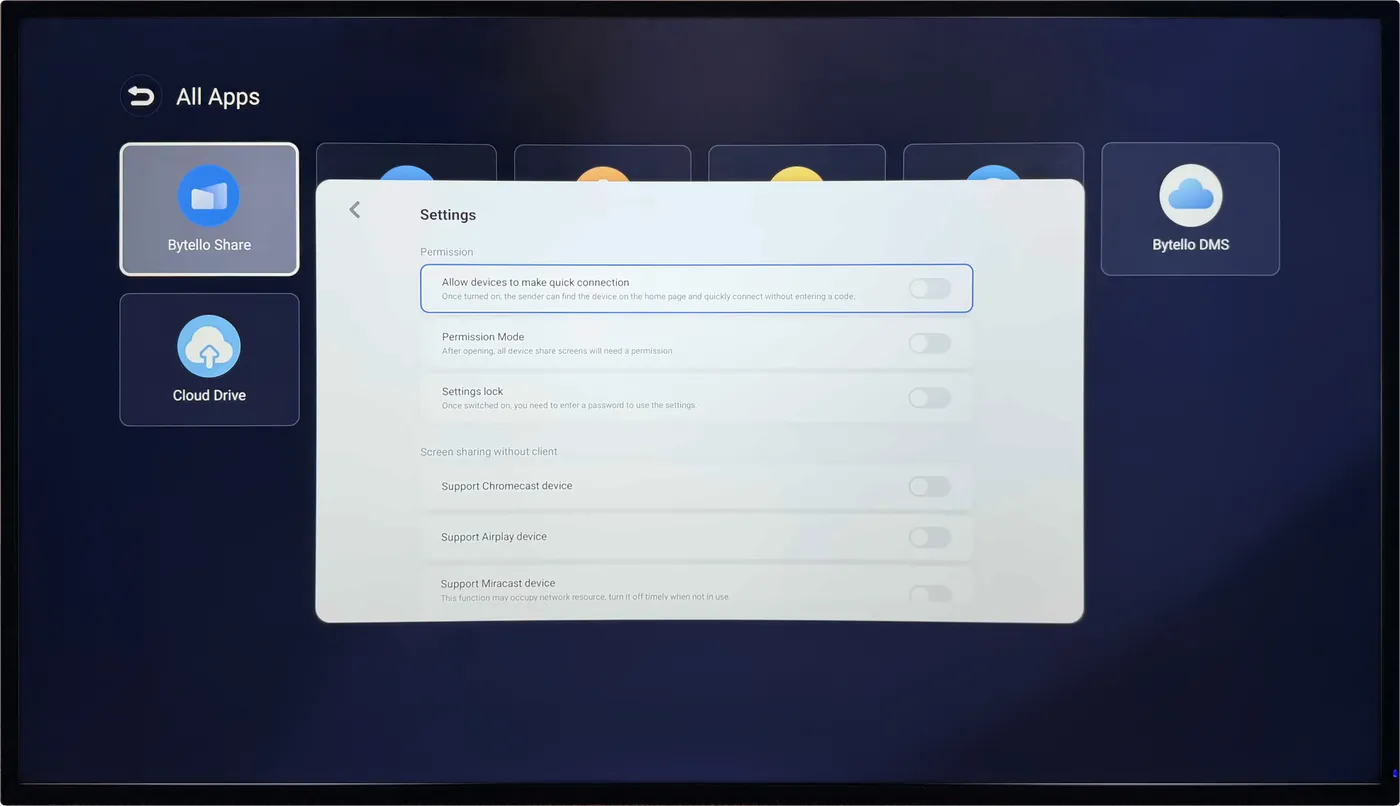
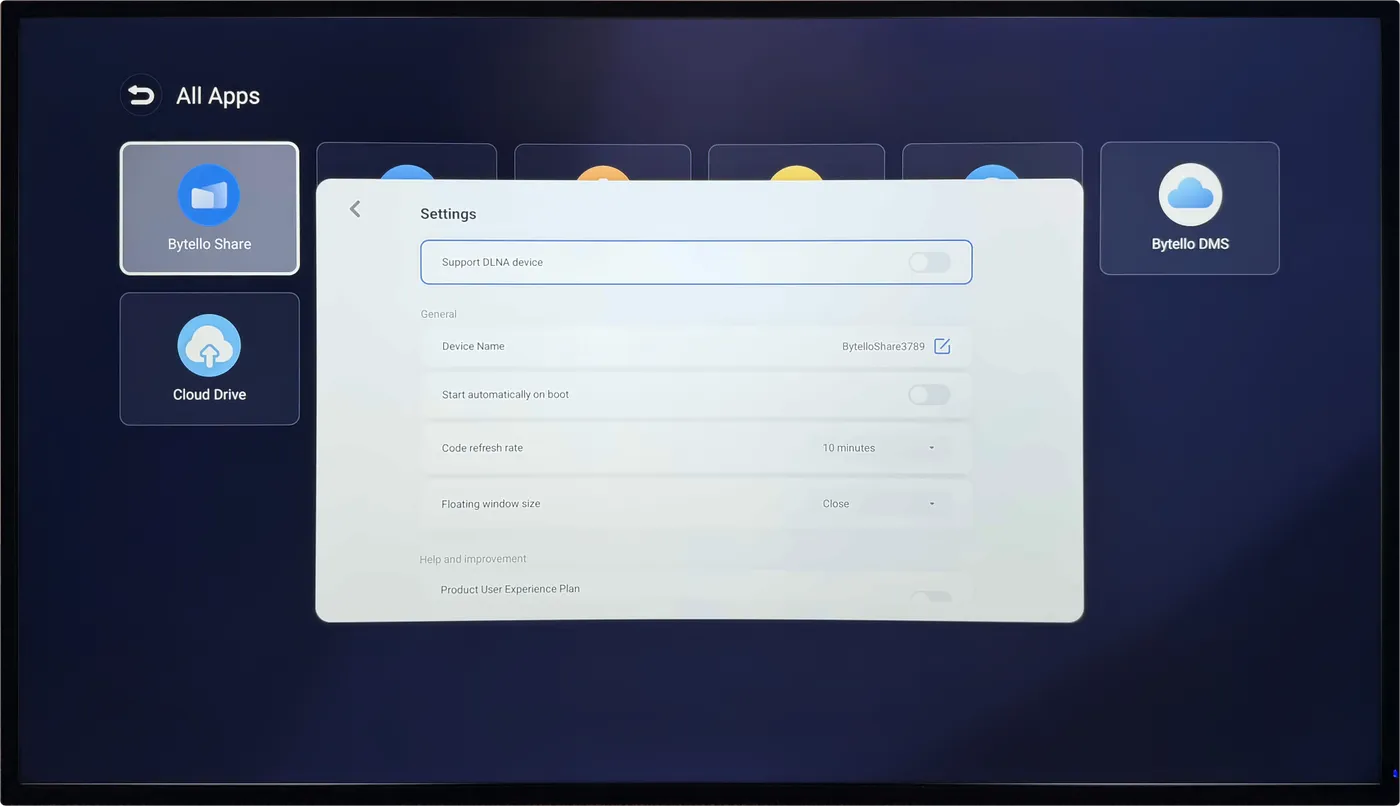
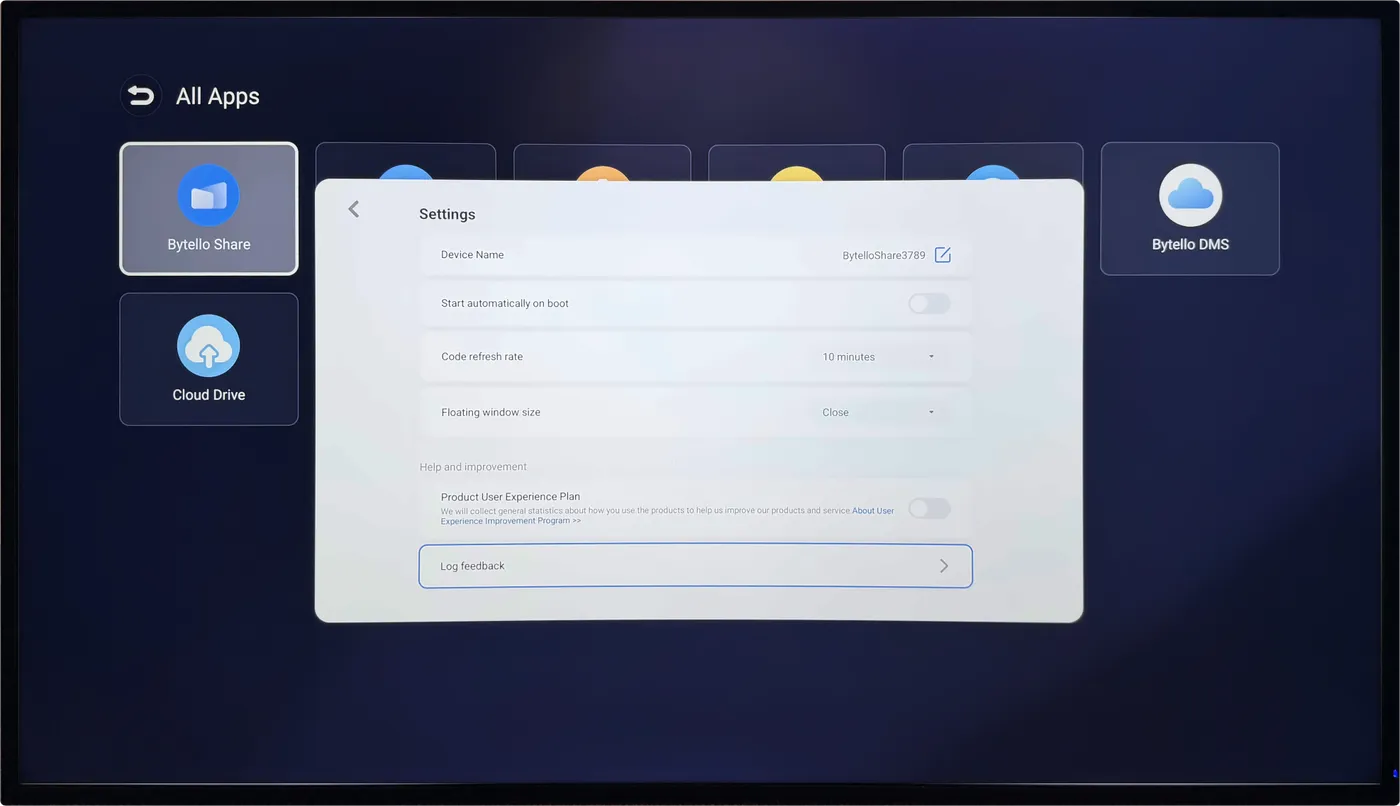
In Settings, switch off every switch, scrolling down for the rest of the list: Allow devices to make quick connection, Permission Mode, Settings lock, Support Chromecast device, Support Airplay device, Support Miracast device, Support DLNA device, Start automatically on boot and Product User Experience Plan. Set Floating window size to Close.
Install the LoopSign Player app
Section titled “Install the LoopSign Player app”Allow apps from unknown sources
Section titled “Allow apps from unknown sources”-
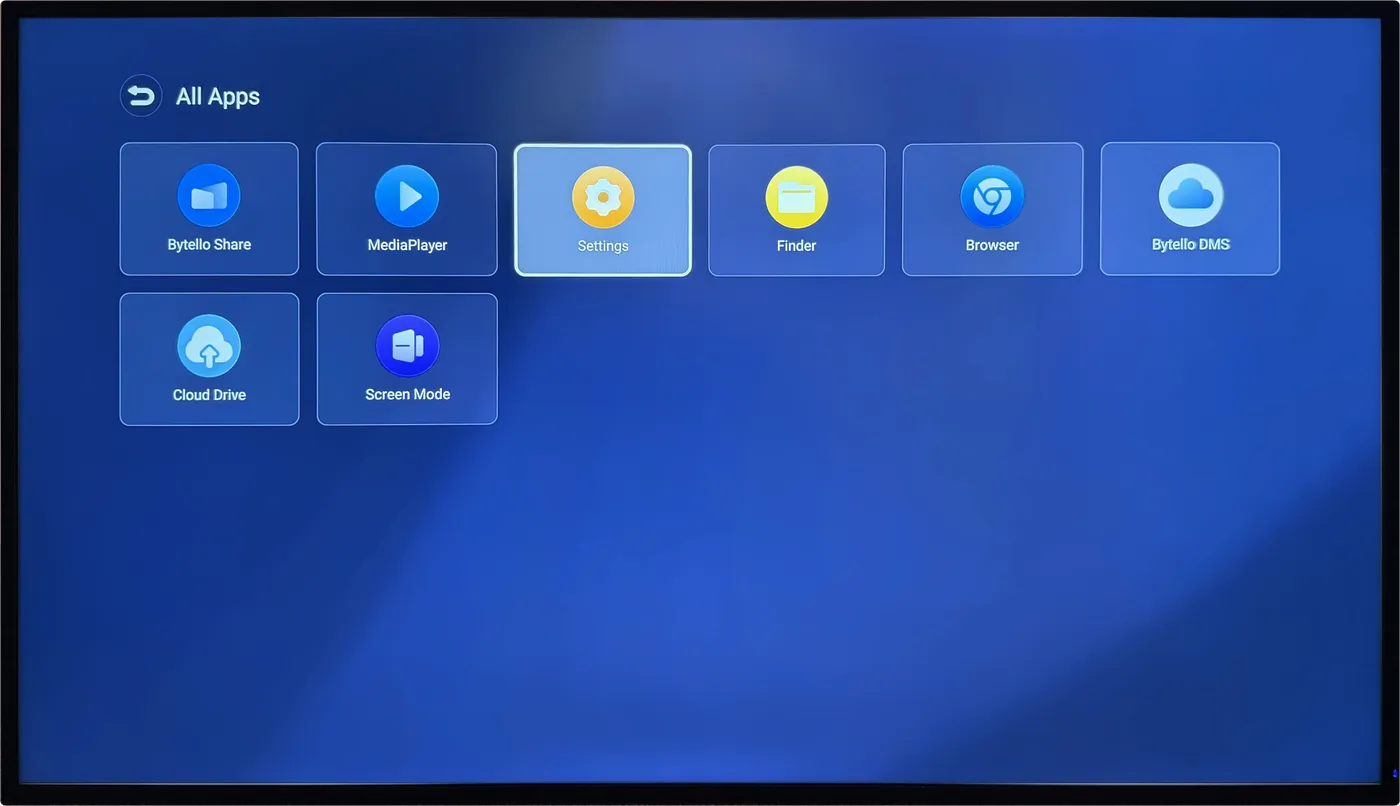
Go back to All Apps and open Settings.
-
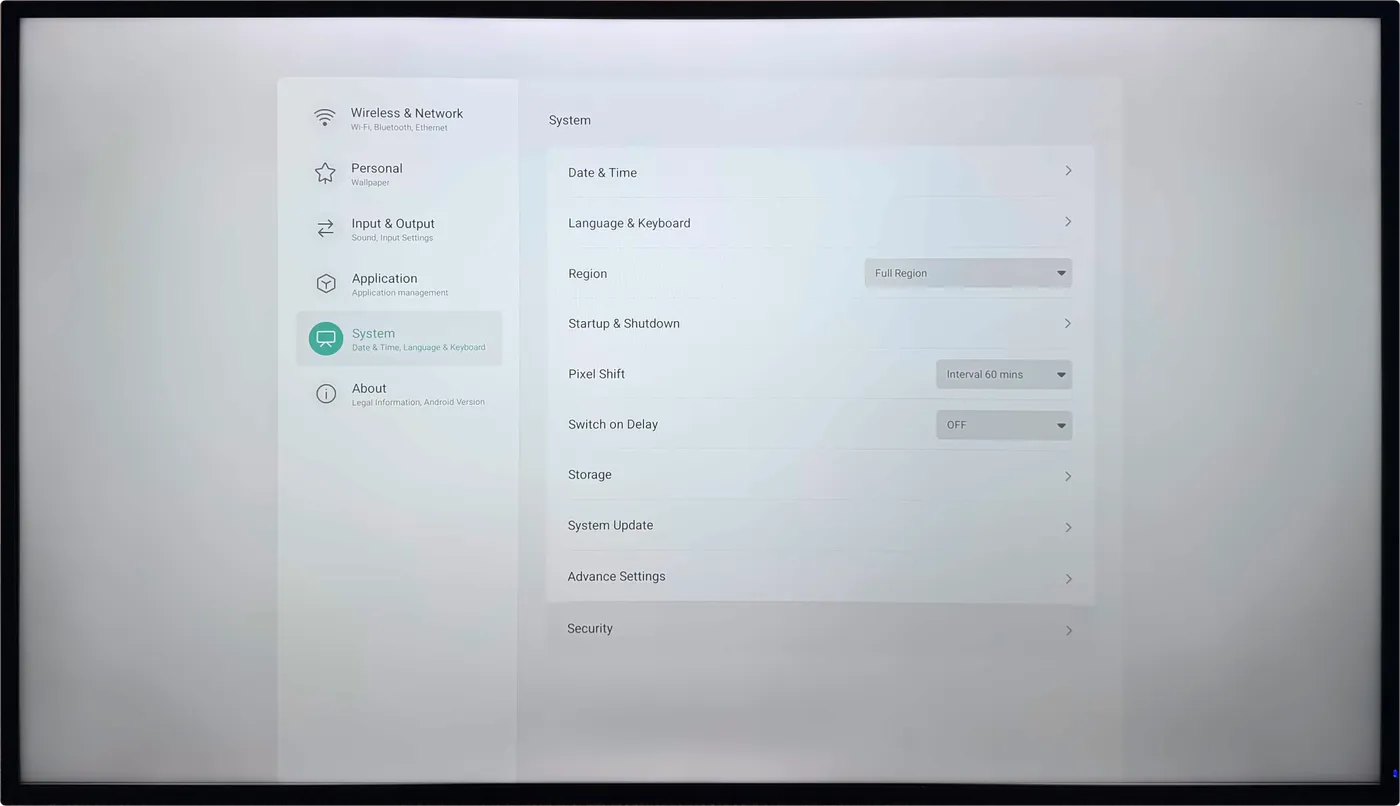
Go to System → Security.
-
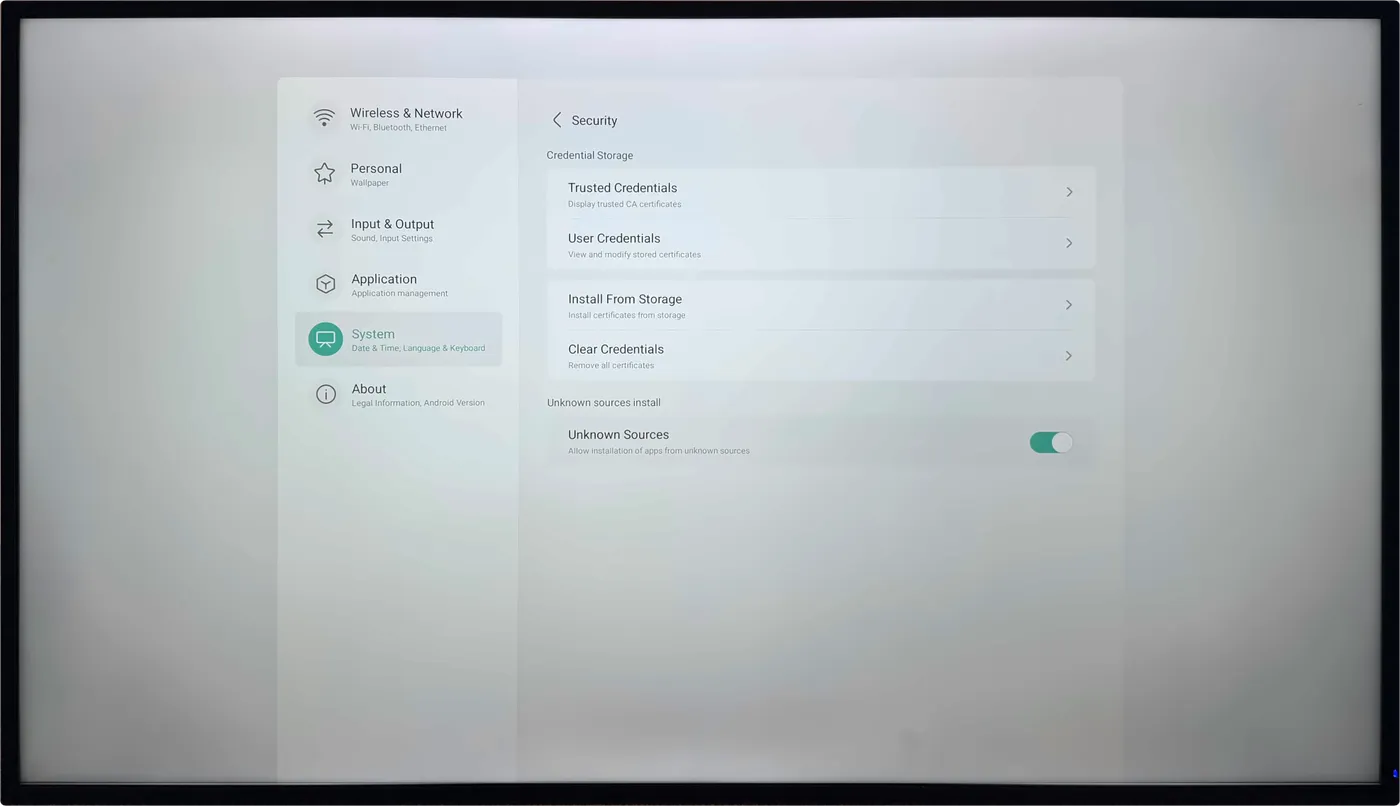
Switch on Unknown Sources.
Download and install the app
Section titled “Download and install the app”Download the LoopSign Player app either directly on the display, using the built-in browser, or to your computer: put it on a USB drive (FAT32 recommended) and connect the drive to the display.
You find it on the Download page: use LoopSign Player (recommended).
-
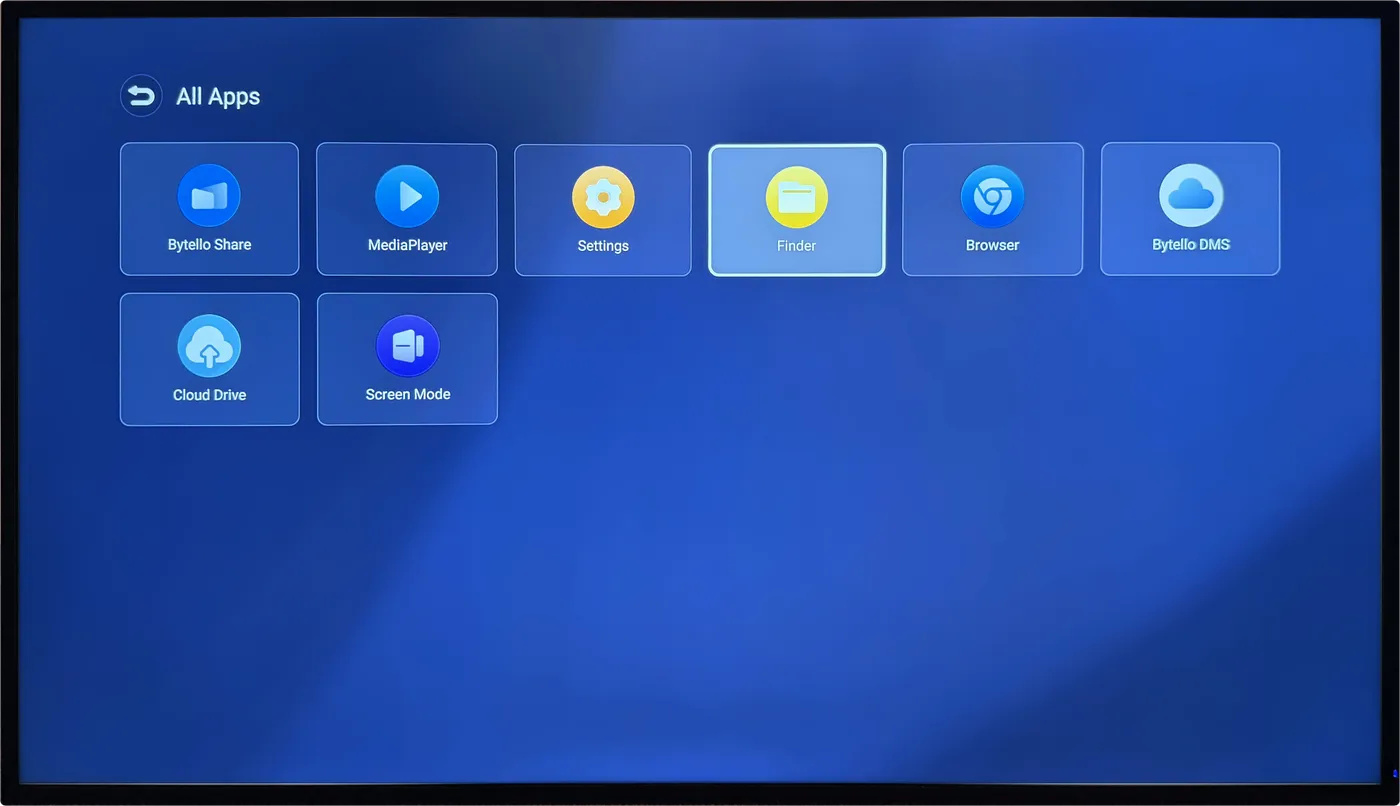
In All Apps, open Finder.
-
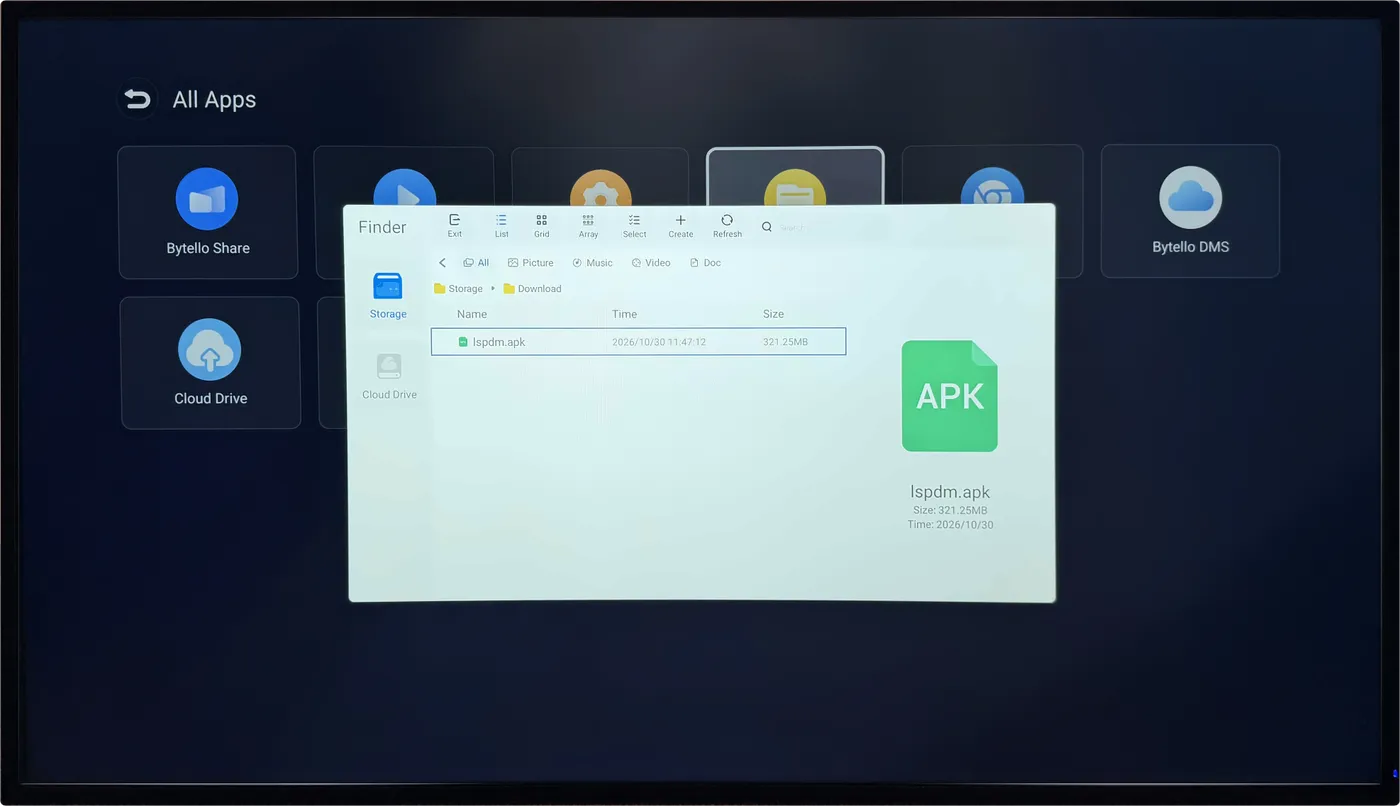
Find the LoopSign Player app file and select it. A file you downloaded with the display’s Browser app is in Storage → Download.
-
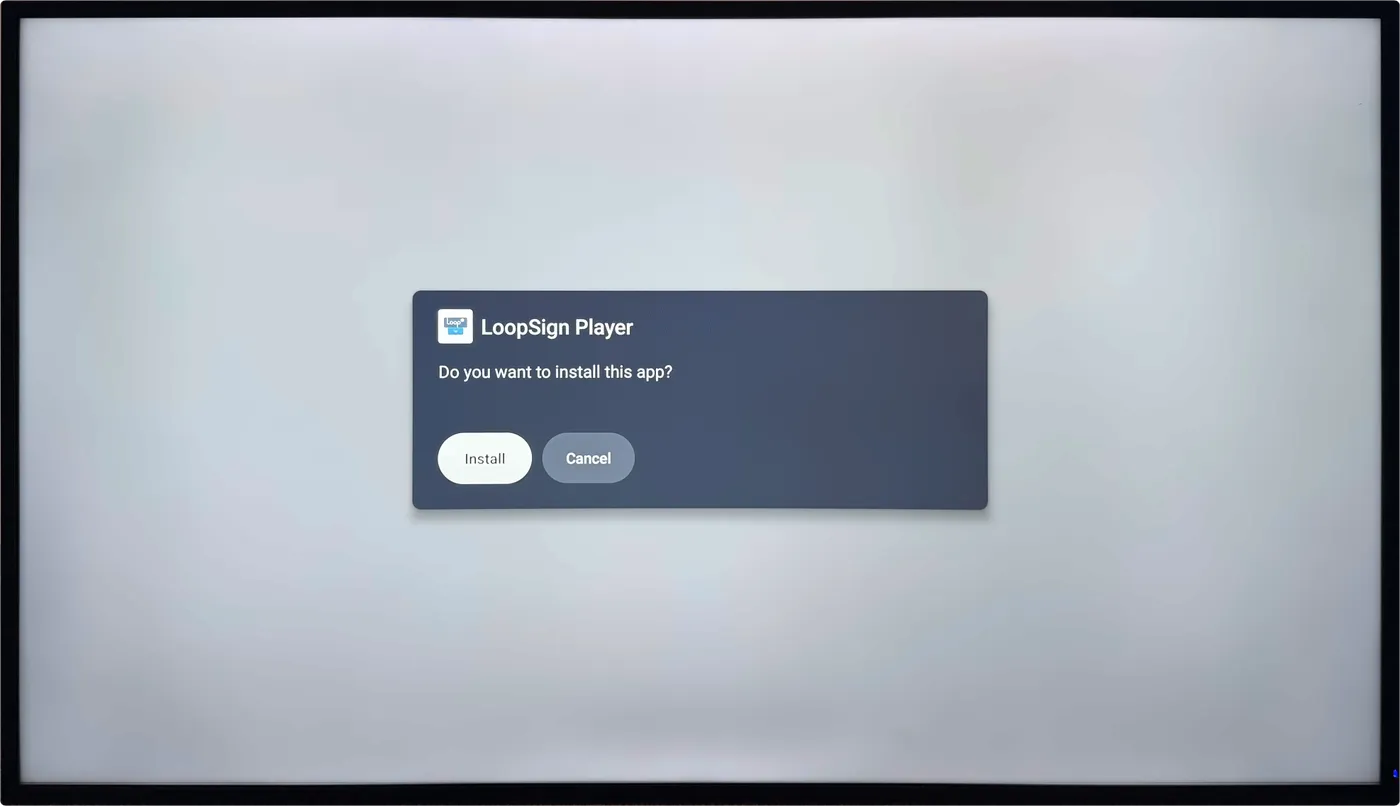
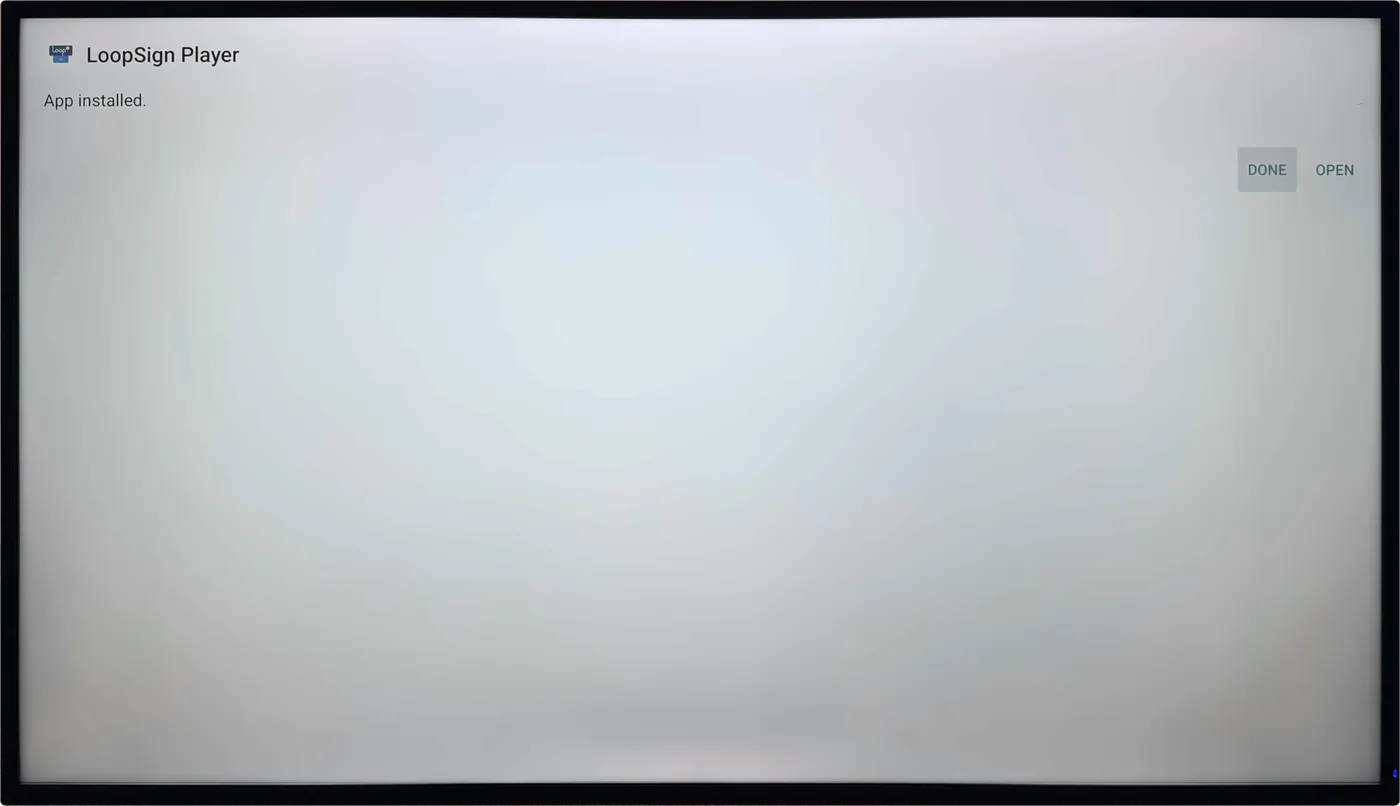
Select Install, and when the app is installed, select DONE (or OPEN to start it at once).
Set the start-up, date and time, and schedule settings
Section titled “Set the start-up, date and time, and schedule settings”Start the LoopSign Player app automatically
Section titled “Start the LoopSign Player app automatically”-
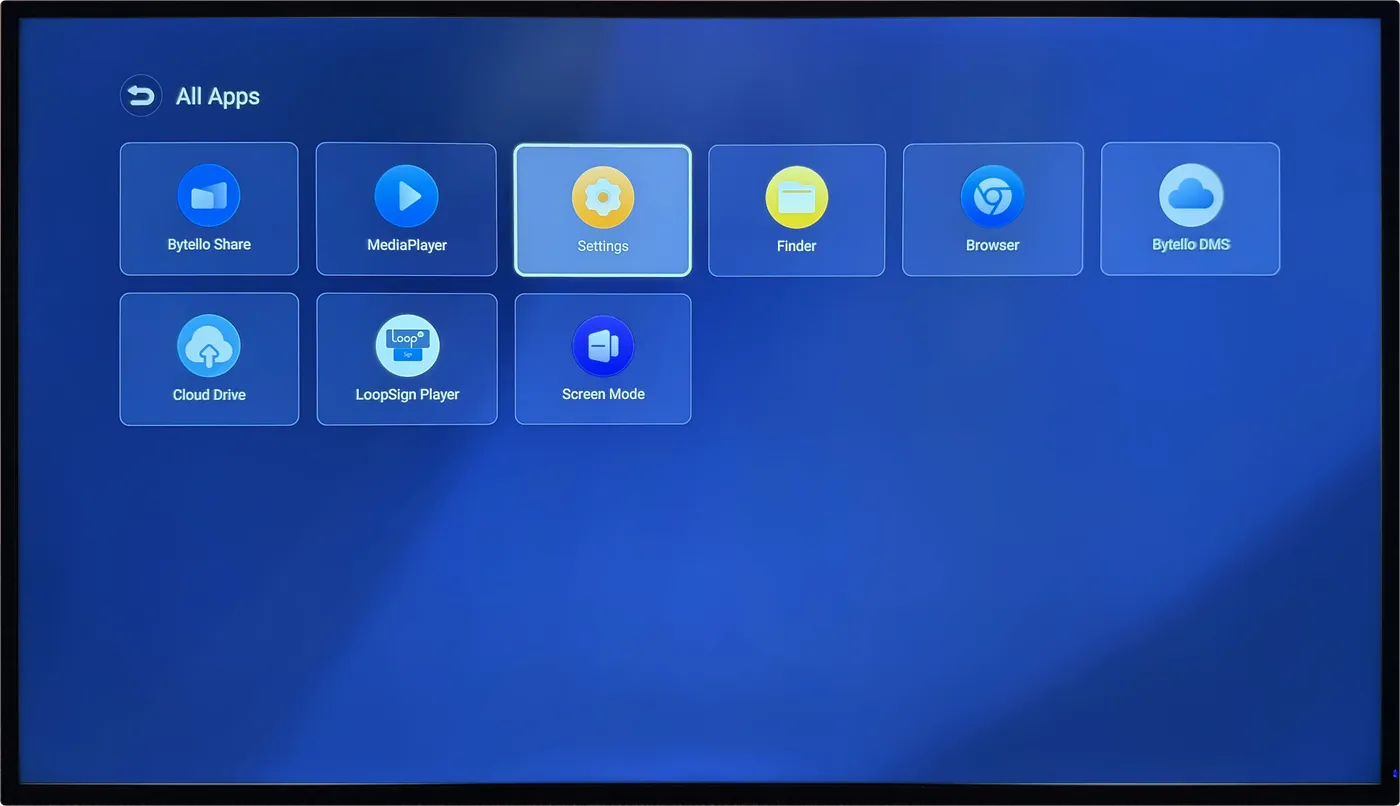
In All Apps, open Settings. The LoopSign Player app now has a tile of its own in All Apps.
-
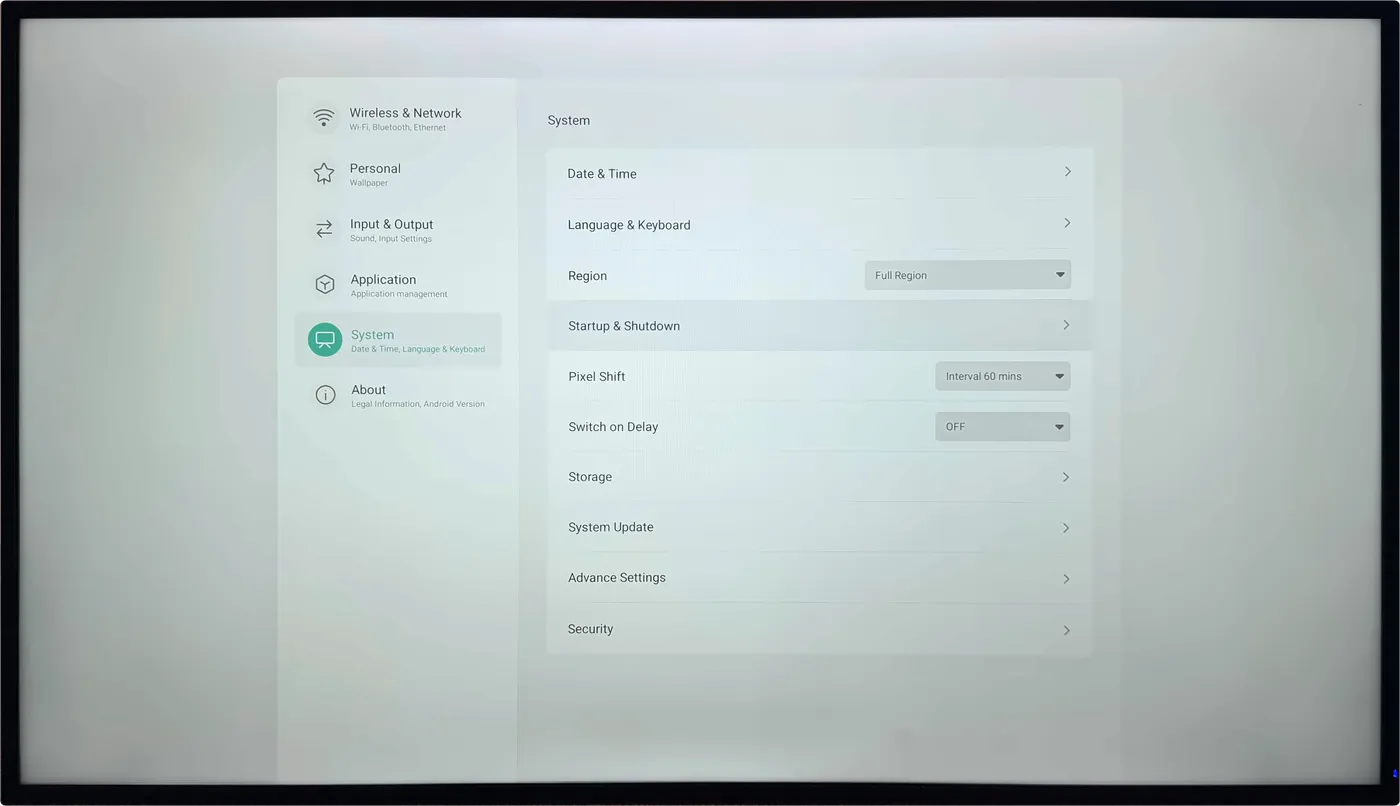
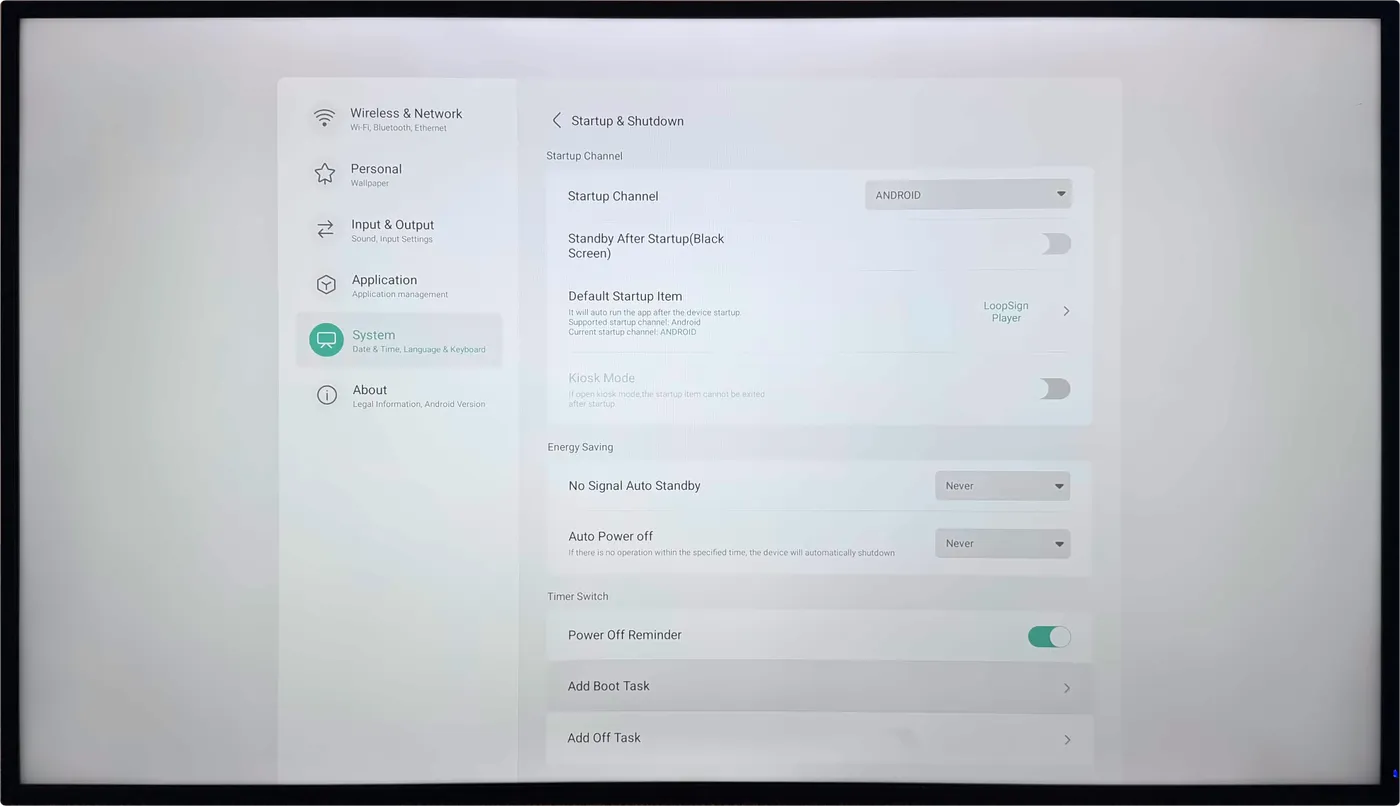
Go to System → Startup & Shutdown.
-
Set Startup Channel to ANDROID.
-
Set Default Startup Item to the newly installed LoopSign Player app.
-
Make sure that Standby After Startup(Black Screen) is switched off.
-
Under Energy Saving, set both No Signal Auto Standby and Auto Power off to Never.
Check the date and time settings
Section titled “Check the date and time settings”Make sure that the date and time settings of the display are correct.
- In Settings, go to System → Date & Time.
- Check that the date, the time and the time zone are correct.
Set the on/off schedule for the display
Section titled “Set the on/off schedule for the display”The last step of the setup is to add your preferred times for when the display should turn on and off automatically.
- In System → Startup & Shutdown, under Timer Switch, choose Add Boot Task to define the time or times when the display should turn on automatically.
- Choose Add Off Task to define the time or times when the display should turn off automatically.
Restart the display
Section titled “Restart the display”- Turn off the display completely by holding the remote’s on/off button for about 5 seconds.
- Once it has shut down, turn it back on with a short press on the same on/off button.
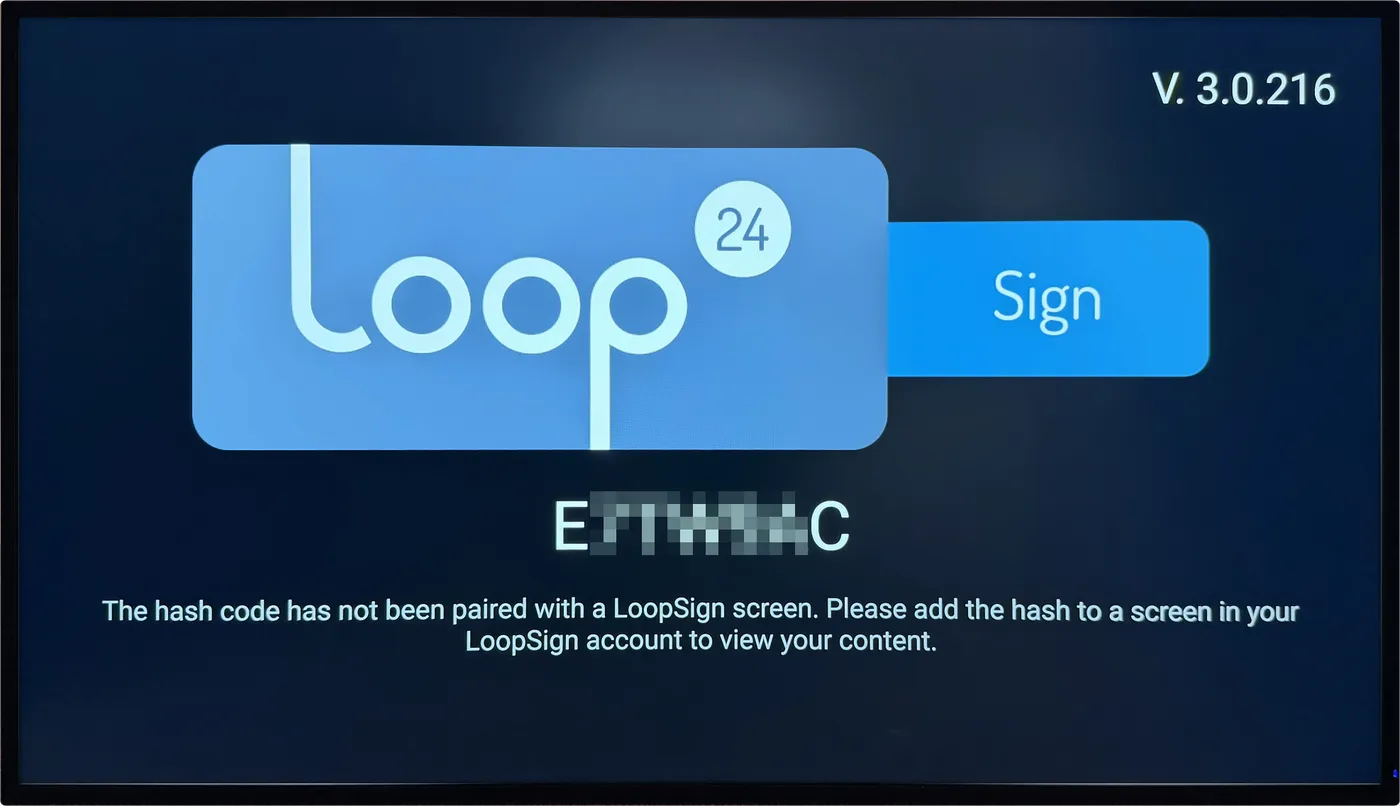
Once the display has booted, the LoopSign Player app should launch automatically, and after a couple of seconds you see the hash code that you use to enroll your Zynage display on your LoopSign account.
Enroll the display on your LoopSign account
Section titled “Enroll the display on your LoopSign account”With the hash code on the display, add the display to your account and give it a screen to play: Enroll a display on your LoopSign account.
Visits are counted with Umami on Loop24’s own server in Stockholm. No cookies, and no IP addresses are stored.
Microsoft, Windows, Microsoft Edge, Entra, Exchange, Microsoft 365, Outlook, Power BI and Teams are trademarks of the Microsoft group of companies. Android, Google Play, Google Workspace, Google Sheets and Google Slides are trademarks of Google LLC. App Store is a service mark of Apple Inc. Other product and company names belong to their owners; they say what LoopSign, LoopMeeting, LoopBooking and LoopVisit work with, and imply no affiliation or endorsement.