
Factory reset
Here you will find guides on how to factory reset the different LoopMeeting panels.
In some cases you might need to factory reset your LoopMeeting panel. Below are the guidelines for the different LoopMeeting panel models: scroll down to the correct model and month and year of manufacture.
LoopMeeting 1052/56T (manufactured January 2023 or later)
Section titled “LoopMeeting 1052/56T (manufactured January 2023 or later)”Connect a USB keyboard to the USB port furthest away from the LAN port.
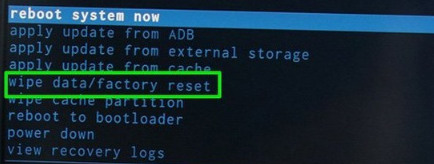
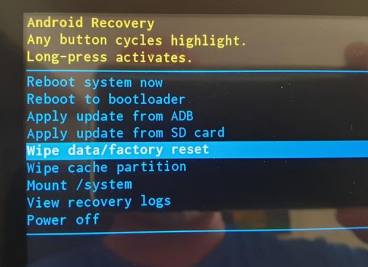
Connect power (from the power supply or PoE) while holding the reset button pressed with a paperclip or a similar tool; the reset button is in a small hole just beside the LAN port. Press and hold the reset button for about 10 seconds, until the Android recovery menu appears.
- Use the keyboard’s arrow keys to select Wipe data / factory reset.
- Press Enter and select Factory data reset.
- After the reset, select Reboot.
The panel starts as normal after a few minutes.
If you do not have the licence key, submit a support case with the device’s serial number.
LoopMeeting 1052T (manufactured between December 2021 and December 2022)
Section titled “LoopMeeting 1052T (manufactured between December 2021 and December 2022)”A factory reset of this model takes some time and effort: you need to reload the correct firmware to the device.
1. Install the driver for the LoopMeeting device
Section titled “1. Install the driver for the LoopMeeting device”Download, unzip and install the Android RK device drivers: https://updates.roomconfig.com/lm-firmware/LMDriver.zip
2. Download and unzip the firmware tool
Section titled “2. Download and unzip the firmware tool”Download the firmware loading tool, https://updates.roomconfig.com/lm-firmware/rktool.zip, and unzip it to a directory that is not synced with OneDrive, for example c:\temp.
3. Download and unpack the firmware
Section titled “3. Download and unpack the firmware”Download the correct firmware from the list below, according to the month and year of manufacture of your device; you find this on the serial number sticker.
4. Load the firmware to the LoopMeeting panel
Section titled “4. Load the firmware to the LoopMeeting panel”- Connect a USB cable to your computer and to the micro USB port on the device.
- Connect power while holding the reset button pressed with a paperclip or similar; the reset button is in a small hole just beside the LAN port. Hold it for a few seconds, then release it. The device stays black.
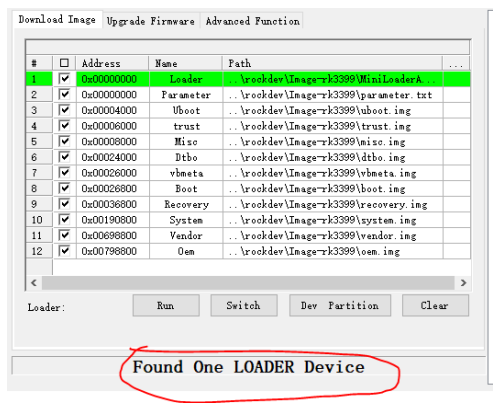
- Start RKDevTool.exe and check that the bottom line says Found One LOADER Device.
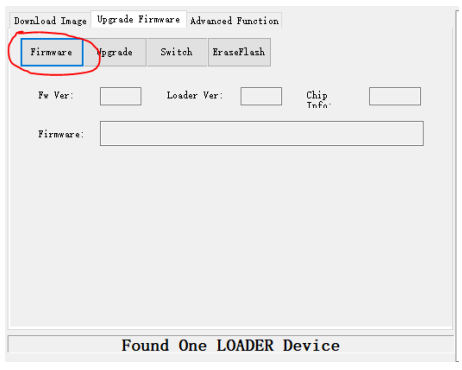
- Select Firmware in the menu and browse to the unpacked firmware file you downloaded. It takes a few seconds to load.
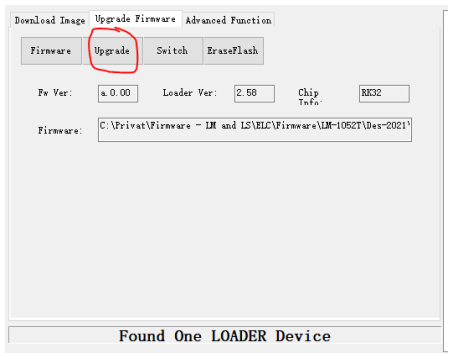
- Select the menu item Upgrade. This operation takes a few minutes.
Now exit the LoopMeeting app on the panel and start it again to enter the licence key. If you do not have the licence key, submit a support case with the device’s serial number.
LoopMeeting 1012T and 1052T (manufactured before December 2021)
Section titled “LoopMeeting 1012T and 1052T (manufactured before December 2021)”Connect a USB keyboard to the USB port furthest away from the LAN port.
Connect power (from the power supply or PoE) while holding the reset button pressed with a paperclip or a similar tool; the reset button is in a small hole just beside the LAN port. Press and hold the reset button for about 10 seconds, until the Android recovery menu appears.
- Use the keyboard’s arrow keys to select Wipe data / factory reset.
- Press Enter and select Factory data reset.
- After the reset, select Reboot.
The panel starts after a few minutes.
If you do not have the licence key, submit a support case with the device’s serial number.
Visits are counted with Umami on Loop24’s own server in Stockholm. No cookies, and no IP addresses are stored.
Microsoft, Windows, Microsoft Edge, Entra, Exchange, Microsoft 365, Outlook, Power BI and Teams are trademarks of the Microsoft group of companies. Android, Google Play, Google Workspace, Google Sheets and Google Slides are trademarks of Google LLC. App Store is a service mark of Apple Inc. Other product and company names belong to their owners; they say what LoopSign, LoopMeeting, LoopBooking and LoopVisit work with, and imply no affiliation or endorsement.