
Download
Here you find the LoopSign Player app and the LoopSign images for every display and player LoopSign supports. The guide for your brand under Deploy says which file to use and how to install it.
Android
Section titled “Android”LoopSign has three versions of the Android app. They need Android 7.0 or later; Android 8.1 or later is highly recommended.
LoopSign Player (recommended)
Section titled “LoopSign Player (recommended)”This version takes over control of the Android device if it is rooted, and plays content in kiosk mode. On supported models, the app also provides simple device management from your LoopSign account (reboot, screenshot and so on). Download: https://dl.loop24.no/lspdm.zip, or the app file on its own, handy when you download on the display itself: https://dl.loop24.no/lspdm.apk
LoopSign Player (recommended for Android TV)
Section titled “LoopSign Player (recommended for Android TV)”This version works like the one above but acts as a normal app and does not take over control of the Android device if it is rooted. It is the recommended option for devices running Android TV OS (for example Sony professional displays). Download: https://dl.loop24.no/lsp_store.zip, or the app file on its own: https://dl.loop24.no/lsp_store.apk
LoopSign Player (deployment with URL)
Section titled “LoopSign Player (deployment with URL)”On old hardware, this might be the best option. This version takes over control of the Android device if it is rooted and plays content in kiosk mode. Download: https://dl.loop24.no/lsp.zip, or the app file on its own: https://dl.loop24.no/lsp.apk
Configure LoopSign Player (deployment with URL)
Section titled “Configure LoopSign Player (deployment with URL)”The first time the app starts, it shows its configuration screen.
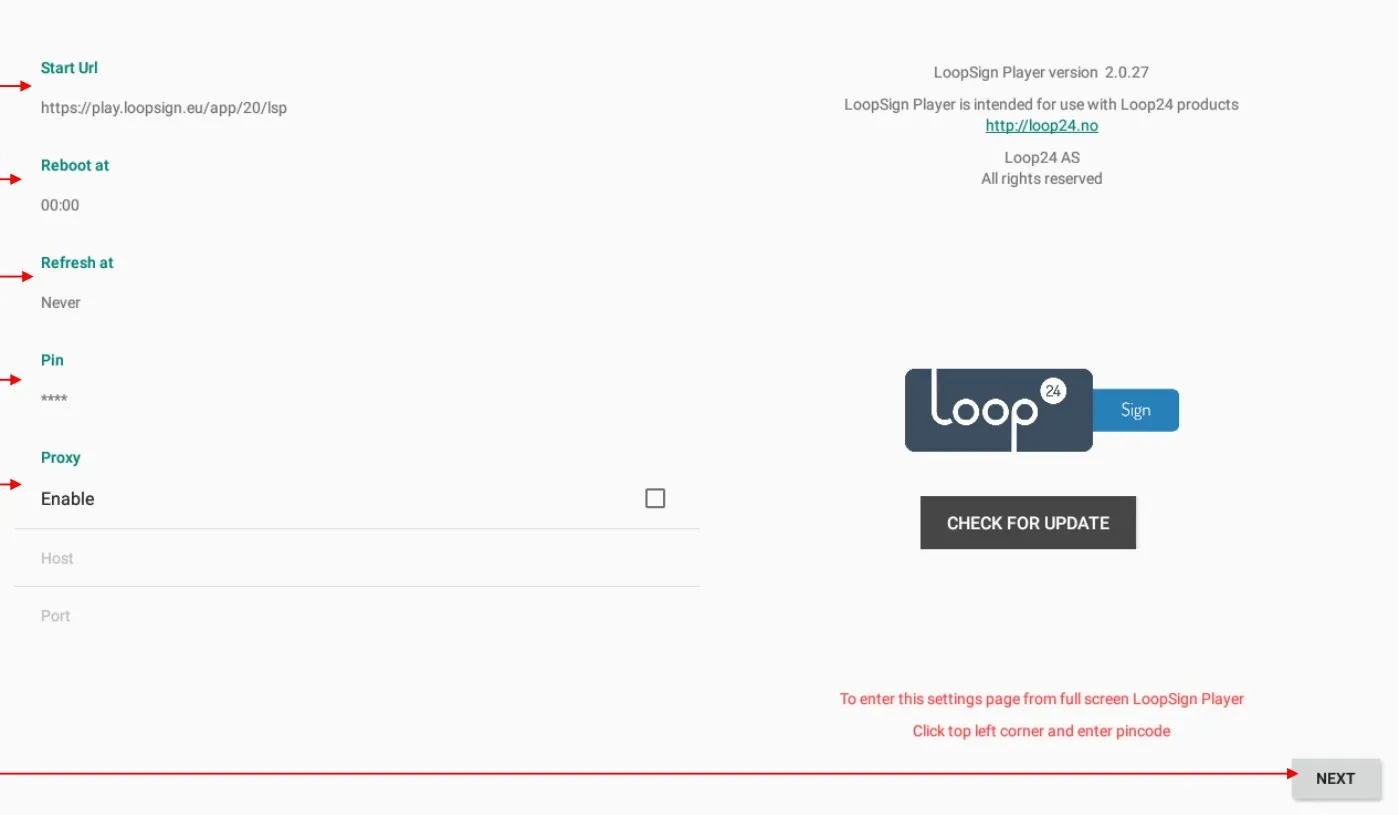
- Start Url: set the URL of the LoopSign screen you want to play (where to find it).
- Reboot at: select when the daily reboot starts.
- Refresh at: the time of day at which the app reloads the URL (03:00 is recommended).
- Pin: change the PIN code here. The standard PIN code is 0000.
- Proxy: optionally enable a proxy server.
- When you are done, select NEXT to launch the URL.
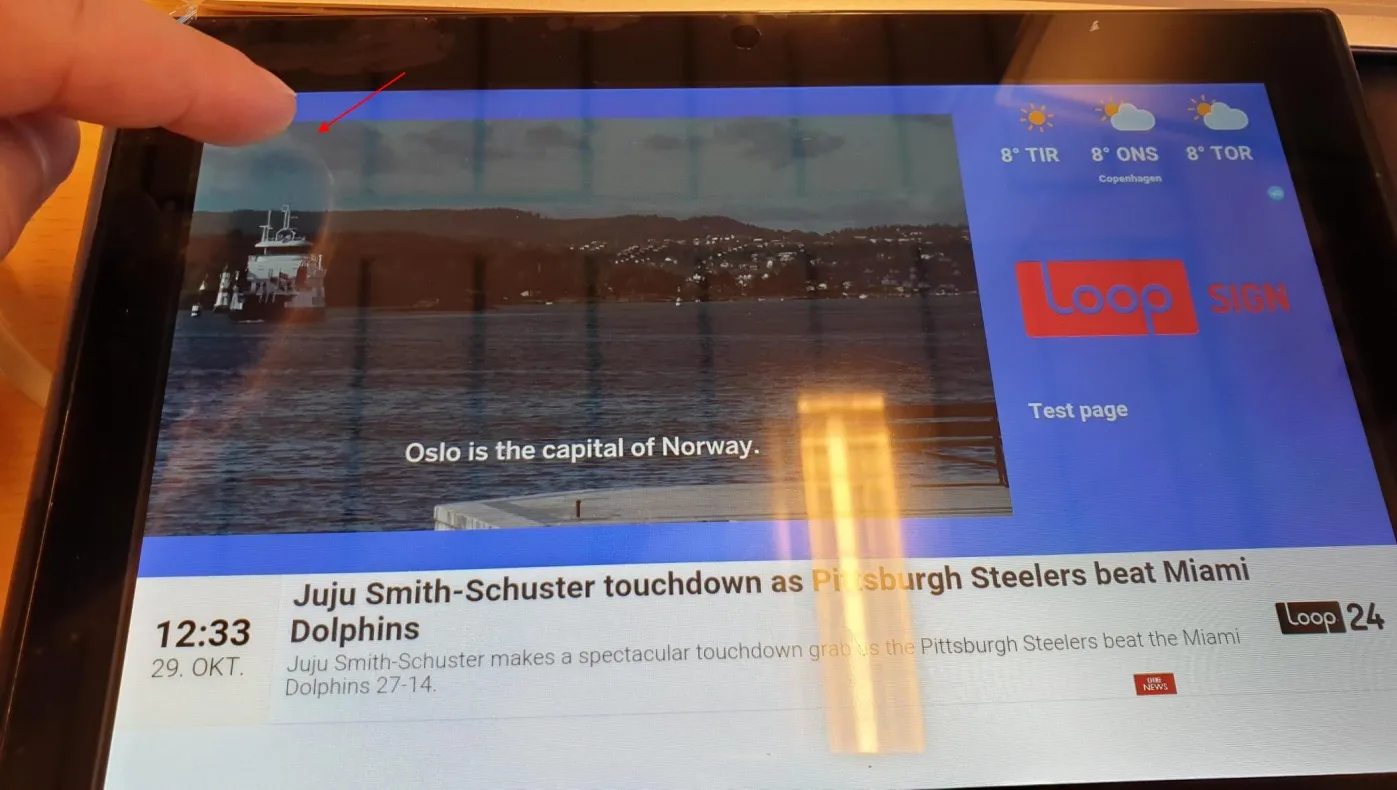
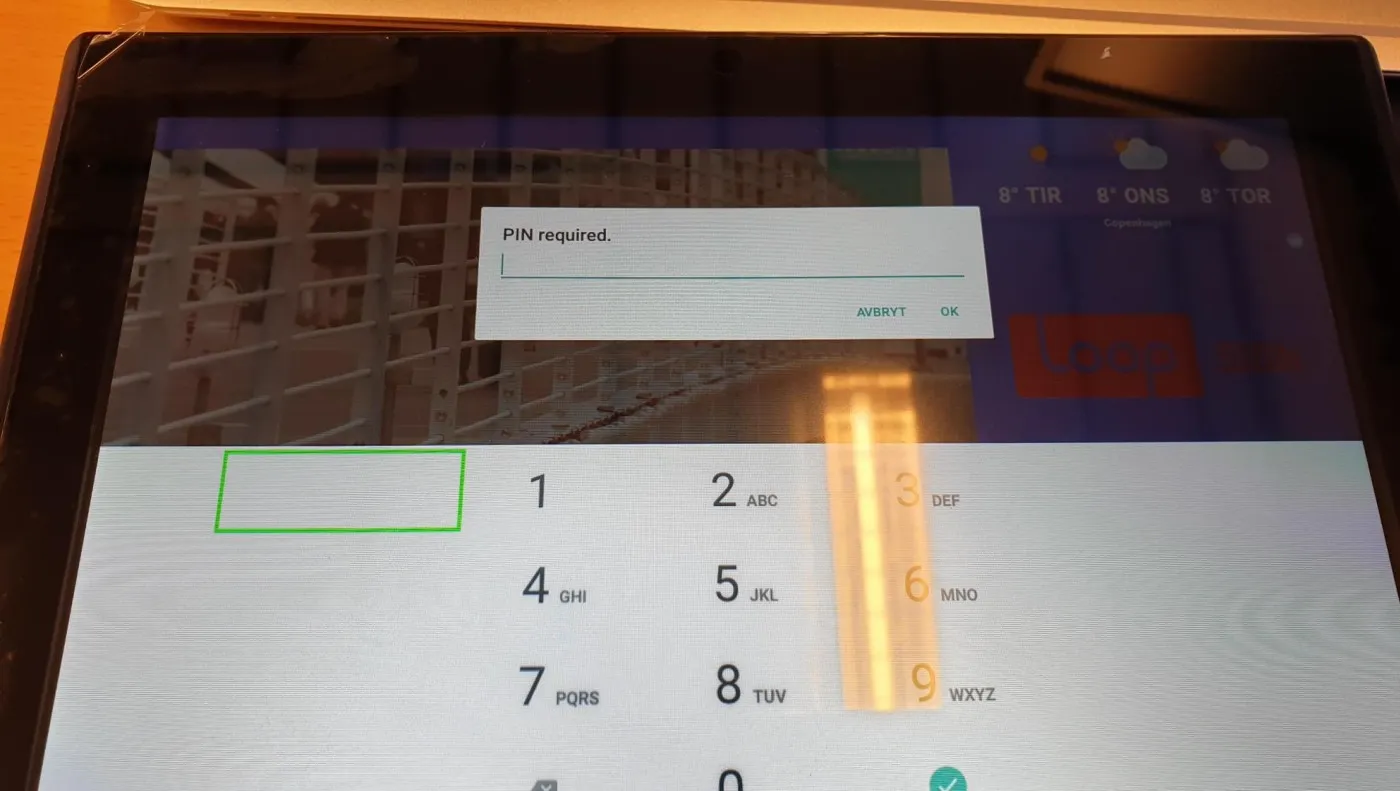
To open the configuration screen again later, or if the app does not start in it, tap the upper left corner of the display and enter the PIN code.
BrightSign
Section titled “BrightSign”The LoopSign Player app for BrightSign players in Series 6, 5 and 4 with BrightSign OS 9 or later, in an HD and a 4K version. BrightSign shows how to install it.
LG displays with webOS 4 and newer have no file to download: they install the LoopSign Player app from the address https://dl.loop24.no/lg.ipk, entered in the display’s SI Server Setting. LG with the LoopSign Player app shows how.
Raspberry Pi
Section titled “Raspberry Pi”The LoopSign custom image, based on the original Raspberry Pi OS (Debian 12, bookworm). Raspberry Pi shows how to set up the player with it.
- Raspberry Pi 5 (recommended) and Raspberry Pi 4: image 2025.5, the current one: https://sos.loopsign.eu/LS_Image/ls_image_2025_5_pi5.img.gz
- Raspberry Pi 3: the older image 2024.8, made for the Pi 3 and 4: https://sos.loopsign.eu/LS_Image/ls_image_2024_8_pi4.img.gz. The NEC/Sharp M series uses this image too.
Samsung
Section titled “Samsung”Samsung displays (Tizen 4.0 to 7.0, and Samsung E-Paper on Tizen 8) have no file to download: they install the LoopSign Player app from the address https://loop24.no/t, entered on the display itself. Samsung shows how.
Visits are counted with Umami on Loop24’s own server in Stockholm. No cookies, and no IP addresses are stored.
Microsoft, Windows, Microsoft Edge, Entra, Exchange, Microsoft 365, Outlook, Power BI and Teams are trademarks of the Microsoft group of companies. Android, Google Play, Google Workspace, Google Sheets and Google Slides are trademarks of Google LLC. App Store is a service mark of Apple Inc. Other product and company names belong to their owners; they say what LoopSign, LoopMeeting, LoopBooking and LoopVisit work with, and imply no affiliation or endorsement.