
BenQ BH series
To deploy LoopSign to your BenQ BH series display, you install the LoopSign Player application. Follow this guide to prepare your display and install the application.
General settings
Section titled “General settings”First make sure the display has the correct time zone, time and date, and an automatic on/off schedule. Correct time and date are essential for LoopSign. See the display’s operation manual for details.
Set the time zone, time and date
Section titled “Set the time zone, time and date”-
Press ⌂ Menu on the remote.
-
Select Settings, then System in the Android menu.
-
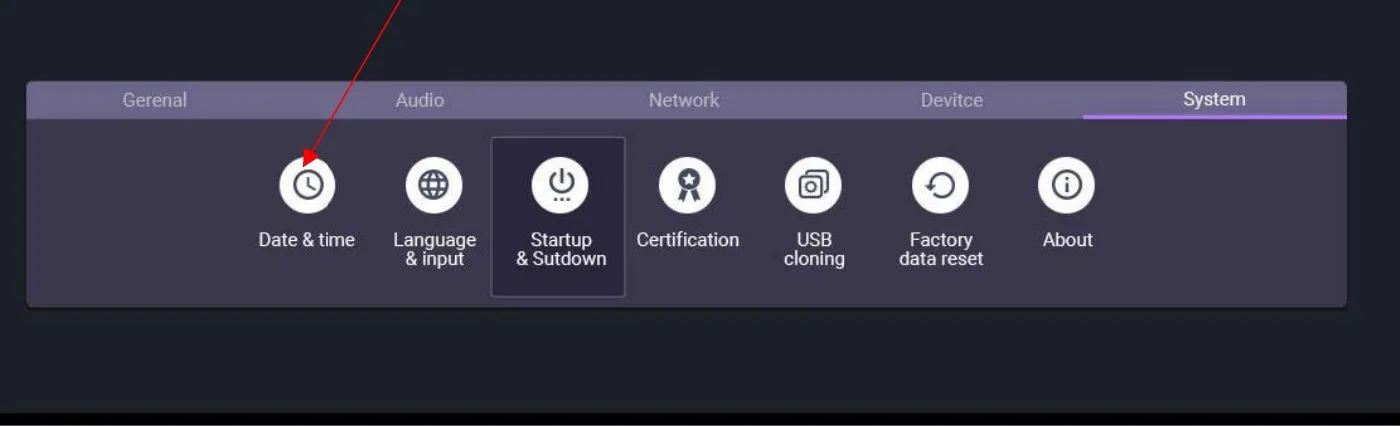
Choose Date & time.
-
Set the correct time, date and time zone for your location.
-
Exit the menus.
Set the automatic on/off schedule
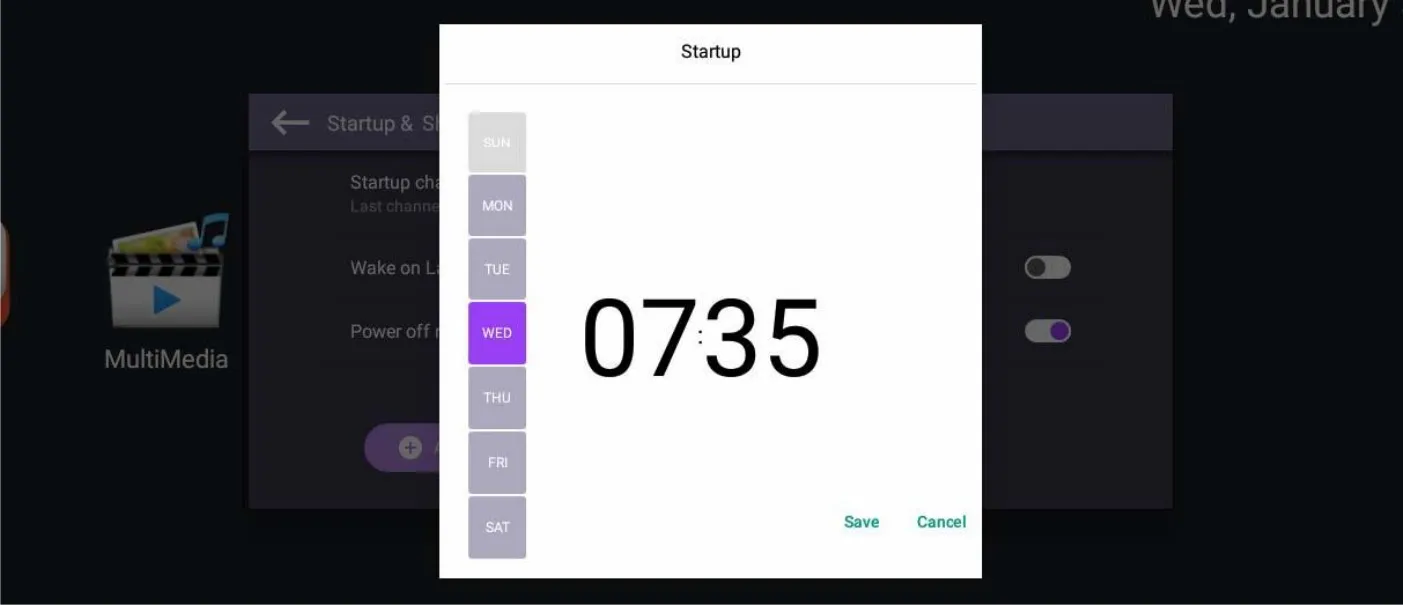
Section titled “Set the automatic on/off schedule”We highly recommend configuring automatic on/off to suit your needs. Shutting the display down when it is not needed prolongs its lifespan. Even if your display has to be on 24/7, schedule a short off/on each night (for example off at 02:59 and on at 03:00) to give the display a daily reboot.
-
Press ⌂ Menu on the remote.
-
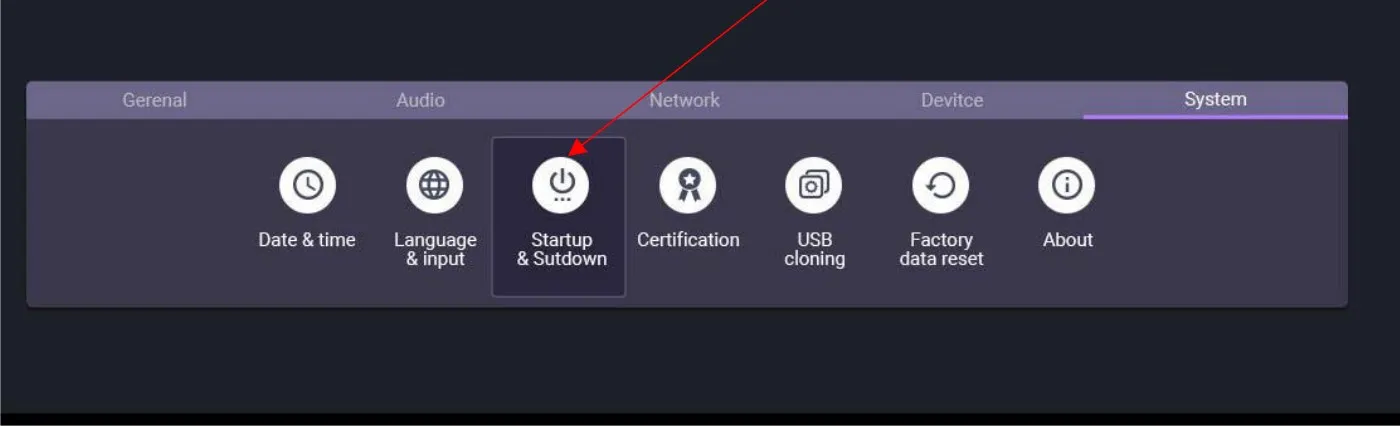
Select Settings, then System, and select Startup & Shutdown.
-
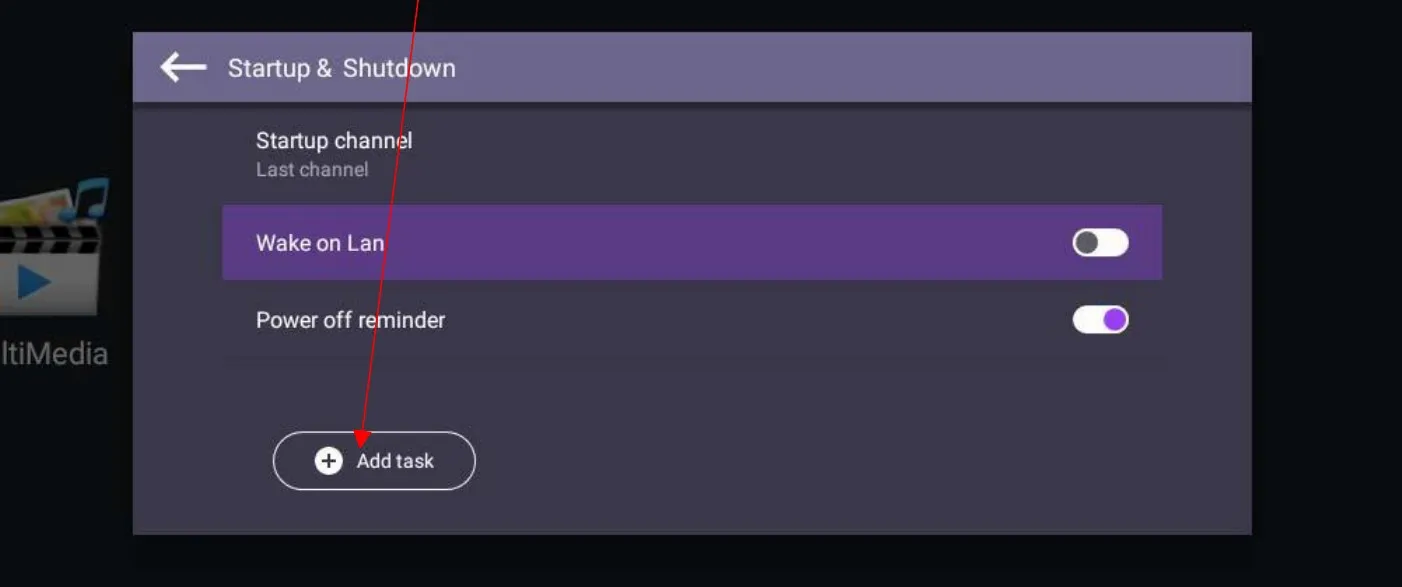
Select Startup channel and set it to Android.
-
Select Add task to set the on/off schedule.
Install the LoopSign Player app
Section titled “Install the LoopSign Player app”-
Get the LoopSign Player app from the Download page: use LoopSign Player (deployment with URL).
-
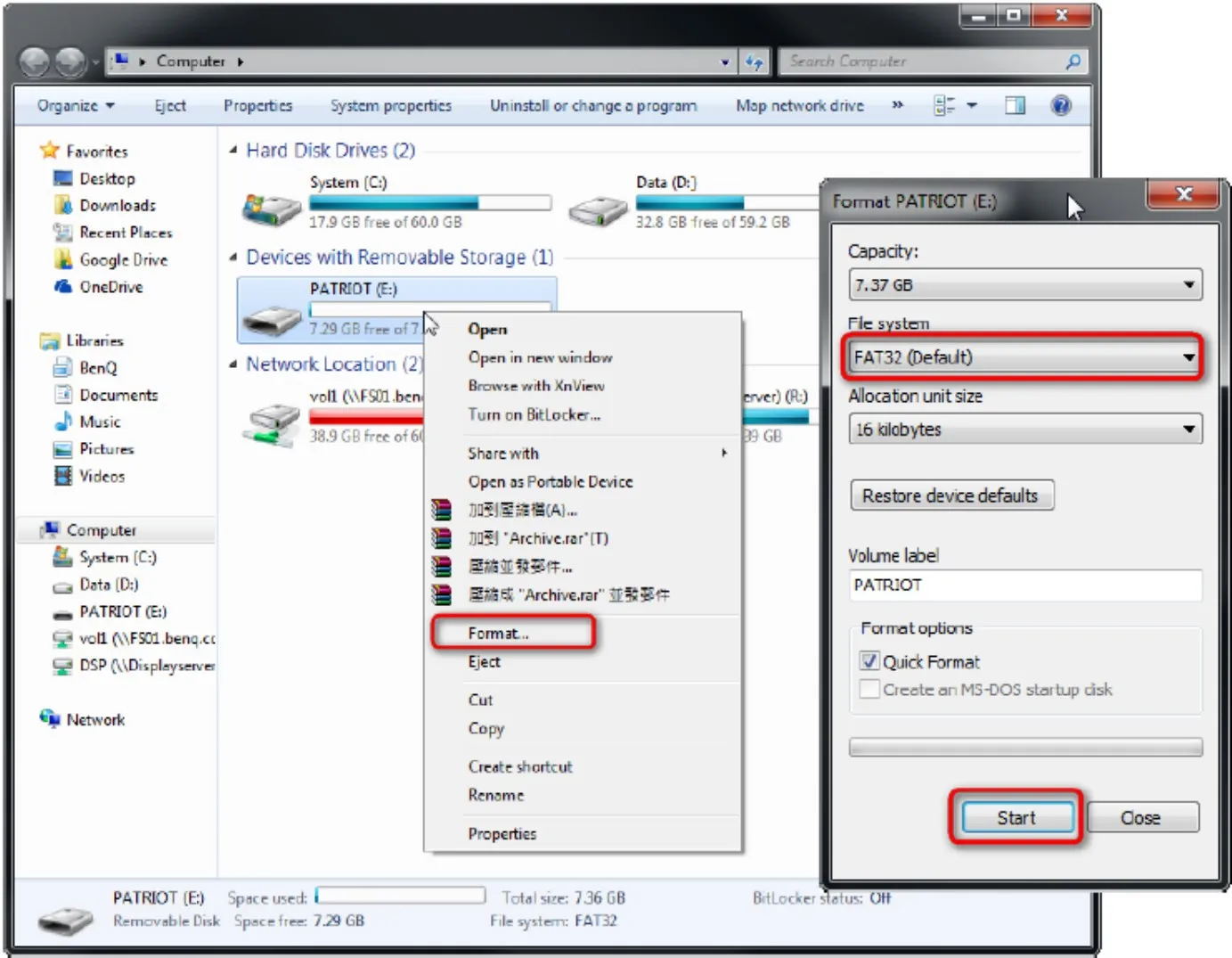
BenQ Bar Type and Digital Signage screens only support USB drives formatted as FAT32, not NTFS or other formats. If your USB drive is already FAT32, skip this step. Otherwise:
- Connect the USB drive to a PC or laptop.
- Open Computer and right-click the USB drive.
- Select Format… and start the format process, as pictured.
-
Copy the downloaded APK file to the USB drive and insert it into a USB port on the display.
-
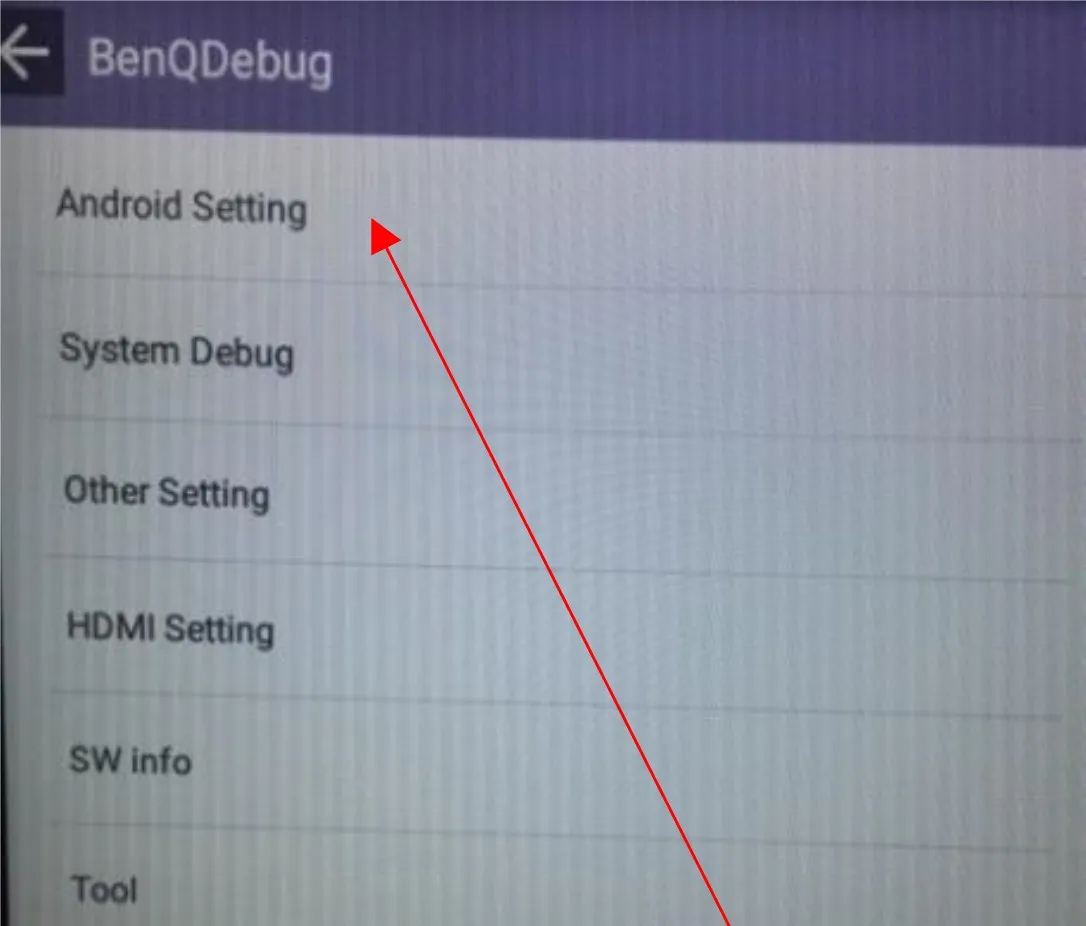
Open the BenQDebug menu: press these buttons on the remote one after the other: Menu, Up, Up, Down, Down, Back.
-
Select Android Setting.
-
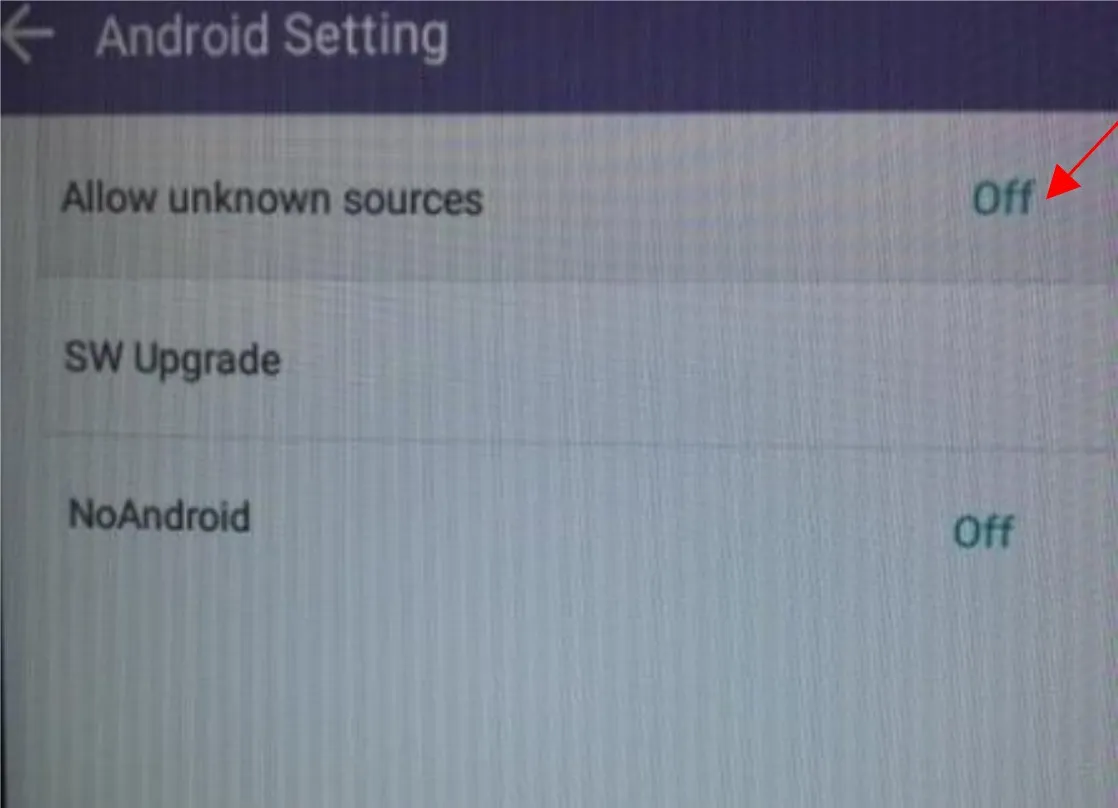
Set Allow unknown sources to On.
-
Now you can install the APK under Android: start the APKinstall app or ES File Explorer, then select the APK on the USB drive to start the installation.
Configure the LoopSign Player app
Section titled “Configure the LoopSign Player app”The first time the LoopSign Player app starts, it opens the configuration screen shown below.
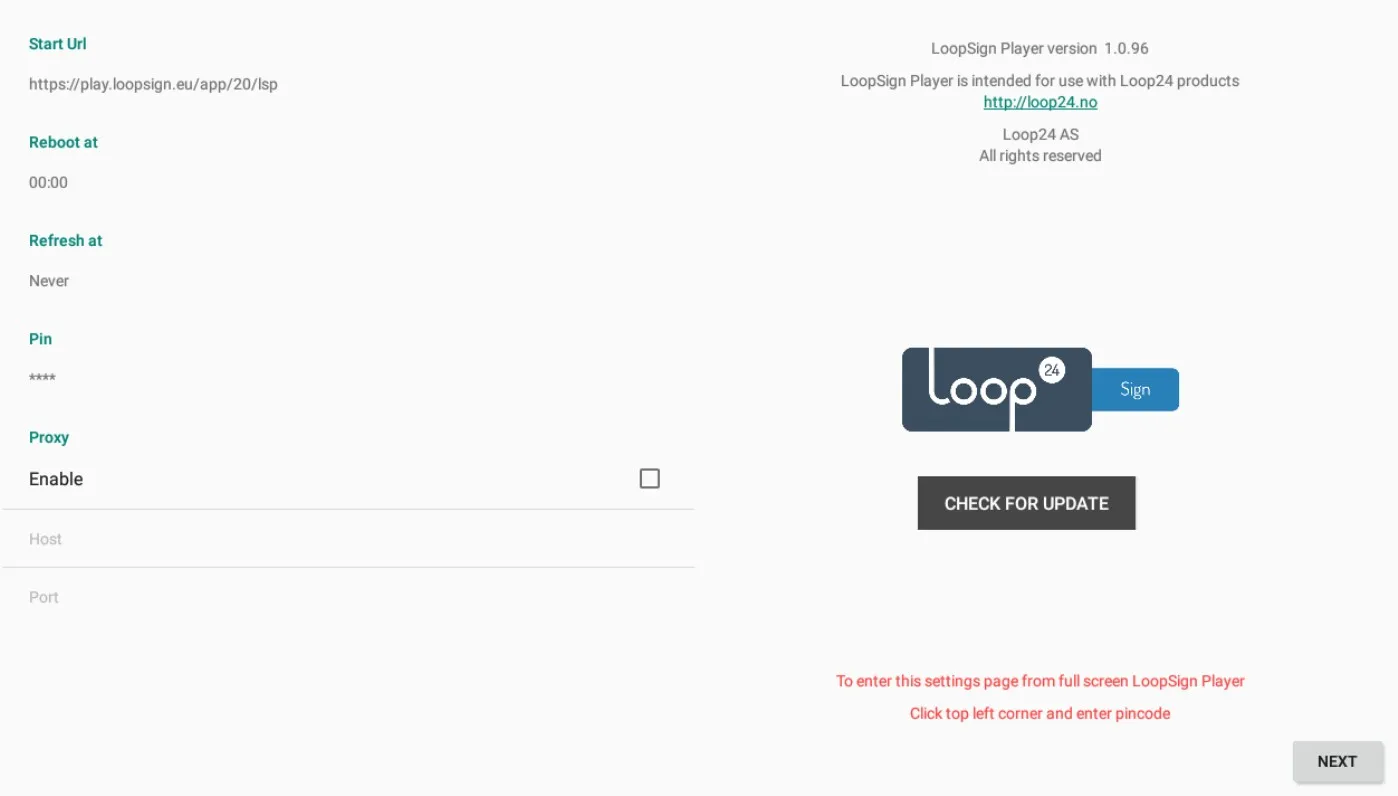
- Set the start URL,
https://play.loopsign.eu/app/xxx/xxxxxxxxx. You find the correct URL for your screen in LoopSign, in the Manage Screens overview. - Set the time when the player should do its daily reboot.
- Set the time of day at which the app reloads the URL (03:00 is recommended).
- Optionally set a new PIN code (the default is 0000).
- Optionally configure a proxy server, if you need one to reach the internet.
- Select NEXT. The URL launches after a few seconds.
To open this configuration screen again later, select the upper left corner of the display and enter the PIN code (default 0000).
Visits are counted with Umami on Loop24’s own server in Stockholm. No cookies, and no IP addresses are stored.
Microsoft, Windows, Microsoft Edge, Entra, Exchange, Microsoft 365, Outlook, Power BI and Teams are trademarks of the Microsoft group of companies. Android, Google Play, Google Workspace, Google Sheets and Google Slides are trademarks of Google LLC. App Store is a service mark of Apple Inc. Other product and company names belong to their owners; they say what LoopSign, LoopMeeting, LoopBooking and LoopVisit work with, and imply no affiliation or endorsement.