
Google Workspace
Here you will find information on how to configure the LoopVisit integration with Google Workspace. The integration data is updated automatically every 24 hours.
The integration with Google Workspace is done by adding a group and creating an integration access.
1. Configure the Google Workspace group
Section titled “1. Configure the Google Workspace group”- Log in to the Google Admin console, https://admin.google.com, with an admin account.
- Select the menu item Create groups.
- Create a group that will contain the employees (users) you want to integrate with LoopVisit. If you already have such a group, you can skip this part.
- Add the members that should be integrated with LoopVisit to the group.
- Make a note of the group’s email address; it goes into the integration field Group Key later.
2. Configure the integration access to Google Workspace
Section titled “2. Configure the integration access to Google Workspace”- Log in to the LoopVisit portal, https://visit.loopvisit.com.
- Select the menu item Tenants (see Tenants), then Actions and Integration for the tenant you want to integrate.
- Select the integration type Google Workspace and enter the email address of the group you created.
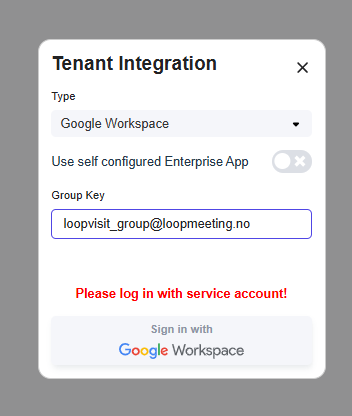
- Select Sign in with Google Workspace and authenticate with the admin account to enable the integration.
- Authorise the LoopVisit integration; the employees are then fetched.
Visits are counted with Umami on Loop24’s own server in Stockholm. No cookies, and no IP addresses are stored.
Microsoft, Windows, Microsoft Edge, Entra, Exchange, Microsoft 365, Outlook, Power BI and Teams are trademarks of the Microsoft group of companies. Android, Google Play, Google Workspace, Google Sheets and Google Slides are trademarks of Google LLC. App Store is a service mark of Apple Inc. Other product and company names belong to their owners; they say what LoopSign, LoopMeeting, LoopBooking and LoopVisit work with, and imply no affiliation or endorsement.