
ViewSonic CDE20 series
This guide shows how to install the Android version of LoopSign, the LoopSign Player app, on a ViewSonic CDExx20 series signage display.
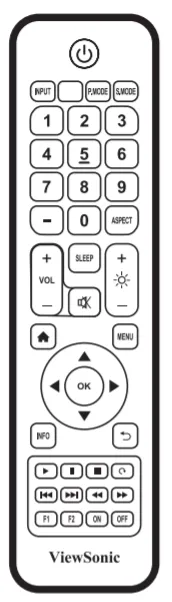
The ViewSonic CDExx20 series signage display comes with a remote control, which you use to control the display.
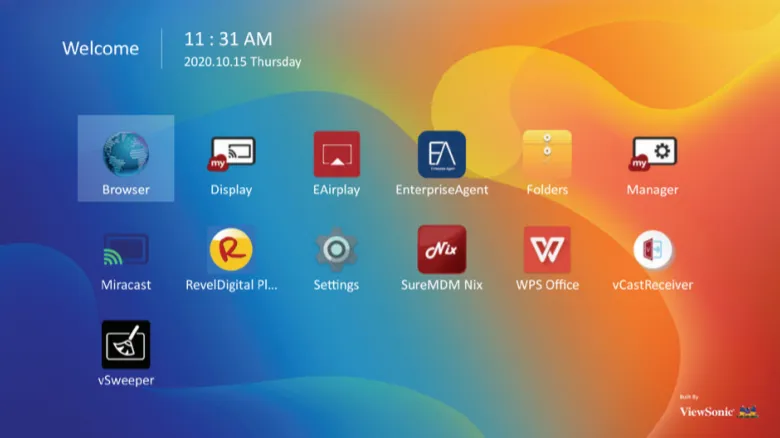
The CDExx20 series Home screen:
Installation video: watch on YouTube.
Prepare a USB drive with the app
Section titled “Prepare a USB drive with the app”-
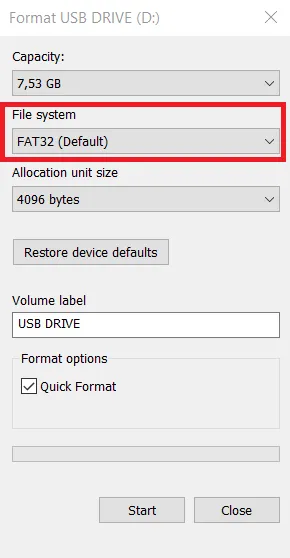
Connect your USB drive to a PC. The drive must be formatted as FAT32.
-
Right-click the USB drive and select Format….
-
Make sure FAT32 is selected as File system and select Start.
-
After the format is complete, save the LoopSign APK file to the USB drive. You find the file on the Download page: use LoopSign Player (recommended).
-
Insert the USB drive into the CDExx20 series display.
Allow unknown sources and install the app
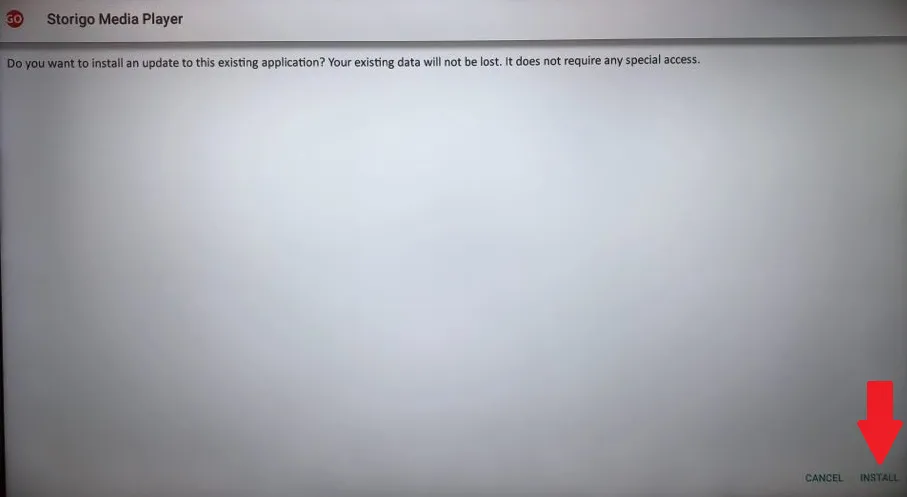
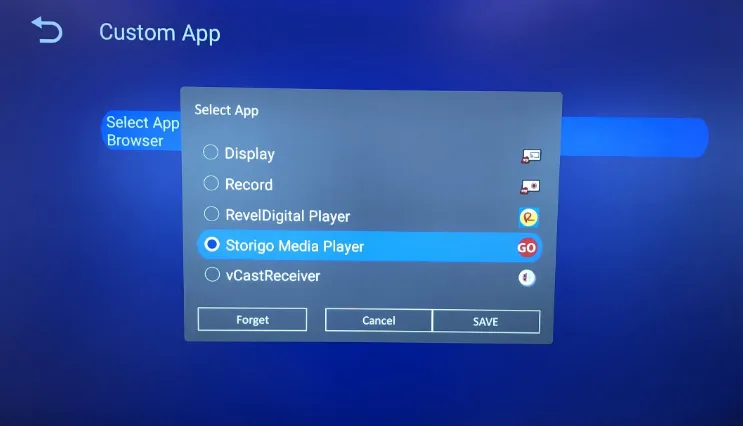
Section titled “Allow unknown sources and install the app”The pictures in this guide show another app being installed (Storigo Media Player); choose LoopSign Player where they show it.
To allow the display to install third-party apps, the Unknown Sources setting must be enabled.
-
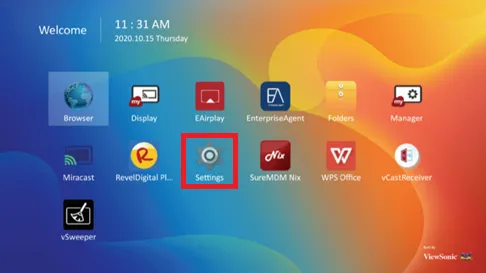
On the Home screen, go to Settings.
-
Go to the Device menu and select Signage Display.
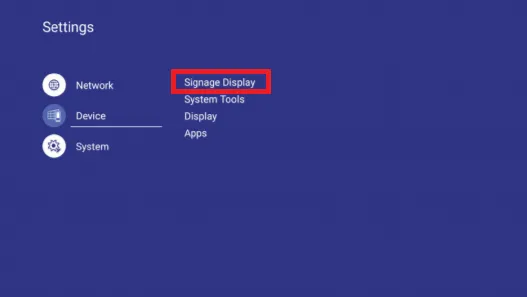
-
In the Signage Display menu, enable the Unknown Sources option by ticking the box.
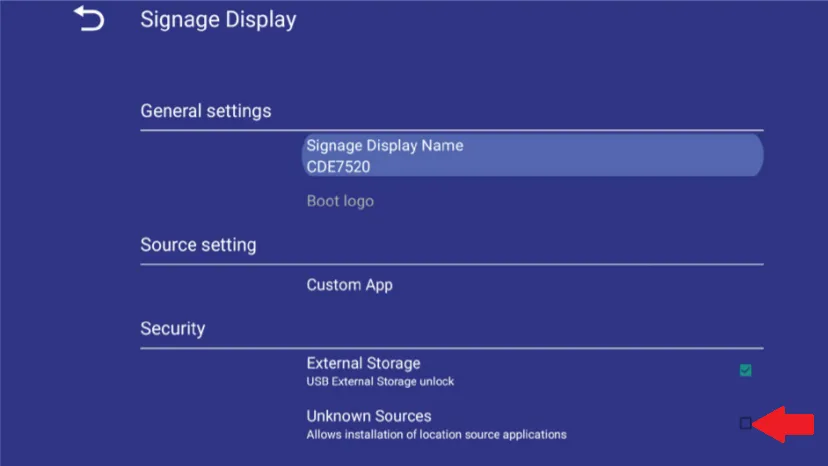
-
Press the Home button on the remote control to go back to the Home screen.
-
Go to Folders.
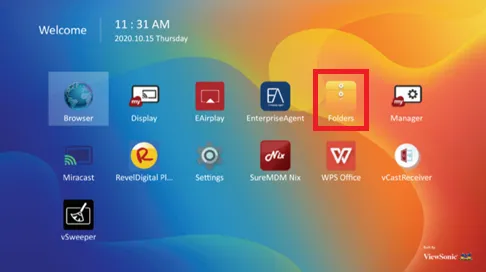
-
Find the USB drive on the left-hand side.
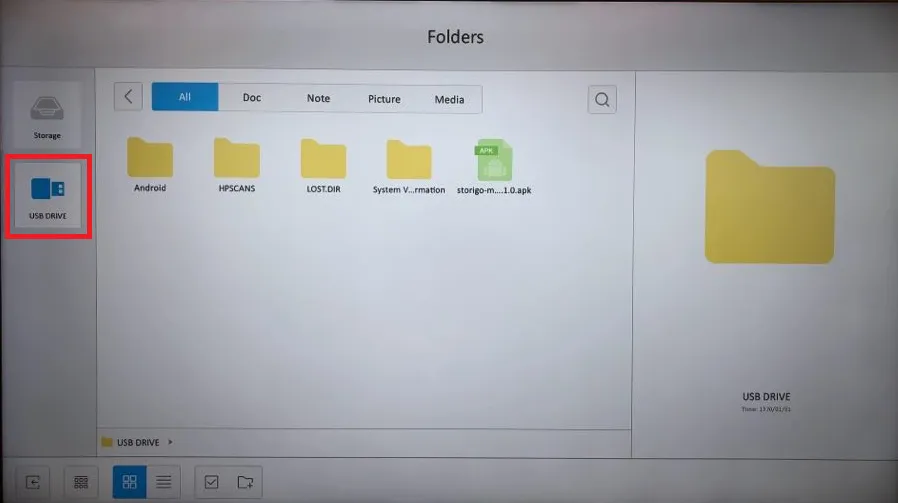
-
Select the LoopSign APK file to open it and select INSTALL. The app starts after installation.
Set the app as the start-up source
Section titled “Set the app as the start-up source”-
From the Home screen, go back to Settings.
-
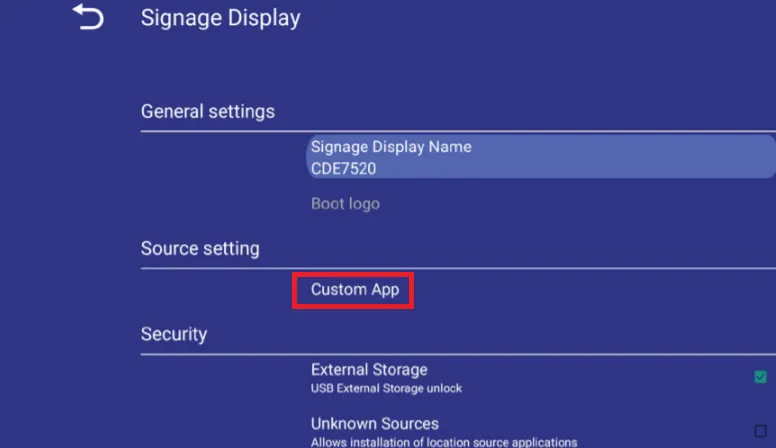
Go to Device → Signage Display.
-
Under Source setting, go to Custom App.
-
Select the LoopSign app and select SAVE.
-
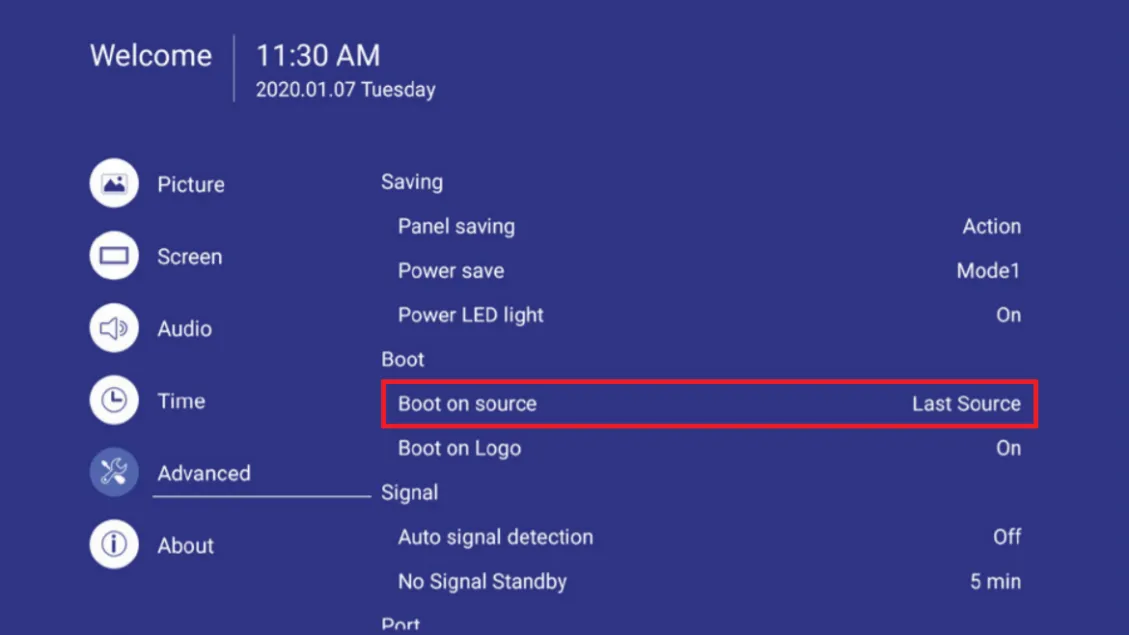
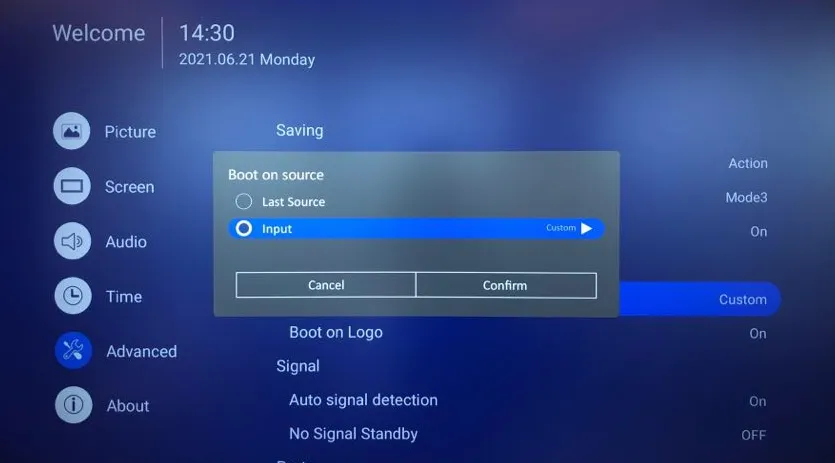
Press the MENU button on the remote control and go to Advanced → Boot on source.
-
Go to Input, select Custom and confirm with Confirm.
Done! The next time the display boots, the app starts automatically. The app shows the display’s hash code.
Enroll the display on your LoopSign account
Section titled “Enroll the display on your LoopSign account”With the hash code on the display, add the display to your account and give it a screen to play: Enroll a display on your LoopSign account.
Visits are counted with Umami on Loop24’s own server in Stockholm. No cookies, and no IP addresses are stored.
Microsoft, Windows, Microsoft Edge, Entra, Exchange, Microsoft 365, Outlook, Power BI and Teams are trademarks of the Microsoft group of companies. Android, Google Play, Google Workspace, Google Sheets and Google Slides are trademarks of Google LLC. App Store is a service mark of Apple Inc. Other product and company names belong to their owners; they say what LoopSign, LoopMeeting, LoopBooking and LoopVisit work with, and imply no affiliation or endorsement.