
Custom enterprise app
This guide takes you through the steps needed to create your own custom enterprise app registration for the connection to Microsoft 365, instead of using the preconfigured enterprise app from Loop24. Follow the steps carefully and do not skip any of them unless they are marked as optional.
1. Introduction
Section titled “1. Introduction”LoopMeeting comes with a preconfigured Microsoft Entra ID enterprise app for integration with your Microsoft 365 environment. In most cases this is the easiest and most convenient way to set up the necessary integrations. However, for the more advanced organisations LoopMeeting has an option to create and use your own custom enterprise app registration. This will give you total control of the Microsoft Graph integration and will be an even more secure way for connecting the LoopMeeting panels.
2. Prerequisites
Section titled “2. Prerequisites”The LoopMeeting application needs a service account (Create the Microsoft 365 service account) that has full rights to the resource calendars (Meeting room calendars) where you want to connect LoopMeeting panels.
3. Create a custom Microsoft Entra ID enterprise app registration
Section titled “3. Create a custom Microsoft Entra ID enterprise app registration”- Log in to the Microsoft Entra admin center, https://entra.microsoft.com/, with a Global Administrator account.
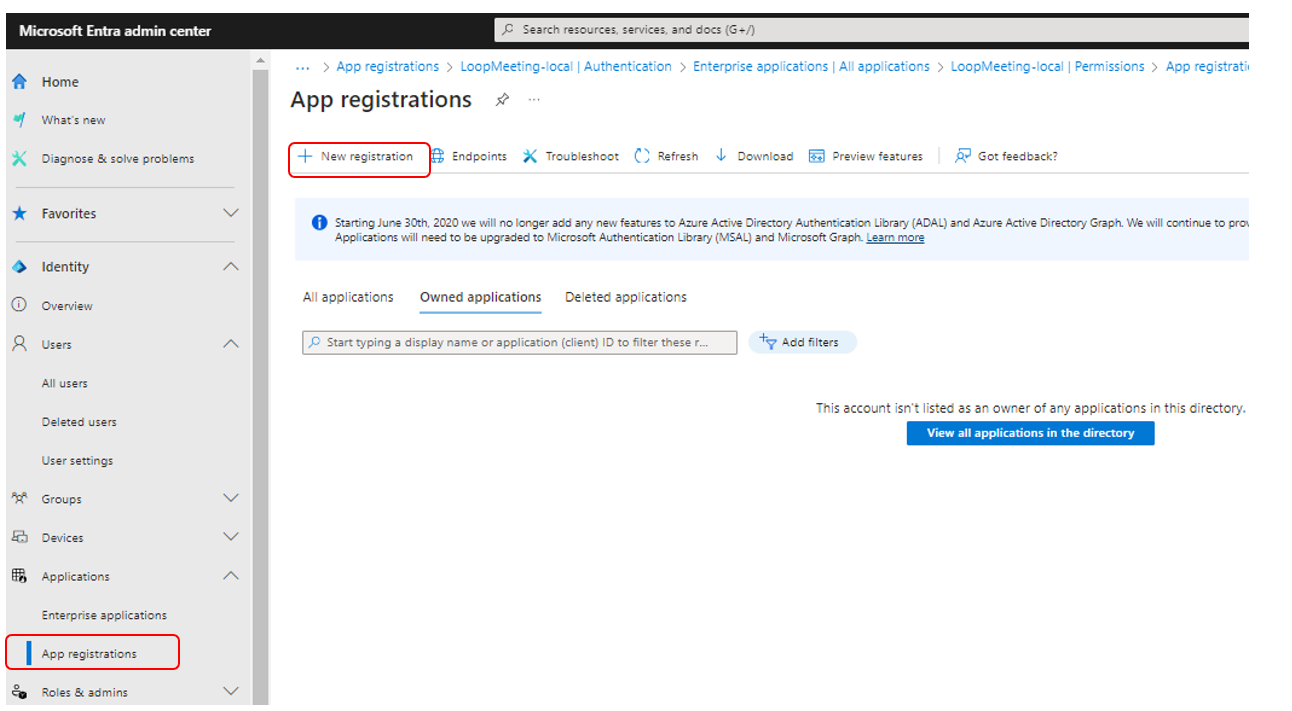
- Select App registrations in the left menu, then New registration in the top menu.
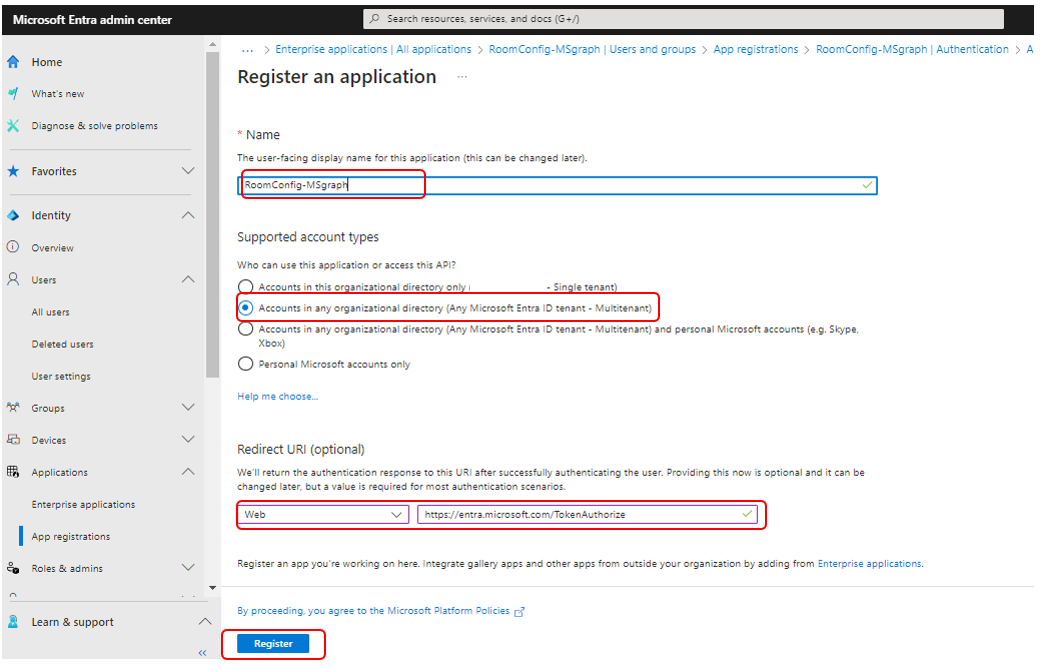
- Give the application a name.
- Select Accounts in any organizational directory.
- Under Redirect URI, enter
https://entra.microsoft.com/TokenAuthorize. - Select Register.
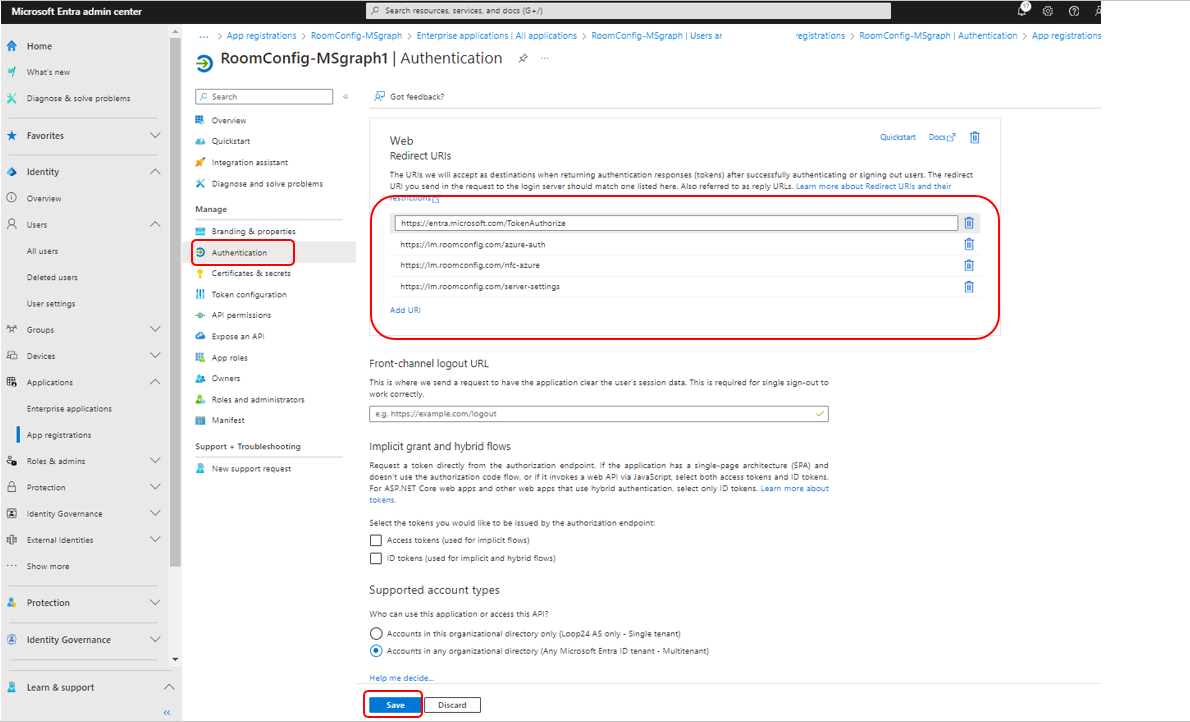
- Select your application and select Authentication in the left menu.
- Add the following redirect URIs:
https://lm.roomconfig.com/azure-authhttps://lm.roomconfig.com/nfc-azurehttps://lm.roomconfig.com/server-settings
- Select Save.
- Select API permissions in the left menu and select Add a permission.
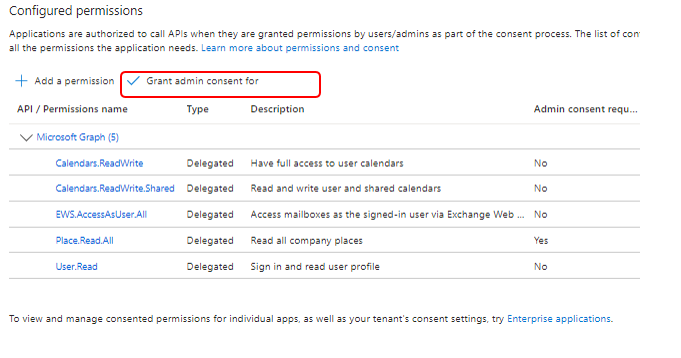
- Add the following delegated Microsoft Graph permissions:
Calendars.ReadWriteCalendars.ReadWrite.SharedPlace.Read.All- Optionally, if you are going to use NFC booking,
EWS.AccessAsUser.All
- Select Grant admin consent for your organisation.
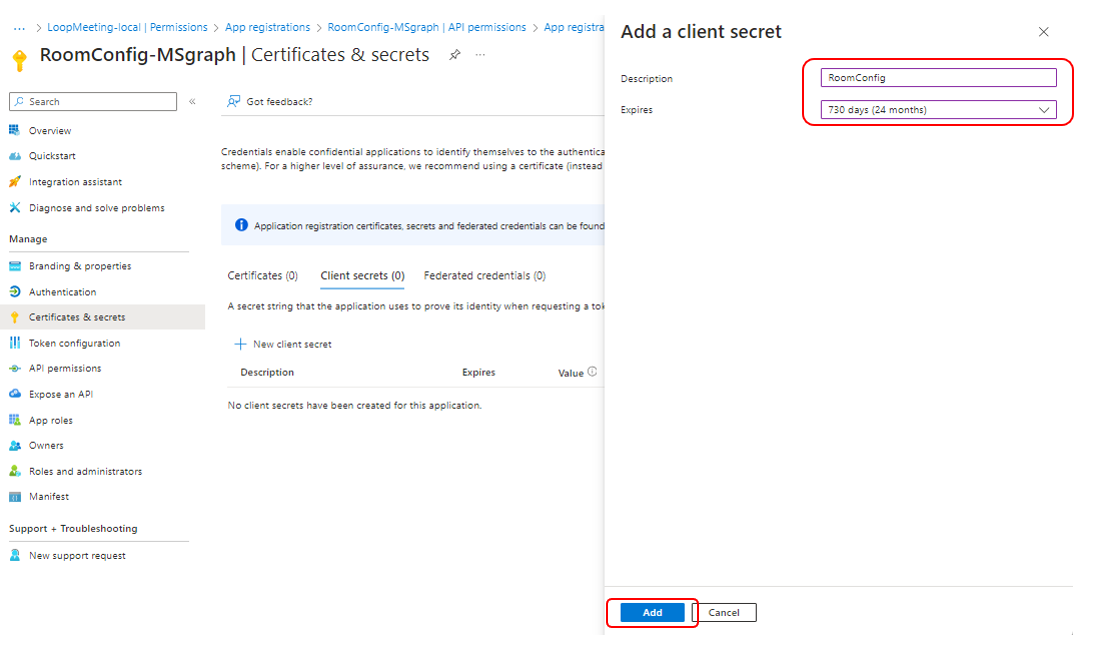
- Select Certificates & secrets in the left menu and select New client secret.
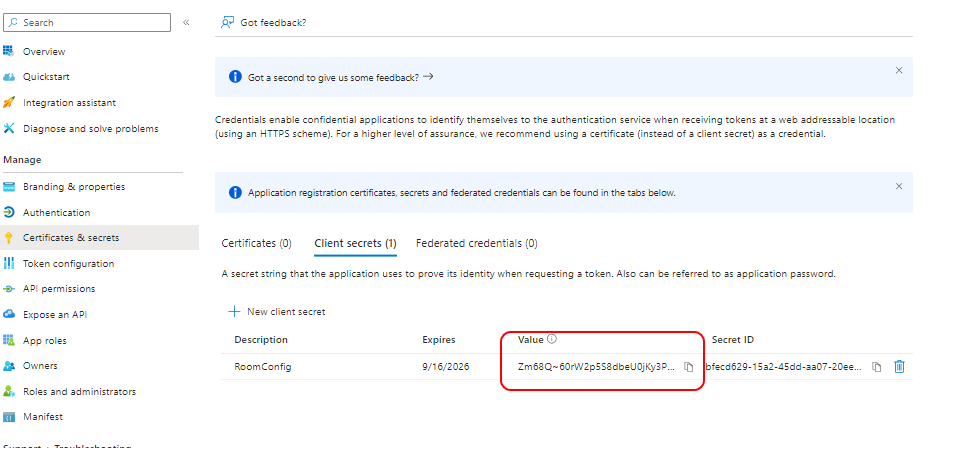
- Give the secret a name and set the expiry date. We recommend the maximum, 24 months.
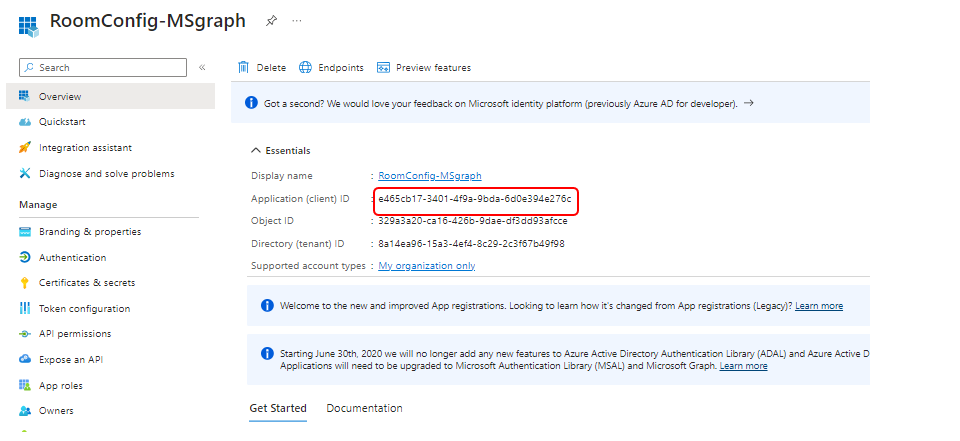
- Go to Overview and make a note of the Application (client) ID value. You also need it later, when configuring the RoomConfig portal.
3.1 Optional: limit the app to the service account
Section titled “3.1 Optional: limit the app to the service account”By default, any account in your tenant can sign in to your application. It is not required, but you can limit the application to the service account, so that no other account can use it.
- In the Microsoft Entra admin center, select Enterprise applications in the left menu and select your application (the name you gave it in step 3).
- Select Properties, set Assignment required? to Yes and select Save.
- Select Users and groups, then Add user/group.
- Under Users, select None Selected, select the service account and select Select.
- Select Assign.
An account that is not assigned to the application can no longer sign in through it.
4. Add the server in the RoomConfig portal
Section titled “4. Add the server in the RoomConfig portal”- Log in to your RoomConfig portal, https://lm.roomconfig.com.
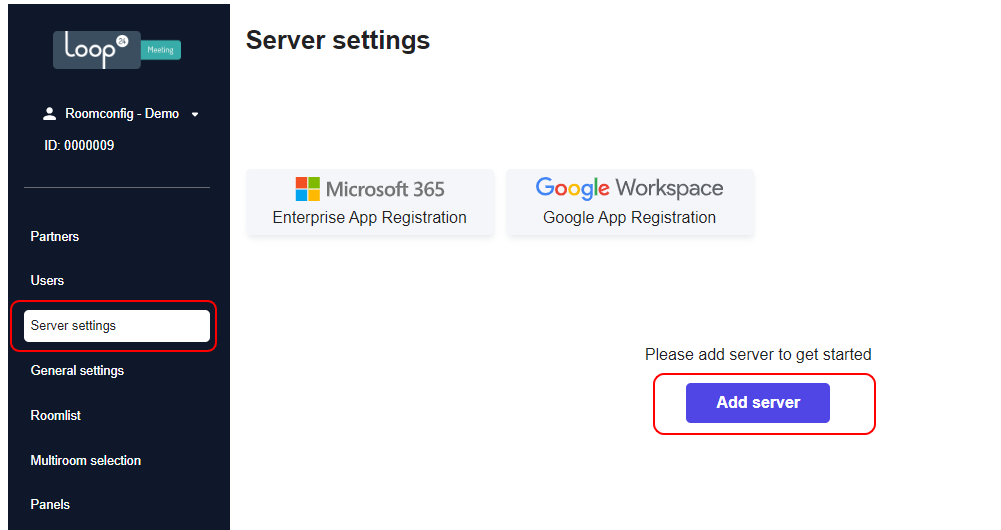
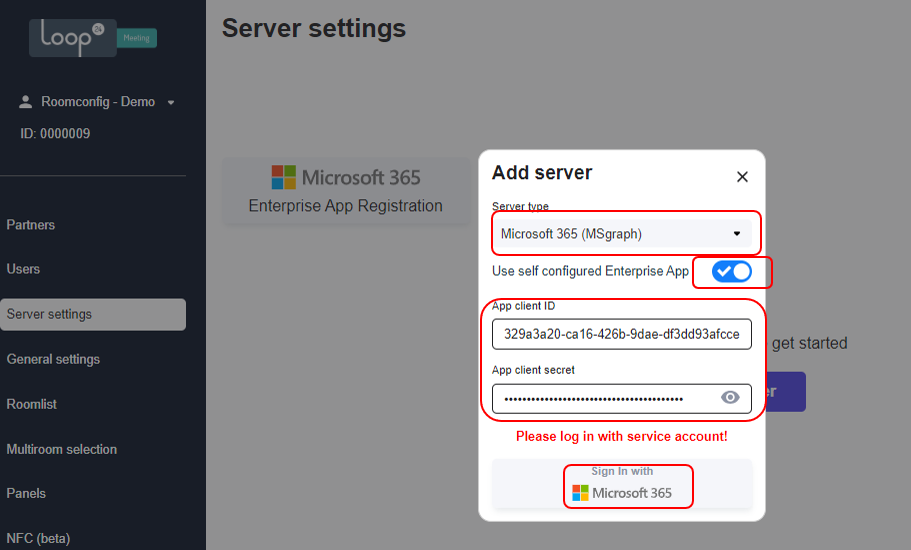
- Select Server settings and Add server.
- Select the server type Microsoft 365 (MSgraph).
- Select Use self configured Enterprise App.
- Paste the Application (client) ID and the secret you created and noted earlier.
- Log in with your service account. Do not log in with the tenant admin or your own account.
Your server is now added and you can proceed to Roomlist and Add roomlist. See our RoomConfig guide: Configure the portal
Visits are counted with Umami on Loop24’s own server in Stockholm. No cookies, and no IP addresses are stored.
Microsoft, Windows, Microsoft Edge, Entra, Exchange, Microsoft 365, Outlook, Power BI and Teams are trademarks of the Microsoft group of companies. Android, Google Play, Google Workspace, Google Sheets and Google Slides are trademarks of Google LLC. App Store is a service mark of Apple Inc. Other product and company names belong to their owners; they say what LoopSign, LoopMeeting, LoopBooking and LoopVisit work with, and imply no affiliation or endorsement.