
LoopBooking
This guide takes you through the steps needed to get your LoopBooking environment ready to connect with LoopMeeting. Follow the steps carefully and do not skip any of them unless they are marked as optional.
1. Introduction
Section titled “1. Introduction”LoopMeeting is an Android application preinstalled on LoopMeeting Android panels. LoopMeeting communicates directly with LoopBooking through the LoopBooking APIs over HTTPS with TLS 1.2 encryption.
2. Prerequisites
Section titled “2. Prerequisites”You need a RoomConfig account, https://lm.roomconfig.com. The LoopMeeting application needs an integration key and an account with building admin rights.
3. Create LoopBooking admin user and integration key
Section titled “3. Create LoopBooking admin user and integration key”- Log in to your LoopBooking tenant,
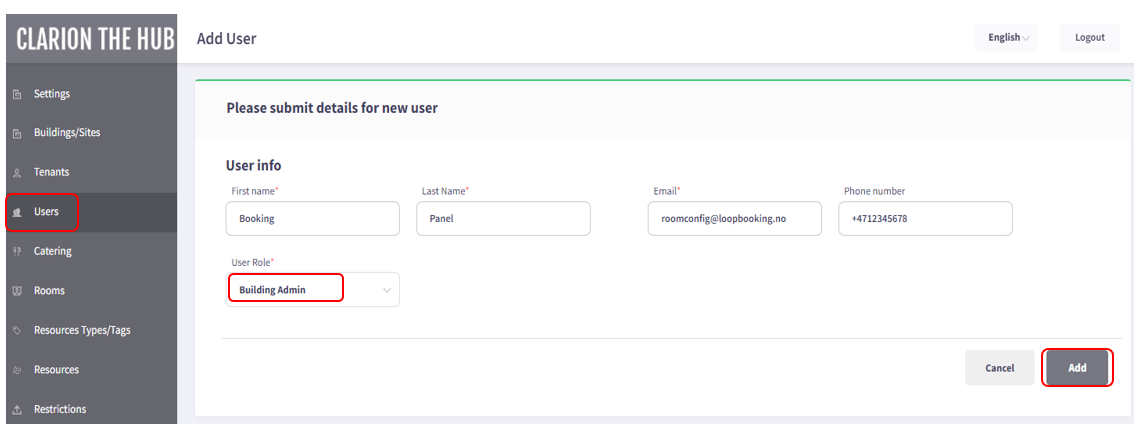
https://<your_loopbooking_domain>.loopbooking.no, with the Building Admin role. - Select Users in the left menu and select Add User.
- Create a new building admin account. The email address does not need to be a real address; a made-up account is fine. Add the account.
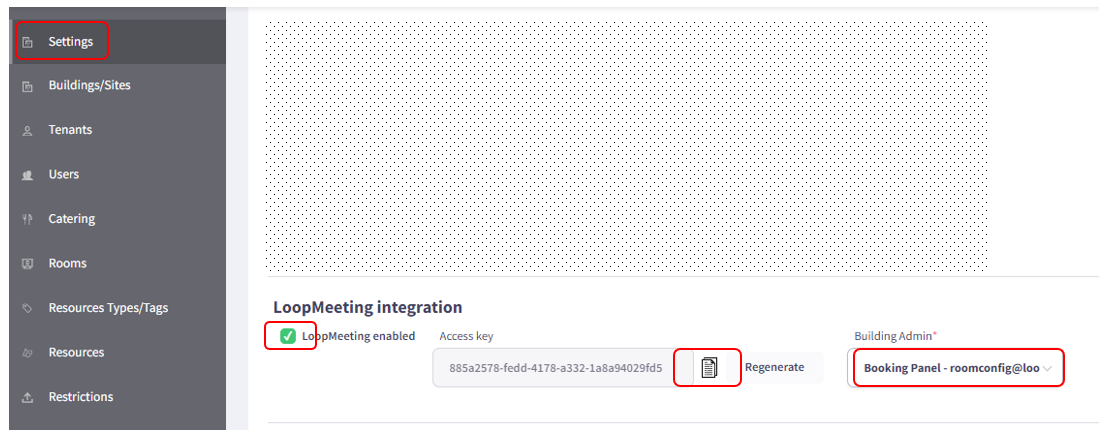
- Select Settings in the left menu and scroll down to the LoopMeeting integration settings.
- Enable the LoopMeeting integration and copy the access key (paste it into Notepad for now).
- Select the building admin account you created in the previous step.
4. Configure LoopBooking server settings in the RoomConfig portal
Section titled “4. Configure LoopBooking server settings in the RoomConfig portal”- Log in to your RoomConfig account.
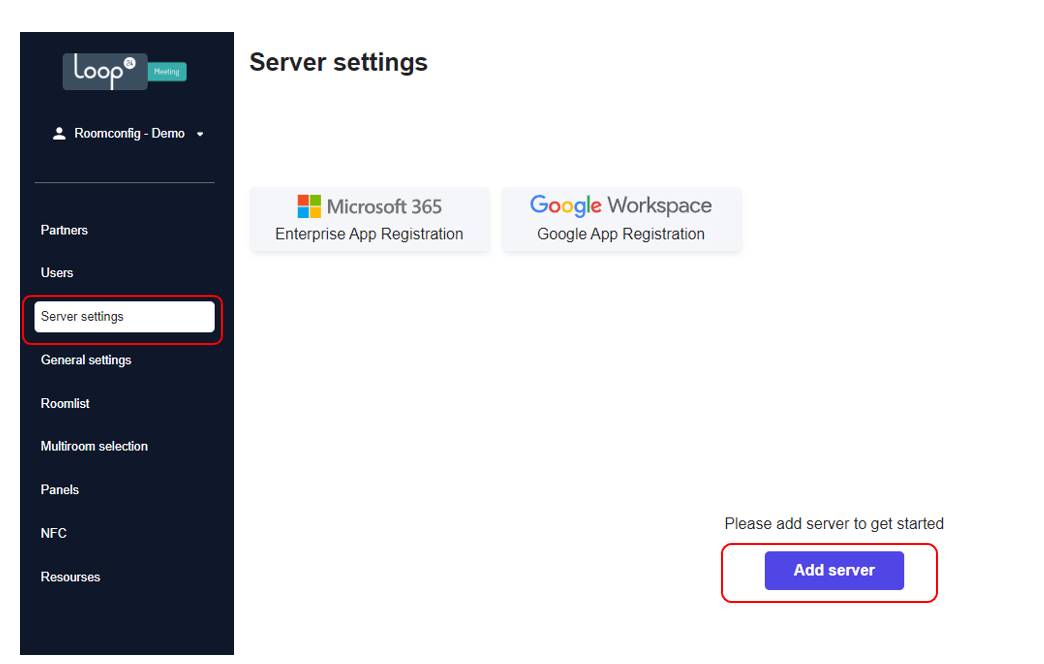
- Select Server settings in the left menu and select Add server.
- Select the server type LoopBooking.
- Enter the URL of your LoopBooking environment.
- Paste the access key from LoopBooking (section 3).
- Select Test connection. If the connection is OK, you get the option to save.
Continue with configuring your RoomConfig portal: Configure the portal
Visits are counted with Umami on Loop24’s own server in Stockholm. No cookies, and no IP addresses are stored.
Microsoft, Windows, Microsoft Edge, Entra, Exchange, Microsoft 365, Outlook, Power BI and Teams are trademarks of the Microsoft group of companies. Android, Google Play, Google Workspace, Google Sheets and Google Slides are trademarks of Google LLC. App Store is a service mark of Apple Inc. Other product and company names belong to their owners; they say what LoopSign, LoopMeeting, LoopBooking and LoopVisit work with, and imply no affiliation or endorsement.