
Kiosk settings
Here you will find information on how to configure the LoopVisit kiosk settings.
Kiosk Settings
Section titled “Kiosk Settings”In the menu item Kiosk Settings you set the default settings for all registration kiosks. All kiosk settings can also be set individually per kiosk, under the menu item Kiosks.
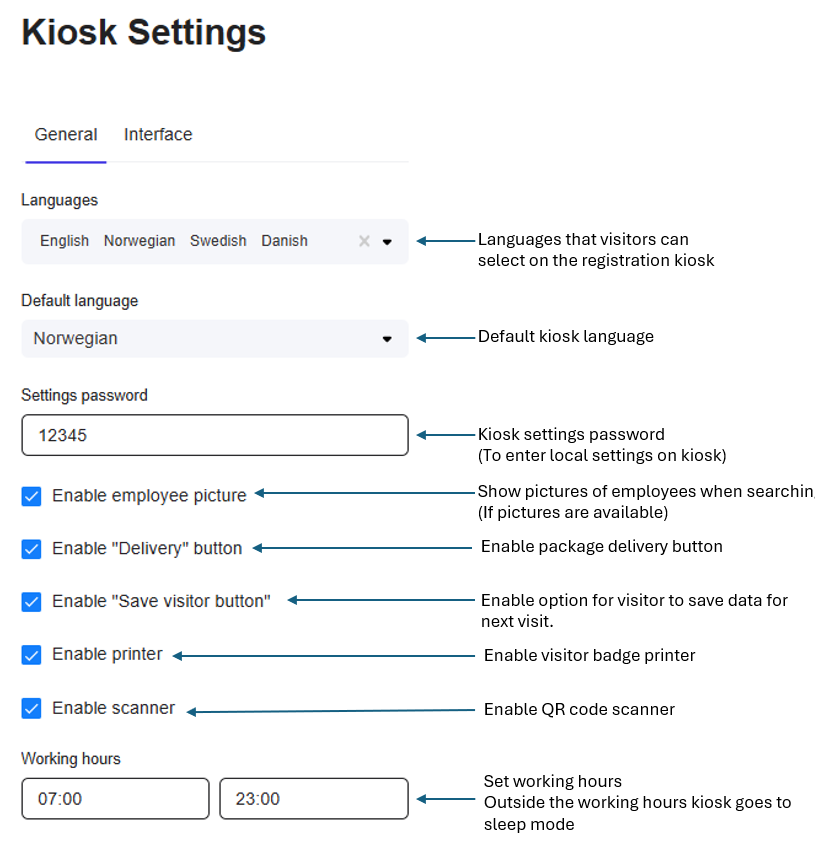
The General tab: Languages are the languages visitors can select on the registration kiosk, and Default language is the default kiosk language. Settings password is the password for entering the local settings on the kiosk. Five checkboxes follow: Enable employee picture shows pictures of employees when searching, if pictures are available; Enable “Delivery” button shows the package delivery button; Enable “Save visitor button” lets a visitor save their data for the next visit; Enable printer is for the visitor badge printer (the badge option itself is under Settings) and Enable scanner for the QR code scanner. Working hours: outside the working hours the kiosk goes to sleep mode.
Interface settings (theme, logo and background)
Section titled “Interface settings (theme, logo and background)”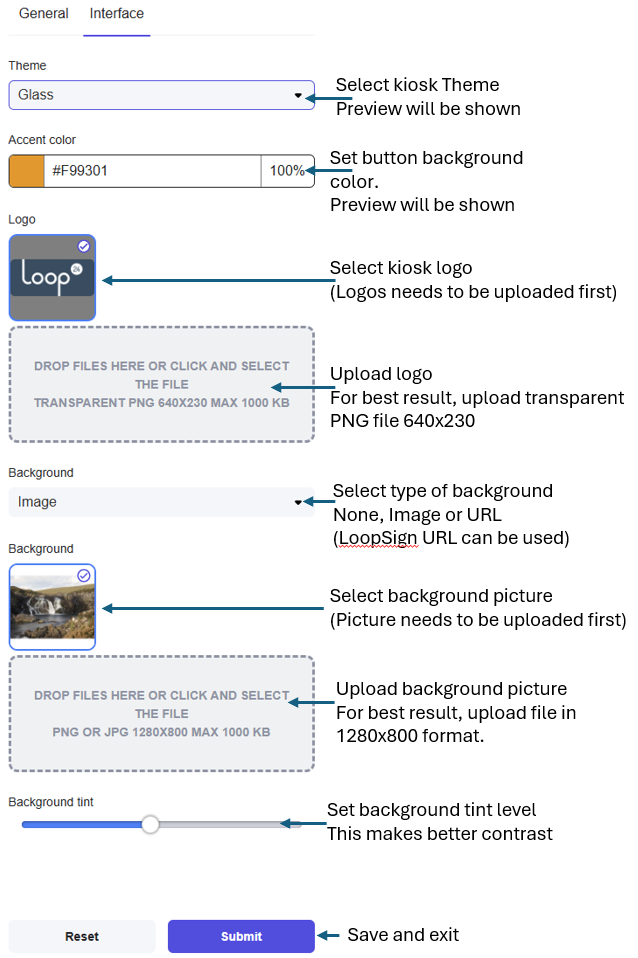
The Interface tab: Theme selects the kiosk theme and Accent color sets the background colour of the buttons; a preview is shown for both. Under Logo, select a logo that is already uploaded, or upload one: a transparent PNG of 640x230, at most 1000 KB, gives the best result. Background is None, Image or URL (a LoopSign URL can be used: where to find it). For an image, select a picture that is already uploaded, or upload a PNG or JPG of 1280x800, at most 1000 KB. Background tint sets the tint level, which gives better contrast. Submit saves and exits.
Kiosks
Section titled “Kiosks”In the menu item Kiosks the enrollment and custom settings for each kiosk are set.
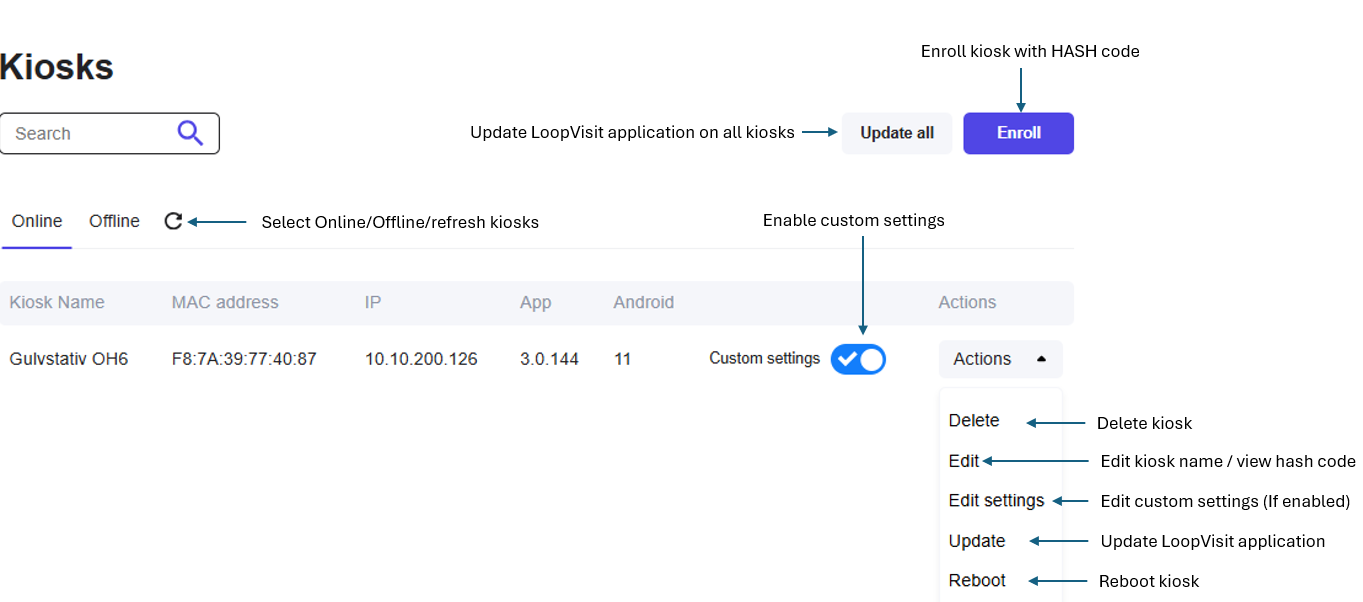
The Kiosks page lists each kiosk with its name, MAC address, IP, app version and Android version, under the Online and Offline tabs, with a refresh button beside them. Enroll enrolls a kiosk with its hash code, and Update all updates the LoopVisit application on all kiosks. The Custom settings switch enables custom settings for that kiosk. The Actions menu holds Delete (delete the kiosk), Edit (edit the kiosk name, view the hash code), Edit settings (edit the custom settings, if enabled), Update (update the LoopVisit application) and Reboot.
Visits are counted with Umami on Loop24’s own server in Stockholm. No cookies, and no IP addresses are stored.
Microsoft, Windows, Microsoft Edge, Entra, Exchange, Microsoft 365, Outlook, Power BI and Teams are trademarks of the Microsoft group of companies. Android, Google Play, Google Workspace, Google Sheets and Google Slides are trademarks of Google LLC. App Store is a service mark of Apple Inc. Other product and company names belong to their owners; they say what LoopSign, LoopMeeting, LoopBooking and LoopVisit work with, and imply no affiliation or endorsement.