
Airtame and ScreenBeam

Airtame 2
Section titled “Airtame 2”Set the LoopSign URL as the background on the Airtame in your meeting room, or use it as a player.
Set up the Airtame first
Section titled “Set up the Airtame first”First make sure you have configured all the basics on your device and enrolled it in Airtame Cloud, following Airtame’s instructions: https://airtame.com
Set the LoopSign URL as the background
Section titled “Set the LoopSign URL as the background”-
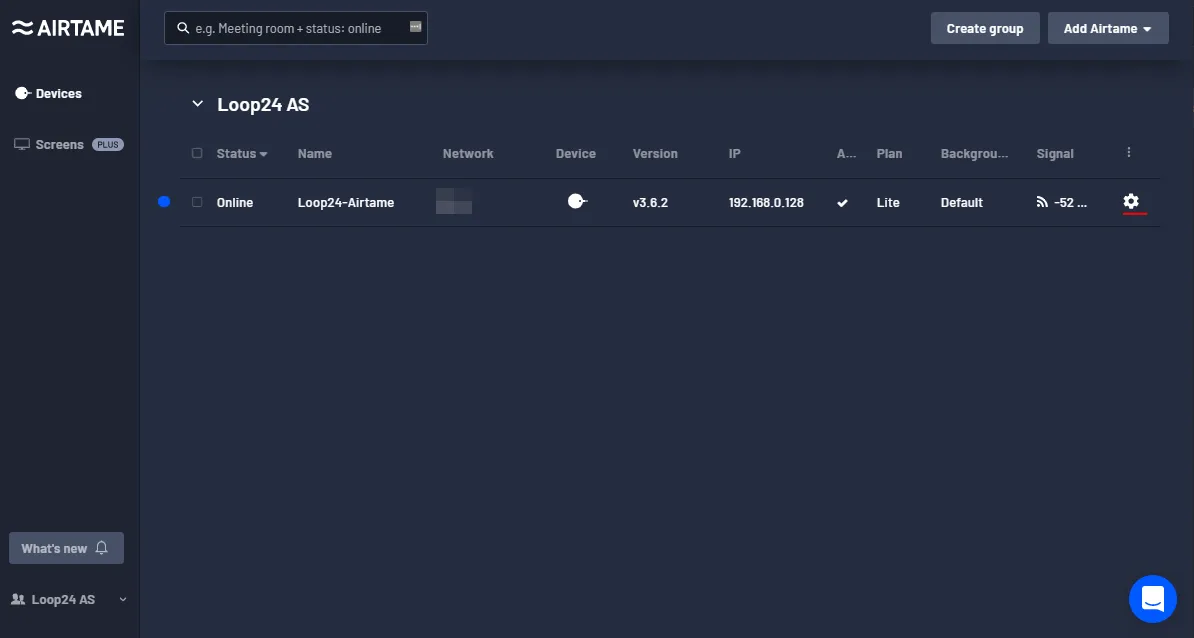
Open the settings for the device.
-
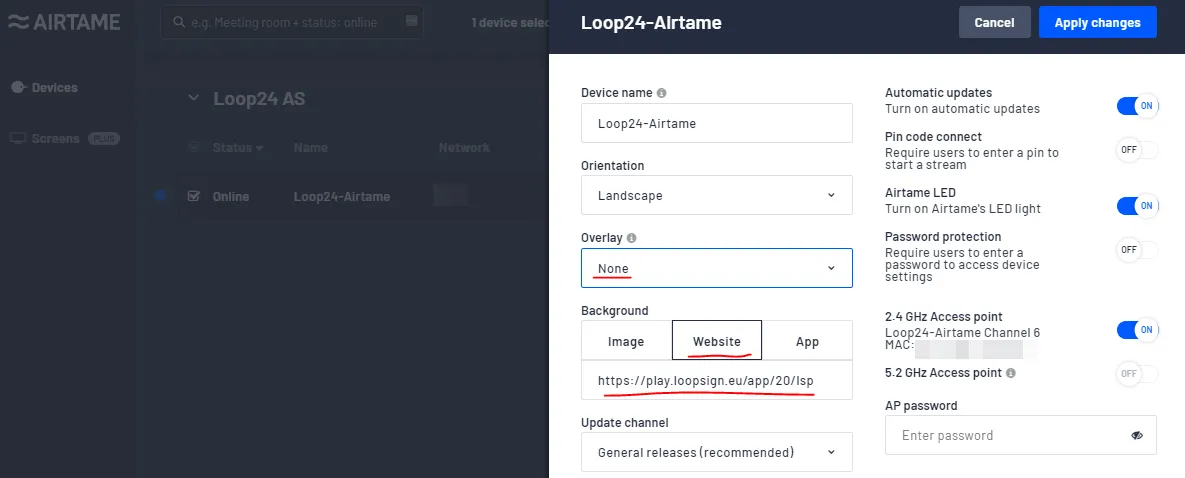
Under Background, select Website and enter the URL of the LoopSign screen you want to show (where to find it).
-
Also select the Airtame Overlay. Set it to None, as in the picture, if you want to use the Airtame just as a player; if people also share their screens to it, keep one of Airtame’s overlays, which is shown on top of the LoopSign background.
-
Select Apply changes.
That’s it: you are ready to go.

ScreenBeam 1100 Plus
Section titled “ScreenBeam 1100 Plus”Set LoopSign as a frame or full screen on your ScreenBeam device.
Make sure the device has the latest firmware: LoopSign needs it to work.
Log in to the management interface
Section titled “Log in to the management interface”Log in to the management web interface of your ScreenBeam device. For more information, see ScreenBeam’s support pages.
- Default username:
Administrator - Password:
screenbeam
Set the LoopSign URL
Section titled “Set the LoopSign URL”-
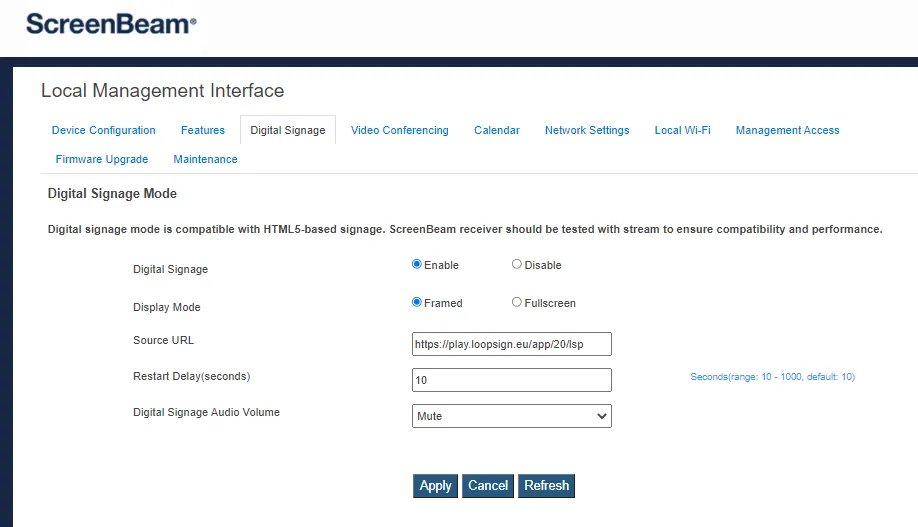
Open the Digital Signage menu on the device.
-
Set Digital Signage to Enable.
-
Select the Display Mode you want.
-
In Source URL, enter the screen’s URL from LoopSign.
-
Select Apply.
That’s it: you are ready to go.
Visits are counted with Umami on Loop24’s own server in Stockholm. No cookies, and no IP addresses are stored.
Microsoft, Windows, Microsoft Edge, Entra, Exchange, Microsoft 365, Outlook, Power BI and Teams are trademarks of the Microsoft group of companies. Android, Google Play, Google Workspace, Google Sheets and Google Slides are trademarks of Google LLC. App Store is a service mark of Apple Inc. Other product and company names belong to their owners; they say what LoopSign, LoopMeeting, LoopBooking and LoopVisit work with, and imply no affiliation or endorsement.