
BenQ ST04 with the LoopSign Player app
Deploying LoopSign to your BenQ ST04 display is very easy: LoopSign uses its Android app on BenQ’s custom Android OS to play content.
This guide shows how to set up LoopSign locally, on the display itself. For this we recommend a keyboard and mouse connected to the display, along with the display’s remote control.
With BenQ DMS, BenQ’s flexible and free remote management software, much of the initial setup can be done even more easily from a computer, and you can fully monitor and control the display’s settings remotely afterwards. Contact your BenQ representative for more information about BenQ DMS.
Connecting the display by Ethernet is always highly recommended, but Wi-Fi usually works as well, given a strong and stable connection.
Go through the first-time setup menu
Section titled “Go through the first-time setup menu”-
After turning on the display for the first time, go through the steps of the first-time setup menu. Accept BenQ’s EULA and Privacy Policy.
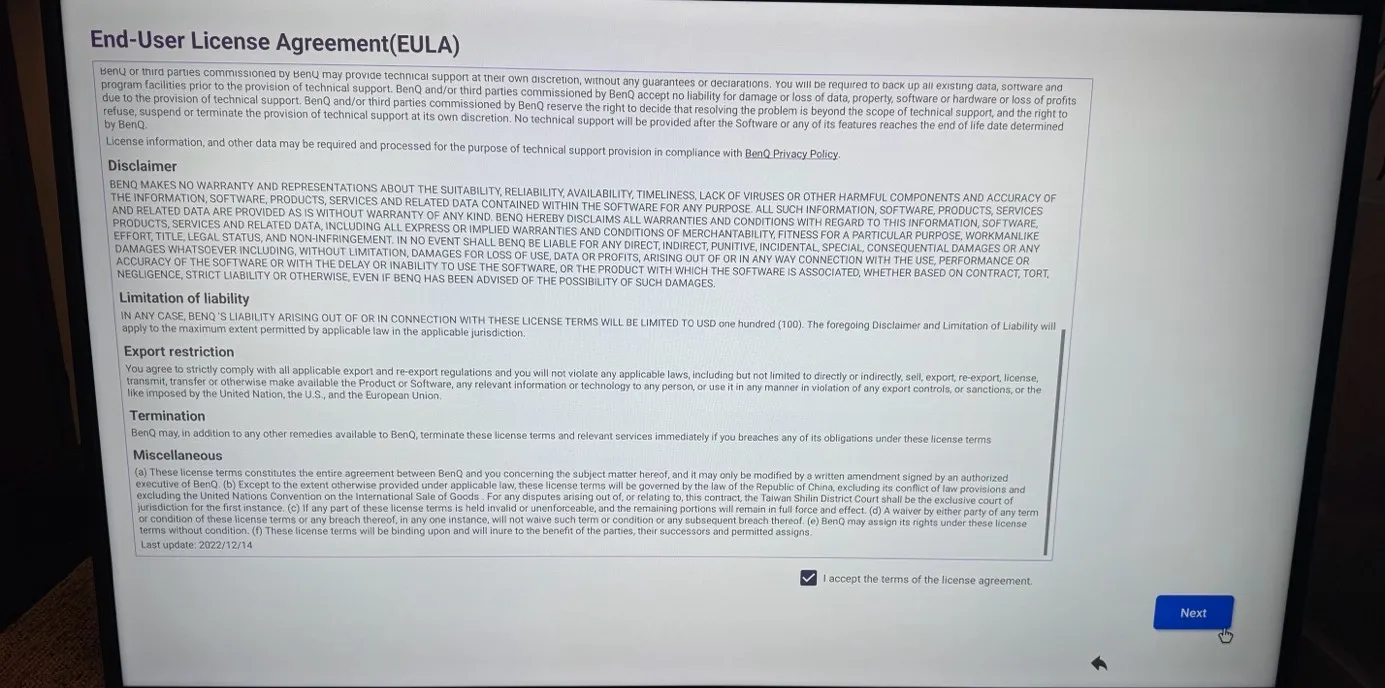
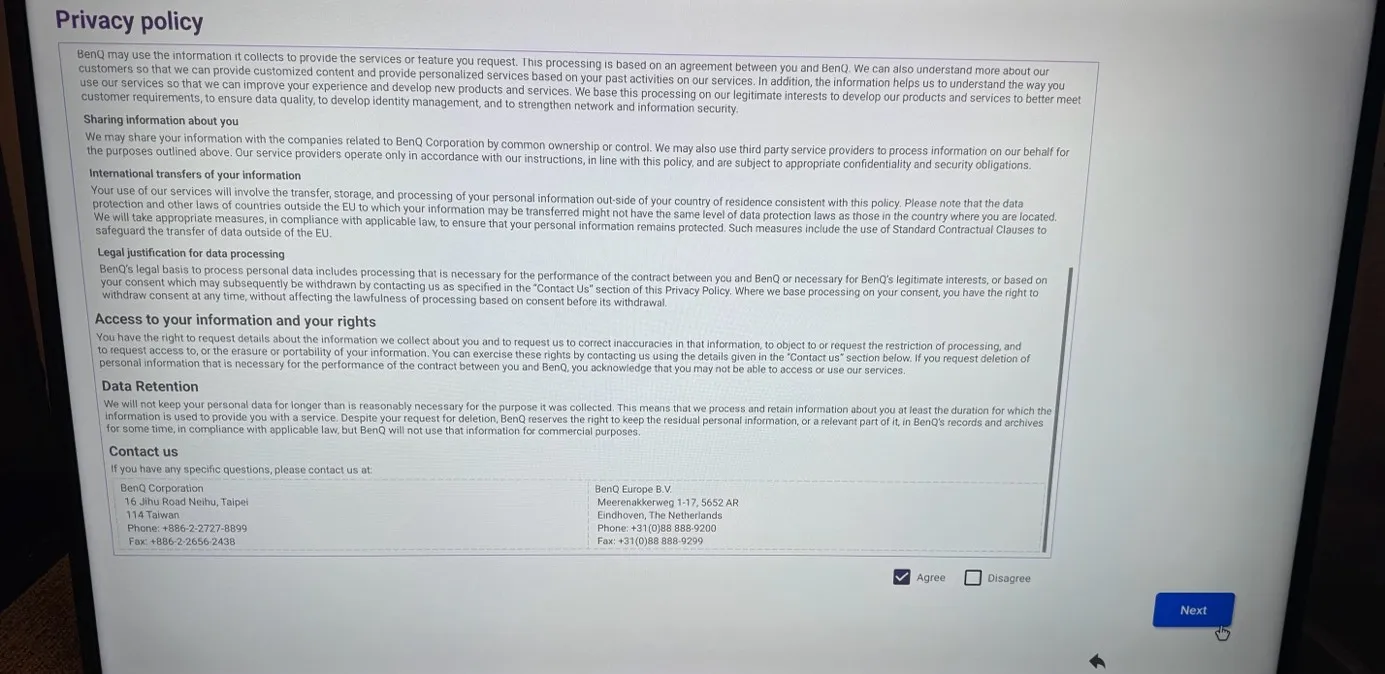
-
When you have finished the first-time setup menu, the display restarts automatically.
Install the LoopSign Player app
Section titled “Install the LoopSign Player app”Open the BenQ App Store
Section titled “Open the BenQ App Store”-
From the Home screen of the display, select the More icon.
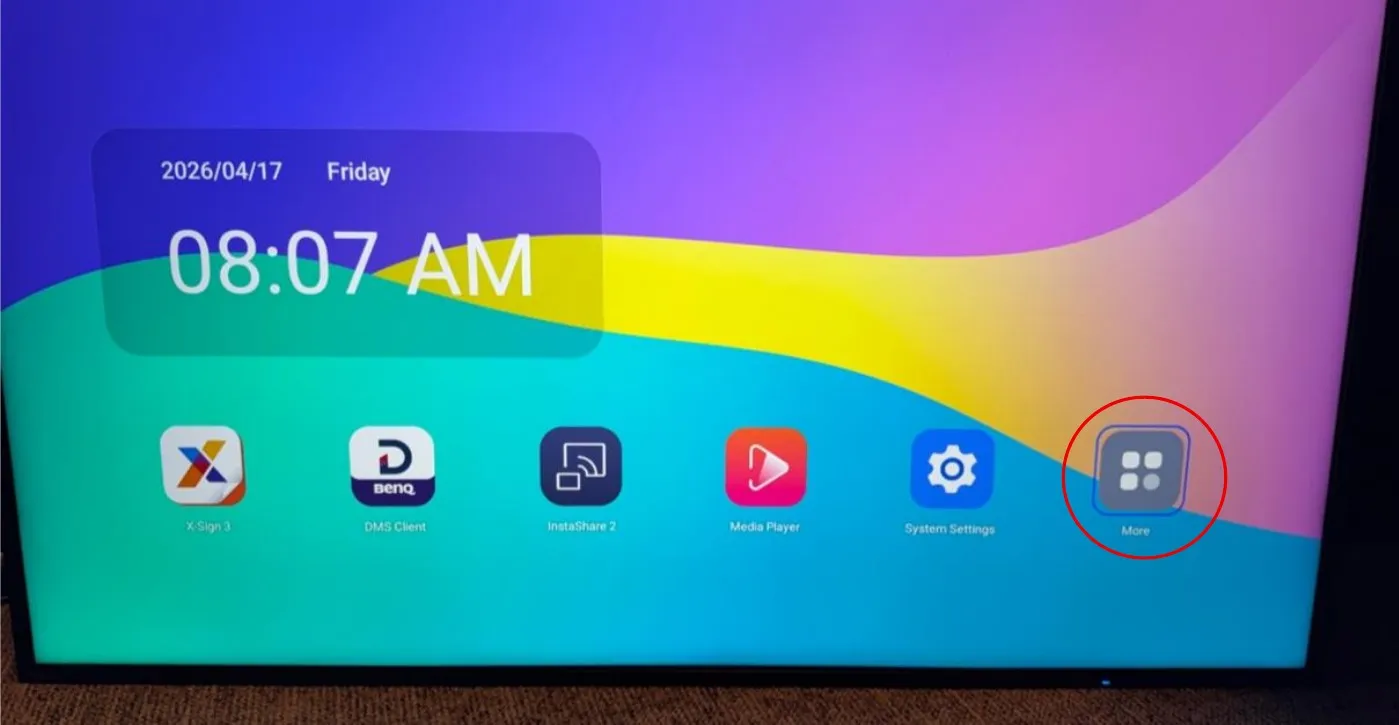
-
Select BenQ App Store.
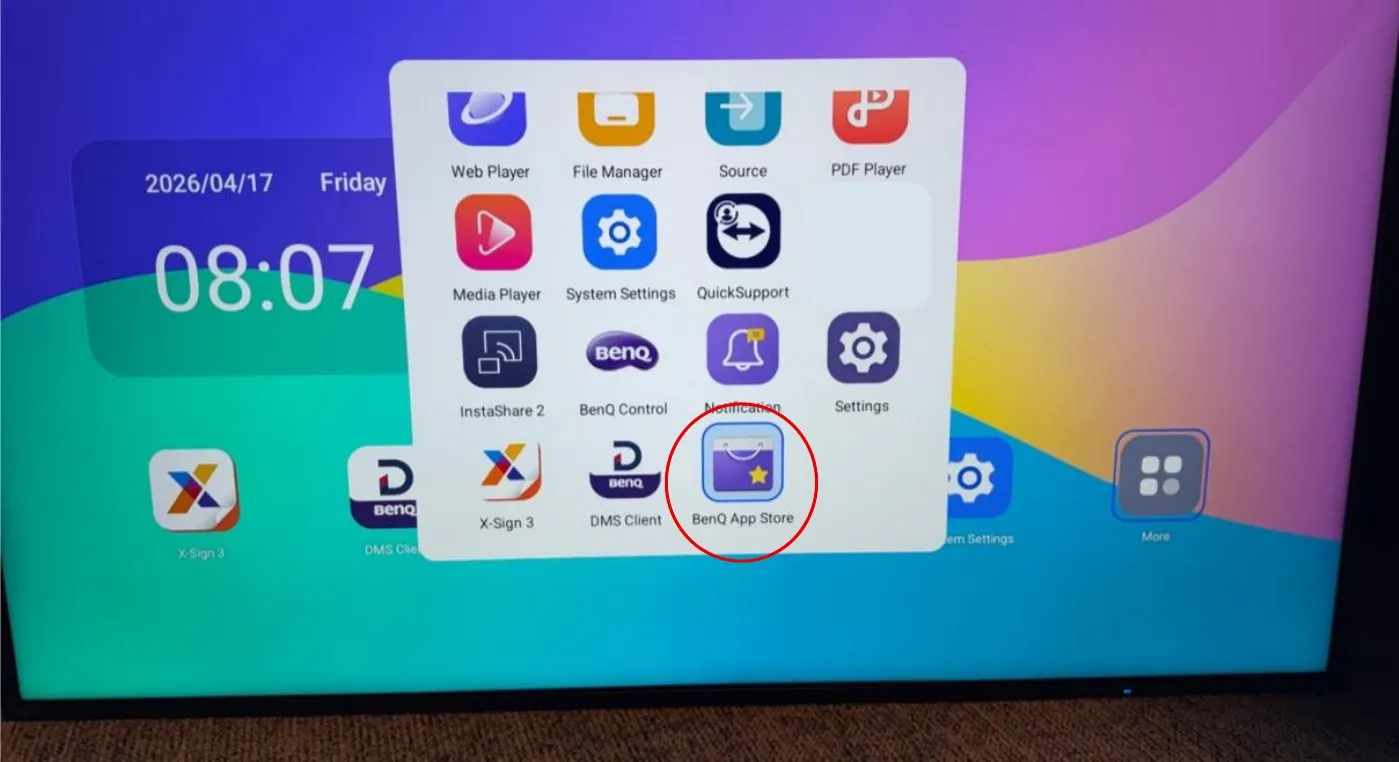
Install the BenQ Control app and the LoopSign Player app
Section titled “Install the BenQ Control app and the LoopSign Player app”-
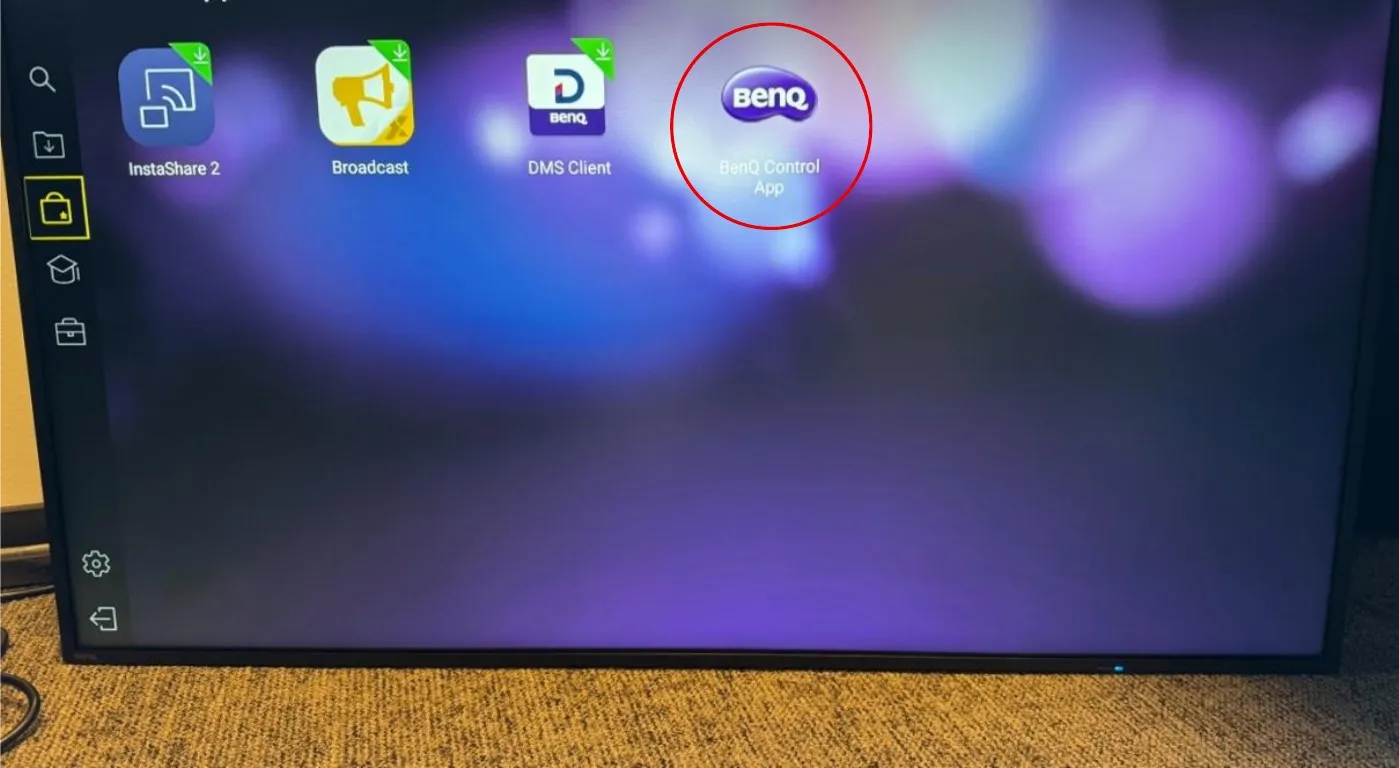
Inside the BenQ App Store, select the first briefcase icon in the left-hand menu, and then select BenQ Control App to install it.
-
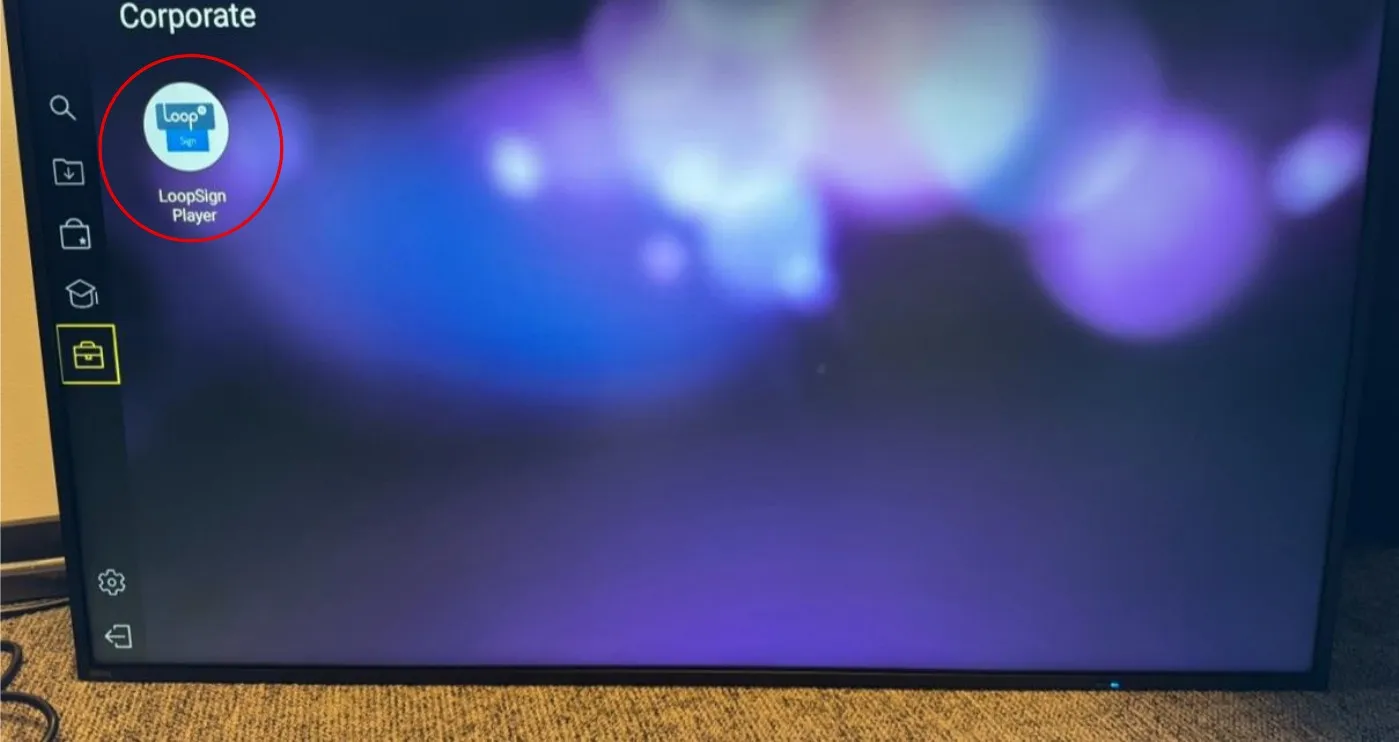
Then select the second briefcase icon in the left-hand menu and select LoopSign Player to install it.
Configure display settings for power management and scheduling
Section titled “Configure display settings for power management and scheduling”-
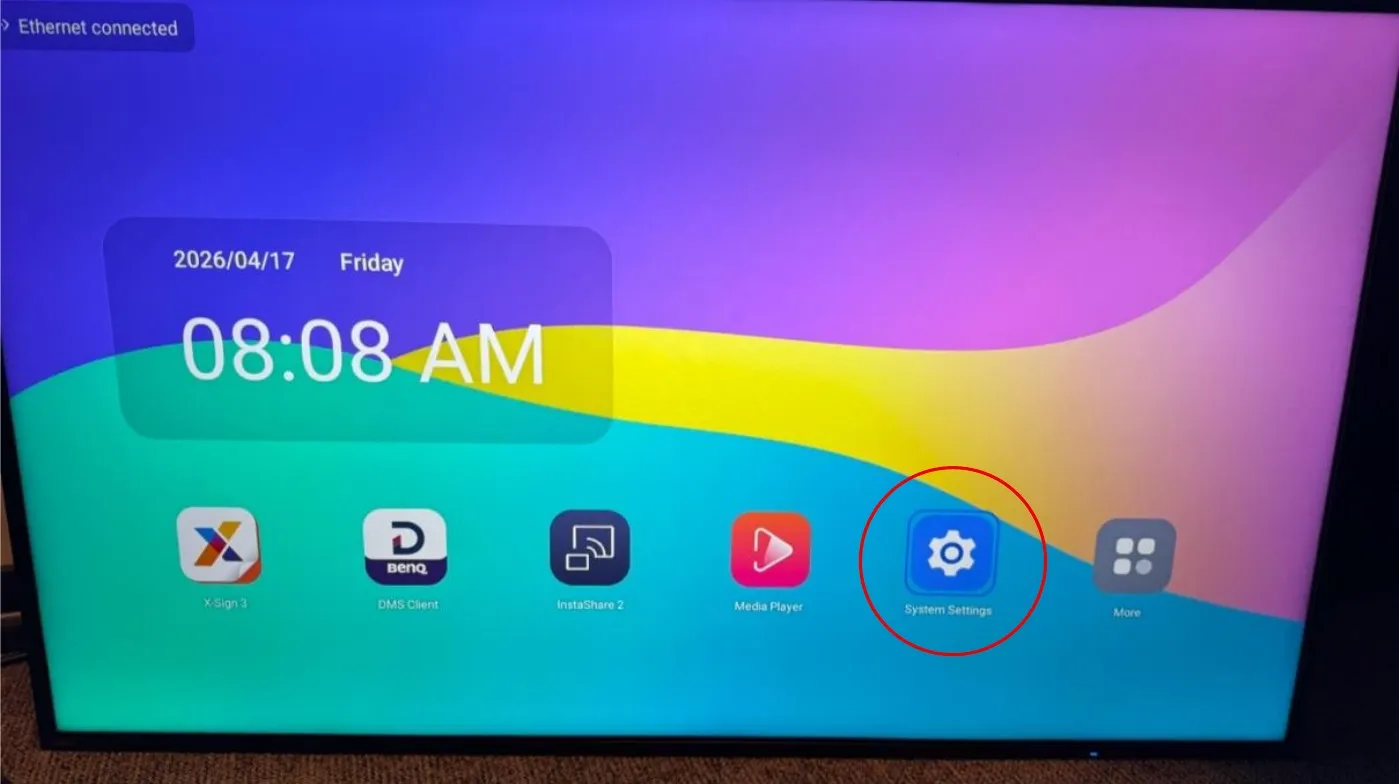
Go back to the Home screen and select the cog wheel to open the display’s settings menu.
-
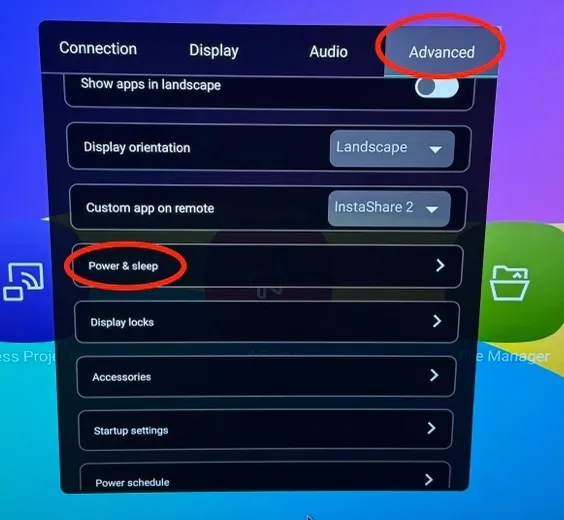
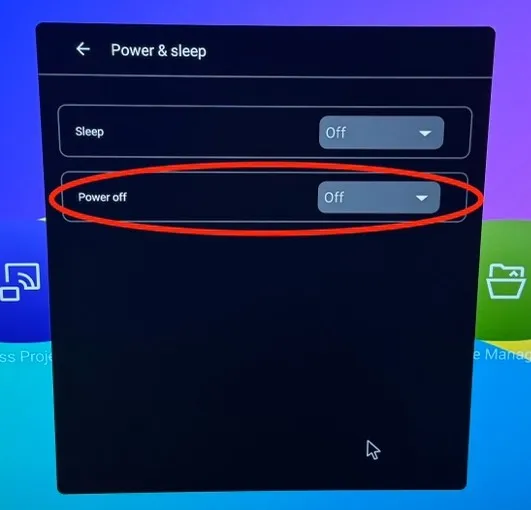
In the Advanced tab, open Power & sleep and set Power off to Off.
-
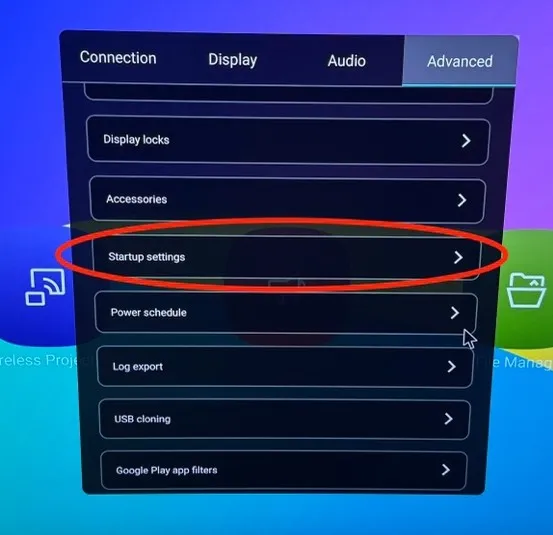
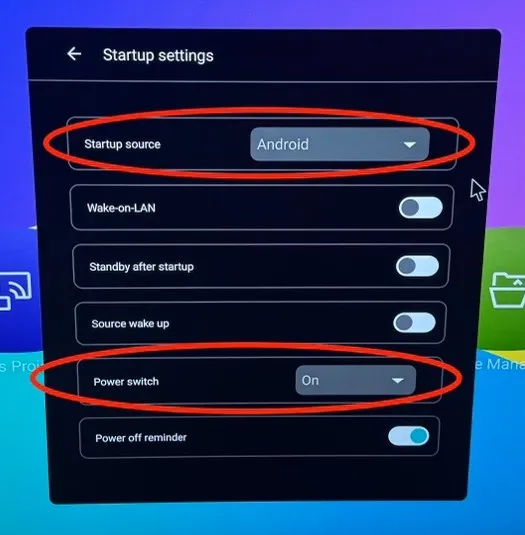
Open Startup settings and set Startup source to Android and Power switch to On.
-
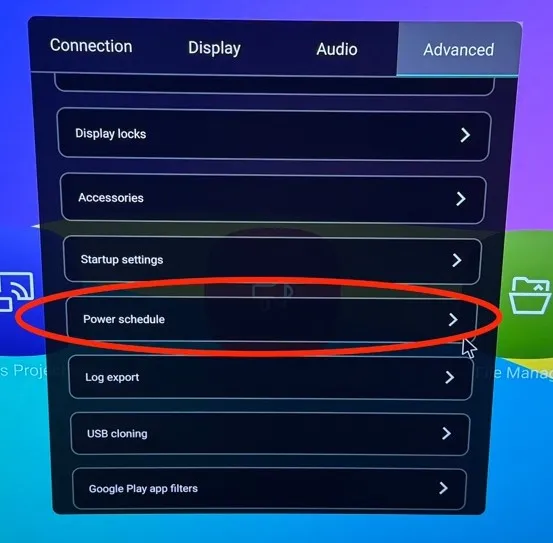
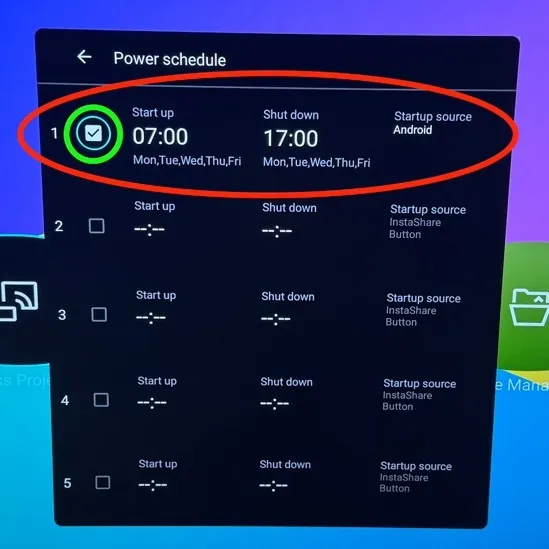
Open Power schedule and set your preferred schedule or schedules for when the display should turn on and off automatically. Remember to enable each schedule by ticking its checkbox once its details are set.
Open the LoopSign Player app
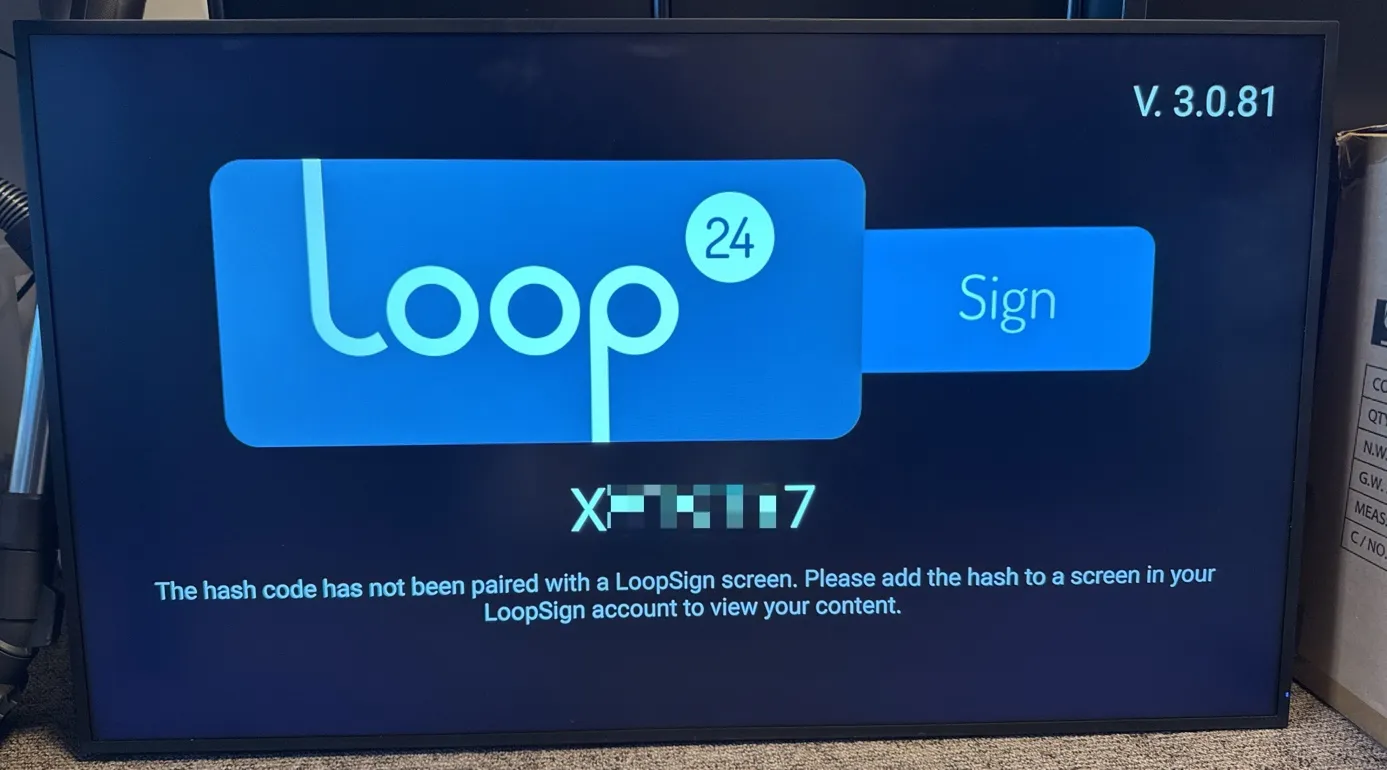
Section titled “Open the LoopSign Player app”Both the BenQ Control app and the LoopSign Player app need to be launched manually once. After that, LoopSign Player launches automatically every time the display boots. You find the app in the apps tray on the Home screen. Use the unique hash code shown on the display to enroll it on your LoopSign account and show your content.
Enroll the display on your LoopSign account
Section titled “Enroll the display on your LoopSign account”With the hash code on the display, add the display to your account and give it a screen to play: Enroll a display on your LoopSign account.
Visits are counted with Umami on Loop24’s own server in Stockholm. No cookies, and no IP addresses are stored.
Microsoft, Windows, Microsoft Edge, Entra, Exchange, Microsoft 365, Outlook, Power BI and Teams are trademarks of the Microsoft group of companies. Android, Google Play, Google Workspace, Google Sheets and Google Slides are trademarks of Google LLC. App Store is a service mark of Apple Inc. Other product and company names belong to their owners; they say what LoopSign, LoopMeeting, LoopBooking and LoopVisit work with, and imply no affiliation or endorsement.