
Canva widget
Before you start
Section titled “Before you start”The Canva widget is a direct integration with the presentation tool Canva, https://www.canva.com/. Play your Canva presentations live in LoopSign: if you change a presentation in Canva, the change shows in LoopSign at once. Note that video in a Canva presentation does not work, and that the Canva widget requires a screen or player with Chromium version 69 or above.
How to play Canva presentations with LoopSign
Section titled “How to play Canva presentations with LoopSign”
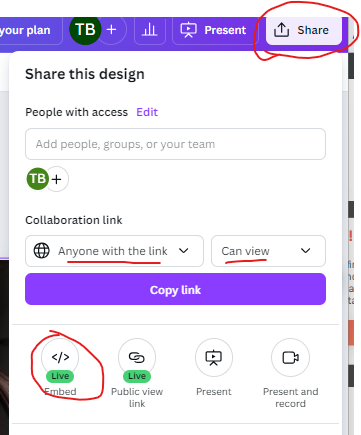
- Open your Canva presentation in the Canva editor.
- Select Share.
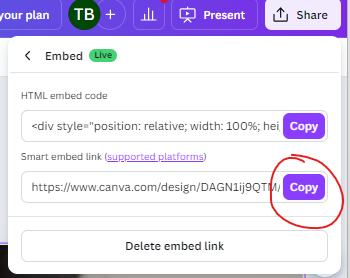
- Select Embed.
- Copy the Smart embed link.
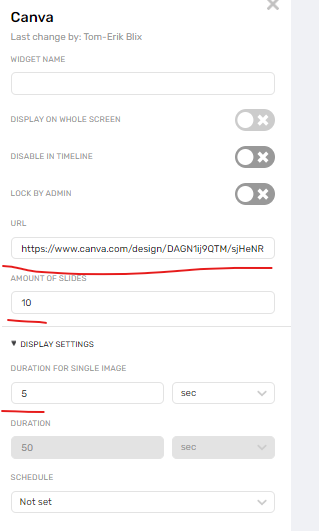
- Add the Canva widget in LoopSign.
- Paste the Smart embed link into the widget’s URL field.
- Set Amount of slides to the number of slides in the presentation.
- Under Display settings, set Duration for single image: how long each slide plays.
Visits are counted with Umami on Loop24’s own server in Stockholm. No cookies, and no IP addresses are stored.
Microsoft, Windows, Microsoft Edge, Entra, Exchange, Microsoft 365, Outlook, Power BI and Teams are trademarks of the Microsoft group of companies. Android, Google Play, Google Workspace, Google Sheets and Google Slides are trademarks of Google LLC. App Store is a service mark of Apple Inc. Other product and company names belong to their owners; they say what LoopSign, LoopMeeting, LoopBooking and LoopVisit work with, and imply no affiliation or endorsement.