
Microsoft 365 (Graph)
Here you will find information on how to configure the Microsoft 365 (Entra ID, Microsoft Graph) integration in LoopVisit. To provision users with SCIM instead, see Microsoft 365 (SCIM).
Integration with Microsoft 365 can be done in two ways, to align with your company’s security policies.
1. Integrate using the predefined Entra ID enterprise app
Section titled “1. Integrate using the predefined Entra ID enterprise app”- Log in to the LoopVisit portal, https://visit.loopvisit.com, with your admin account.
- Select the menu item Tenants, then Actions and Integration for the tenant you want to integrate.
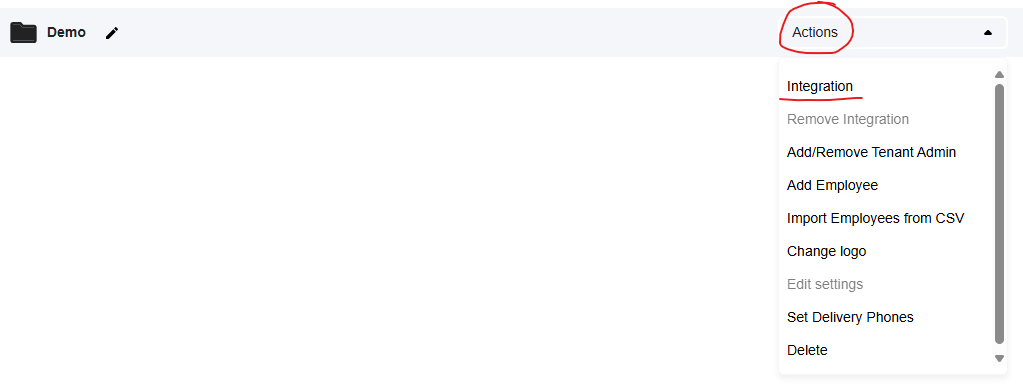
- Enter the Entra group ID of the user group that contains your employees. Only employees with a registered phone number are synchronised.
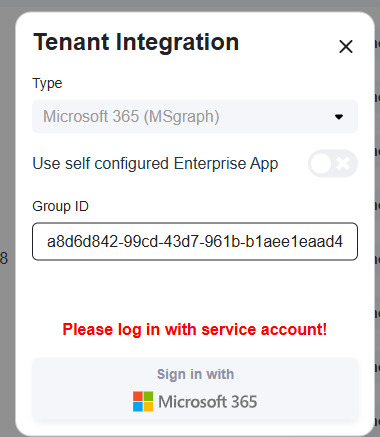
- Log in with a Global Administrator account to register and approve the integration.
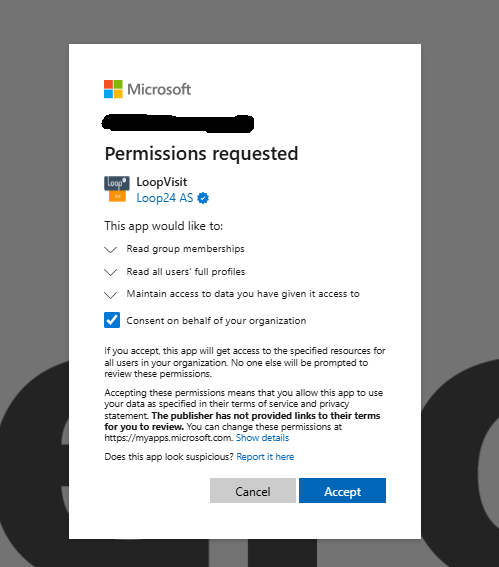
Recommended: if you later want the integration account to be a dedicated service account rather than the Global Administrator account, select Actions and Remove Integration, then repeat the process and log in with the service account. Multi-factor authentication (MFA) is not recommended on the service account: it ties the account to one person, and the integration might stop working when that person leaves the company. The password must never expire.
2. Integrate using a self-registered Entra ID enterprise app
Section titled “2. Integrate using a self-registered Entra ID enterprise app”Create the Entra ID app registration:
- Go to Entra ID App registration, logged in as Global Administrator.
- Select New registration.
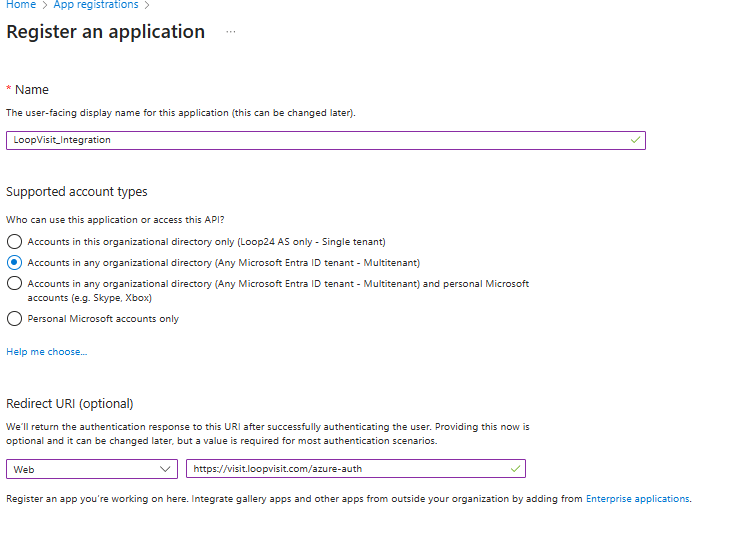
- Give the app a name, for example LoopVisit_Integration.
- Select Accounts in any organizational directory.
- Under Redirect URI, select Web and enter
https://visit.loopvisit.com/azure-auth. - Select Register.
- Select the menu item Authentication and add another Web redirect URI:
https://visit.loopvisit.com/tenant-redirect.
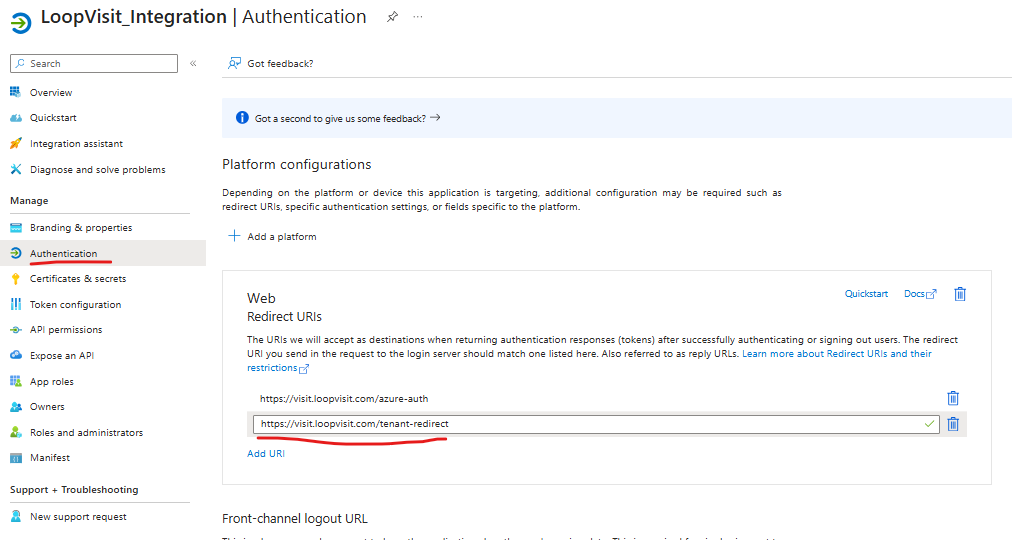
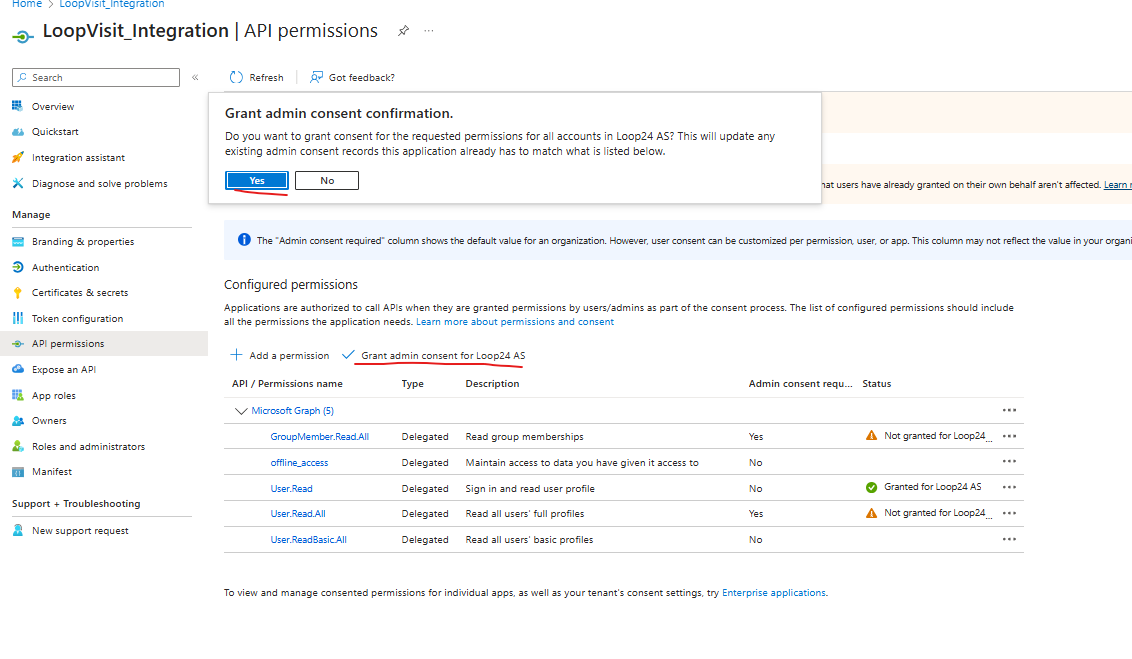
- Select the menu item API permissions and add the following Microsoft Graph delegated permissions:
GroupMember.Read.All,offline_access,User.Read.All,User.ReadBasic.All. (User.Readis already there: Entra adds it to every new app registration.) - Grant admin consent.
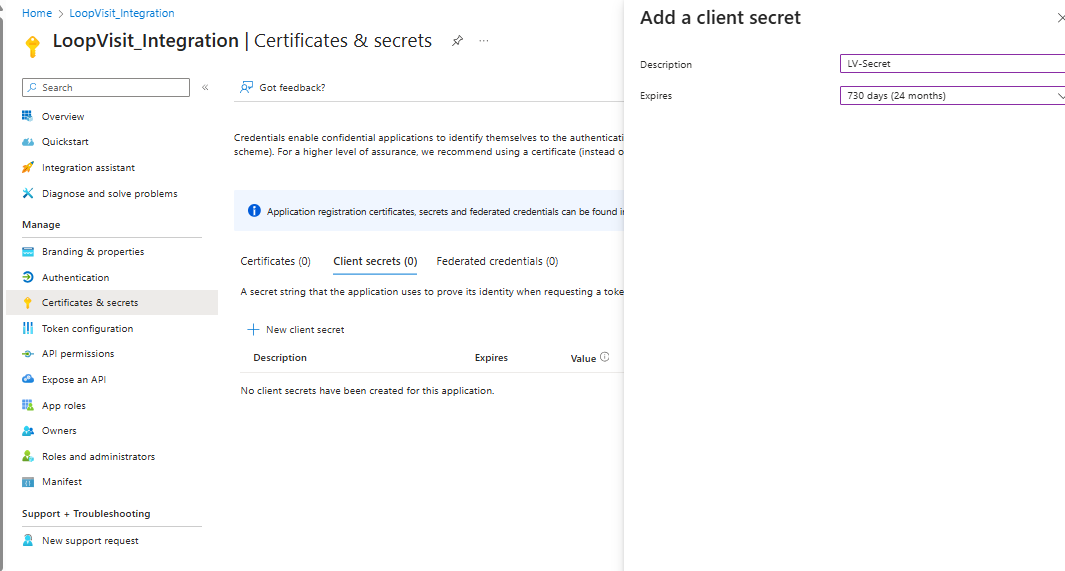
- Select the menu item Certificates & secrets, then New client secret.
- Give the secret a description, for example LV-Secret, and select the expiry you want (24 months recommended).
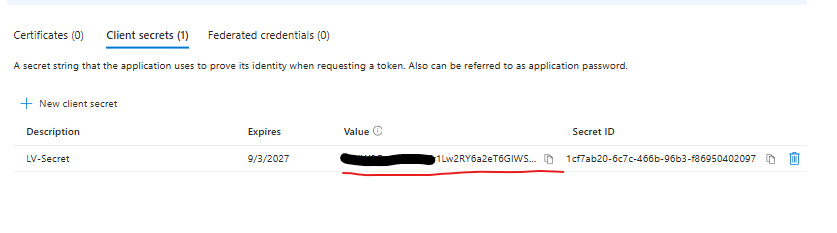
- Copy the secret value to Notepad; you will not be able to see it again, and you need it later in this process.
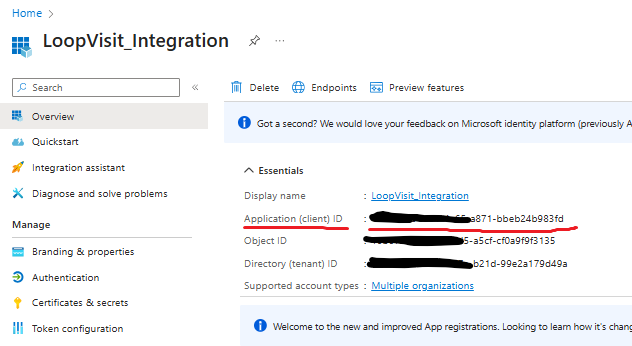
- Select the menu item Overview and make a note of the Application (client) ID.
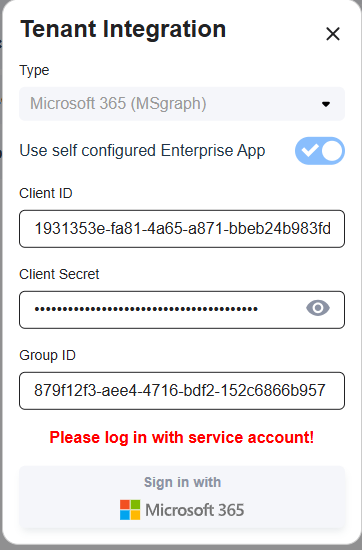
- Go to the LoopVisit portal and select Tenants, then Actions and Integration.
- Fill in the values and log in as Global Administrator.
Visits are counted with Umami on Loop24’s own server in Stockholm. No cookies, and no IP addresses are stored.
Microsoft, Windows, Microsoft Edge, Entra, Exchange, Microsoft 365, Outlook, Power BI and Teams are trademarks of the Microsoft group of companies. Android, Google Play, Google Workspace, Google Sheets and Google Slides are trademarks of Google LLC. App Store is a service mark of Apple Inc. Other product and company names belong to their owners; they say what LoopSign, LoopMeeting, LoopBooking and LoopVisit work with, and imply no affiliation or endorsement.