
Microsoft 365 (SCIM)
Here you will find information on how to configure the Microsoft 365 (Entra ID) SCIM 2.0 integration in LoopVisit. To sync an Entra ID group through Microsoft Graph instead, see Microsoft 365 (Graph).
You can provision users from Microsoft 365 (Entra ID) through the standardised SCIM 2.0 protocol. To configure SCIM 2.0 user provisioning, follow the steps below. There are quite a few steps, but it is fairly easy to configure. Note that only users with a configured mobile phone number are provisioned.
Create an access token in LoopVisit
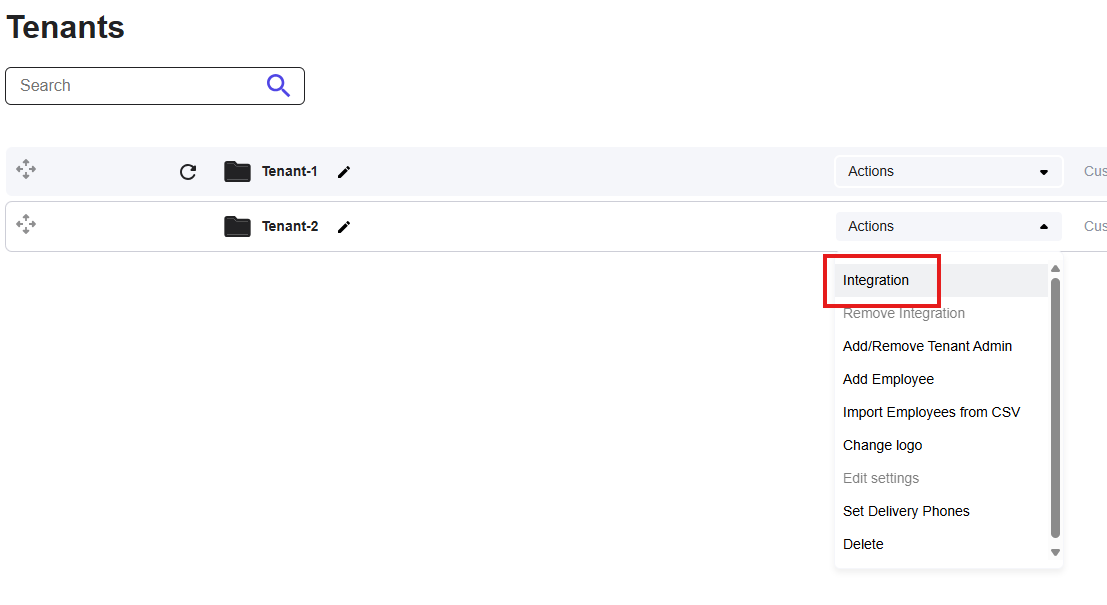
Section titled “Create an access token in LoopVisit”- In the LoopVisit portal, select Tenants, then Integration in the Actions menu.
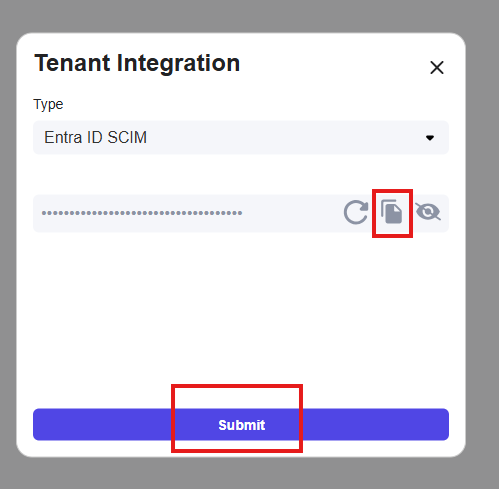
- Under Integration, select Entra ID SCIM.
- Copy the access token (the secret) to your text editor; you need it later.
- Select Submit.
Create the enterprise app in Entra ID
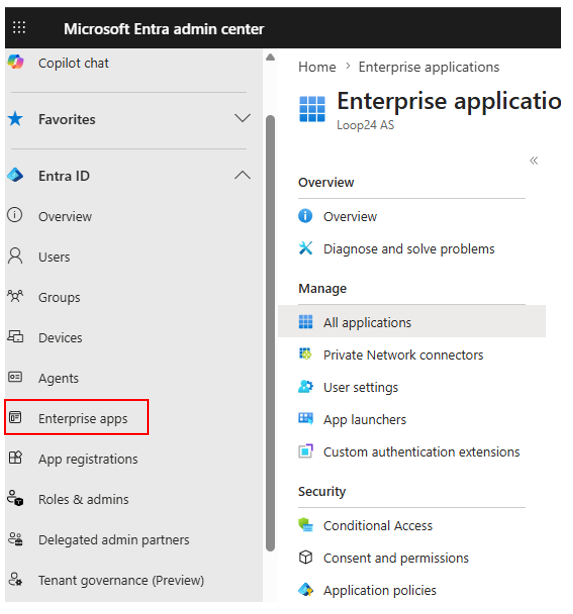
Section titled “Create the enterprise app in Entra ID”- Open the Microsoft Entra admin center, https://entra.microsoft.com/#home, and select Enterprise applications in the left menu.
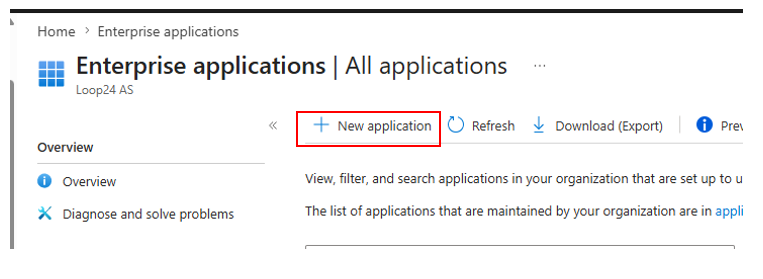
- Create a new enterprise app.
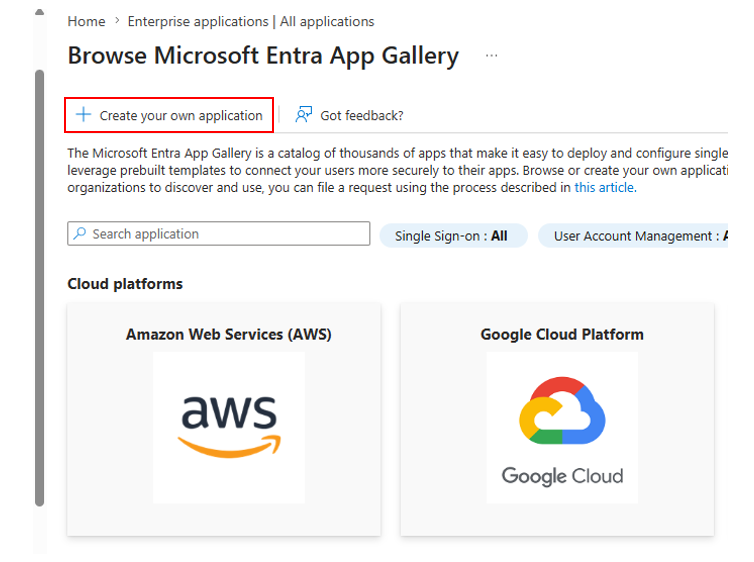
- Select Create your own application.
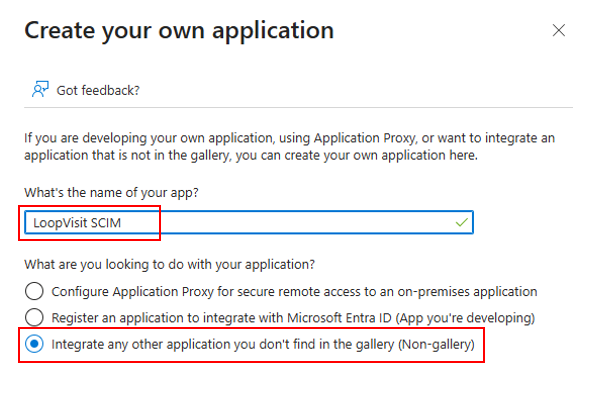
- Give the application a name, and select Integrate any other application you don’t find in the gallery.
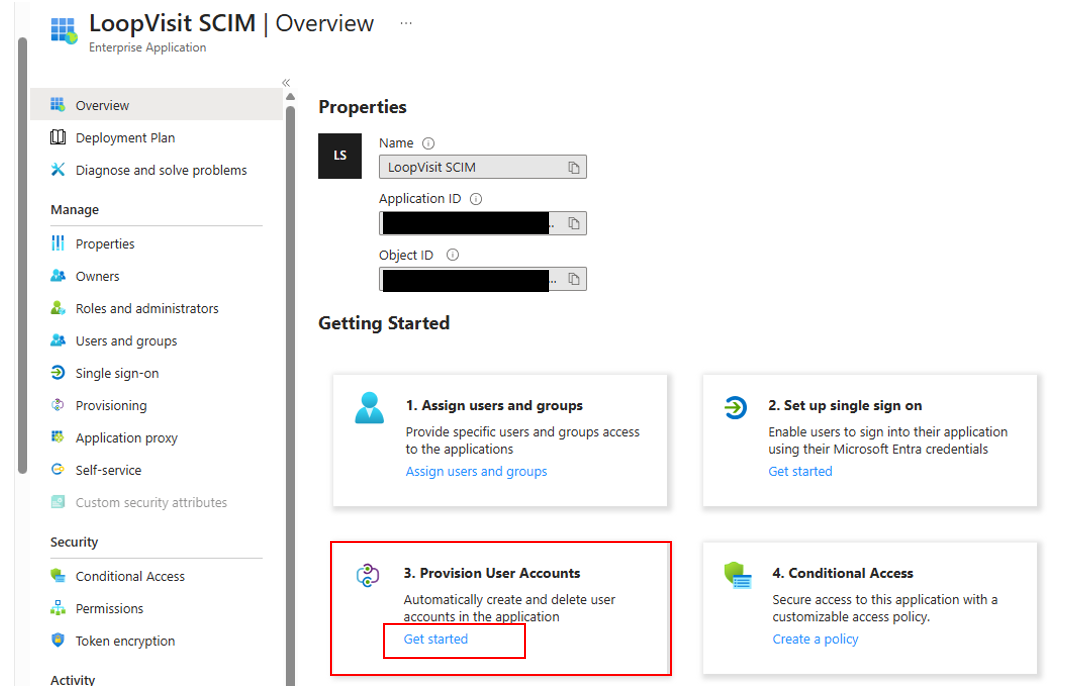
- In the overview, select Get started in the Provision User Accounts field.
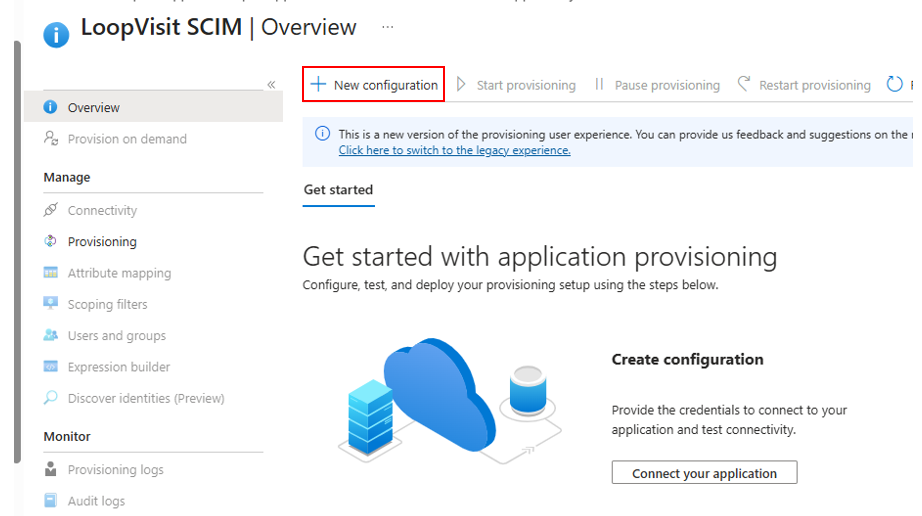
- Select New Configuration.
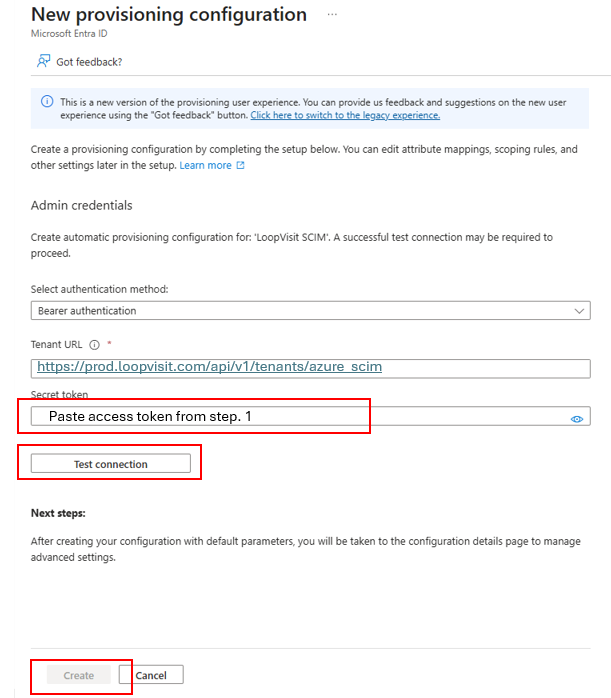
- Set the tenant URL to
https://prod.loopvisit.com/api/v1/tenants/azure_scimand add the secret token from the LoopVisit portal (the access token you copied in the previous section). Test the connection; if it is OK, select Create.
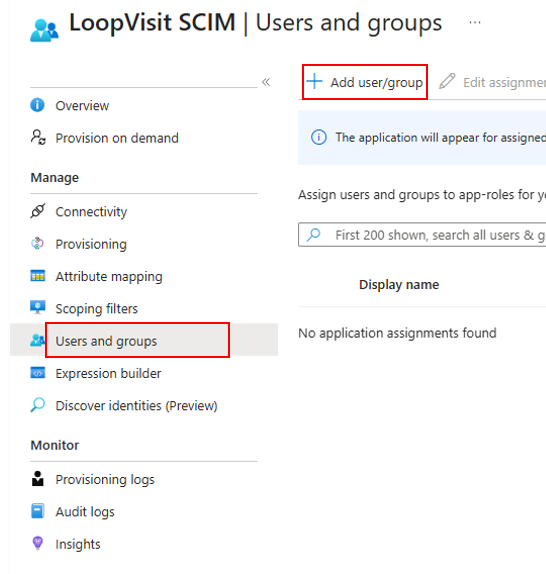
- Add the user group(s) that should be provisioned to LoopVisit.
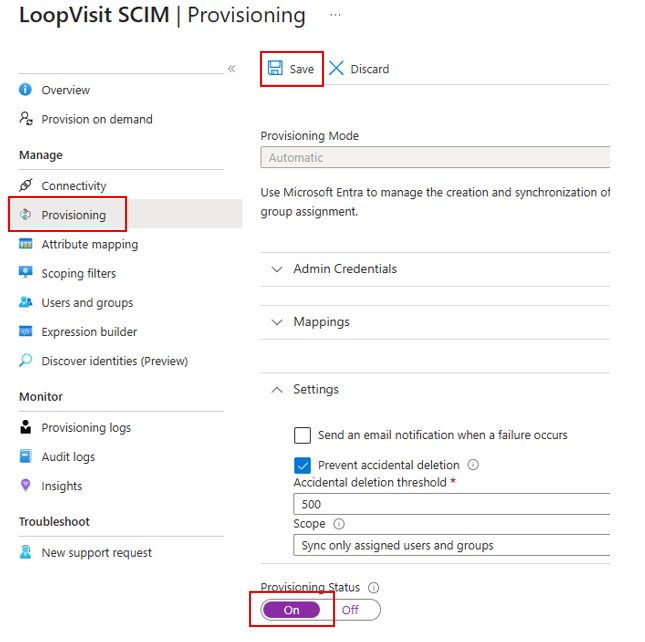
- Select Provisioning, set provisioning to On and save.
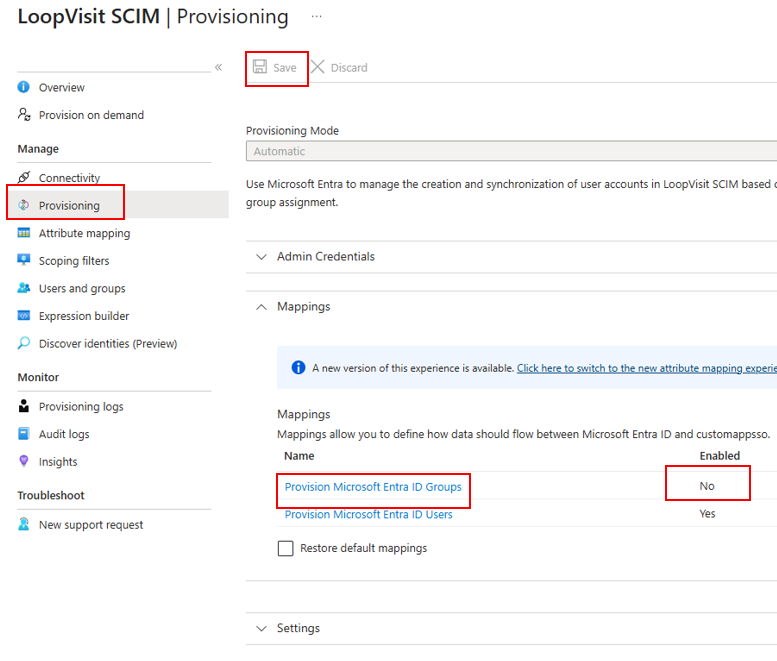
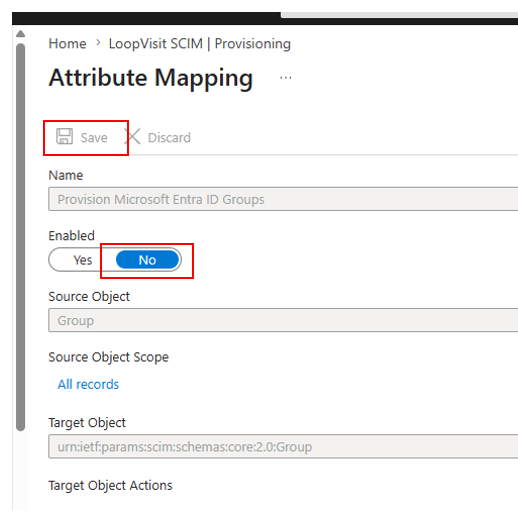
- Select Mappings and, under provisioning, set Provision Microsoft Entra ID Groups to No (select the blue field and set Enabled to No for groups), then save.
- Go to the Overview menu and select Start provisioning.
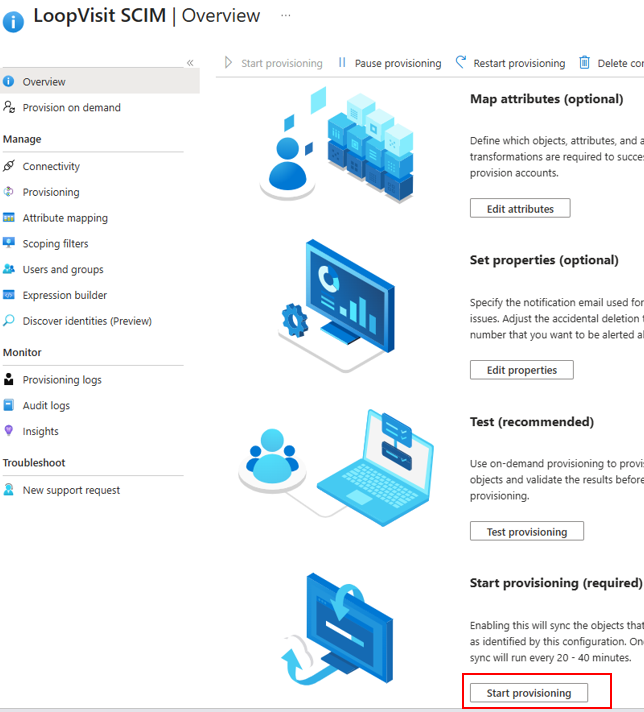
In about 40 to 60 minutes the users should start to appear in LoopVisit. Check the provisioning logs in Entra ID for information. You can also test it with the Provision on demand function in the enterprise app.
Visits are counted with Umami on Loop24’s own server in Stockholm. No cookies, and no IP addresses are stored.
Microsoft, Windows, Microsoft Edge, Entra, Exchange, Microsoft 365, Outlook, Power BI and Teams are trademarks of the Microsoft group of companies. Android, Google Play, Google Workspace, Google Sheets and Google Slides are trademarks of Google LLC. App Store is a service mark of Apple Inc. Other product and company names belong to their owners; they say what LoopSign, LoopMeeting, LoopBooking and LoopVisit work with, and imply no affiliation or endorsement.