
NFC
Here you will find information on how to configure the option to instantly book a meeting on the panel with an NFC card.
Loop24’s LoopMeeting 10″ and LoopMeeting 8″ panels made in 2021 or later have an NFC reader. NFC is enabled by configuring the integration in the RoomConfig portal and Microsoft 365. NFC booking is currently only supported on panels integrated with Microsoft 365. If a user books with their NFC card, the booking on the panel is made with the user’s account, not with the general service account.
Enable NFC
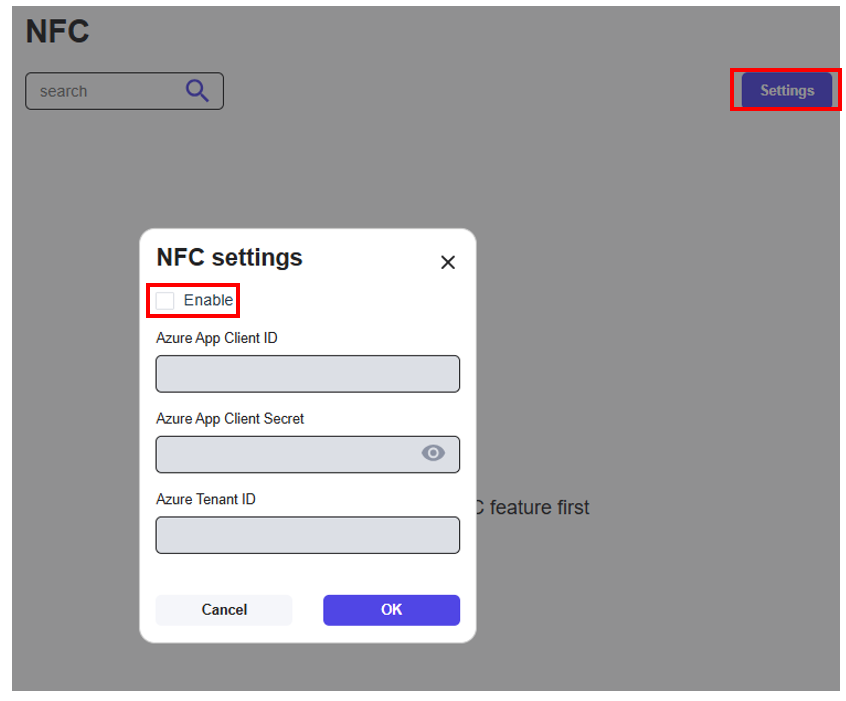
Section titled “Enable NFC”In the RoomConfig portal, under the menu item NFC, you find the configuration options. To enable the feature, select settings and configure the options as described in this guide.
Configure the Entra ID enterprise app
Section titled “Configure the Entra ID enterprise app”Add the app registration
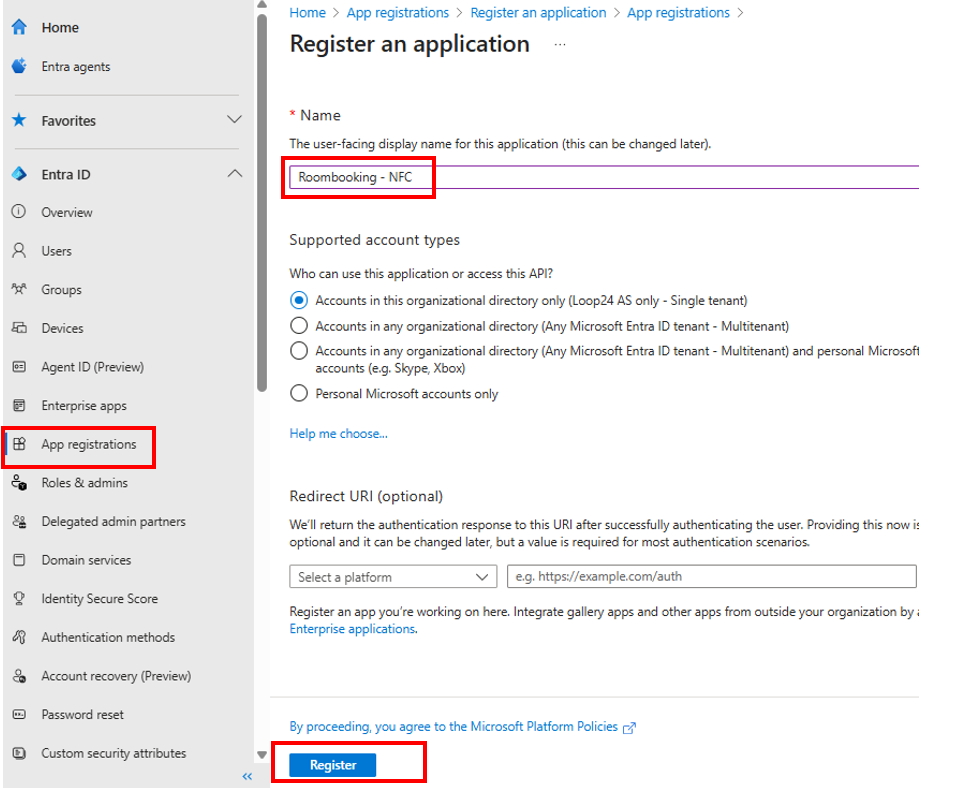
Section titled “Add the app registration”In Entra ID, add a new app registration.
Add a client secret
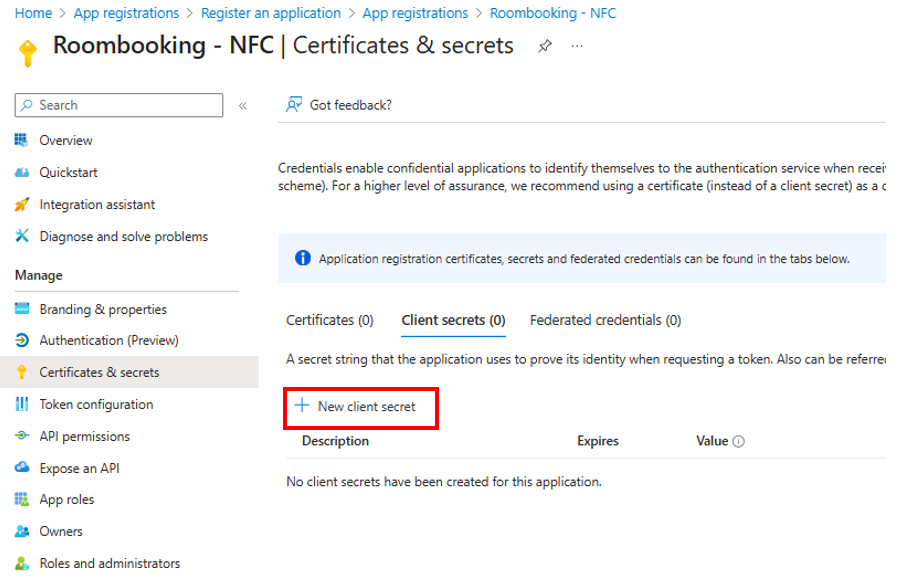
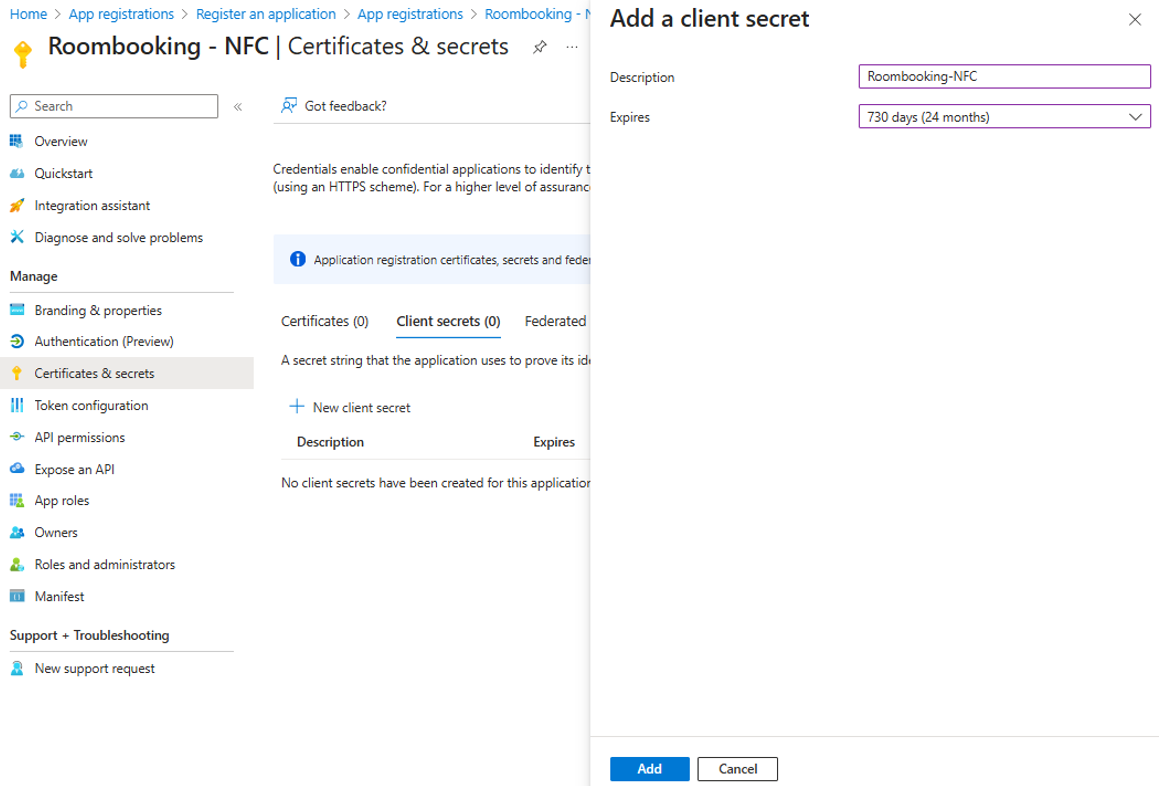
Section titled “Add a client secret”Add a client secret and fill in the secret in the NFC settings configuration. We recommend setting it to the maximum expiry time, 24 months.
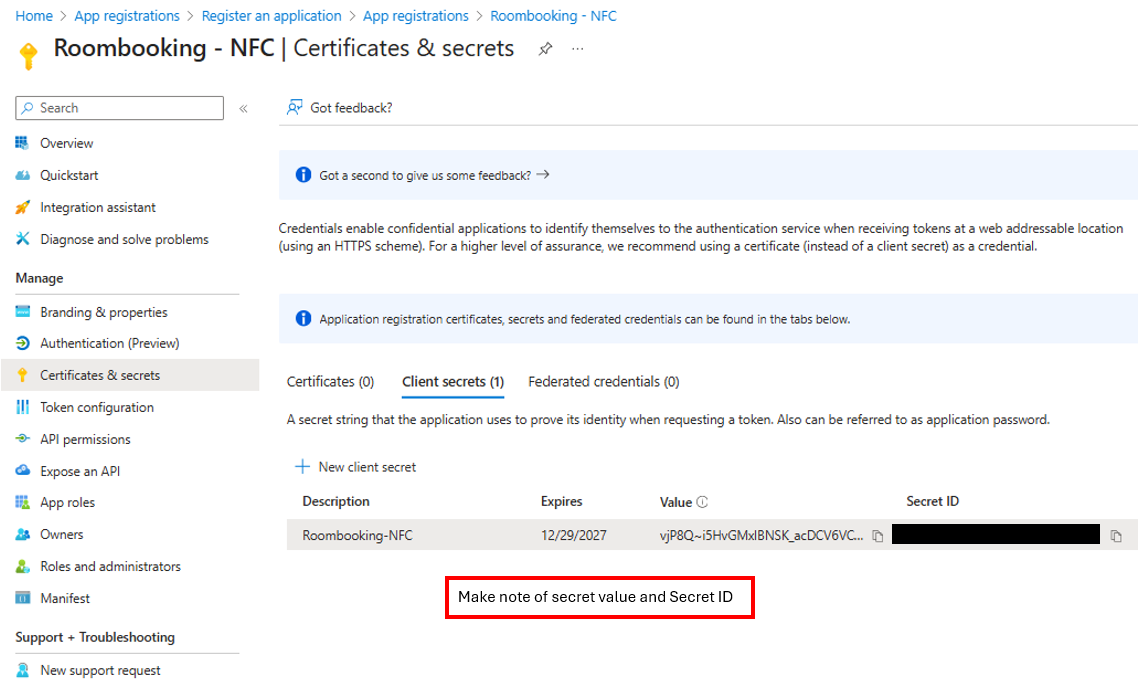
Add the API permission
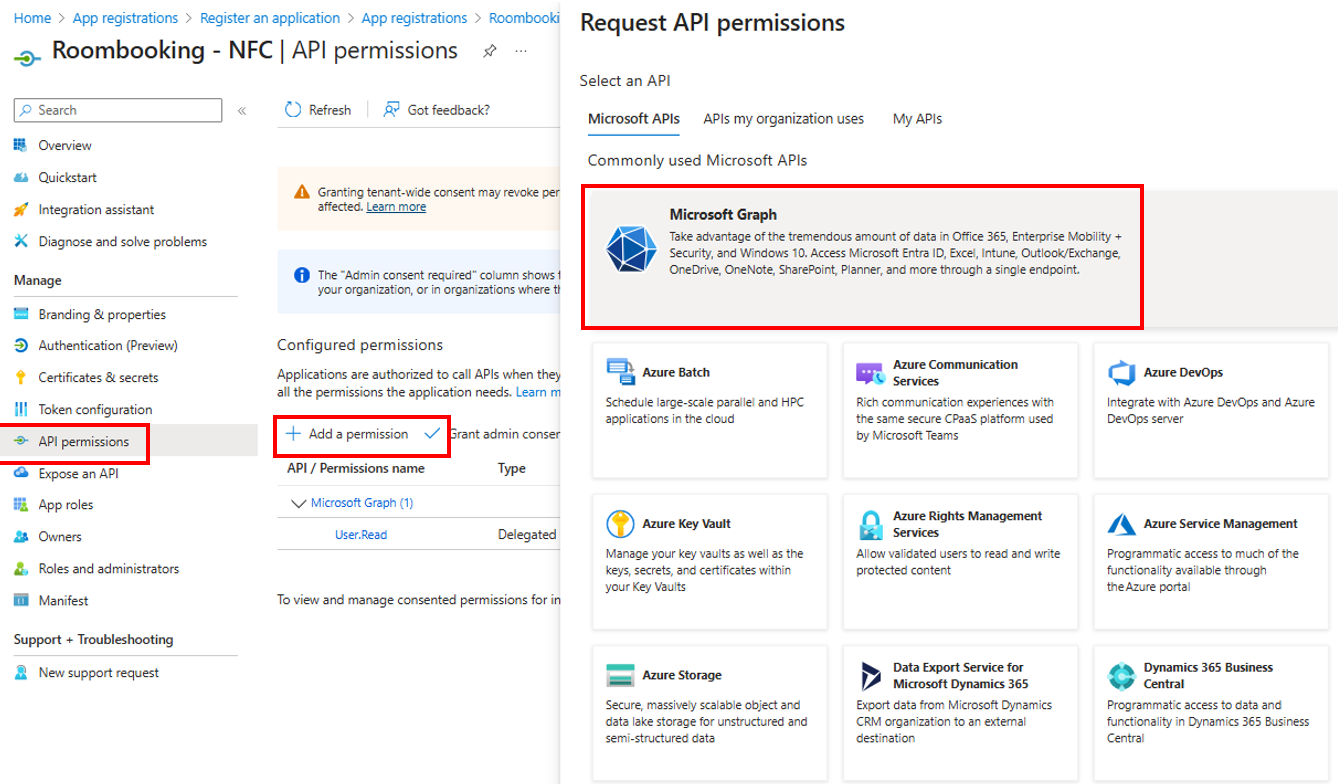
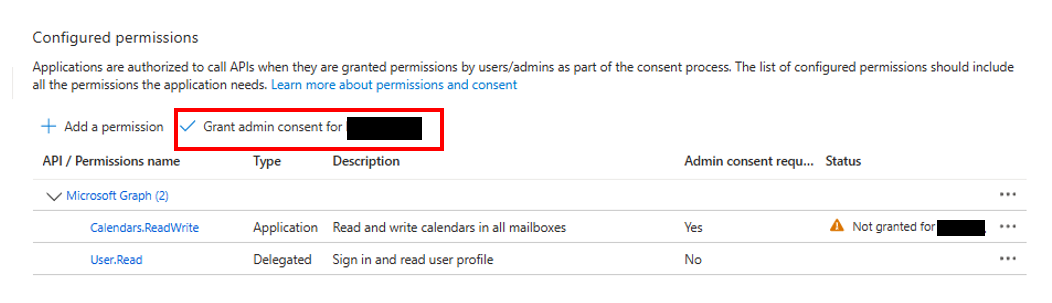
Section titled “Add the API permission”Add API permissions to the enterprise app.
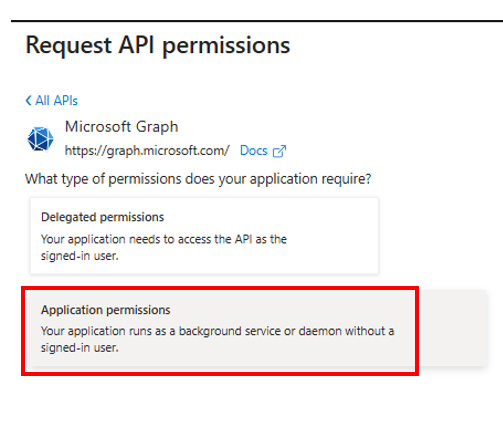
Select Application permissions.
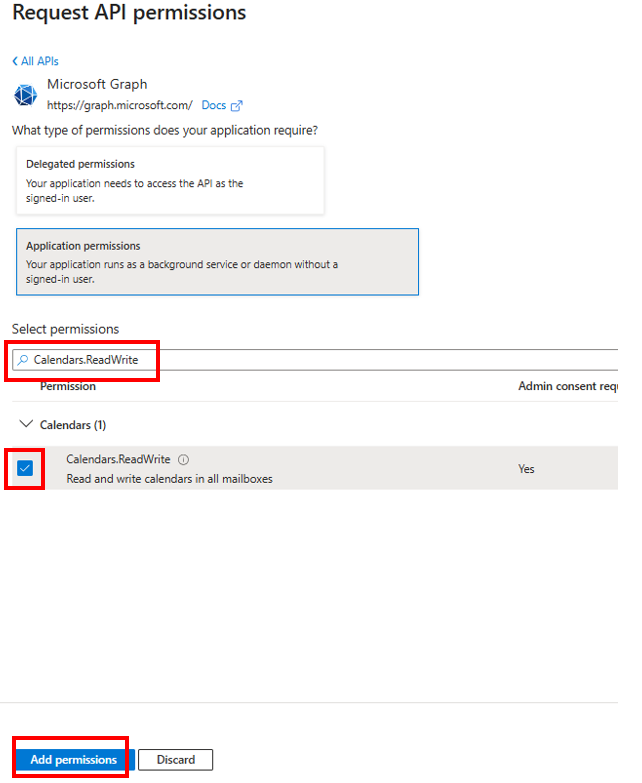
Select Calendars.ReadWrite and add the permission.
Then select Grant admin consent for your company.
Enter the values in the portal
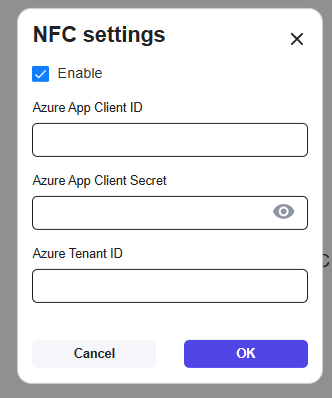
Section titled “Enter the values in the portal”Fill in the values in the NFC settings configuration:
- Azure App Client ID: the ID of the app you just created.
- Azure App Client Secret: the secret created earlier in this guide.
- Azure Tenant ID: the ID of your Entra ID (Microsoft 365) tenant.
The first time a card is scanned
Section titled “The first time a card is scanned”When a user scans their NFC card on the panel for the first time, they are asked to log in with their Microsoft 365 account. This account is then associated with the NFC card, so the user is not asked for credentials again.
Visits are counted with Umami on Loop24’s own server in Stockholm. No cookies, and no IP addresses are stored.
Microsoft, Windows, Microsoft Edge, Entra, Exchange, Microsoft 365, Outlook, Power BI and Teams are trademarks of the Microsoft group of companies. Android, Google Play, Google Workspace, Google Sheets and Google Slides are trademarks of Google LLC. App Store is a service mark of Apple Inc. Other product and company names belong to their owners; they say what LoopSign, LoopMeeting, LoopBooking and LoopVisit work with, and imply no affiliation or endorsement.