
Built-in browser (URL)
Many signage displays have a web browser built in. LoopSign can run in it: the display opens the URL of your LoopSign screen and shows it full screen. The menus are named differently from brand to brand and from model to model, but the steps are the same.
Before you start
Section titled “Before you start”- Update the display to its latest firmware.
- Set the correct time zone, time and date, and let the display synchronise the time automatically if it can. Correct time and date are essential for LoopSign.
- Connect the display to the network. Ethernet is always highly recommended, but Wi-Fi usually works as well, given a strong and stable connection.
Find the URL of your LoopSign screen
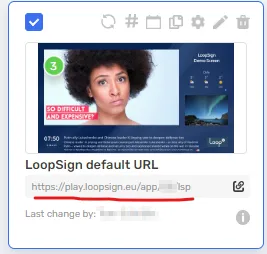
Section titled “Find the URL of your LoopSign screen”You find the URL in LoopSign, under the screen’s thumbnail. It has the form https://play.loopsign.eu/app/xxx/xxxxxxxxx.
Enter the URL in the display’s browser
Section titled “Enter the URL in the display’s browser”- Press the Source button on the remote and choose the browser source, usually called Browser.
- Open the browser’s settings or its playlist and enter the URL of your LoopSign screen. Some displays keep URLs in a numbered playlist: note the playlist number, because the schedule and the start-up source below must point at the same number.
- If the browser has the settings, enable Incognito mode and automatic reload. Reloading every 3 hours is recommended; on old models with Android 4.4 or older, every 30 minutes.
Make the display start in the browser
Section titled “Make the display start in the browser”- Press the Home button on the remote and find the setting that decides which source the display starts on. It is called Boot on source or Start on source and often sits under Configuration 1.
- Set it to the browser source and, where there is one, the playlist number that holds your URL.
Set an on/off schedule
Section titled “Set an on/off schedule”We highly recommend configuring automatic on/off to suit your needs. Shutting the display down when it is not needed prolongs its lifespan. Even if your display has to play content 24/7, schedule a short off/on each night (for example off at 02:59 and on at 03:00) to make sure the display gets a daily reboot.
- Open the display’s schedule, often Advanced option → Schedule.
- Set the start and end times and the days of the week.
- Set the schedule’s source to the browser and, where there is one, the same playlist number.
- Enable the schedule before you save it.
Check the set-up
Section titled “Check the set-up”Turn the display off and on again. It should launch the browser by itself and show your LoopSign screen.
Visits are counted with Umami on Loop24’s own server in Stockholm. No cookies, and no IP addresses are stored.
Microsoft, Windows, Microsoft Edge, Entra, Exchange, Microsoft 365, Outlook, Power BI and Teams are trademarks of the Microsoft group of companies. Android, Google Play, Google Workspace, Google Sheets and Google Slides are trademarks of Google LLC. App Store is a service mark of Apple Inc. Other product and company names belong to their owners; they say what LoopSign, LoopMeeting, LoopBooking and LoopVisit work with, and imply no affiliation or endorsement.