
FAQ
Always make sure you are using the latest version of LoopMeeting: How to update to the latest LoopMeeting version.
When I enroll a panel, the panel does not respond
Section titled “When I enroll a panel, the panel does not respond”There could be two reasons for this issue.
- The panel does not have a valid licence: send a picture of the serial number label or MAC address to Loop24 support, support@loop24.no.
- A firewall may be blocking WebSocket communication to or from the panel. Make sure that traffic to and from
*.roomconfig.comis not blocked in any way.
I get “Error – There was an error while fetching roomlist data”
Section titled “I get “Error – There was an error while fetching roomlist data””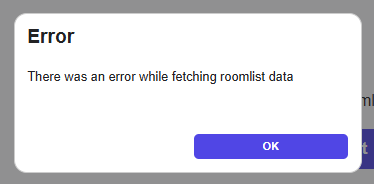
In most cases this is caused either by the service account not having a Microsoft 365 licence (a mailbox), or by the LoopMeeting enterprise app not being registered properly or missing admin consent.
Make sure you have followed these guides:
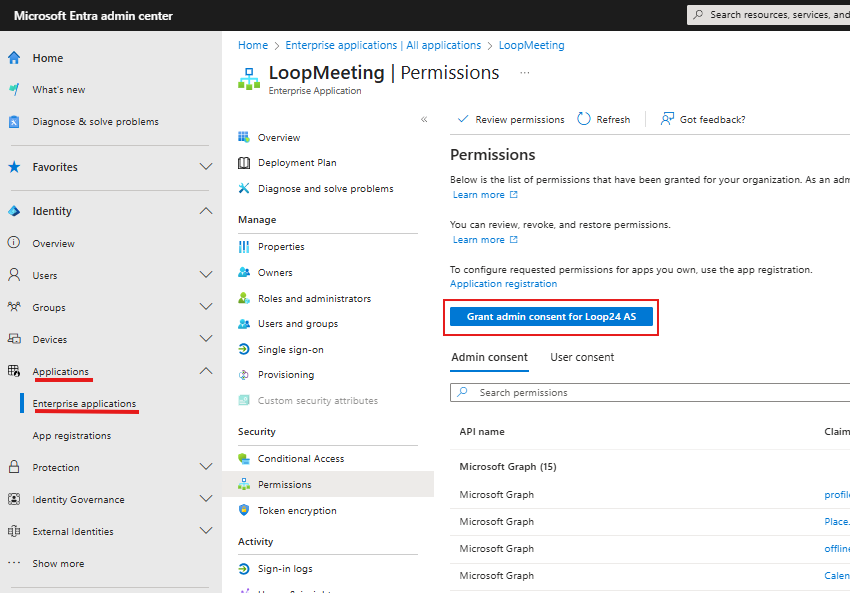
You can also confirm admin consent for the LoopMeeting enterprise app: in the Microsoft Entra admin center, https://entra.microsoft.com/ (log in as Global Administrator), select Applications and Enterprise applications, then select the LoopMeeting enterprise application, select Permissions and select Grant admin consent; confirm with the Global Administrator account.
My panel is unstable, hangs, goes offline and sometimes does not start
Section titled “My panel is unstable, hangs, goes offline and sometimes does not start”In many cases we have seen that network PoE+ switches do not deliver enough and consistent power. Some switches are simply poor quality; others need to be configured to deliver enough power.
LoopMeeting panels require PoE+ if you power the panel from a network switch. On average a panel uses about 10 W, but it can peak at 25 W. Note that a PoE switch has a certain total power available for PoE, and the more PoE devices you connect to the switch, the less power is available to each device.
- Make sure that your switch follows the PoE+ (25.5 W) or PoE++ (51 W) standard. A standard PoE (12.95 W) switch does not work: the panel will be unstable.
- If you have a Cisco switch, make sure the ports with a panel connected are configured to deliver maximum PoE output (
power inline static max 30000). - If you have many PoE devices, try to distribute them evenly between your switches.
Most mid-range and high-end switches have a management console where you can check and monitor PoE power consumption. Make sure you are well within the limits of what the switch can deliver.
When I book on the panel it goes busy for a few seconds, then back to free
Section titled “When I book on the panel it goes busy for a few seconds, then back to free”There could be three reasons for this issue.
- The service account used under Server settings does not have full access rights delegated to the meeting room, so it has no permission to write bookings to the room calendar. See section 4 of Create the Microsoft 365 service account, or section 4 of Create the Google Workspace service account.
- You did not use the service account when adding the server under Server settings, but an admin account or your own account by mistake.
- The service account does not have a valid mailbox, or a valid Microsoft 365 or Google Workspace licence.
The panel shows the organiser’s name, no subject or a cancelled meeting
Section titled “The panel shows the organiser’s name, no subject or a cancelled meeting”The panel shows what the room’s calendar in Microsoft 365 holds. By default, Microsoft 365 replaces the meeting subject with the organiser’s name and keeps cancelled meetings in the room’s calendar. How to check and change these settings, and why a change applies to new bookings only: Room calendar settings.
How do I perform a factory reset of my panel?
Section titled “How do I perform a factory reset of my panel?”See Factory Reset.
How do I reconfigure my LoopMeeting panel (legacy portal)?
Section titled “How do I reconfigure my LoopMeeting panel (legacy portal)?”If you want to connect your panel to another room or environment, you can easily reset the settings on your panel.
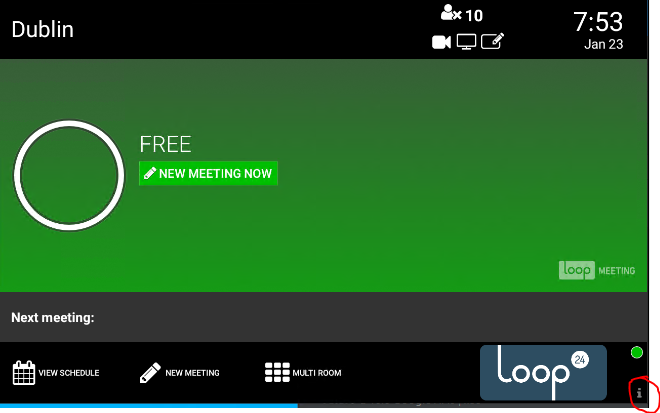
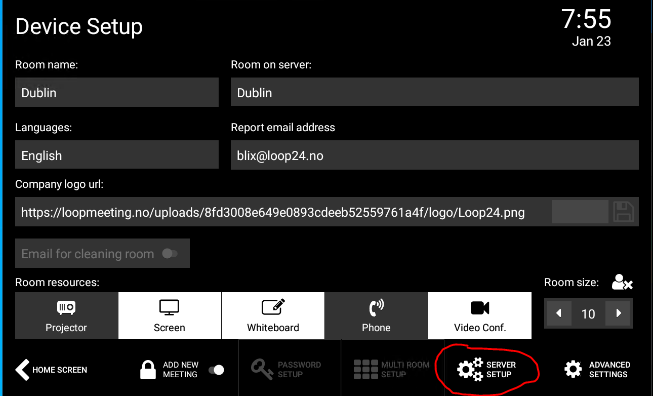
- Tap the i in the lower right corner.
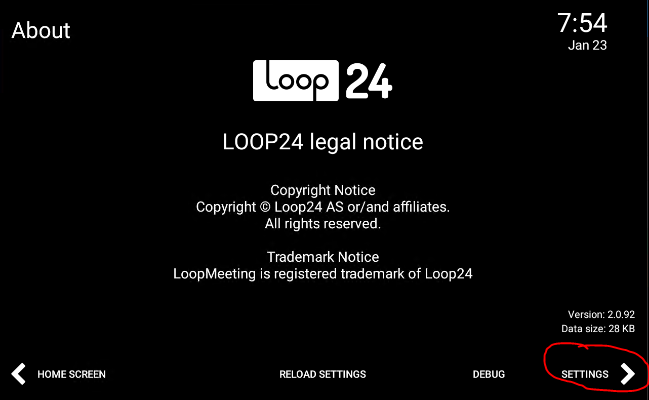
- Select Settings and enter the password or PIN if one is set.
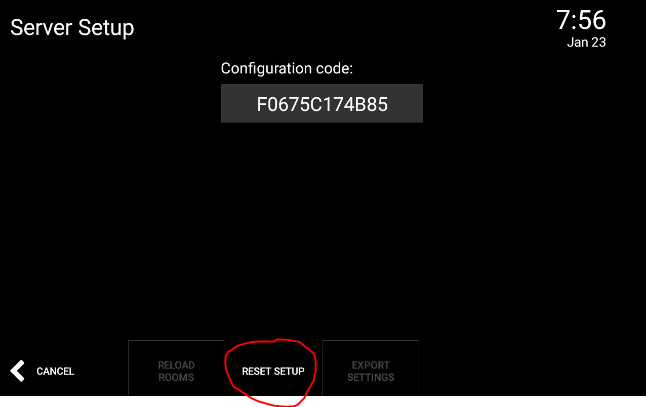
- Select Server Setup in the bottom menu.
- Select Reset setup and confirm with OK.
- Select Check for update to make sure your app is up to date.
Now your panel is ready to be configured for another room or environment.
Panels are in “No Calendar Connection” status, stopped getting calendar data, show a red connection indicator, or say “You have insufficient privileges to access xxxxx room calendar”
Section titled “Panels are in “No Calendar Connection” status, stopped getting calendar data, show a red connection indicator, or say “You have insufficient privileges to access xxxxx room calendar””If the server type under Server settings is Microsoft 365 (EWS), start with Is LoopMeeting affected by Microsoft’s switch-off of EWS?.
1. Check that your service account has full access rights to the room
Section titled “1. Check that your service account has full access rights to the room”See section 4 in this guide: Create the Microsoft 365 service account
2. Make sure you used the service account when adding the server under Server settings
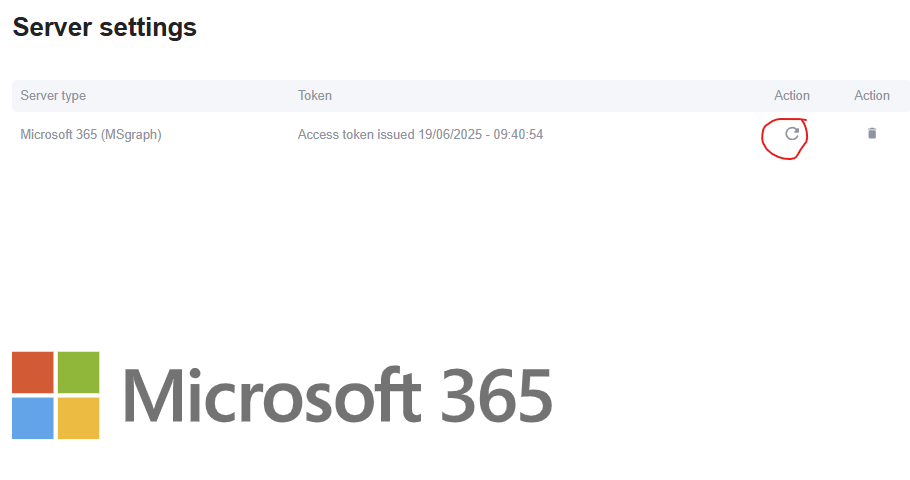
Section titled “2. Make sure you used the service account when adding the server under Server settings”A common mistake is to use the tenant admin or your own account when adding the server under Server settings. It only works with the designated service account, so make sure you did not use any other account. You can change the account by opening Server settings and selecting Refresh.
3. Make sure your panel has network and internet access, and no proxy or firewall filters the traffic
Section titled “3. Make sure your panel has network and internet access, and no proxy or firewall filters the traffic”Panels need the following ports and protocols open (outbound):
- HTTPS (port 443) to Microsoft 365, Exchange, Google, LoopBooking or Nexudus, depending on the calendar system you connect to.
- HTTPS (port 443) to the host
*.loopmeeting.no: the connection to the management console (the legacy console). - HTTPS (port 443) to the host
*.roomconfig.com: the connection to the management console. - NTP (port 123), to synchronise time and date with NTP servers.
4. Make sure no Conditional Access policies apply to the LoopMeeting application
Section titled “4. Make sure no Conditional Access policies apply to the LoopMeeting application”Check the Conditional Access settings for the LoopMeeting enterprise application in the Microsoft Entra admin center. Make sure there are no policies that prevent connection from Android, or other settings that prevent the connection.
5. Reconfigure your panel
Section titled “5. Reconfigure your panel”See How do I reconfigure my LoopMeeting panel (legacy portal)?
6. Check the application rights
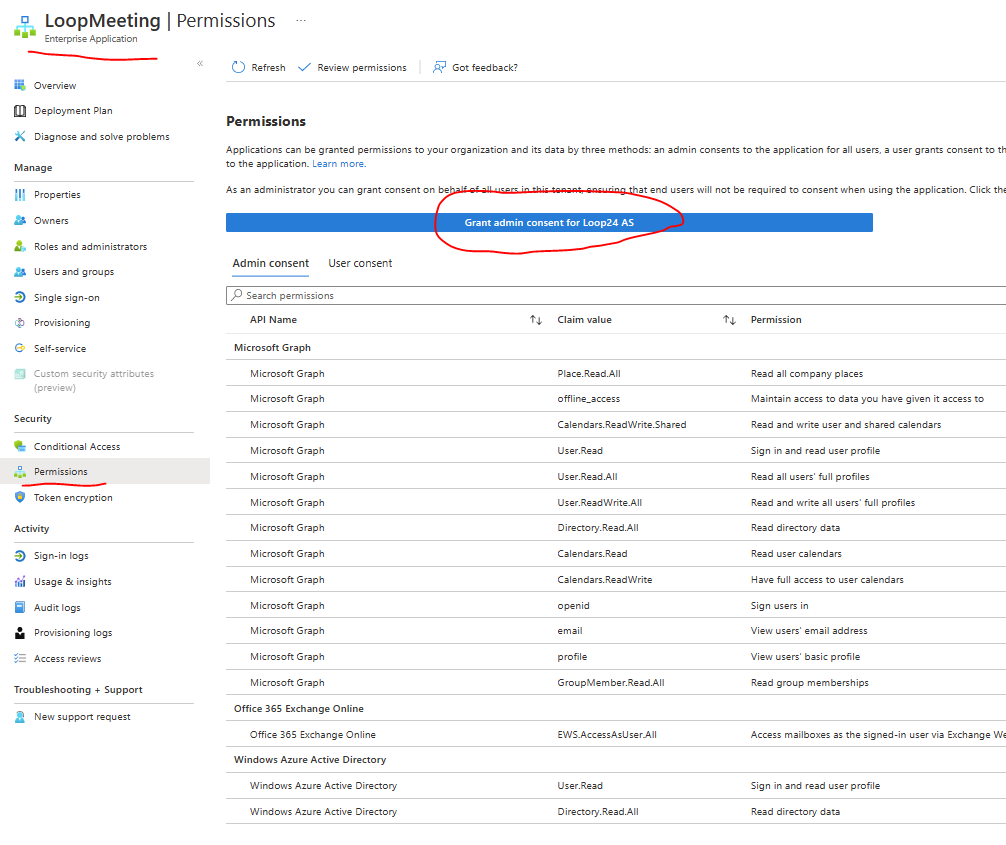
Section titled “6. Check the application rights”In the Microsoft Entra admin center, select Enterprise applications, then the LoopMeeting enterprise application, then Permissions, and select the blue area to grant access to the application.
7. Check the service account’s rights to the LoopMeeting application
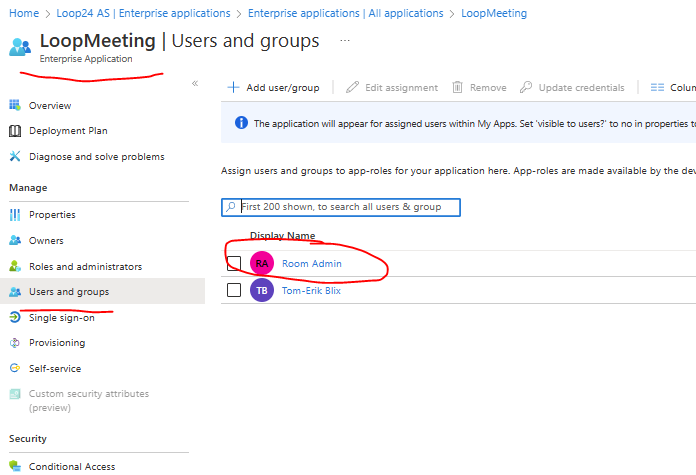
Section titled “7. Check the service account’s rights to the LoopMeeting application”Select the LoopMeeting enterprise application, then Users and groups, and make sure the service account is present.
Is LoopMeeting affected by Microsoft’s switch-off of EWS?
Section titled “Is LoopMeeting affected by Microsoft’s switch-off of EWS?”Only if your Microsoft 365 server in the RoomConfig portal has the server type Microsoft 365 (EWS). Microsoft is switching off EWS in Exchange Online, for good on 1 April 2027. Move to Microsoft 365 (MSgraph) as described in Move from EWS to Microsoft Graph. The server types Microsoft 365 (MSgraph) and Exchange “on prem” are not affected.
There are no rooms visible in my configuration console
Section titled “There are no rooms visible in my configuration console”In most cases you did not create a room list as described in 5. Create room lists of the service account guide. Check and confirm that you have at least one valid room list. Note also that the distribution list needs to be converted into a room list, which is only possible with PowerShell commands; follow 5.1 Convert the distribution list to a room list.
If the room itself does not exist yet, create it first: Create room mailboxes in Microsoft 365, Create room resources in Google Workspace or Create room mailboxes in Exchange on-premises.
Create the Microsoft 365 service account
I get double entries of panels in my console status (legacy portal)
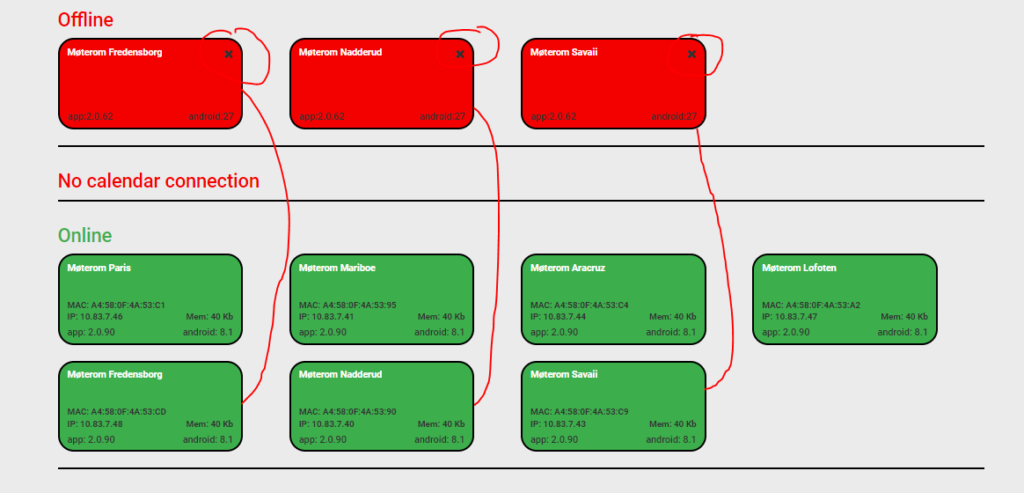
Section titled “I get double entries of panels in my console status (legacy portal)”We added a feature to the console so that it supports the status of more than one panel per room. If you had an older app version when this change was implemented on our side, you could have duplicates in your status console.
To fix this, just delete the duplicate with offline status.
My panel blinks when I try to enter the licence key
Section titled “My panel blinks when I try to enter the licence key”The picture blinks or loops, as in the video below. Follow these steps to correct this behaviour:
- Between the blinks you see some menu items at the bottom of the screen. Tap the circle or the square when it pops up, and exit the LoopMeeting app.
- When the application is closed, enter the Android settings.
- Select Apps & Notifications.
- Select the application LoopMeeting.
- Select Storage and Cache.
- Tap Clear Storage.
- Exit the settings and start the LoopMeeting app. Do not enter the licence key; select Demo Mode instead.
- Select App Update.
- Now you can enter the licence key and continue with the configuration.
Why does my application stop and only display the company logo at startup?
Section titled “Why does my application stop and only display the company logo at startup?”Try restarting the panel by disconnecting the power and reconnecting it. In some rare cases the configuration gets corrupted; then factory reset the panel and make sure you use the latest app version: How to perform a factory reset
My panel just shows a blank black screen with some small icons at the bottom
Section titled “My panel just shows a blank black screen with some small icons at the bottom”In most cases this is due to an issue with the configuration settings, and a factory reset is needed: How to perform a factory reset
What are the licence requirements for my calendar backend?
Section titled “What are the licence requirements for my calendar backend?”Note that some competing products need one Microsoft Teams Rooms licence per device. They may be cheaper to buy, but you need to take the licence cost into account to get the total cost of ownership.
Microsoft licences for meeting room panels explains what a Teams panel and a LoopMeeting panel each need.
Microsoft 365
Section titled “Microsoft 365”With the Microsoft Graph API, the service account needs one Exchange Online licence (or higher), not one per panel.
Exchange
Section titled “Exchange”One user CAL per 15 devices. The service account needs a mailbox, and one service account can be used on up to 15 panels (more with a custom EWS throttling policy).
Google Workspace
Section titled “Google Workspace”One Google Workspace Business licence covers an unlimited number of panels.
This video isn’t in your offline copy.
Visits are counted with Umami on Loop24’s own server in Stockholm. No cookies, and no IP addresses are stored.
Microsoft, Windows, Microsoft Edge, Entra, Exchange, Microsoft 365, Outlook, Power BI and Teams are trademarks of the Microsoft group of companies. Android, Google Play, Google Workspace, Google Sheets and Google Slides are trademarks of Google LLC. App Store is a service mark of Apple Inc. Other product and company names belong to their owners; they say what LoopSign, LoopMeeting, LoopBooking and LoopVisit work with, and imply no affiliation or endorsement.