
SharePoint/OneDrive widget
The SharePoint/OneDrive widget shows one Word, Excel, PowerPoint or PDF file from OneDrive or SharePoint on a LoopSign screen, page by page. It follows the file: when someone saves a change, the screen shows it, usually within five minutes.
Before you start
Section titled “Before you start”- The widget reads the file through its own enterprise app in Microsoft Entra ID, LoopSign-Sharepoint (publisher Loop24 AS). It is not the Calendar widget’s app.
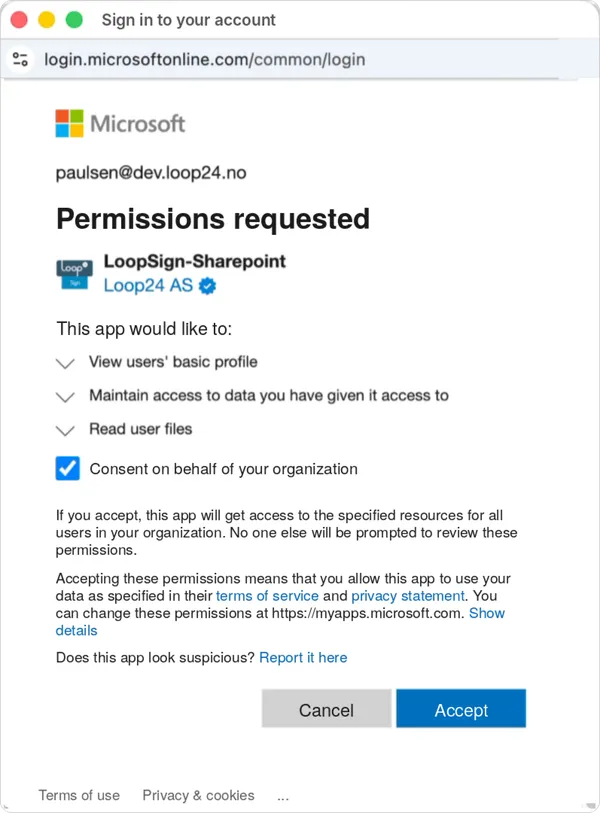
- The first time the widget is connected in your Microsoft 365 tenant, a Global Administrator signs in and consents on behalf of the organisation. After that, editors connect the widget without being asked again.
- The widget reads the file as the signed-in account. Without the extra consent in step 2, the account can pick files in its own OneDrive and other files it owns; with it, also files from the tenant’s SharePoint sites.
- We recommend a service account rather than a personal one, so the screen keeps working when people leave.
Multi-factor authentication (MFA) is not recommended on the service account: it ties the account to one person, and the integration might stop working when that person leaves the company. The password must never expire.
Set up the widget
Section titled “Set up the widget”1. Add the widget
Section titled “1. Add the widget”In the screen editor, select the screen area where the file should show, and select Add at the right end of the timeline. In Widgets available on screen, select SharePoint/OneDrive.
2. Optional: allow files from SharePoint sites
Section titled “2. Optional: allow files from SharePoint sites”Without this step, editors can pick only files in their own OneDrive and other files they own. To let them pick files from the tenant’s SharePoint sites, a Global Administrator selects Microsoft 365 Enterprise App Registration in the widget settings, signs in and accepts the permissions on behalf of the organisation. This is done once per tenant, before an editor connects the widget.
3. Enter your SharePoint address and connect
Section titled “3. Enter your SharePoint address and connect”In Base URL, enter your tenant’s SharePoint address, https://<tenant>.sharepoint.com, also when the file is in OneDrive. Then select Connect. A Microsoft sign-in window opens.
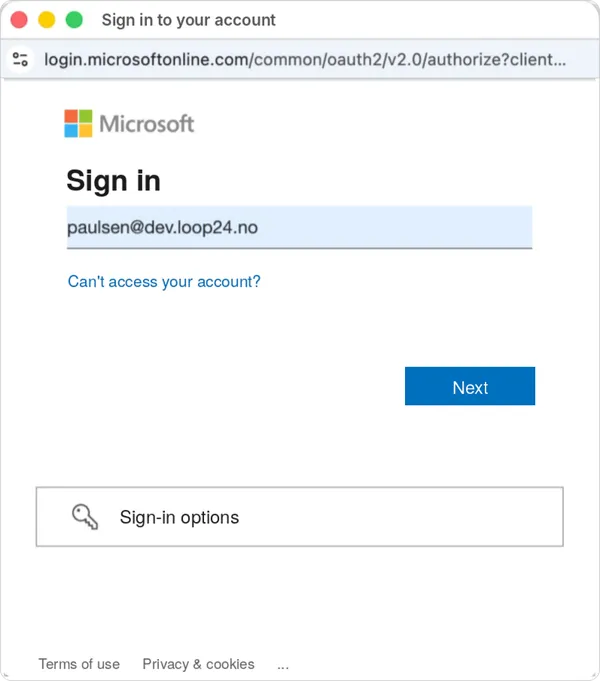
Sign in with the account the widget should use. The first time in your tenant, use a Global Administrator account.
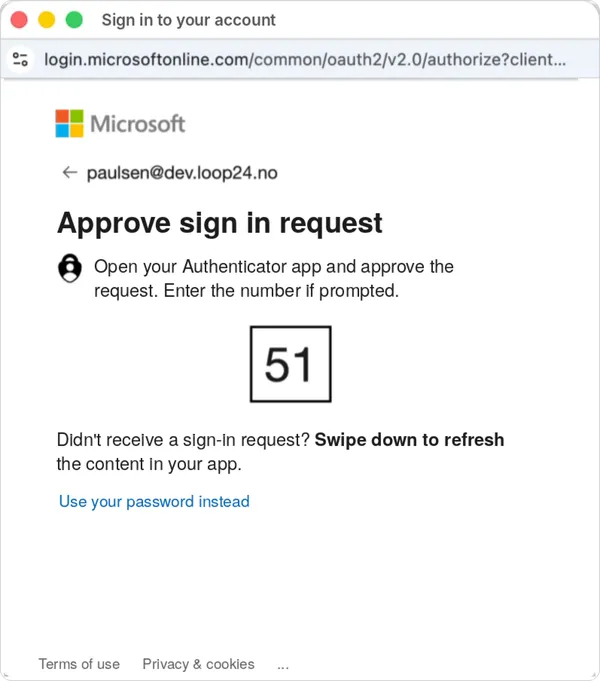
If Microsoft asks you to approve the sign-in, approve it in the Authenticator app.
4. Consent on behalf of your organisation
Section titled “4. Consent on behalf of your organisation”The first time, Microsoft lists the permissions LoopSign-Sharepoint asks for: View users’ basic profile, Maintain access to data you have given it access to and Read user files. Tick Consent on behalf of your organization and select Accept.
5. Pick the file
Section titled “5. Pick the file”Open file picker now shows in the screen area. Select it, find the file (for example under My files), select it and select Select.
LoopSign then prepares the file for the screen. Until it is ready, the screen area says Processing - please be patient. It might take several minutes to finalize. Wait until the first page shows in the screen area before you save. The widget settings then show the file’s name and when it was last modified.
The widget settings also have these fields:
- Stretch content by: set to Width or Height, each page is fitted to the screen area’s width or height. The page keeps its proportions, and Background fill shows in the space left over.
- Play mode: the transition between pages, for example Fade.
Under Display settings you set the duration, the scheduling and the publishing to other screens, as for every widget; see the tutorial Display settings. The duration is per page, as in the Gallery widget: the widget stays on screen for the duration multiplied by the number of pages.
6. Save
Section titled “6. Save”Remember to select Save at the end to keep the changes you made. The changes will manifest on the connected physical screen(s) within 15 minutes.
When the file changes
Section titled “When the file changes”When someone saves a change to the file, the screen shows it, usually within five minutes. LoopSign waits two minutes after the last save, so that AutoSave in Office does not put half-finished edits on the screen, and a file with many pages takes a little longer.
This video isn’t in your offline copy.
Visits are counted with Umami on Loop24’s own server in Stockholm. No cookies, and no IP addresses are stored.
Microsoft, Windows, Microsoft Edge, Entra, Exchange, Microsoft 365, Outlook, Power BI and Teams are trademarks of the Microsoft group of companies. Android, Google Play, Google Workspace, Google Sheets and Google Slides are trademarks of Google LLC. App Store is a service mark of Apple Inc. Other product and company names belong to their owners; they say what LoopSign, LoopMeeting, LoopBooking and LoopVisit work with, and imply no affiliation or endorsement.