
Teams notifications
Here you will find information on how to set up Microsoft Teams notifications in LoopVisit.
With the Teams integration, your employees get a Microsoft Teams message when a visitor registers their arrival on the LoopVisit kiosk. It is a third notification option beside SMS and email, and each of the three is enabled separately.
1. Add the LoopVisit app to Teams
Section titled “1. Add the LoopVisit app to Teams”You need a Global Administrator or Teams Administrator account.
-
Download the LoopVisit Teams app: https://updates.loopvisit.com/visit/loopvisit_teams_bot.zip.
-
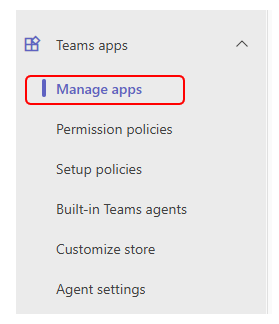
Log in to the Teams admin center, https://admin.teams.microsoft.com/dashboard, and select Manage apps under Teams apps.
-
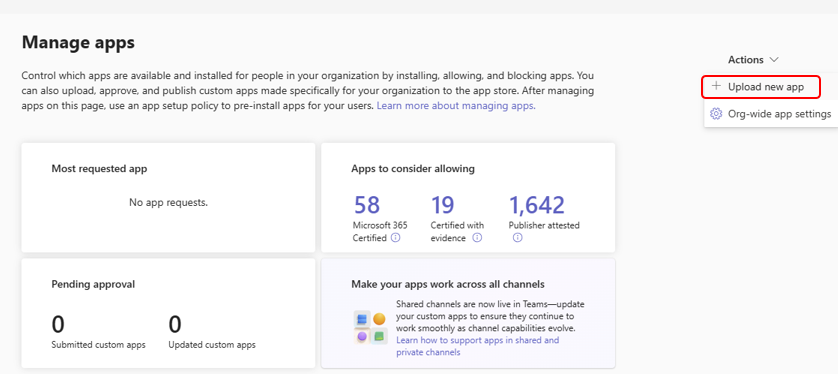
Select Actions, then Upload new app (in some tenants the button sits on the page itself), and upload the ZIP file you downloaded.
-
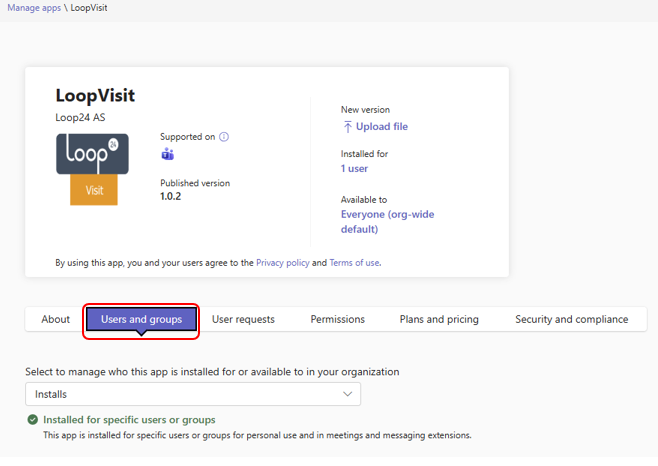
Open the app to manage it. If it is not shown, search for LoopVisit on the Manage apps page.
-
On the Users and groups tab, select who gets the app: under Installs, the users and groups that get the app installed automatically; under Availability, the users who can add the app themselves (optional installation).
It can take a few hours before the app is available to your employees.
2. Enable Teams notifications in LoopVisit
Section titled “2. Enable Teams notifications in LoopVisit”-
Log in to the LoopVisit portal, https://visit.loopvisit.com, and select Settings.
-
Select Enable Teams message to employee, then Submit.
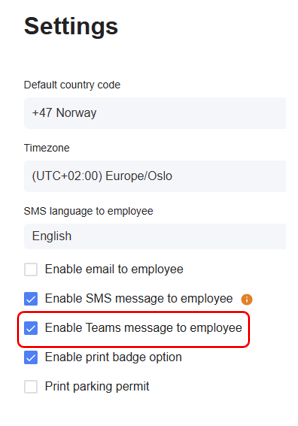
The message is sent in the language selected under SMS language to employee.
If tenants have custom settings, each tenant that wants Teams notifications must enable the option as well.
How employees add the app themselves
Section titled “How employees add the app themselves”We strongly recommend that the administrator installs the app for the selected users or groups (Installs above). If your organisation has made the app optional, users add it themselves:
-
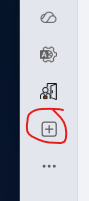
In Teams, select + in the menu on the left.
-
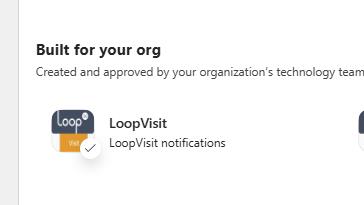
Find LoopVisit under Built for your org, or search for LoopVisit.
-
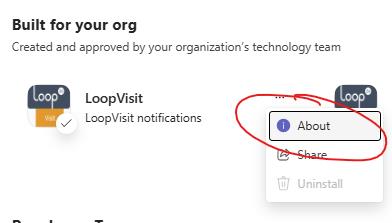
Open the app’s … menu and select About.
-
Select Add.
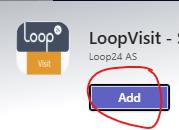
The LoopVisit app is now installed for the user.
Visits are counted with Umami on Loop24’s own server in Stockholm. No cookies, and no IP addresses are stored.
Microsoft, Windows, Microsoft Edge, Entra, Exchange, Microsoft 365, Outlook, Power BI and Teams are trademarks of the Microsoft group of companies. Android, Google Play, Google Workspace, Google Sheets and Google Slides are trademarks of Google LLC. App Store is a service mark of Apple Inc. Other product and company names belong to their owners; they say what LoopSign, LoopMeeting, LoopBooking and LoopVisit work with, and imply no affiliation or endorsement.